

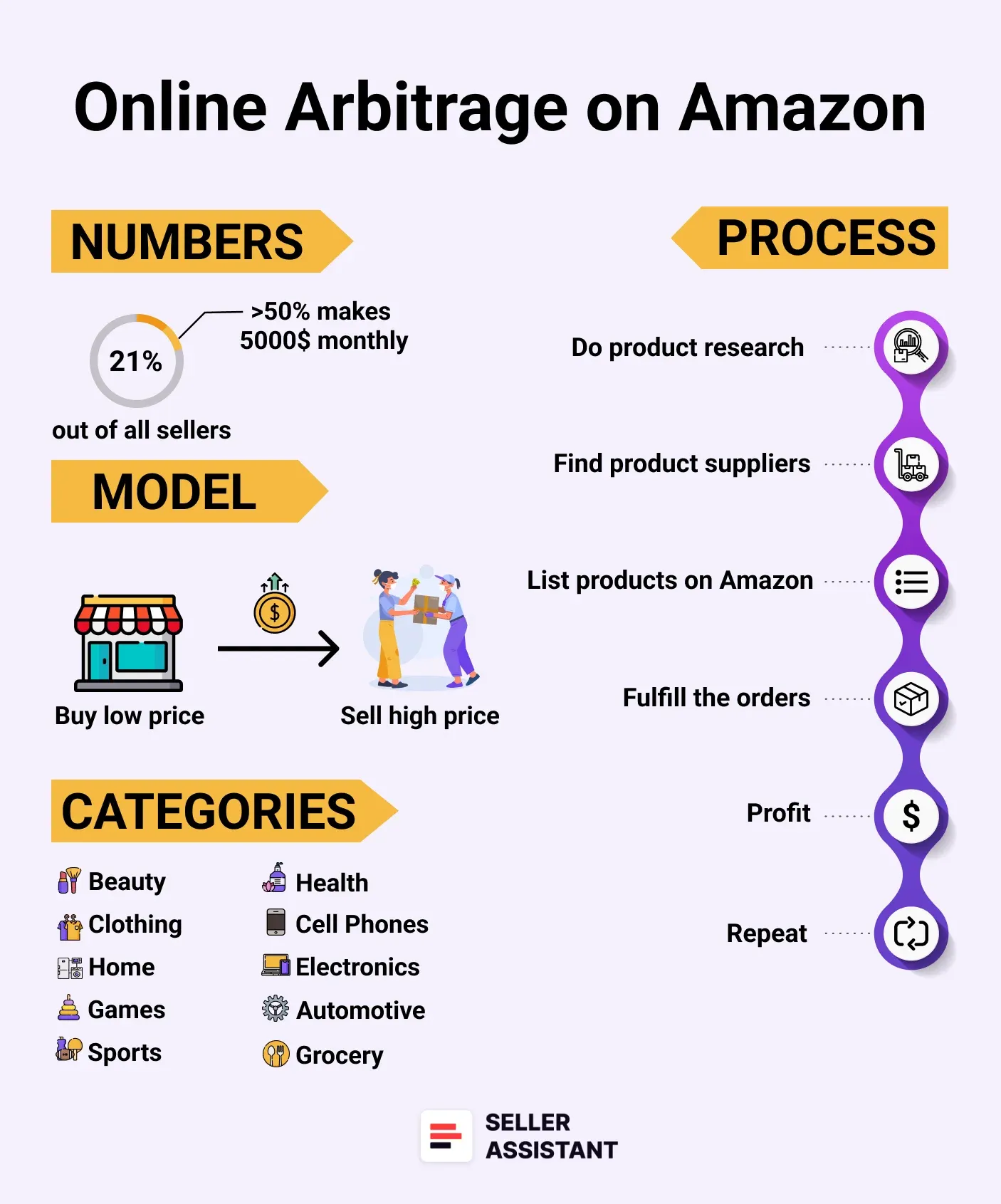
If you’re new to selling on Amazon, online arbitrage is a great way to start making money with minimal risk and investment. In this business model you buy discounted products online and resell them for a profit on Amazon. According to Jungle Scout, 21% of Amazon sellers use online arbitrage, making it one of the most popular methods to start an Amazon business.
Why is online arbitrage so attractive to beginners? Unlike private label or wholesale, it doesn’t require a big upfront budget, and you can test the waters without committing to a large inventory. With the right strategy and product research, even small purchases can turn into steady profits.
In this guide, we’ll cover everything you need to know about online arbitrage for beginners, from key terms to sourcing strategies and pricing tips.
What Is Online Arbitrage?
What Is Online Arbitrage?
Online Arbitrage (OA) is a business model where sellers buy discounted or underpriced products from online retailers and resell them on Amazon for a profit. The key idea is price difference – finding products that are cheaper on one platform and selling them at a higher price on another.
This model is popular among beginners because it requires low upfront investment and no need for brand creation or manufacturing. Unlike wholesale, where you buy in bulk from suppliers, OA allows you to start small and scale up over time.
The big idea behind online arbitrage
Online Arbitrage is about finding cheap products, reselling at a higher price, and pocketing the profit.
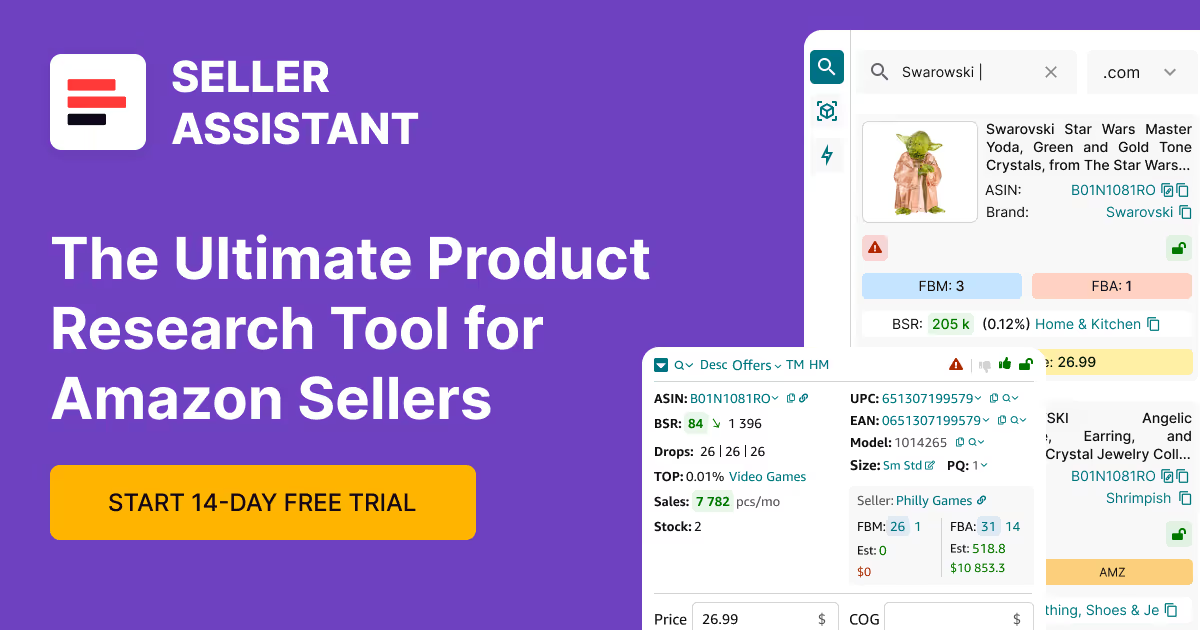
Sellers use product sourcing software tools (such as Seller Assistant) to choose best-selling and high-margin deals, estimate demand, and calculate profitability before purchasing products.
Online arbitrage works because of market price differences – retailers may offer discounts, clearance deals, or regional pricing deviations, creating opportunities for resellers to profit on Amazon’s marketplace.
With the right research and sourcing strategies, anyone can turn online arbitrage into a profitable Amazon business.
How is profit generated?
Profit in online arbitrage comes from the difference between the buying price and the selling price, after accounting for Amazon fees and shipping costs. The formula looks like this:
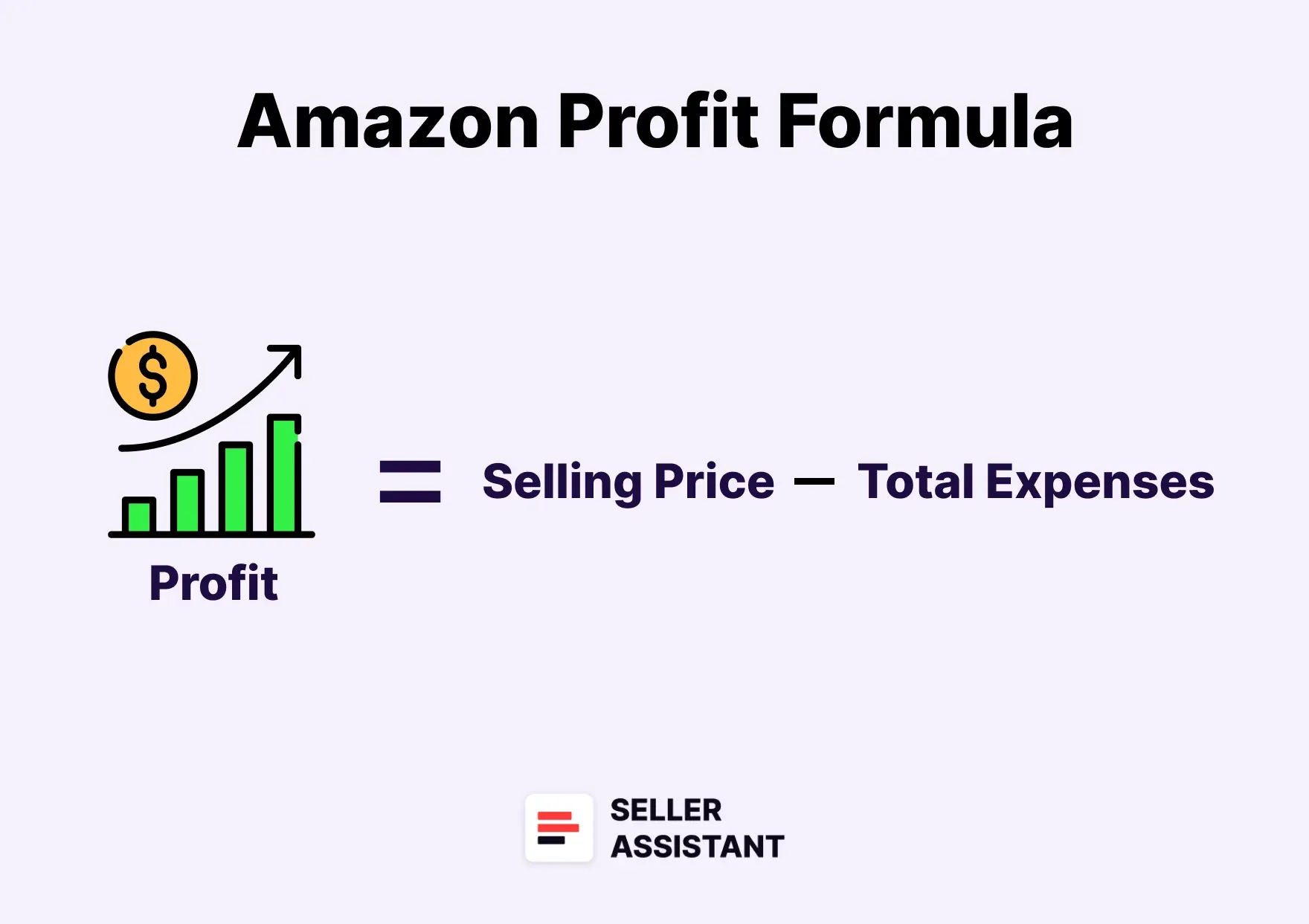
Profit = Selling Price - (Cost of Goods + Amazon Fees + Other Expenses)
To maximize profit, sellers look for products with:
- High demand
Consistent sales on Amazon
- Moderate competition
Not too many sellers on the listing
- Good profit margins
After all costs, the product still brings a decent return.
Real-world example of online arbitrage in action
Let’s say you find a LEGO set on Walmart’s website for $30 during a clearance sale. You check Amazon, and the same set is selling for $60.
Step-by-step process
- Buy the product
Purchase the LEGO set from Walmart for $30.
Create a listing or add to an existing one.
Amazon takes $10 in fees (FBA fulfillment, referral fee, etc.).
- Ship to Amazon
If using FBA (Fulfillment by Amazon), you send the product to their warehouse.
- Sell for a profit
When the product sells for $60, Amazon deducts fees, and you are left with:
- Selling price: $60
- Amazon fees: -$10
- Cost of goods: -$30
- Total profit: $20
- ROI: 66% ($20 profit ÷ $30 cost x 100).
Key Points to Remember about Online Arbitrage
Online arbitrage can be a profitable and low-risk way to start selling on Amazon, but success depends on making the right decisions. Here are the key insights every beginner should keep in mind.
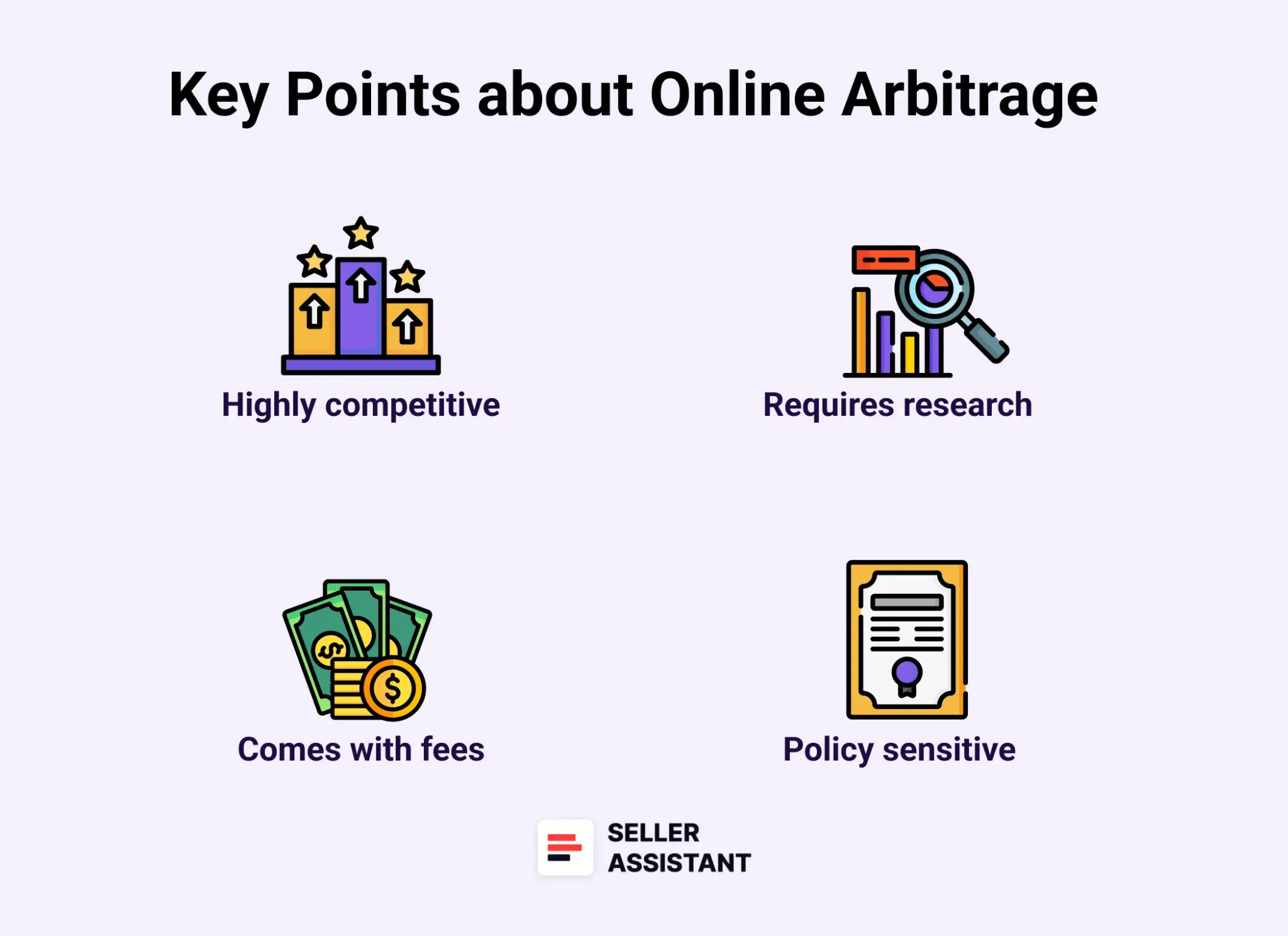
Key Points to Remember about Online Arbitrage
Winning product is key
Choosing high-demand, low-competition products is crucial. Avoid restricted or flagged items to prevent listing issues and unnecessary risks.
Product research takes time but is essential
Finding profitable products requires thorough research, and it can be time-consuming. However, tools like Seller Assistant can speed up the process and help you make data-driven decisions.
Use discounts and cashback to lower costs
Successful OA sellers use every possible way to lower costs, including discounts, cashback, coupons, gift cards, and credit card rewards. Stacking these savings can reduce product costs by up to 20%, increasing your profit margins.
Competition can impact profits
Since many sellers target the same products, prices can fluctuate, and profit margins may decrease over time. Staying ahead requires consistent research and a good sourcing strategy.
Check for restrictions and potential risks
Always verify whether a product is restricted or requires approval on your Amazon seller account. Also, check for potential risks, such as IP complaints, Amazon policy violations, fragile or meltable items, to avoid extra costs and selling issues.
Starting costs are low, but scaling takes time
You can start with as little as $500, making online arbitrage one of the most affordable ways to begin selling on Amazon. However, scaling up takes time, effort, and reinvestment of profits.
OA is easy to start but requires consistency
Setting up an Amazon seller account and sourcing products can be done quickly, but consistent effort is needed to find profitable deals and manage inventory efficiently.
How Does Online Arbitrage Work?
Online arbitrage is an easy-to-start but strategic way to make money on Amazon. The process involves finding discounted products online, reselling them at a higher price on Amazon, and earning a profit. Success depends on smart product selection, accurate research, and effective pricing strategies. Here’s a step-by-step breakdown of how it works.
Steps to online arbitrage
Step 1. Create an Amazon seller account
Start by registering as an Amazon seller. Choose between:
- Individual plan (for casual sellers)
Best for those selling fewer than 40 units per month.
- Professional plan (for bigger-volume sellers)
Choose it if you plan to sell more than 40 units per month.
You’ll need to provide your business details, tax information, and payment method. Once registered, you’ll gain access to Amazon Seller Central, where you manage your sales, inventory, and orders.
Step 2. Find potential deals
Look for products where the price is significantly lower on supplier websites than on Amazon. There are multiple ways to do this:
- Manually search for single products on retail websites.
- Parse supplier websites and use product sourcing tools like Seller Assistant’s Price List Analyzer to automate deal-finding.
- Sell best-sellers already performing well on Amazon using Seller Assistant’s Seller Spy.
- Hire a virtual assistant to research deals for you.
- Pay for lead lists to save time on research.
Step 3. Do product research
Once you find potential products, analyze their profitability and demand to avoid bad purchases. Use tools like Seller Assistant to check:
- Whether you can sell the product on your Amazon account.
- Profitability after Amazon fees and shipping costs.
- Sales trends and competition.
- Potential risks, such as IP complaints, Amazon policy violations, and alerts (hazmat, meltable, etc.)
- Skipping this step can lead to low sales, losses, or account issues, so research thoroughly before purchasing.
Step 4. Decide how many products to buy
Base your purchase quantity on demand forecasts and budget. Use Seller Assistant’s Sales Estimator and other features to estimate how many products you can sell monthly. Beginners should start small and scale gradually to avoid overstocking and tying up capital in slow-moving inventory.
Step 5. Source products
Once you’ve decided what to buy, purchase products from online retailers. To increase profitability, take advantage of:
- Discounts from sales and promotions.
- Cashback offers and rebate programs.
- Coupons, gift cards, and credit card rewards.
- New user discounts from supplier websites.
- By stacking these savings, you can reduce costs by up to 20%, improving your margins.
Step 6. List products on Amazon
Add your products to Amazon’s catalog by either:
- Joining an existing listing (if the product is already on Amazon).
- Creating a new listing (only if the product does not exist in Amazon’s catalog).
- Amazon does not allow duplicate listings, so always check before creating a new one.
Step 7. Choose a fulfillment method
Decide how you will deliver products to customers:
Amazon stores, packs, ships, and handles customer service for a fee.
You store and ship products yourself.
While FBA is more convenient, it comes with multiple fees, so be sure to calculate profitability carefully before choosing your fulfillment method.
Step 8. Set competitive pricing
Price your products strategically to win the featured offer (Buy Box) and stay competitive. Use repricing tools to automatically adjust prices based on market changes.
- Consider your break-even point (BEP) to avoid selling at a loss.
- Choose a repricing strategy that balances profit and competitiveness.
Step 9. Monitor performance and scale your business
Success in online arbitrage requires constant optimization. Regularly track:
- Sales performance and profit margins.
- Customer feedback and reviews.
- Inventory levels to avoid stockouts or overstocking.
As you gain experience, scale your business by increasing inventory, expanding your product selection, and investing in automation tools to streamline sourcing and pricing.
Note. Seller Assistant is all-in-one product-sourcing software offering 20+ tools that helps Amazon sellers quickly find profitable and low-risk deals. It provides you with effective solutions for bulk wholesale price list scanning and brand analysis alongside advanced product research extensions, tools, and features providing you with in-depth product research data.
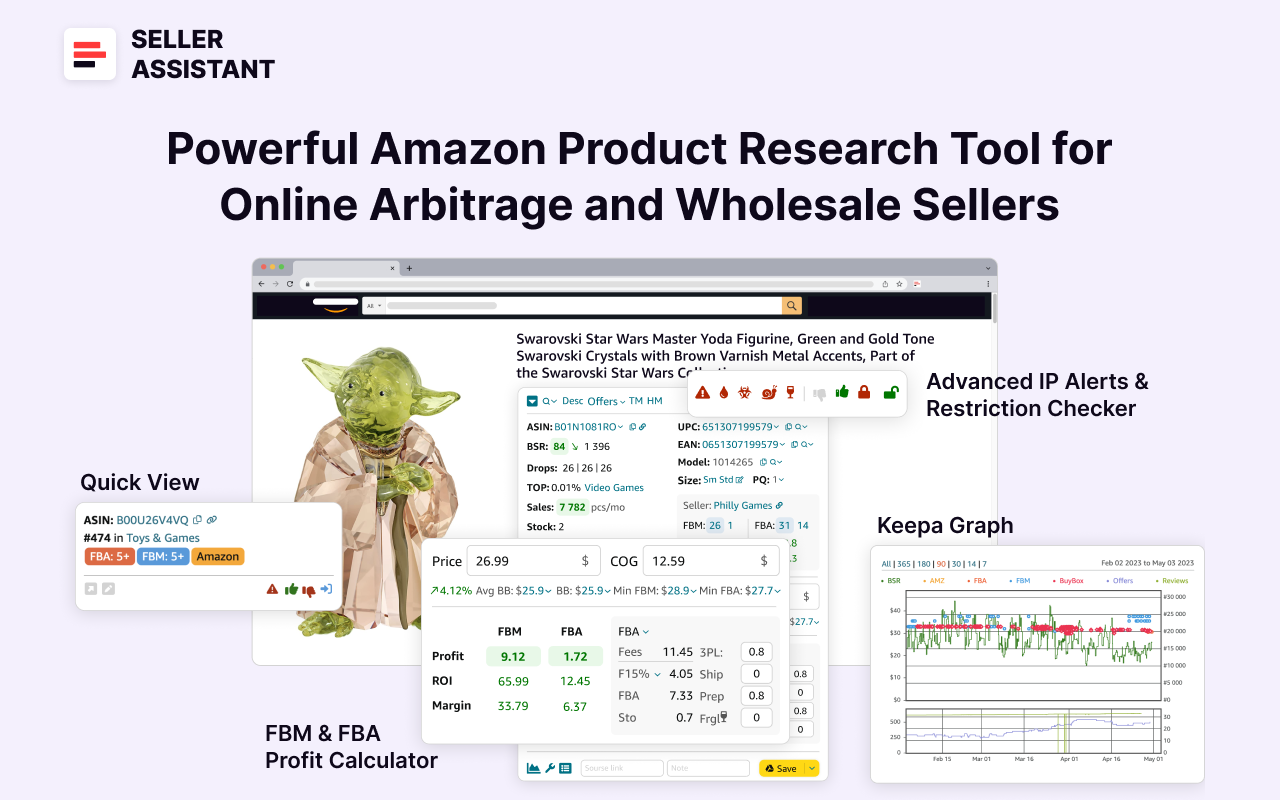
Seller Assistant
It combines three extensions: Seller Assistant Browser Extension, and IP-Alert Chrome Extension by Seller Assistant, and VPN by Seller Assistant, Amazon seller tools: Price List Analyzer, Brand Analyzer, Seller Spy, Bulk Restrictions Checker, and API integrations, and features: Side Panel View, Storefront Widget, Quick View, FBM&FBA Profit Calculator, Sales Estimator, Offers, Variation Viewer, Stock Checker, and offers secure and efficient solutions for teamwork.
Where to Find Online Arbitrage Products for Amazon?
Finding profitable products is the key to success in online arbitrage. There are several strategies sellers use to source inventory, each with its own benefits. Below, we explore the most effective ways to find products, along with tips on how to research them properly.
Strategy 1. Find deals yourself
- What it is
This strategy involves manually searching for individual deals where there is a clear price difference between the supplier’s price (lower) and Amazon’s price (higher). It’s best suited for sellers who prefer a hands-on approach to product selection. However, it can be very time-consuming, making it difficult to find many deals quickly.
- What is achieved
By using this method, sellers can hand-pick high-quality, low-risk products and develop a deep understanding of market trends. Since it’s a manual process, there is more control over the products selected.
- How it works
Search for popular, low-risk products manually on retail websites.
- Use Seller Assistant’s Quick View to quickly analyze product demand and risks on Amazon search pages
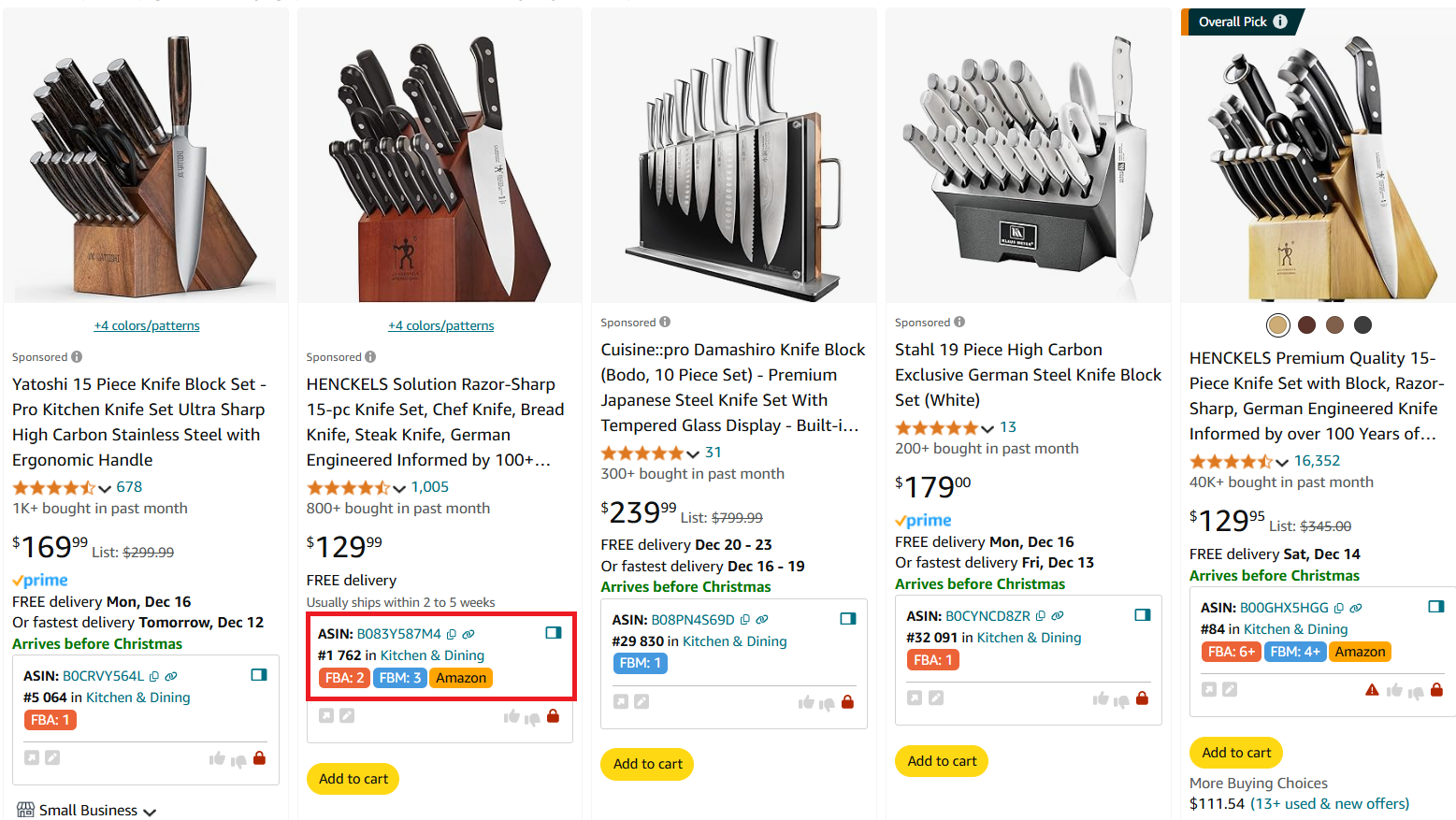
The upper part of Quick View
- Open popular products and find their match at the supplier with Lookup Links feature
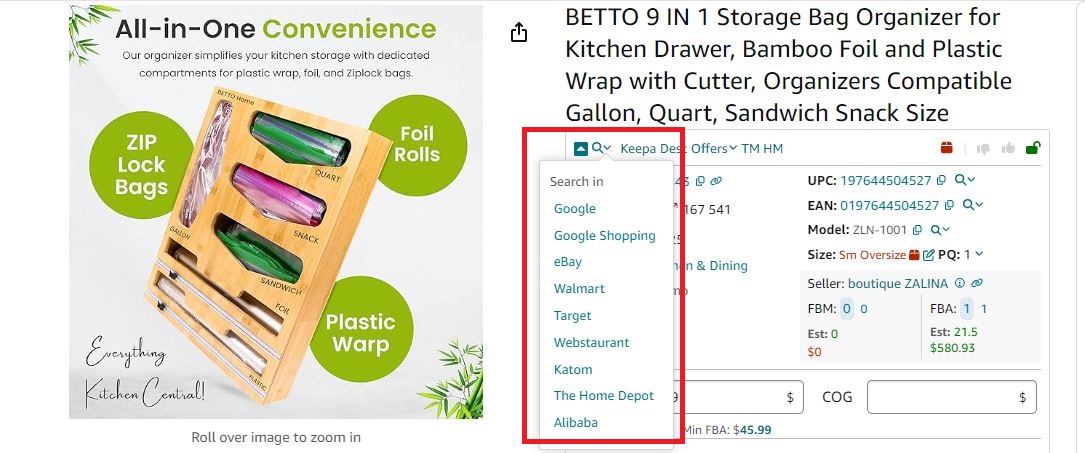
Seller Assistant provides quick links to search products on different search engines
- Use Side Panel View to calculate deal profitability on the supplier website, side-by-side.
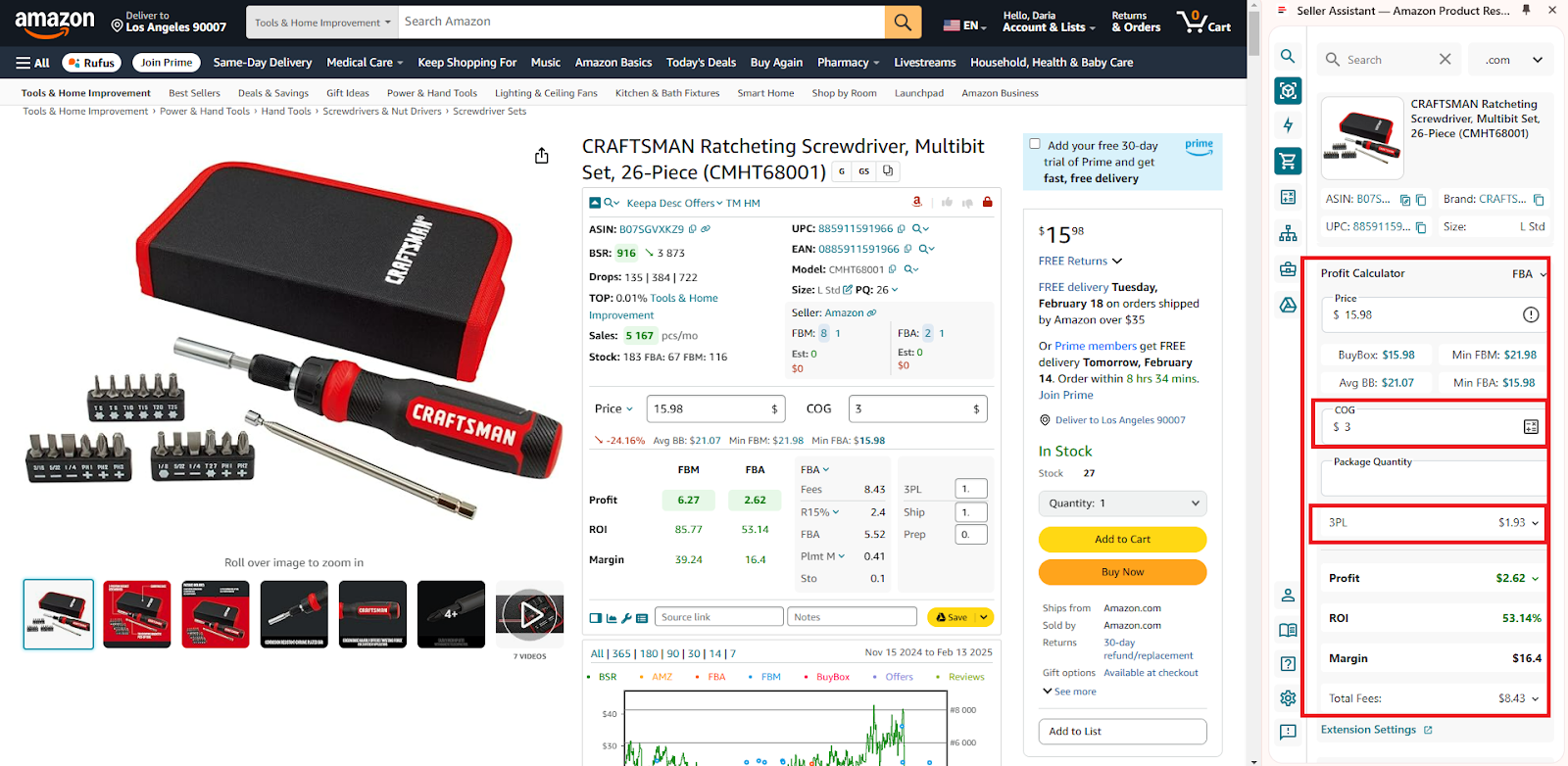
Use Side Panel View to calculate deal profitability on the supplier website, side-by-side.
-
How to research effectively
- Look for consistent sales history (using Seller Assistant and built-in Keepa charts).
- Check for low competition and favorable Buy Box conditions.
- Verify Amazon fees and restrictions before purchasing.
-
Who is it good for
- Beginners who want to learn how to analyze products manually.
- Sellers who prefer full control over their sourcing and don’t mind spending extra time researching.
Strategy 2. Parse and automatically scan supplier lists
- What it is
This strategy uses automation tools to scan bulk supplier product lists, allowing sellers to analyze a large number of products efficiently. It is perfect for sellers managing a large inventory who need to quickly filter through thousands of products.
- What is achieved
Sellers can save time by automatically filtering high-margin, low-risk products from supplier catalogs. This method also reduces costly sourcing mistakes by flagging restrictions, high competition, or pricing issues in advance.
- How it works
Use Seller Assistant’s Price List Analyzer to upload and scan a supplier’s price list
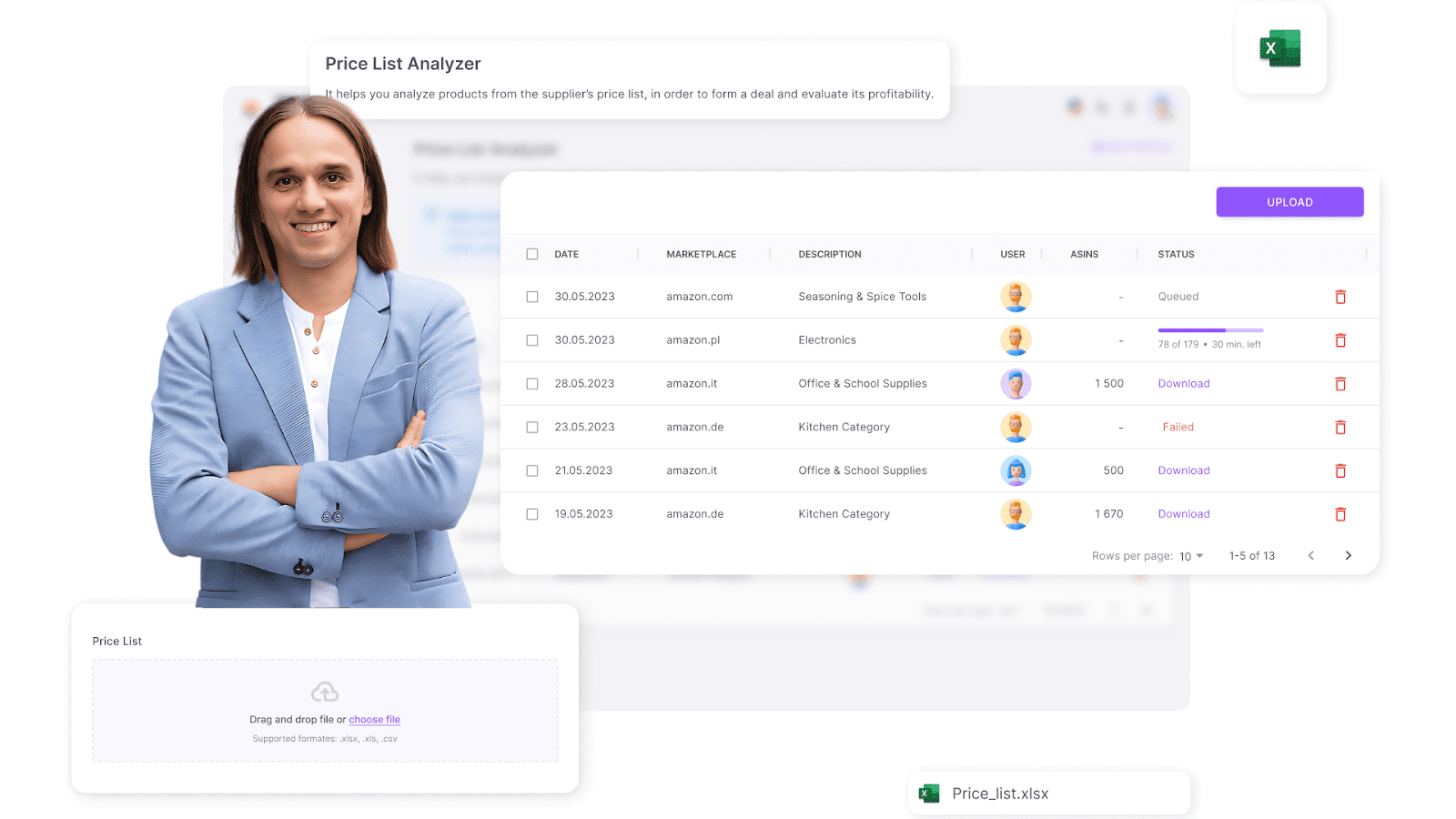
Price List Analyzer
- The tool automatically matches products to Amazon listings, calculates profitability, and flags potential risks like gated products, too high ROI, hazmat, meltable, etc. You can configure the sheet and filter results.
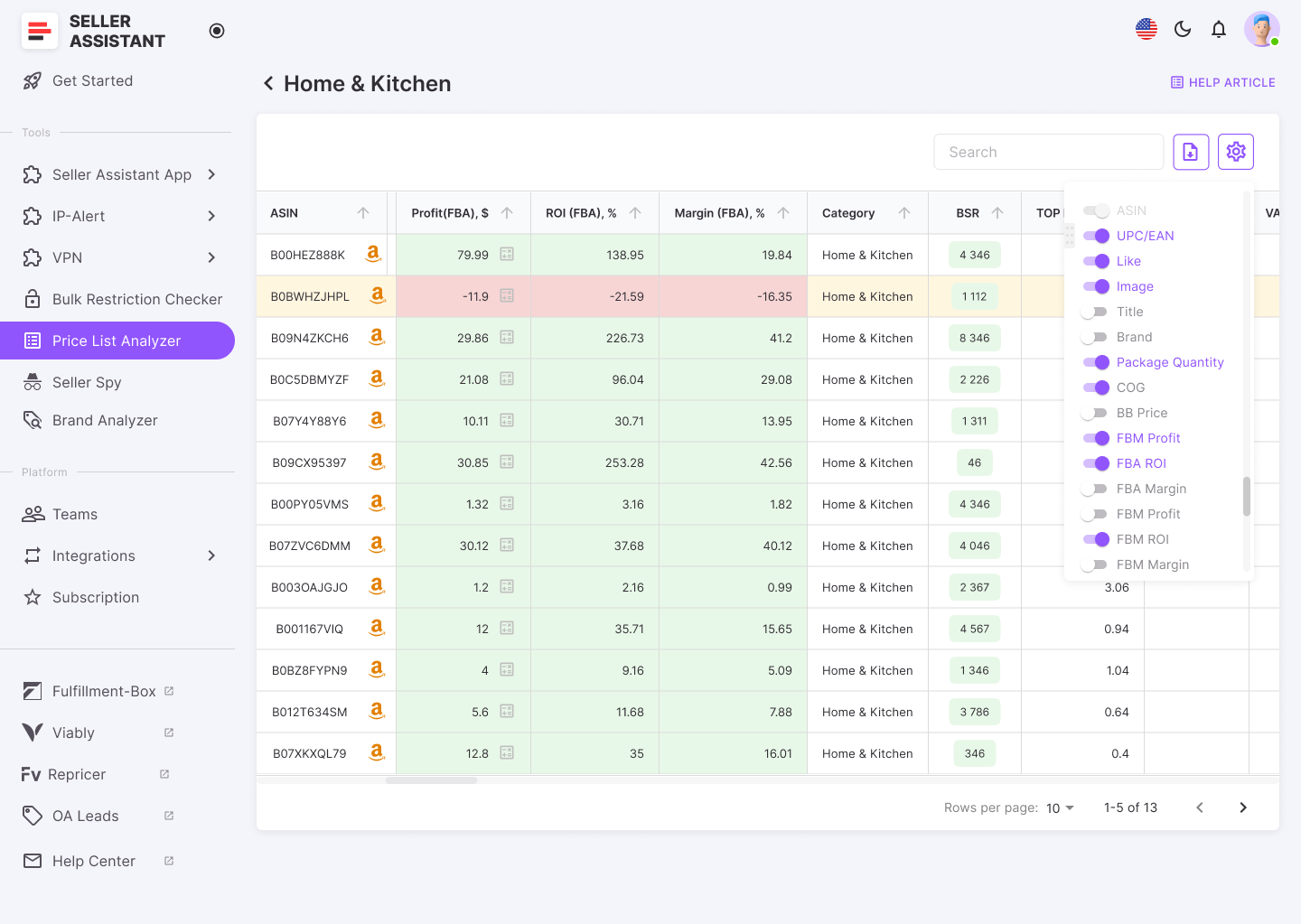
The tool automatically matches products to Amazon listings, calculates profitability, and flags potential risks like IP complaints or gated categories
- Sellers can quickly identify the most profitable opportunities without manual searching.
How to research effectively
- Sales performance
Check Best Sellers Rank (BSR) to verify demand.
- Competition level
Avoid listings with more than 15 sellers or those dominated by Amazon.
- Buy Box chances
Identify who controls the Buy Box and if you can compete.
- Pricing and profitability
Ensure ROI and profit margins meet your business goals.
- Restrictions
Verify product restrictions, selling eligibility, IP complaints and Amazon policy violations.
- Who is it good for
- Online arbitrage sellers managing bulk product sourcing.
- Sellers who want to automate the research process and save time.
Strategy 3. Research your competitors to sell what they sell
- What it is
Competitor research involves analyzing successful Amazon sellers to discover the products they are selling. This allows sellers to capitalize on proven deals and avoid the guesswork of product selection.
- What is achieved
By identifying top-performing products and brands, sellers can increase their chances of success by offering similar or identical items. This method helps sellers focus on high-demand, profitable products.
- How it works
Use Seller Assistant’s Seller Spy to automate tracking competitor stores.
.png)
Seller Spy by Seller Assistant
- Analyze what products they sell, what they have recently added or removed, and their pricing strategies.
- Identify best-selling deals to build a similar product portfolio.
How to research effectively
-
New product monitoring
-
Track what competitors are adding to stay ahead of trends.
-
Product removals
-
Identify items competitors stop selling to avoid slow-moving inventory.
-
Seller feedback
-
Analyze competitor product ratings and customer reviews.
-
Pricing strategies
-
Monitor competitor pricing to stay competitive and optimize profits.
-
Who is it good for
- Online arbitrage sellers looking for proven, high-demand products.
- Sellers who want to reduce risk by focusing on already successful products.
Strategy 4. Hire a Virtual Assistant
- What it is
A virtual assistant (VA) is someone hired to find product deals on behalf of the seller. VAs can handle the time-consuming process of deal searching, allowing sellers to focus on scaling their business.
-
What is achieved
- Saves time by outsourcing product research.
- Increases sourcing efficiency, helping sellers find more deals in less time.
- Helps sellers manage larger inventories without spending hours searching for products.
-
How it works
- Find a virtual assistant on Fiverr or specialized websites that offer VA services.
- Choose a VA with experience in Amazon product research.
- Ensure you don’t overpay and test their skills before committing to long-term contracts.
- Use Seller Assistant’s Virtual Assistant Account feature with built-in VPN access to securely and efficiently manage their lead-sourcing team without sharing your Amazon seller account credentials.
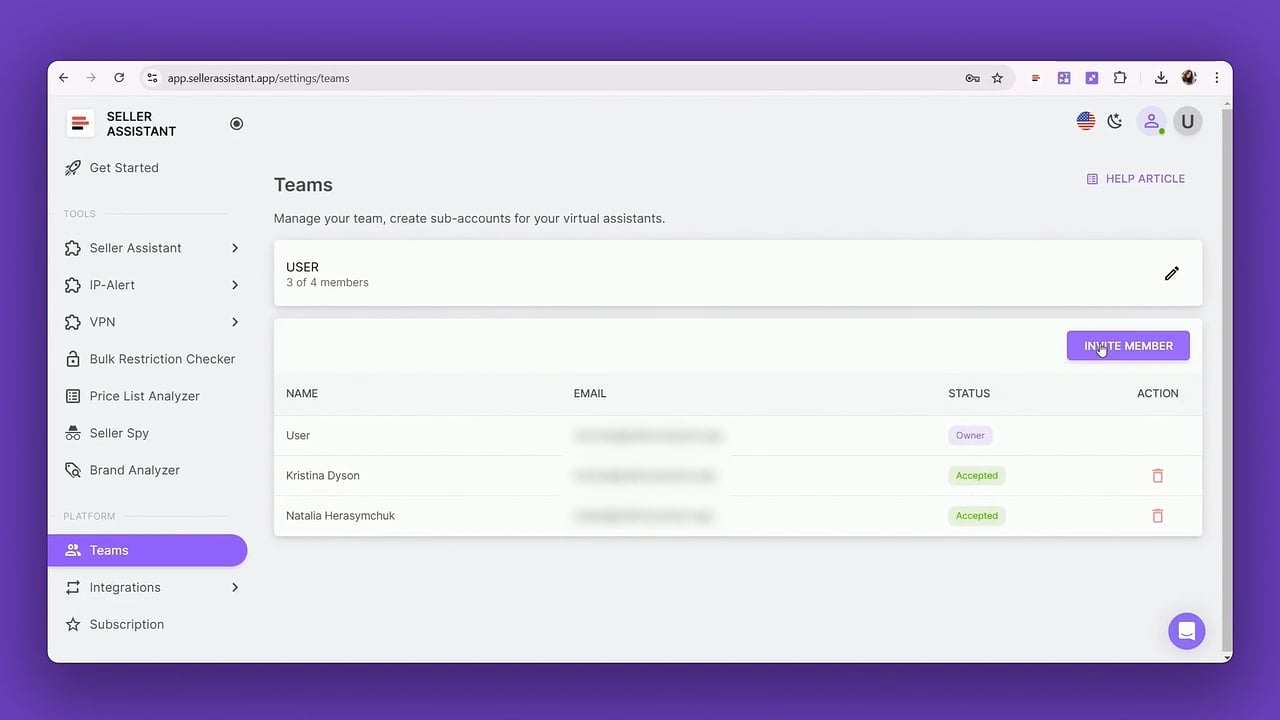
Seller Assistant’s Virtual Assistant Account
-
How to research effectively
- Provide clear guidelines on pricing, ROI, and product categories.
- Set performance expectations to ensure the VA finds quality leads.
- Use tools like Seller Assistant to verify the leads provided by the VA.
-
Who is it good for
- Sellers looking to outsource product sourcing.
- Busy sellers who want to scale their online arbitrage business without spending too much time on research.
Strategy 5. Buy leads lists
- What it is
A leads list is a pre-researched collection of profitable product deals that sellers can purchase. These lists contain ready-to-buy products that have already been analyzed for profitability, competition, and demand.
-
What is achieved
- Saves time and effort in product research.
- Provides instant access to deals from expert product researchers.
- Helps new sellers start selling quickly without spending hours finding deals.
-
How it works
- Purchase a leads list from a reputable provider or find a VA to create one.
- Use Seller Assistant to verify product profitability before purchasing inventory.
- Be cautious of low-quality lists that may contain outdated or unprofitable products.
-
How to research effectively
- Only buy from trusted lead list providers.
- Cross-check each product’s sales rank, competition, and profit margins before buying.
- Avoid lists that do not provide key metrics like ROI, BSR, or potential restrictions.
-
Who is it good for
- Sellers who don’t have time for manual product research.
- Beginners who want to start selling immediately with pre-vetted deals.
How to Do Product Research for Online Arbitrage?
Finding the right products is essential for making money with online arbitrage. Not every trending item is profitable – successful sellers analyze key product metrics before investing in inventory.
A truly profitable Amazon product should
- Sell well (high demand and fast turnover)
- Be profitable (high ROI and margin after fees)
- Carry minimal risks (you must be able to sell it, no IP complaints, or alerts and hidden costs)
Using Seller Assistant, sellers can streamline product research and make data-driven decisions. Below are the step-by-step guidelines to help you find winning products on Amazon.
Online arbitrage product research step-by-step
Step 1. Set up your Amazon search for accurate results
To ensure accurate research, configure your Amazon settings before searching for products.
✅ How to do it
- In the “Deliver to” field, enter the country and zip code where you plan to sell. This ensures Amazon displays the correct FBA and FBM offers available in that region.
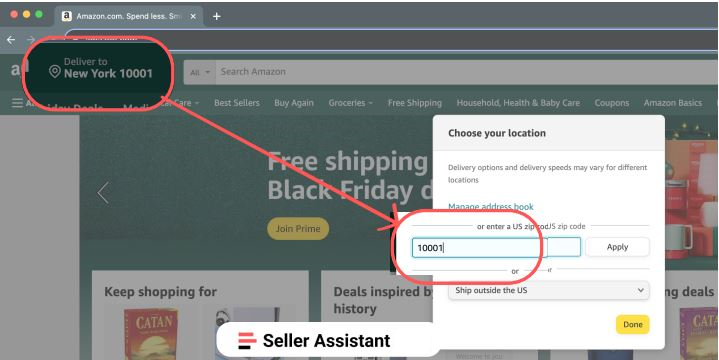
In the “Deliver to” field, enter the country and zip code where you plan to sell.
- Ensure the product link doesn’t contain a referral to prevent incorrect listing data (e.g., missing variations or incorrect seller counts).
- Remove the referral part of the link by clicking the ASIN in Seller Assistant. This will reveal all variations that might not be visible with the referral link.
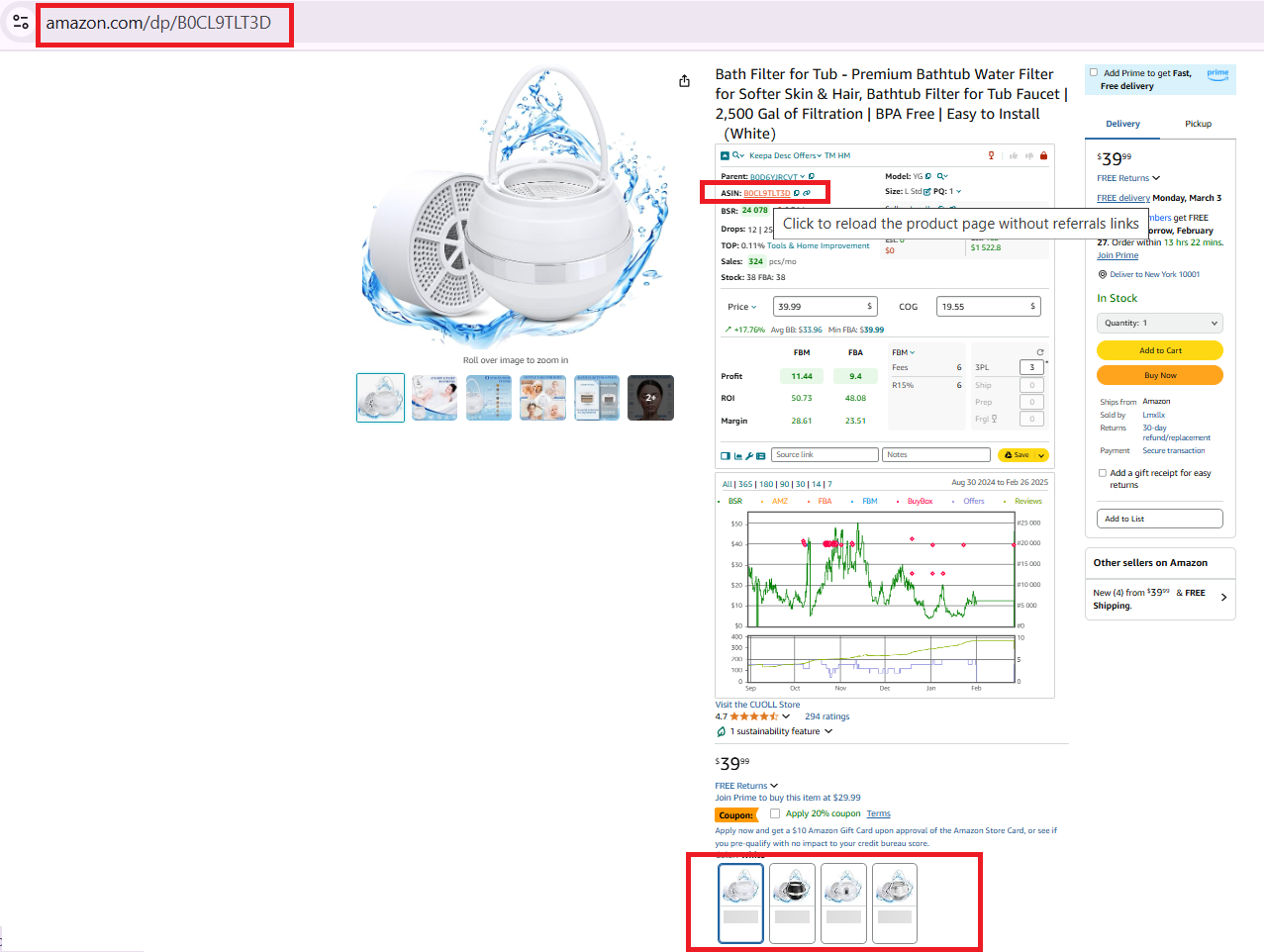
Make sure the product link you use doesn’t contain a referral
Why this step is necessary
Setting up your search correctly ensures you get accurate listing data, avoiding mistakes in product research.
Step 2. Check if you can sell the product
Before researching further, confirm that you are eligible to sell the product. Amazon restricts certain categories, brands, and products based on your seller account status.
✅ How to check using Seller Assistant
Use Seller Assistant’s Restriction Checker.
A green open lock means you can sell the product.
A red closed lock means the product is restricted. Click it to to check whether you can ungate the product.
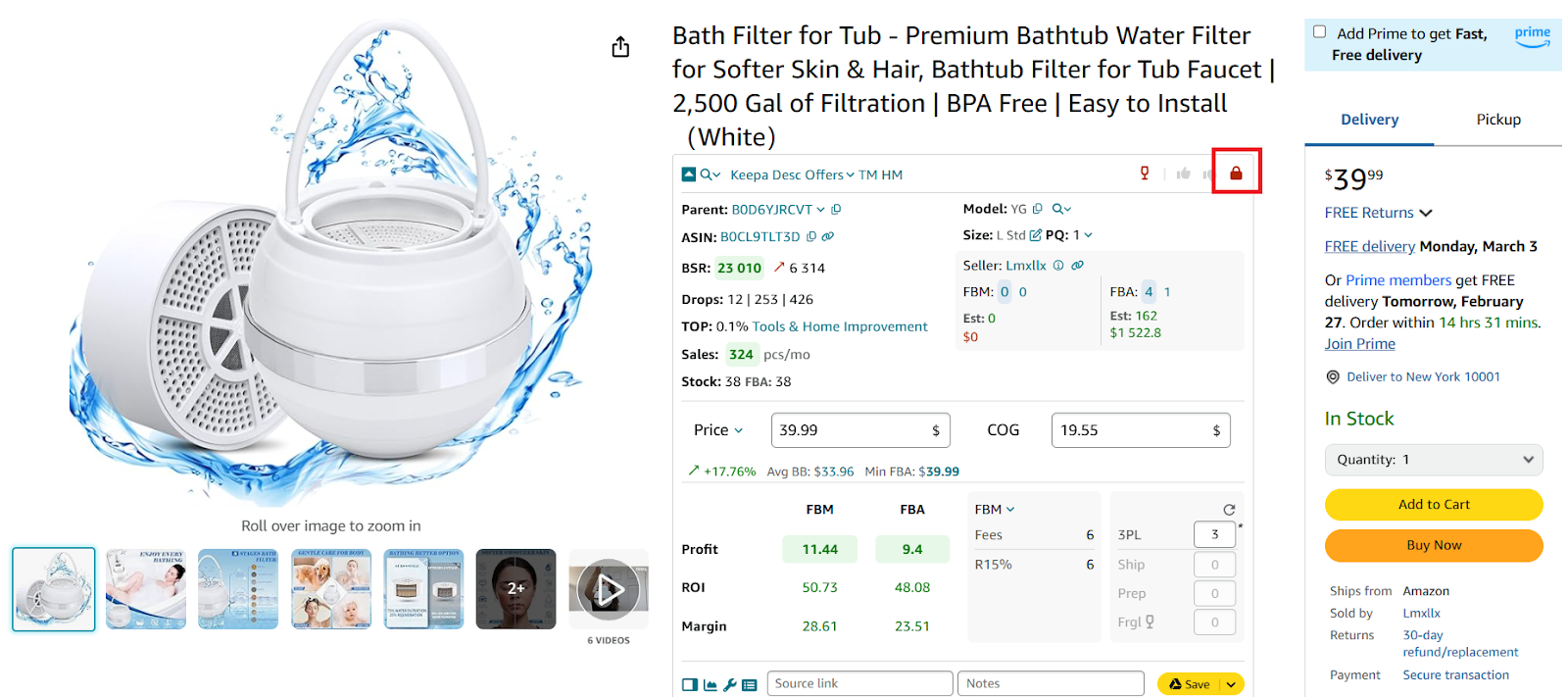
Seller Assistant’s Restriction Checker shows a red closed lock if a product is restricted
- Enter ASIN number, select the “new” condition, and fill in the form to request approval. Then, you can sell the product.
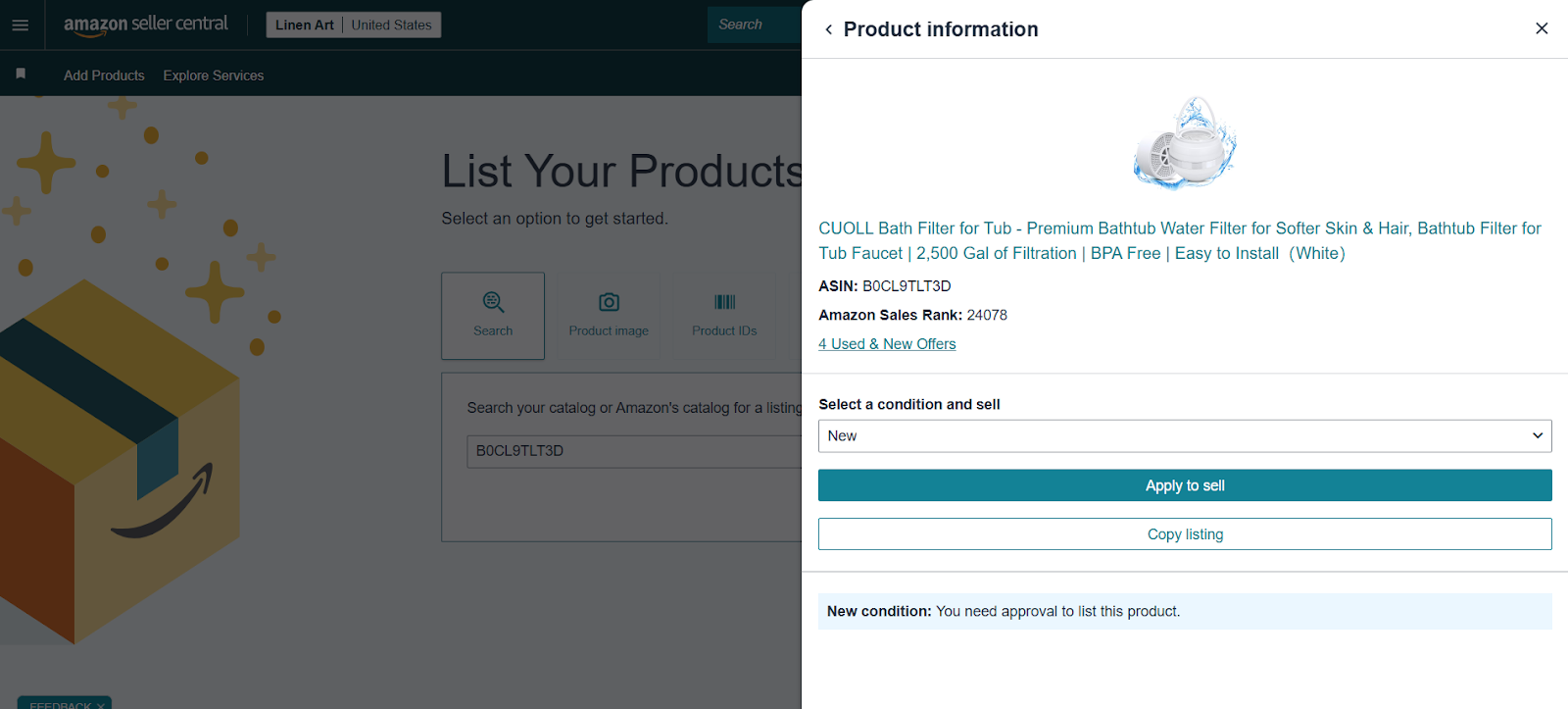
If the lock is red, click it to check whether you can ungate the product.
- If you can’t sell a product on your Amazon account, you will be informed that your account does not qualify.
- If Amazon will ask you to provide invoices to ungate a product, this means you must buy a product first without a guarantee it will sell. In such a case, it may be better to look for another product.
Why this step is necessary
If Amazon does not allow you to sell a product, you could lose money by purchasing inventory you can’t list.
Step 3. Look for a product supplier
Once you have identified a potential product, you need to find the best supplier offering it at the lowest cost.
✅ How to find suppliers using Seller Assistant
- Use Lookup Links in Seller Assistant to search for products on multiple platforms, including: Google, Google Shopping, eBay, Walmart, Target, Webstaurant, Katom, The Home Depot, and Alibaba
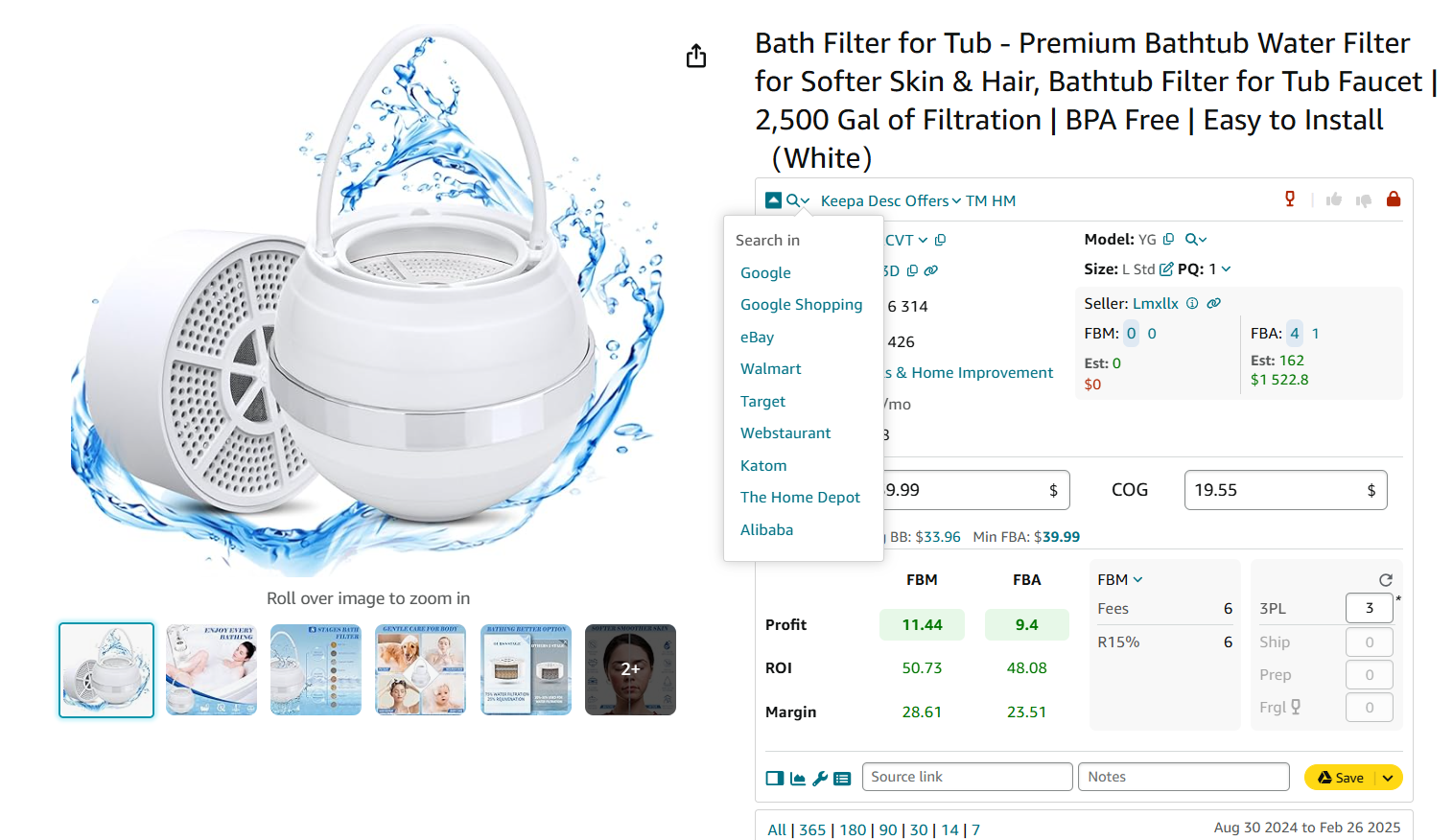
Use Lookup Links available in Seller Assistant Extension to search products on Google
- Compare supplier prices and select the most cost-effective option.
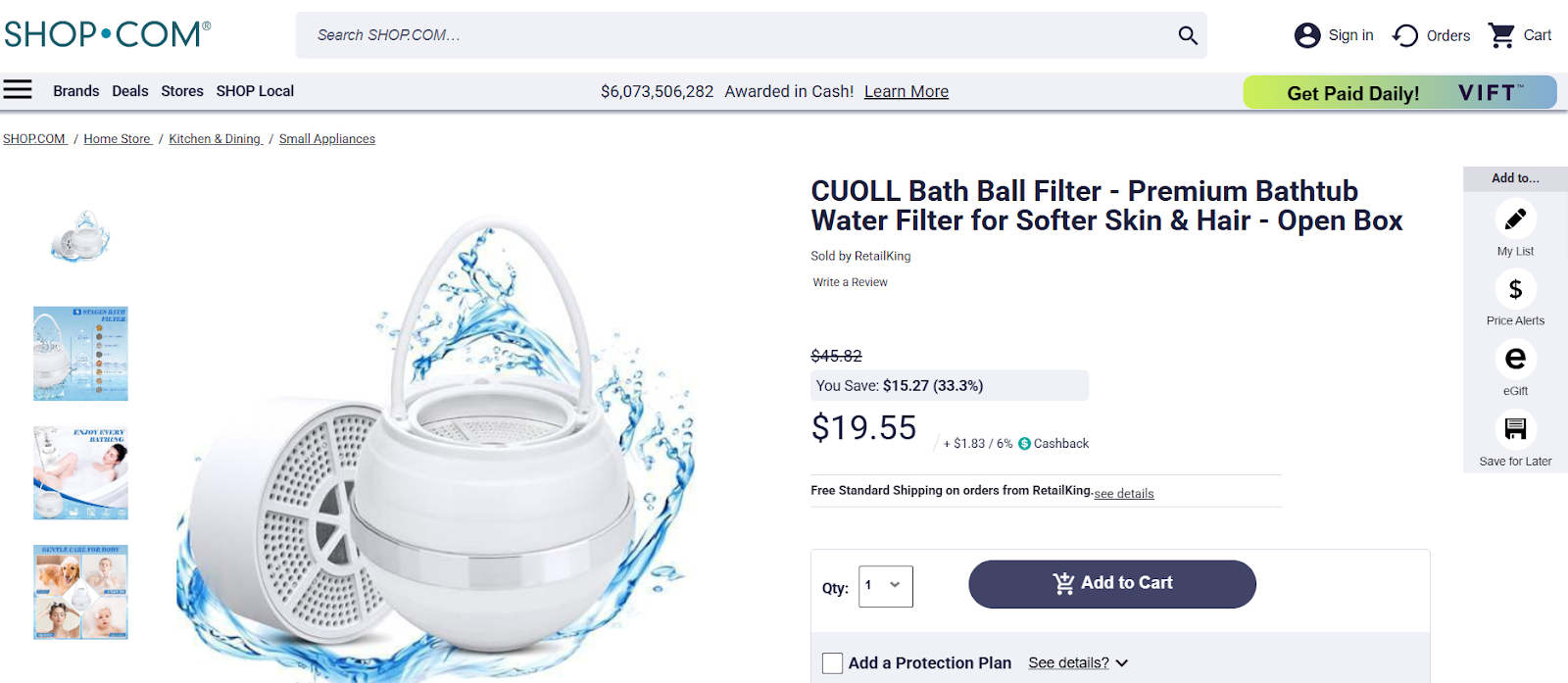
Select the best price
Why this step is necessary
Finding the best supplier ensures higher profit margins and reduces costs.
Step 4. Analyze product profitability
A product may have high sales, but if fees eat up your profit, it’s not a good investment. You need to calculate:
- Profit = Selling price - (COG + Amazon fees + logistics)
- ROI (return on investment) = (Profit ÷ Cost of goods) × 100. A healthy Amazon ROI is between 15-30% or higher.
- Margin = (Profit ÷ Selling price) × 100. A good Amazon margin is 15% and up.
✅ How to check using Seller Assistant
- Open a product page on your supplier website and activate Side Panel View to calculate product profit, ROI, and margin directly on that page without leaving it. Click the Extensions icon to the right of your address bar in Chrome browser and select Seller Assistant Extension. Side Panel View will appear as a side panel on the right side of your page.
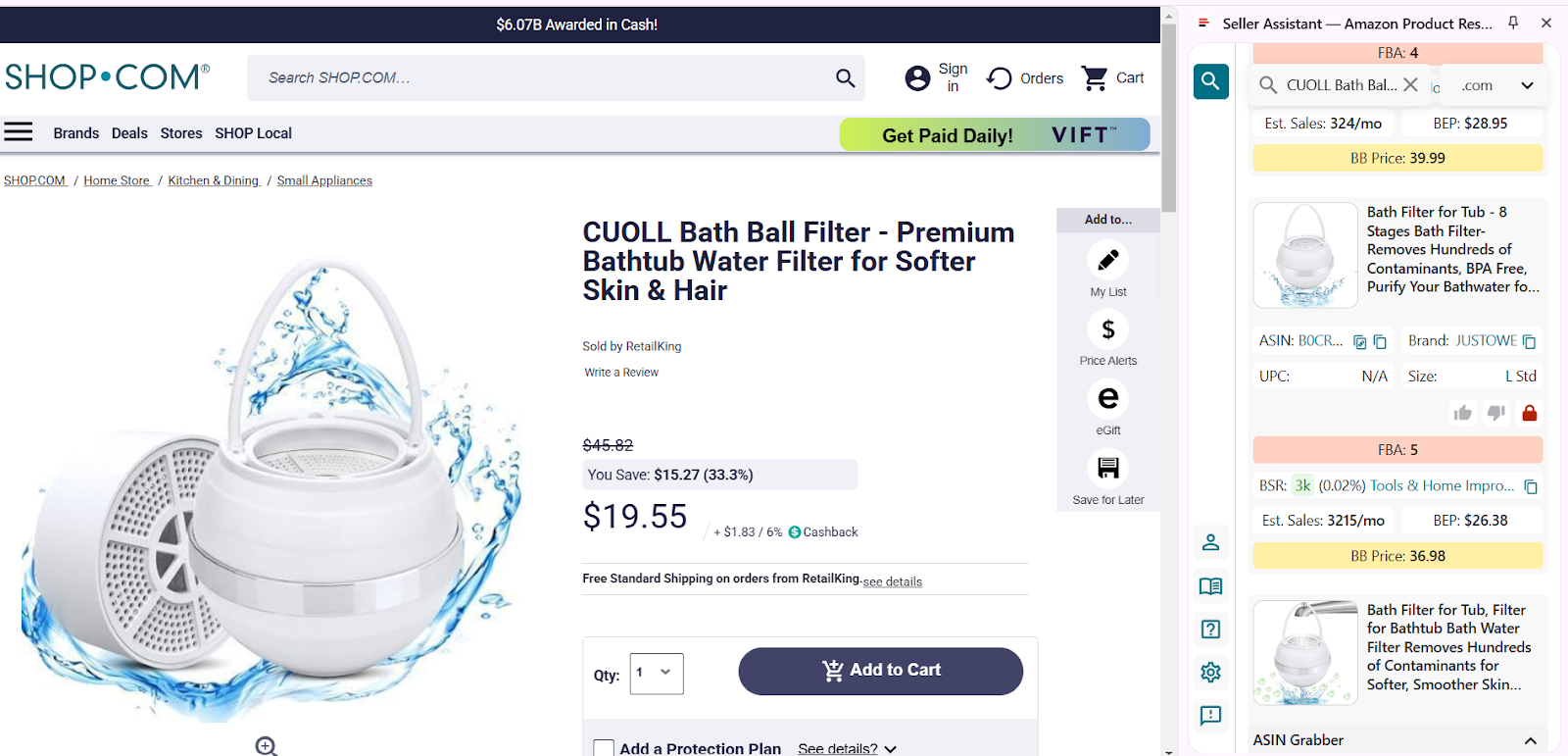
Open a product page on your supplier website and activate Side Panel View
- Scroll down in Side Panel View to choose your product and click the product details icon or product image to open the product.
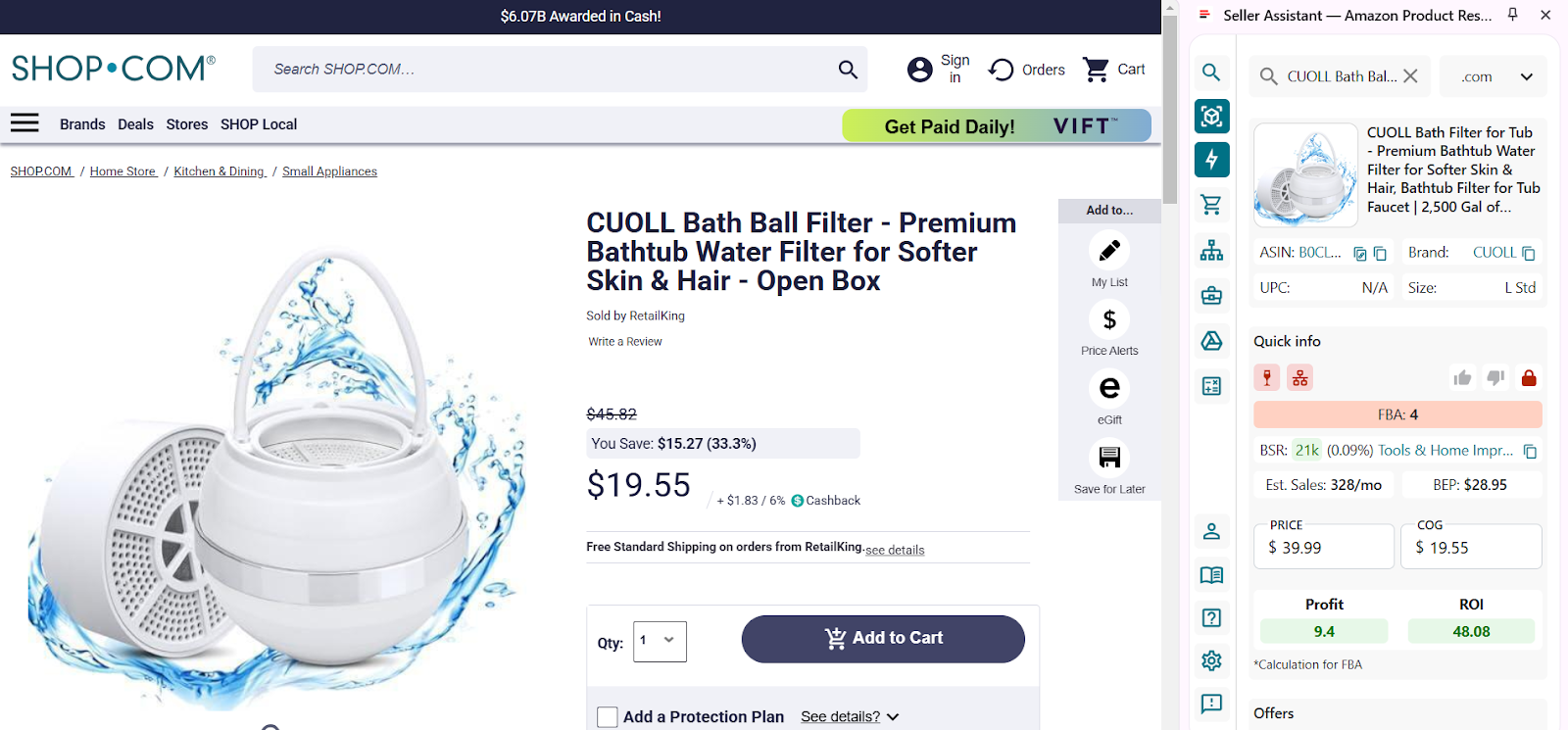
Scroll down in Side Panel View to choose your product and click the product details icon or product image to open the product.
- Enter the Cost of Goods (COG) – product cost at the supplier, and look at the Profit and ROI (the calculation is done for FBA). If ROI is within 15-30% or higher, the supplier is ok.
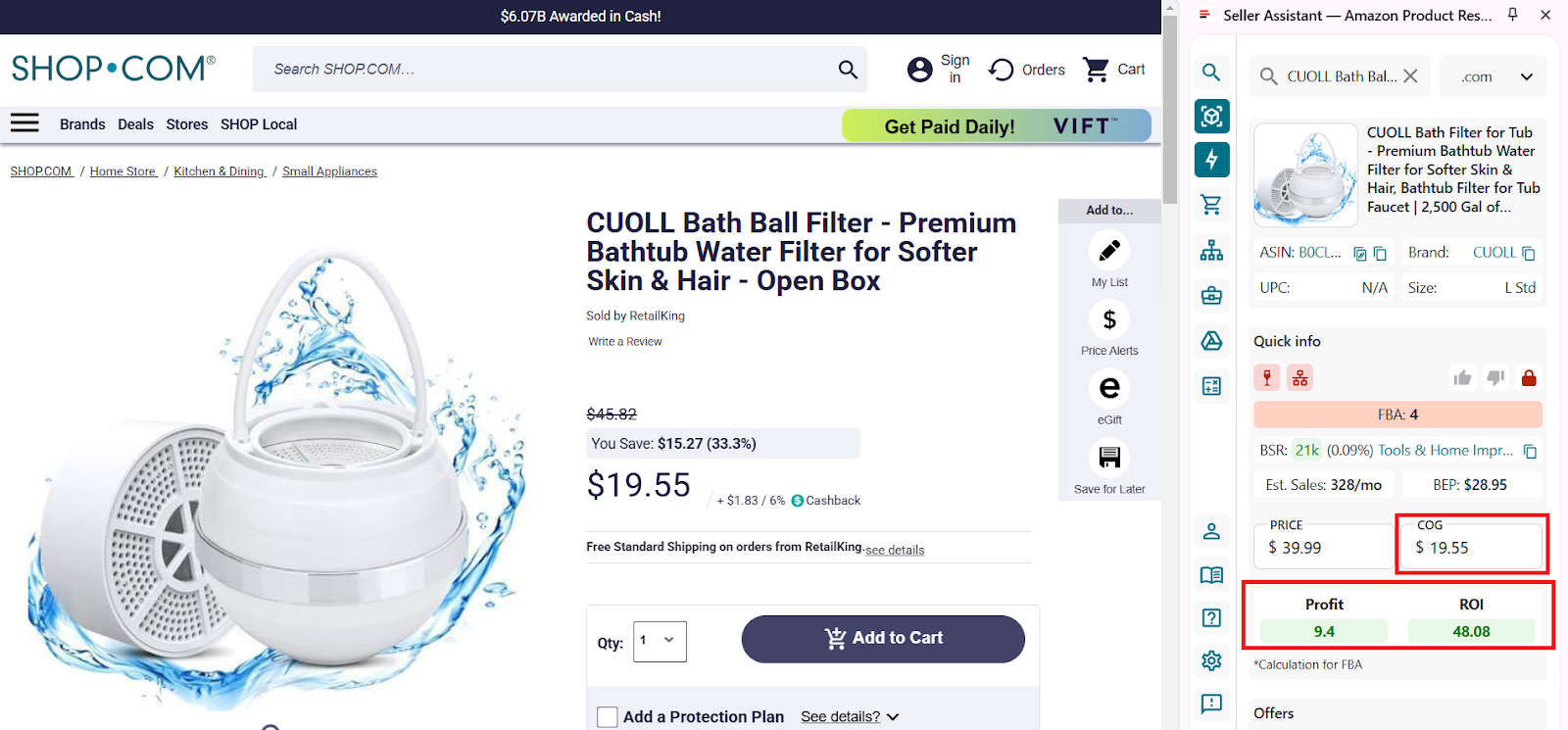
Enter COG (product price at the supplier), and look at the Profit and ROI (the calculation is done for FBA).
- Research product profitability
Seller Assistant ’s FBM and FBA Calculator helps you quickly calculate product profit, ROI, and margin.
- In the product, click the calculator sign to open the extended calculator.
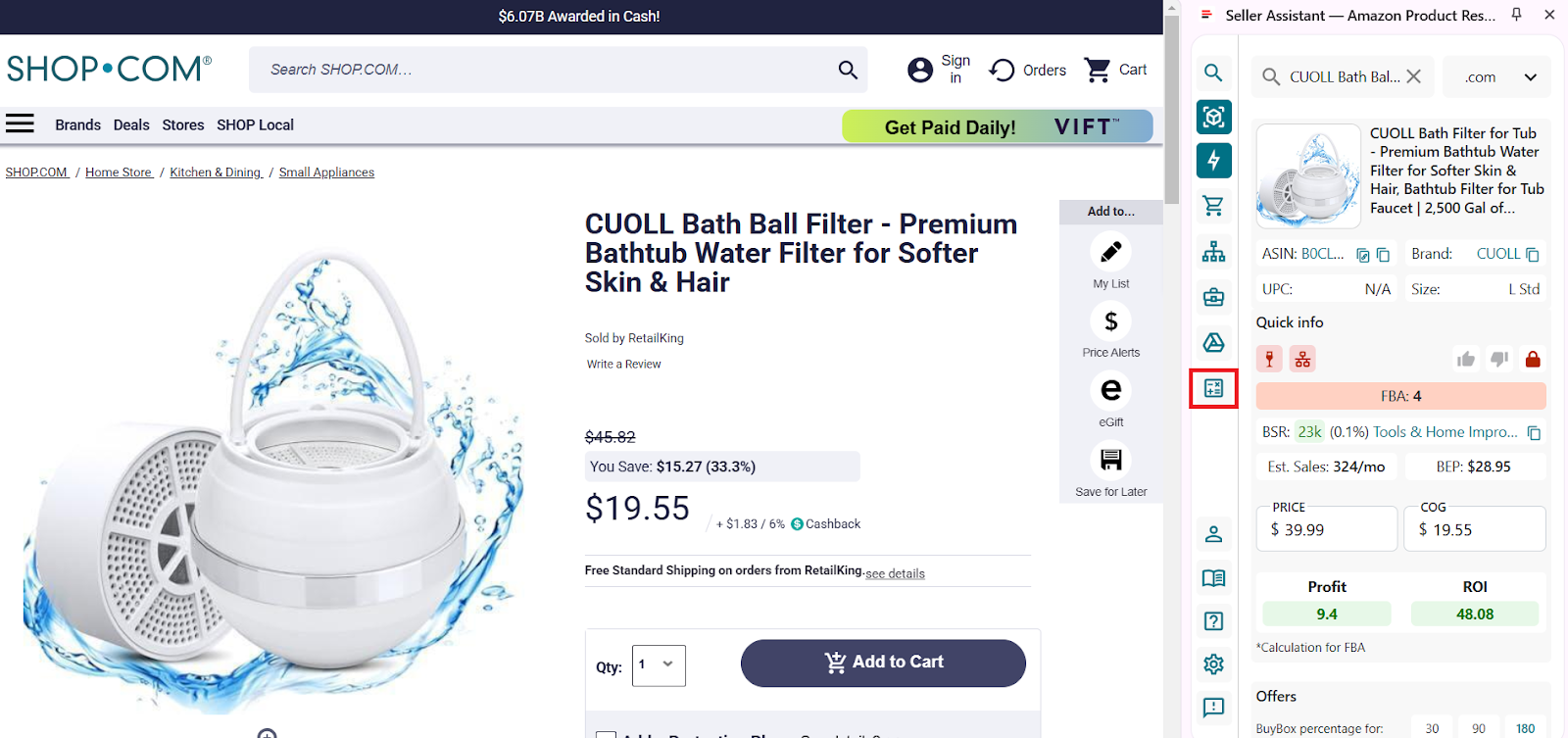
In the product, click the calculator sign to open the extended calculator.
- Choose between FBA (Fulfillment by Amazon) and FBM (you fulfill the product).
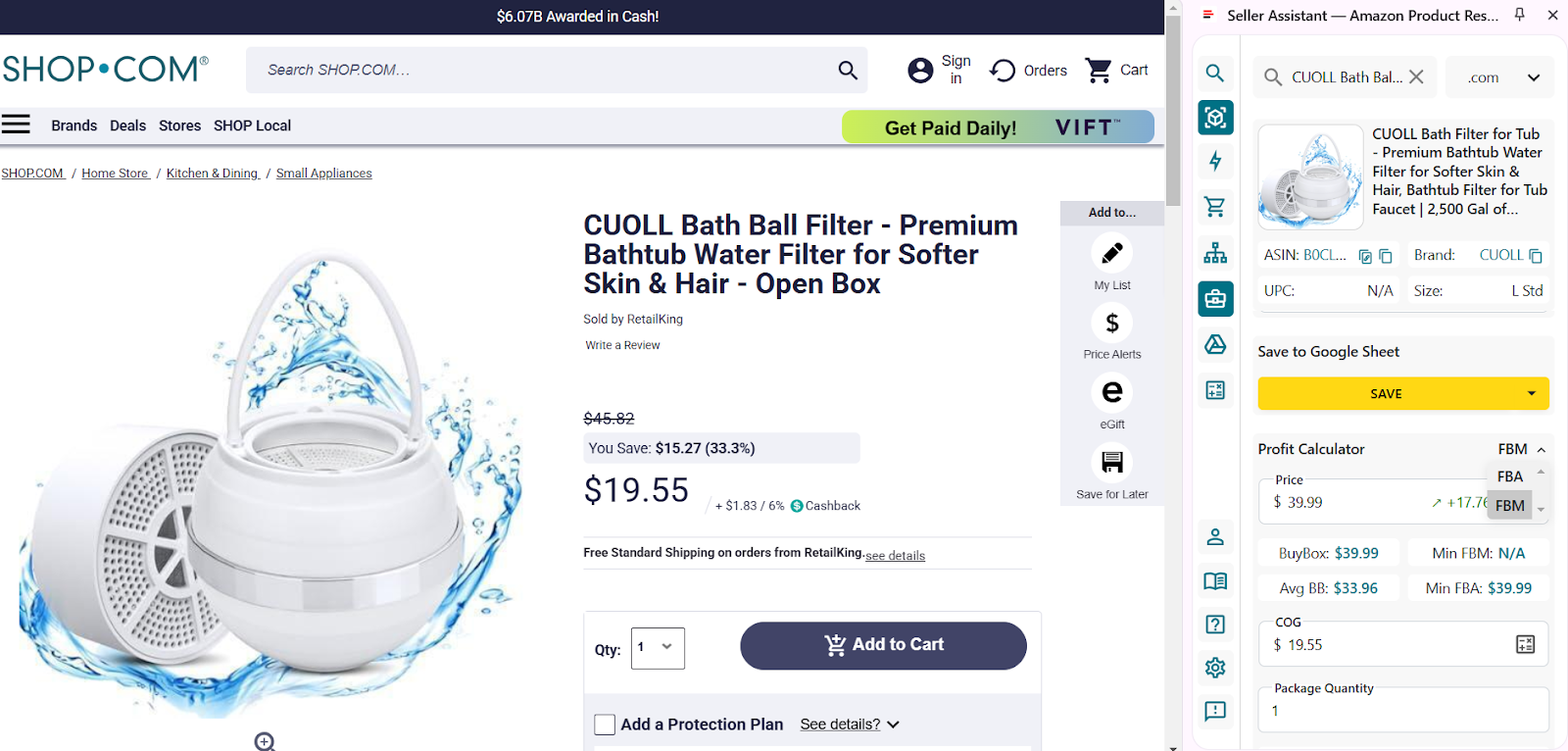
Choose between FBA and FBM - we choose FBM.
- Enter package quantity and logistics costs. For FBA these are prep costs and shipping costs. For FBM - 3 PL (prep and logistics costs).
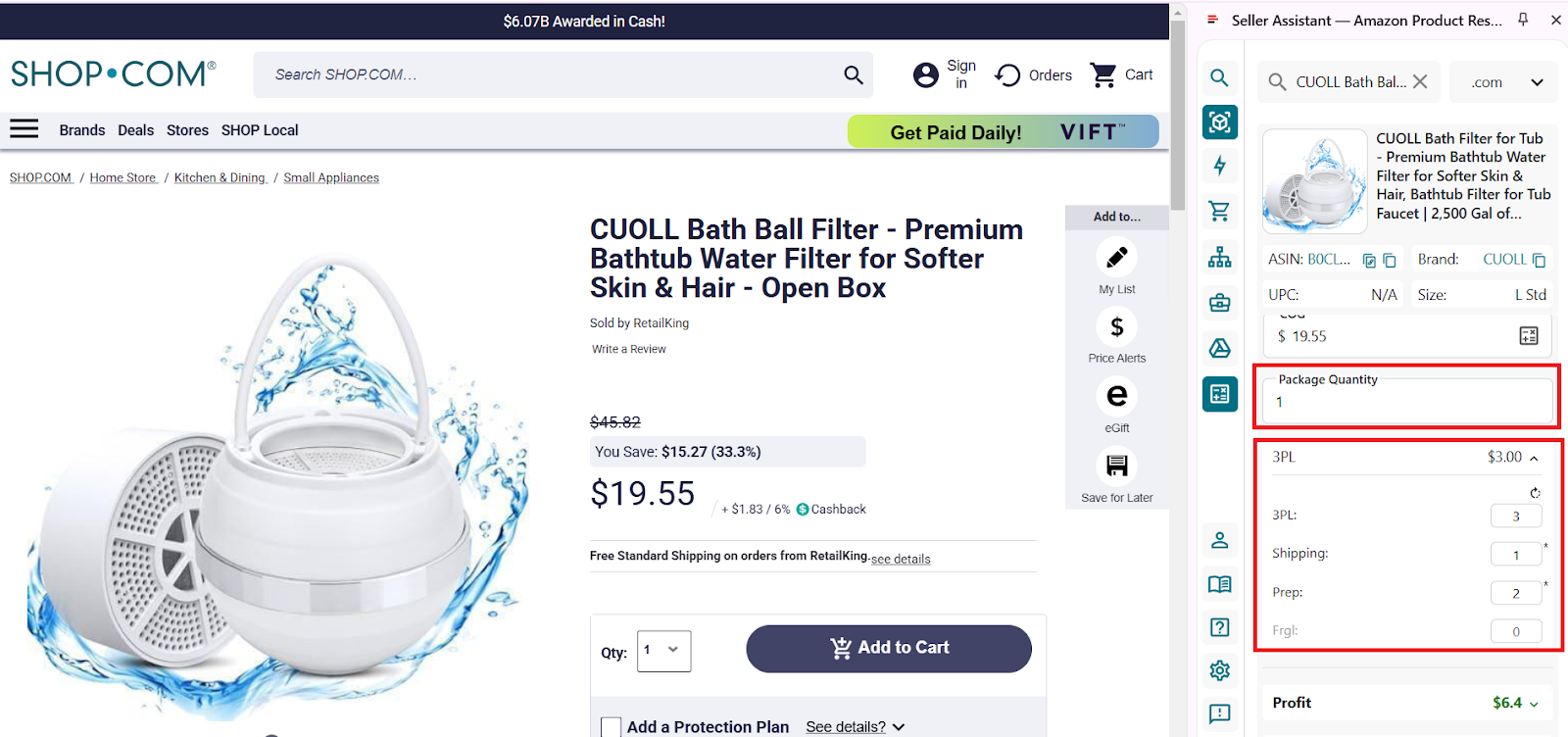
Enter package quantity and logistics costs. For FBA it’s prep costs (the product is fragile, we need extra packaging) - $2, and shipping cost - $1. Total logistics cost is $3.
- When you deduct Amazon fees and logistics costs, your profit changes, because you factored in all costs.
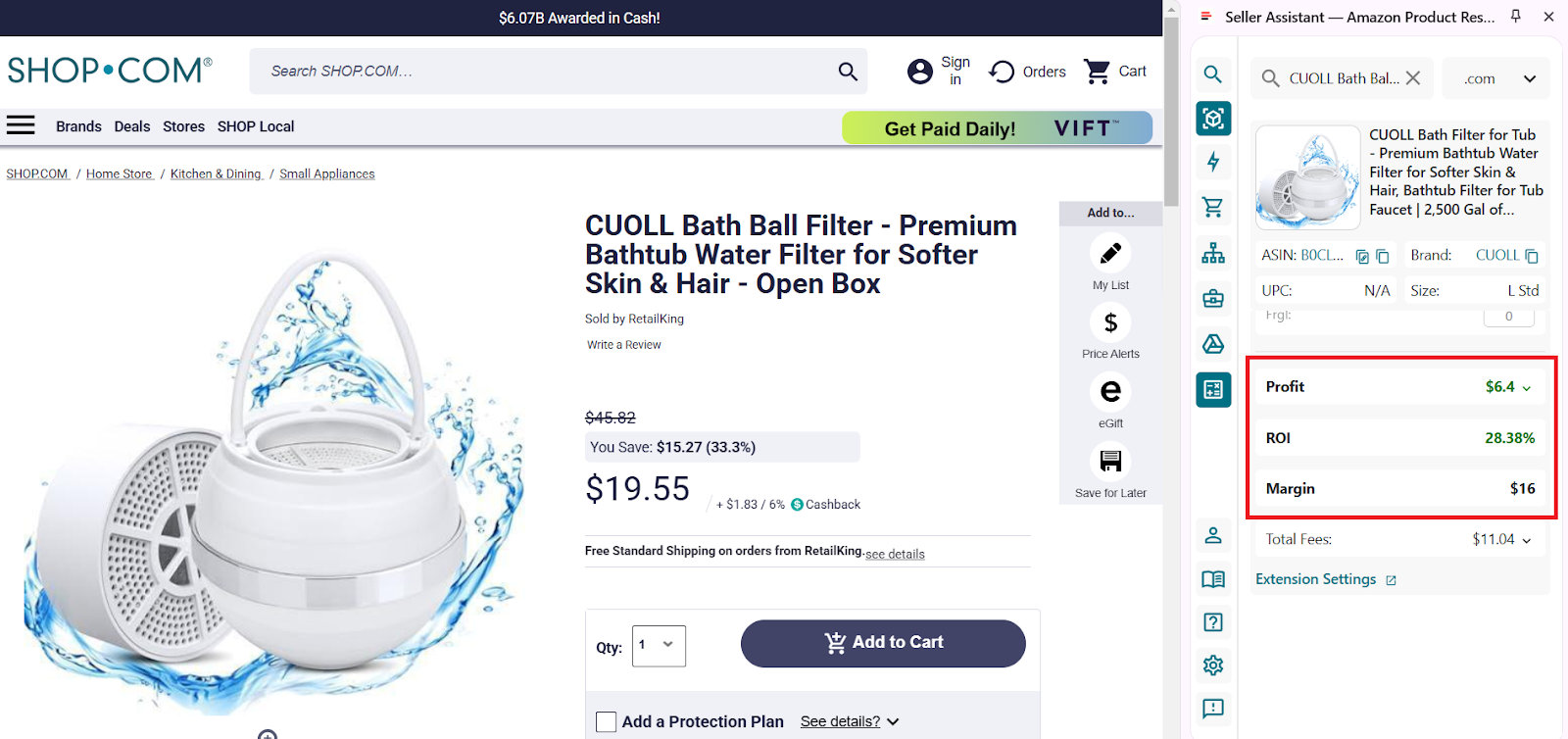
Now your profit changes - it becomes $6.4 per unit, ROI is 28.38%, and margin is $16, which is still a good profitability.
Why this step is necessary
Ensures each product meets your profit goals before purchasing inventory.
Step 5. Check how well the product sells
The product must sell fast to avoid slow-moving inventory and Amazon storage fees.
✅ How to check using Seller Assistant
- Open your product on Amazon to activate Seller Assistant Extension. It will appear automatically on your product page to show you all essential product data.
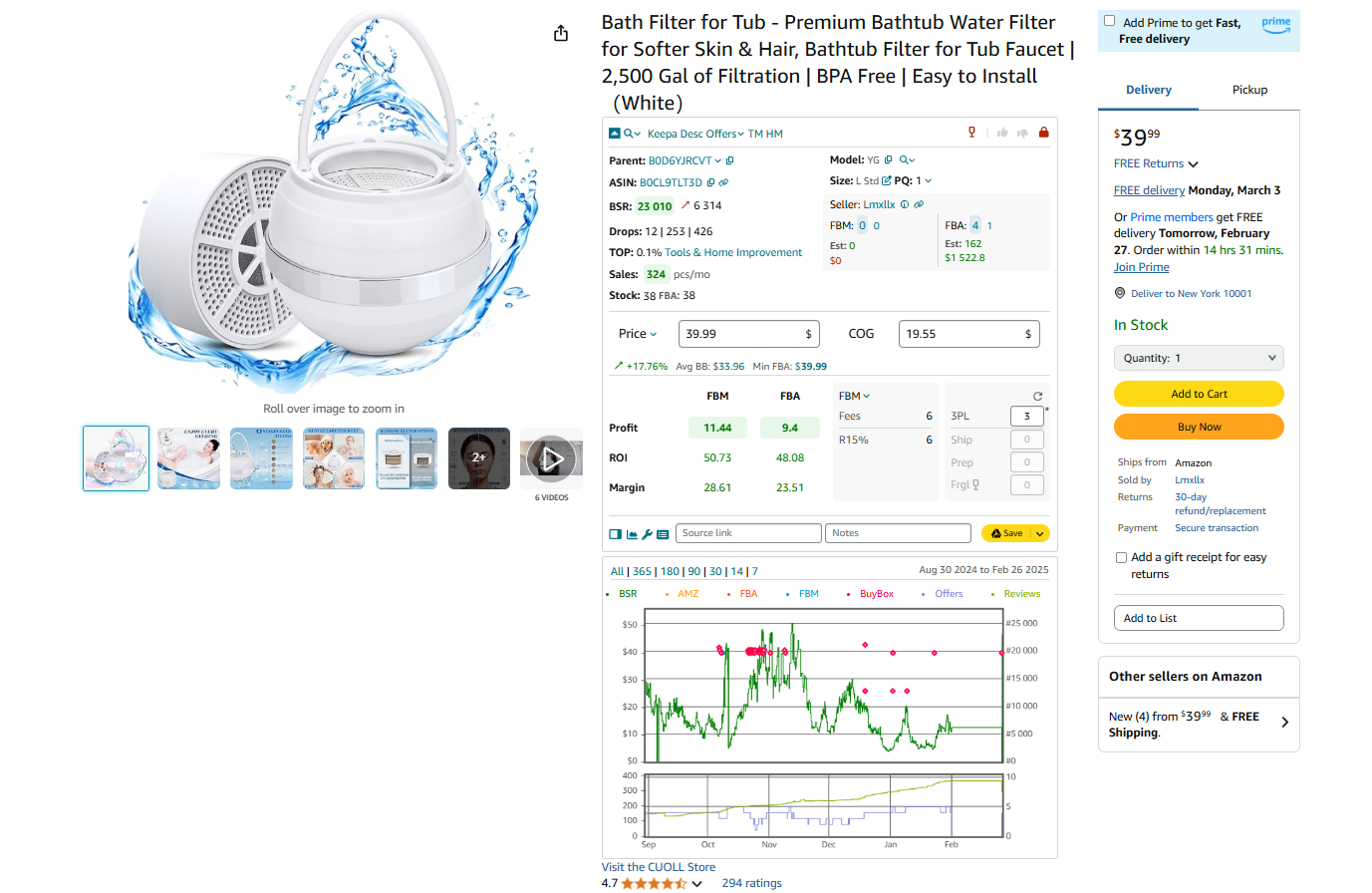
Open your product on Amazon to activate Seller Assistant Extension
- Check BSR (Best Sellers Rank)
Lower is better. A BSR under 200,000 means good sales.
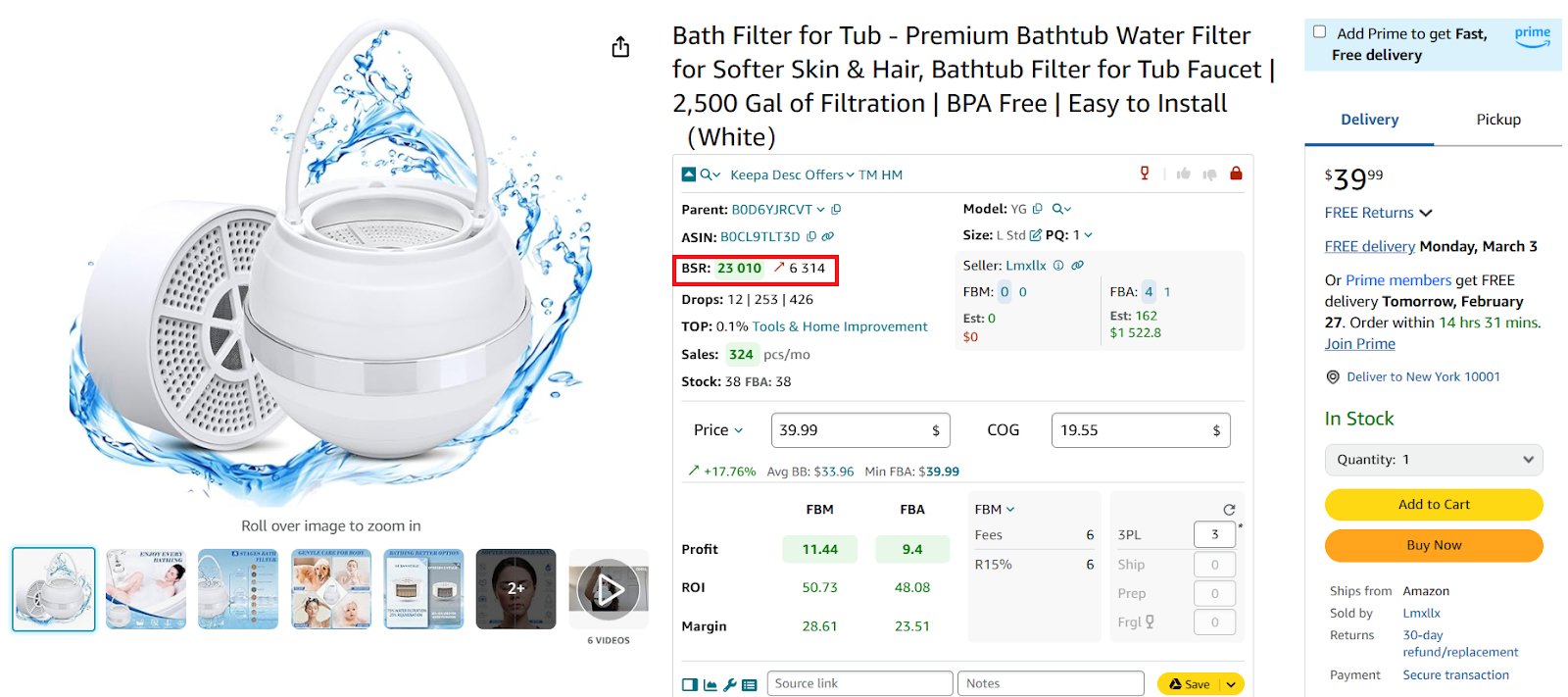
This is the product’s sales rank in its category, it must be between 1 and 200,000, with 1 being the best; in this product BSR is 23010, which is good.
- BSR trend
Look at the 90-day average to see if demand is increasing or declining. If the arrow next to BSR is red and points up, BSR increases indicating decreasing sales over 90 days. If the arrow is green and points down, BSR decreases indicating increasing sales.
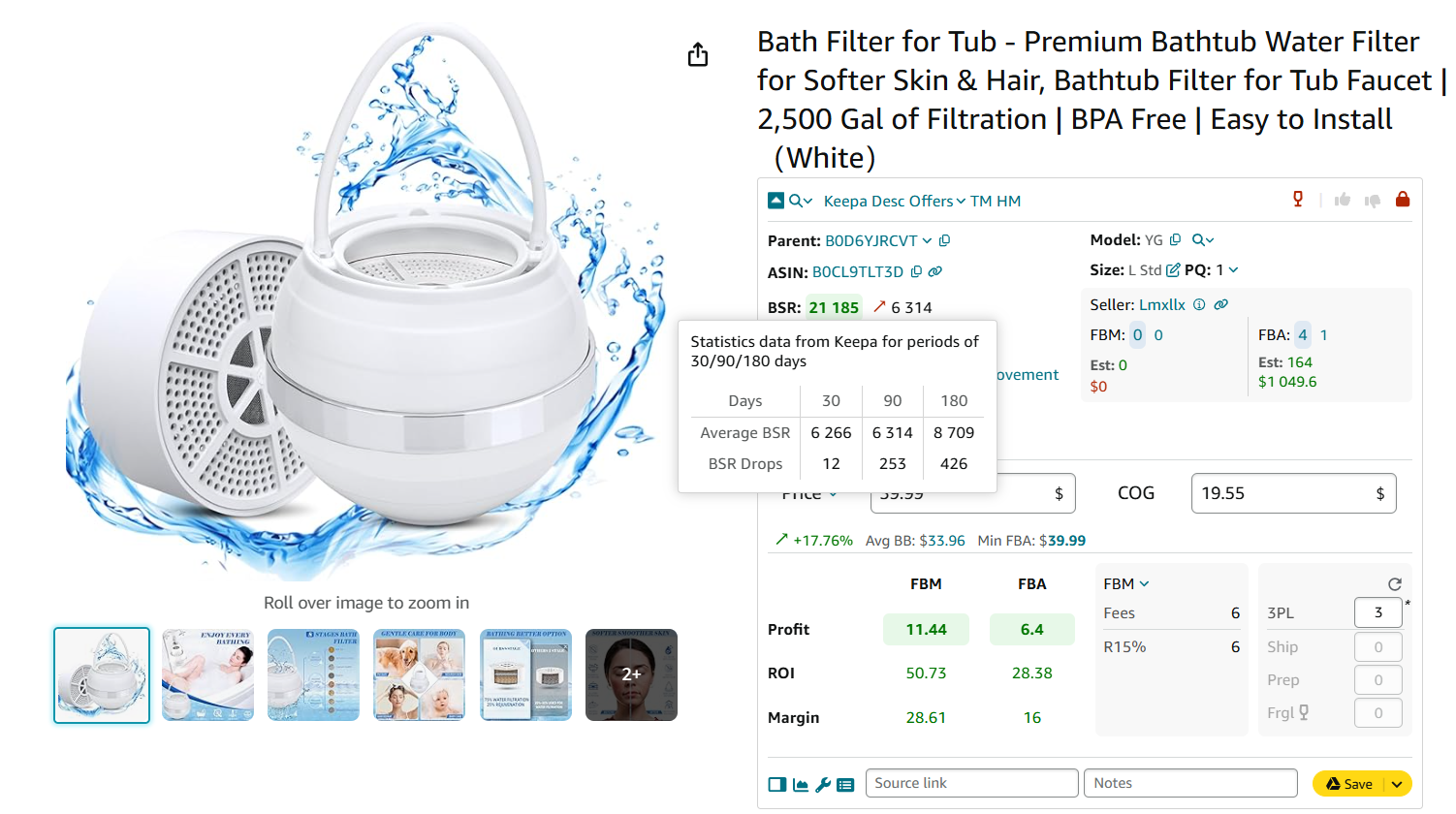
Our product has the currently increasing BSR (red arrow next to it points up), which is not good. But BSR changes instantly, therefore you must look at the average BSR over 90 days - it’s 6314. Average BSR is lower than current BSR. This means that the average sales trend is downward (the BSR figure is green), and product sales on average increase.
- BSR drops (Drops)
Shows how many sales happened in a specific time period. More drops = more sales.
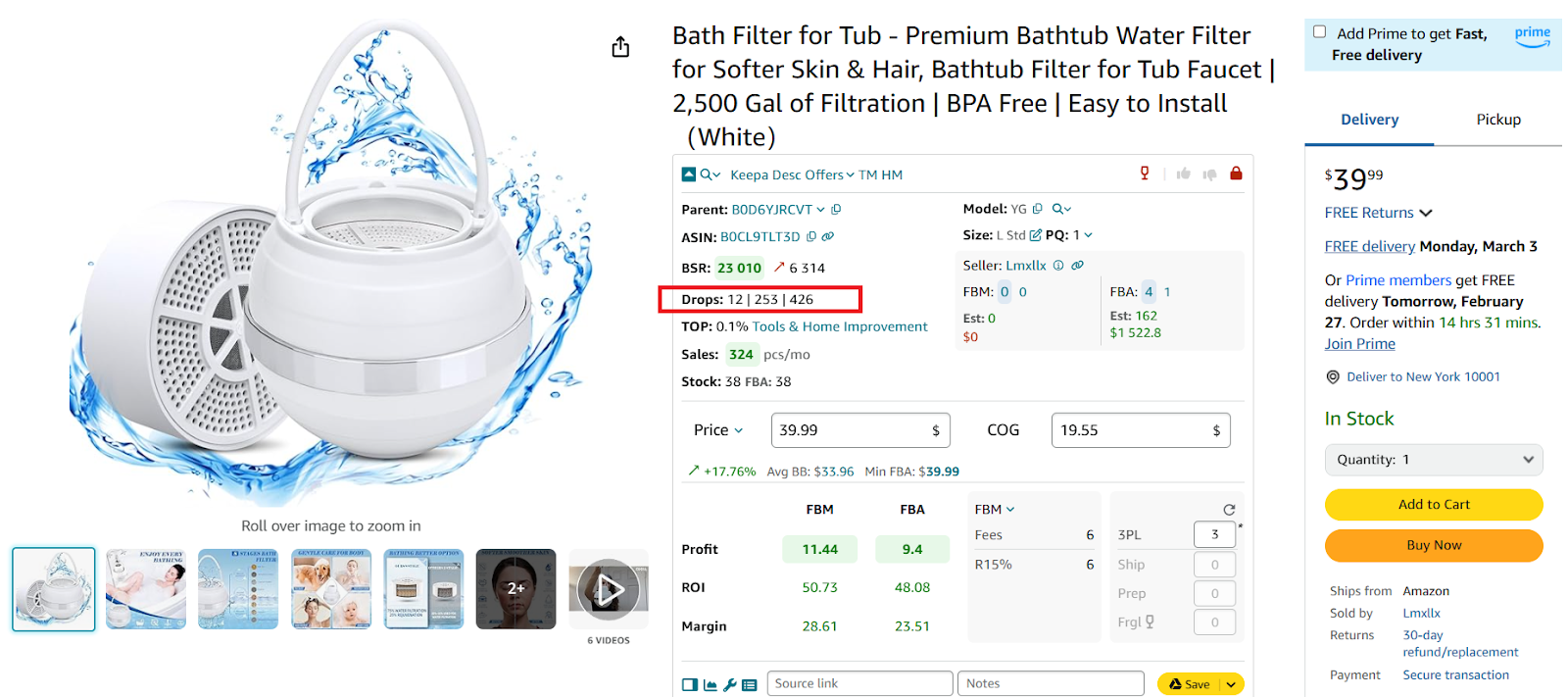
This figure shows how many products were actually sold over a time period you choose, typically a month. You can see that actual sales were 12 units during 30 days, 253 units during 90 days, and 426 units during 180 days.
- Sales velocity (Top)
If higher than 1%, the product is a slow mover and may be risky.
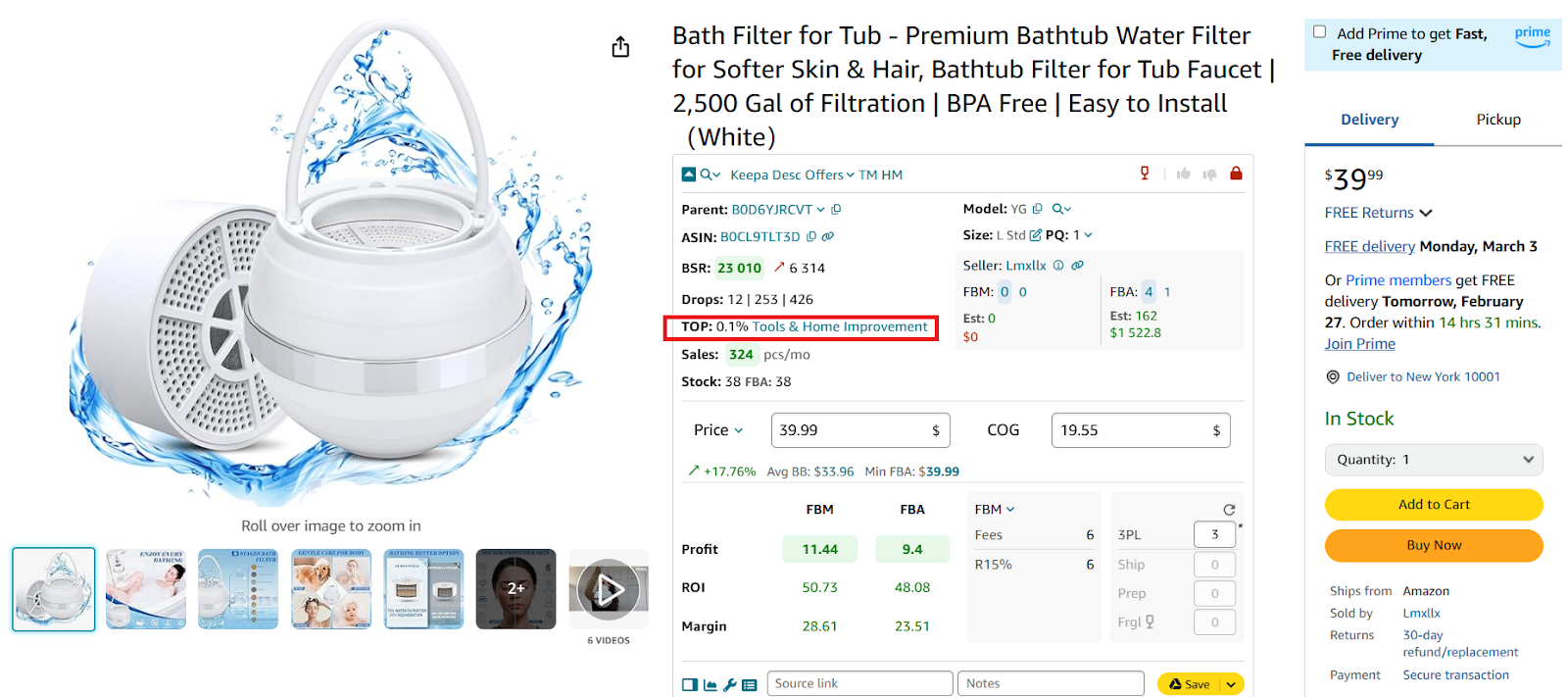
It shows how fast the product sells (sales velocity). A good velocity is less than 0,5%/ Our product sells fast because Top is 0.09%
- Potential sales (Sales)
This is estimated sales based on BSR. It shows how many units you can potentially sell from a BSR perspective.
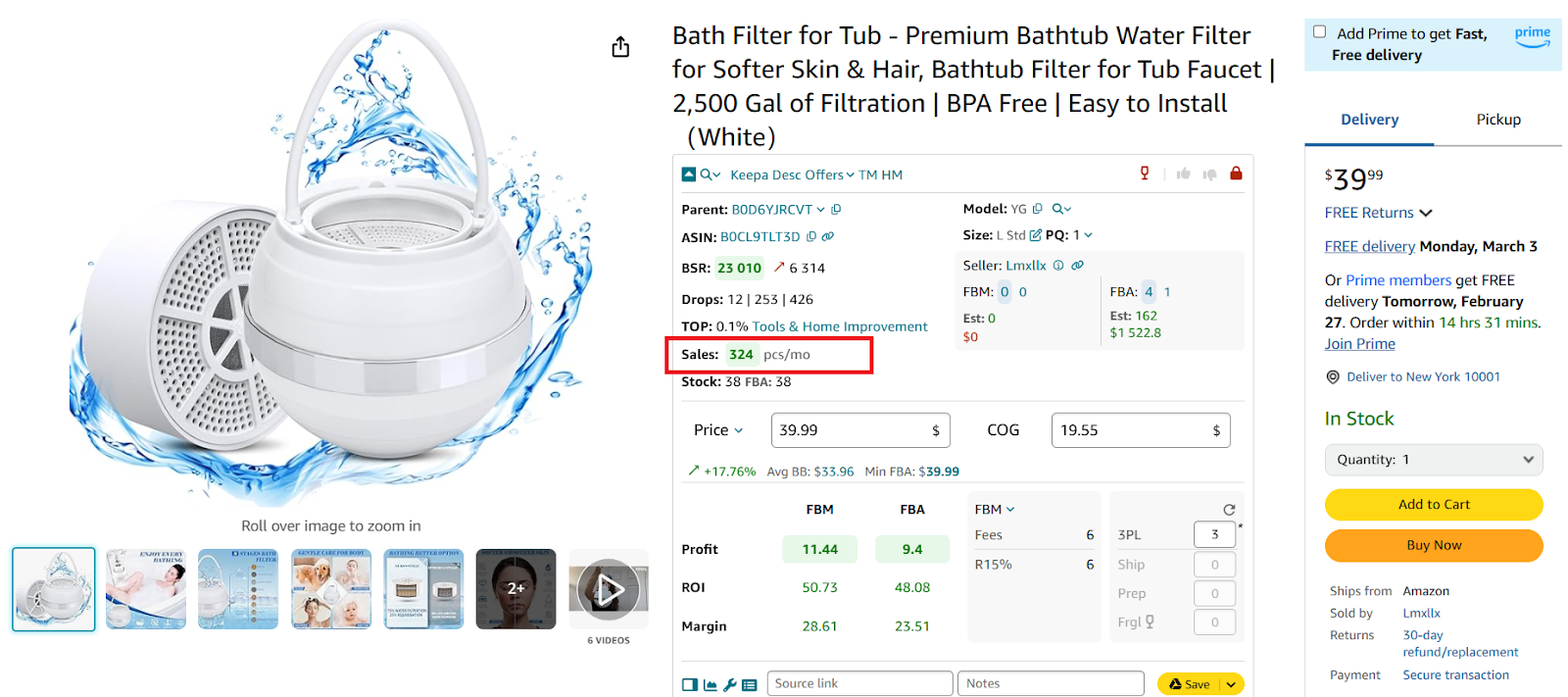
This is estimated sales based on BSR. Currently, your potential sales based on BSR is 324 units/month.
Why this step is necessary
Even profitable products can cause cash flow issues if they take too long to sell.
Step 6. Evaluate competition
If too many sellers are competing for the same product, it becomes harder to win sales. You can determine how intense the competition is by looking at the FBA and FBM seller count on the listing and Amazon’s presence.
✅ How to check using Seller Assistant
- Seller count
- A good range is 3-15 sellers.
- The FBA and FBM fields show the count of FBA and FBM sellers selling items in the “New” condition. There are two numbers in the line. The first number on a blue background is the number of all product offers. The number on the white background next to it is the count of the lowest price offers (Buy Box price +5%).
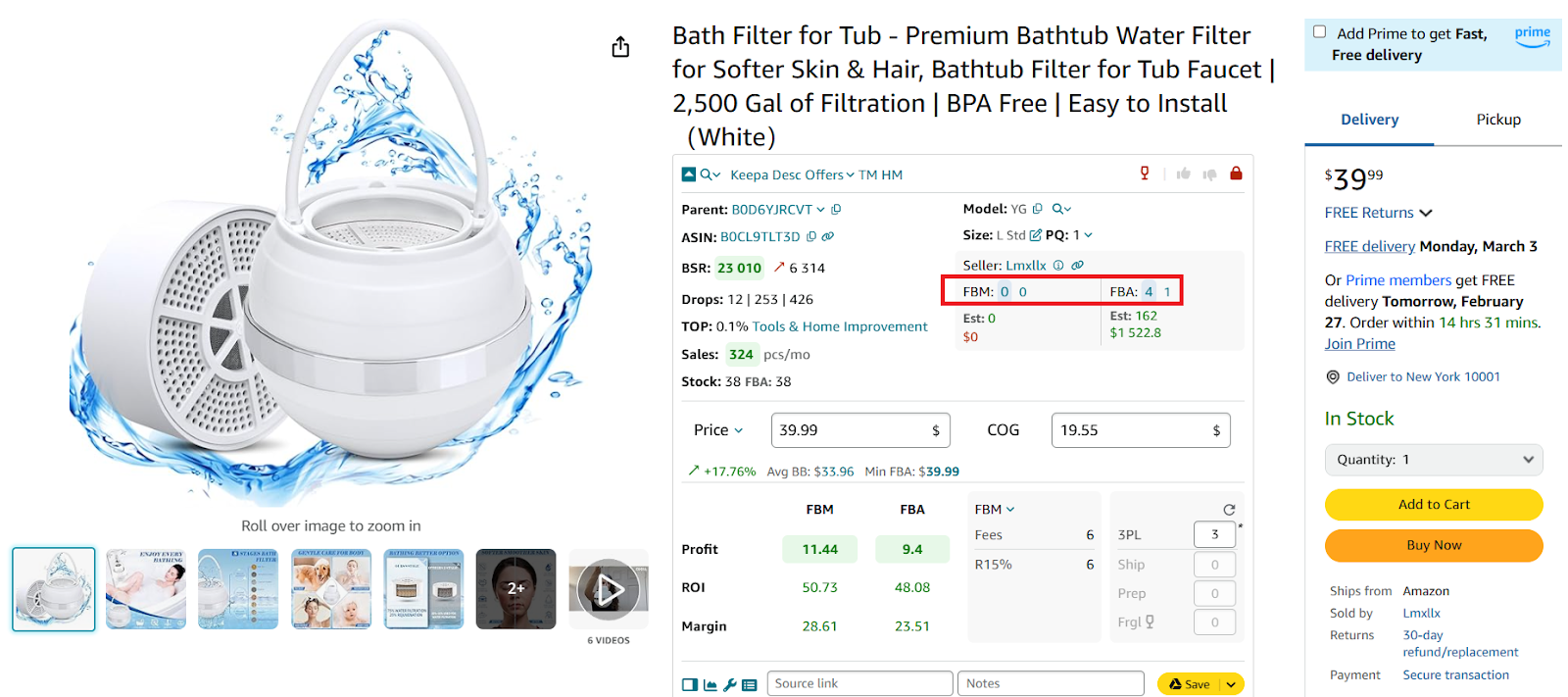
FBA and FBM offer count
- Amazon as a seller
- Avoid competing with Amazon. If Amazon sells the product, it’s difficult to compete.
- You can see all offers by clicking Offers.
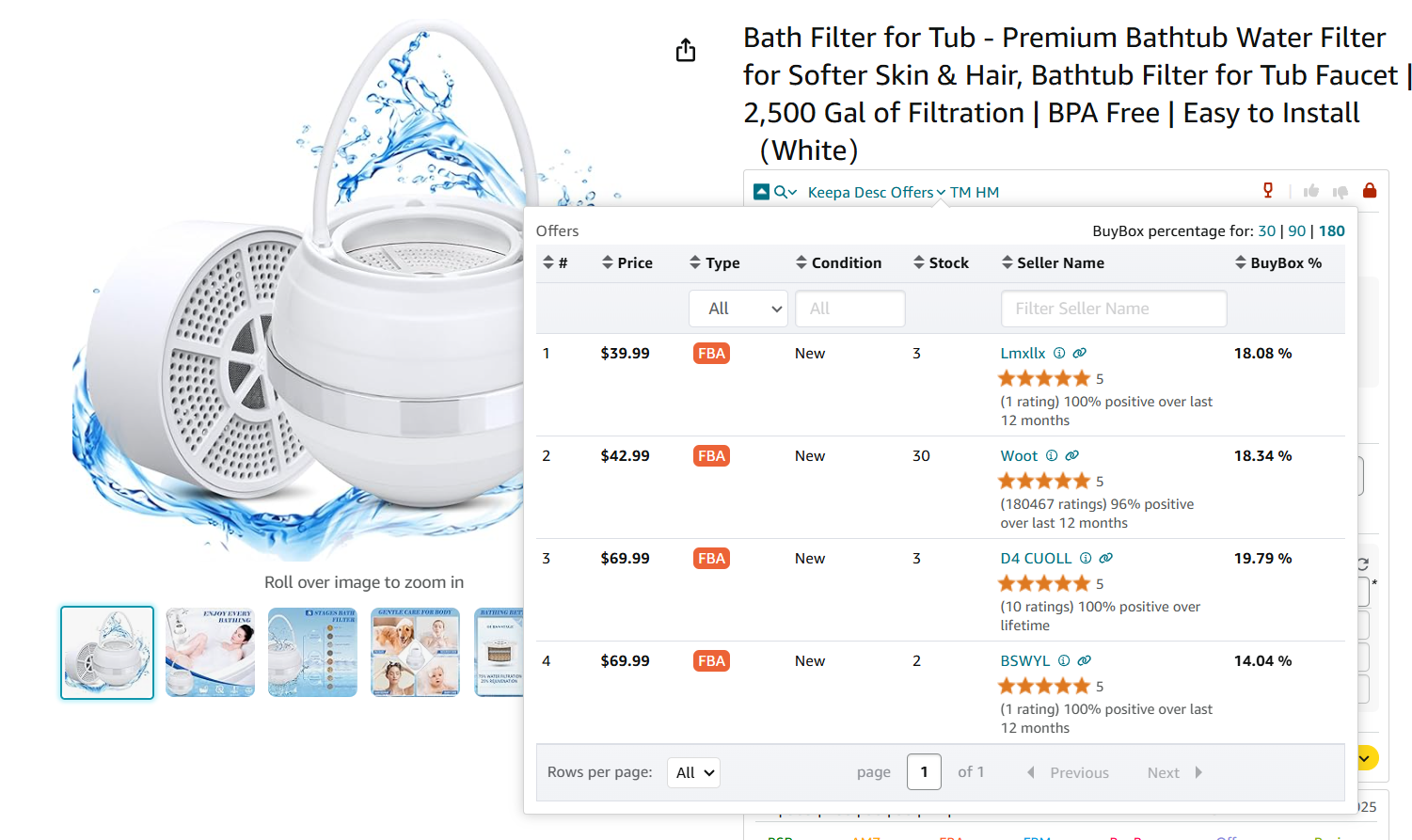
Offers
- If Amazon is a seller, Seller Assistant shows a red “A” icon in the top menu.
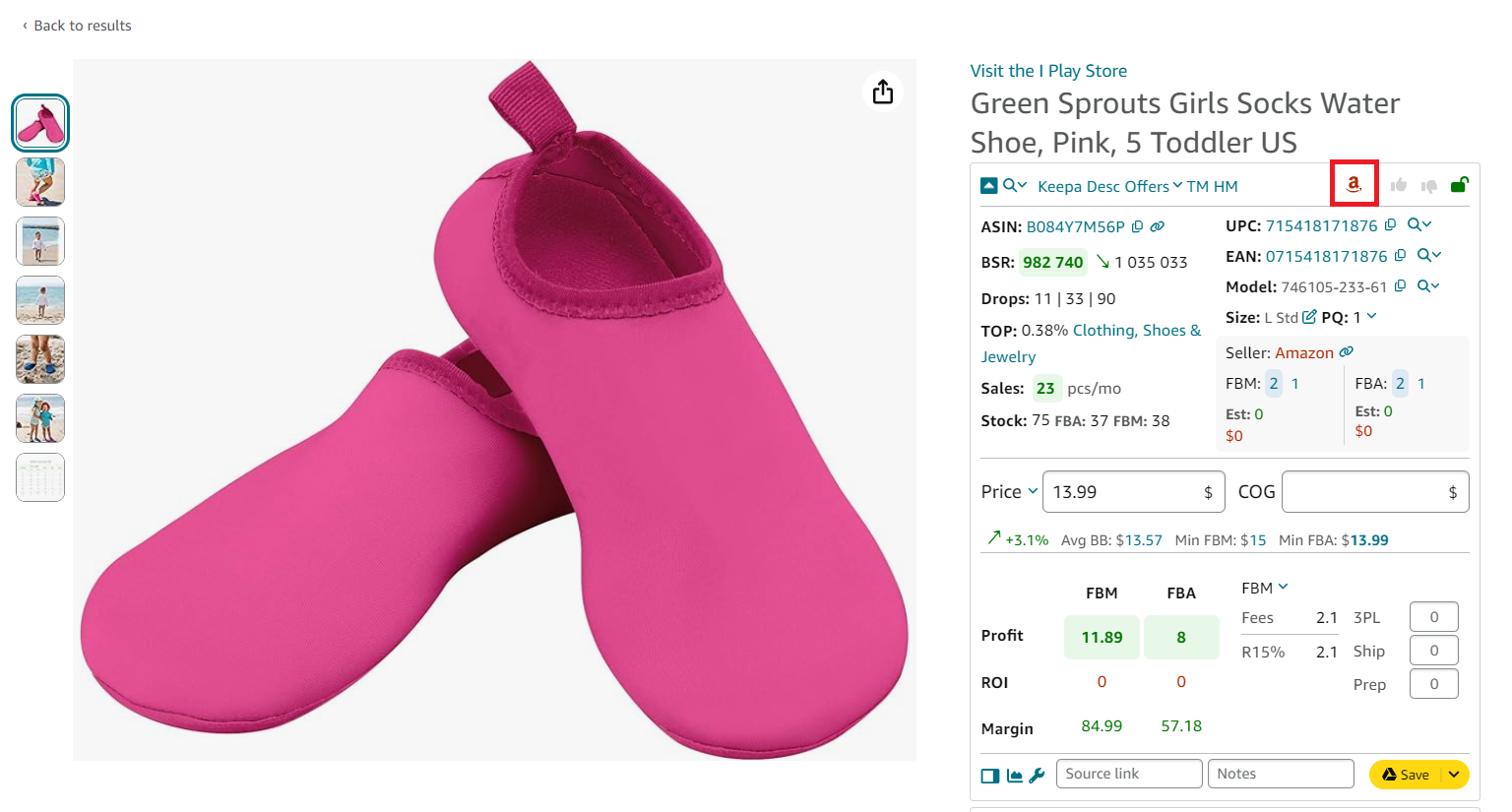
Red “A” icon (on the product pages) or Amazon on the orange background (on the search pages) means that Amazon sells this product as a seller and
- One-seller offers
If there’s only one seller, it may be a private label brand, making reselling impossible (trademarked products).
Why this step is necessary
If competition is too intense, prices may drop due to price wars, reducing profitability.
Step 6. Assess Buy Box potential
The Buy Box (Featured Offer) is where 80% of Amazon sales happen. If you can’t win an essential share of the Buy Box, making sales will be difficult.
✅ How to check using Seller Assistant
- Buy Box %
See how sellers share the Buy Box. If one seller dominates, competition is tough.
You can estimate your chances to get the Buy Box share by looking at the Buy Box% in the Offers.
Why this step is necessary
Strong chances to win the Buy Box help maintain consistent good sales.
Step 7. Estimate how many products you can sell
Understanding monthly sales potential helps you decide how much inventory to buy.
✅ How to check using Seller Assistant
Use the Sales Estimator to estimate how many products you can sell if you become one more seller on the listing. The figure appears in the Est field.
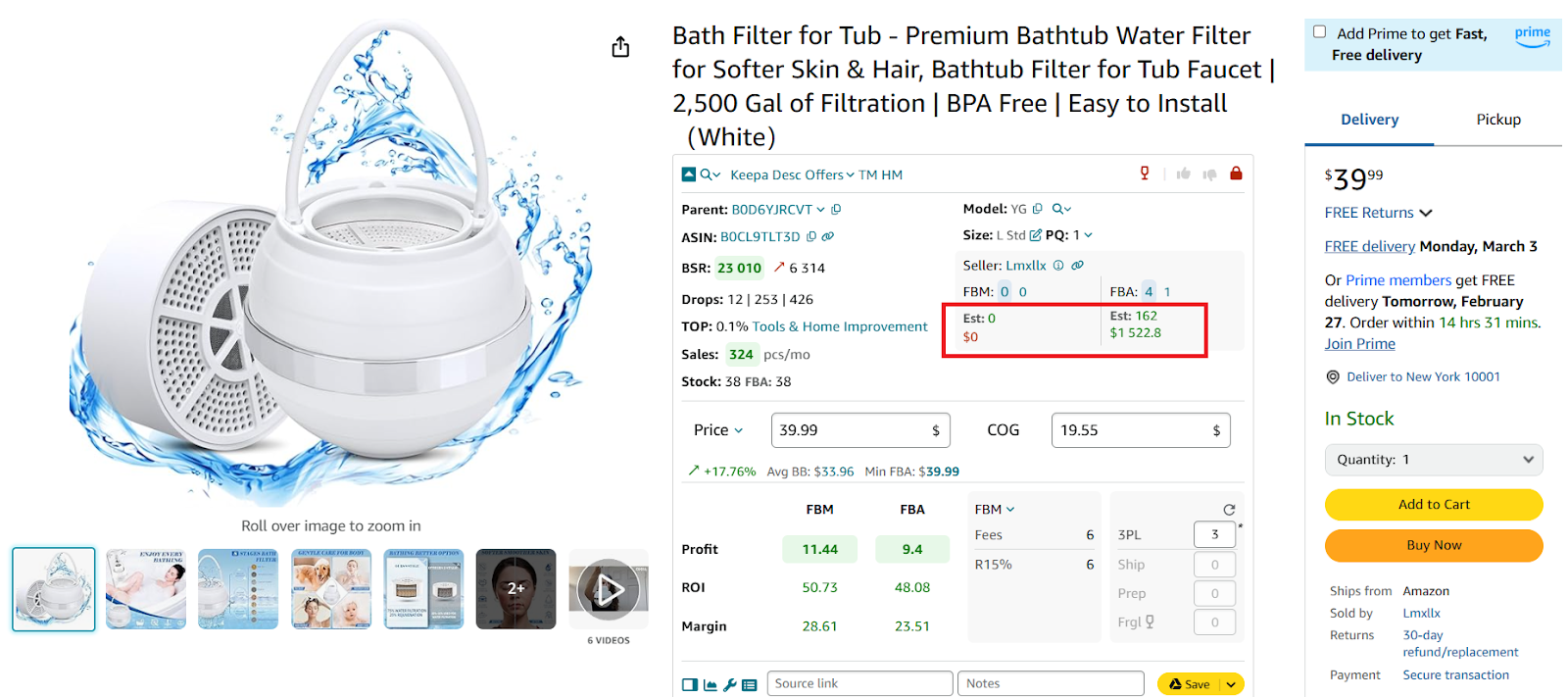
Seller Assistant Extension helps you estimate how many products you can sell if you become one more seller on the listing, with its Sales Estimator. The figure appears in the Est field.
Why this step is necessary
Avoids overstocking and ensures a healthy cash flow.
Step 8. Identify IP complaint risks
Some brands do not allow resellers and file intellectual property (IP) complaints against unauthorized sellers.
✅ How to check using Seller Assistant
- If an IP alert appears, the product has a history of complaints or Amazon policy violations that can hurt your Amazon Account Health Rating.
- Seller Assistant’s advanced IP Alert feature shows the red triangle icon if a product has IP complaints and other Amazon policy violations.
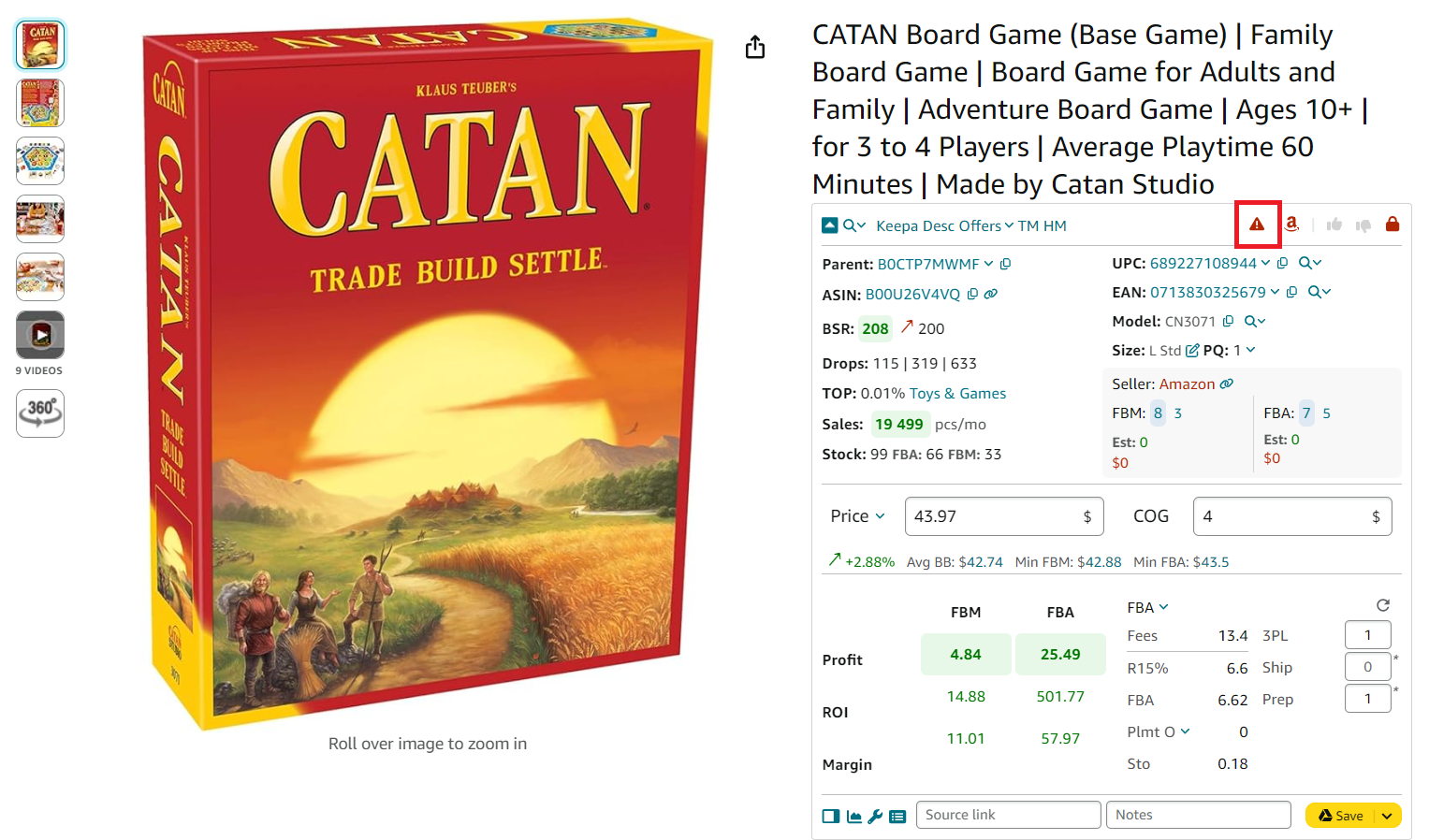
Seller Assistant’s advanced IP Alert feature shows the red triangle icon if a product has IP complaints and other Amazon policy violations.
- IP Alert is powered by Seller Assistant’s unique Amazon policy violation database updated automatically in real time. By hovering a mouse over a red triangle, you can see the type of Amazon policy violation and the date it was filed.
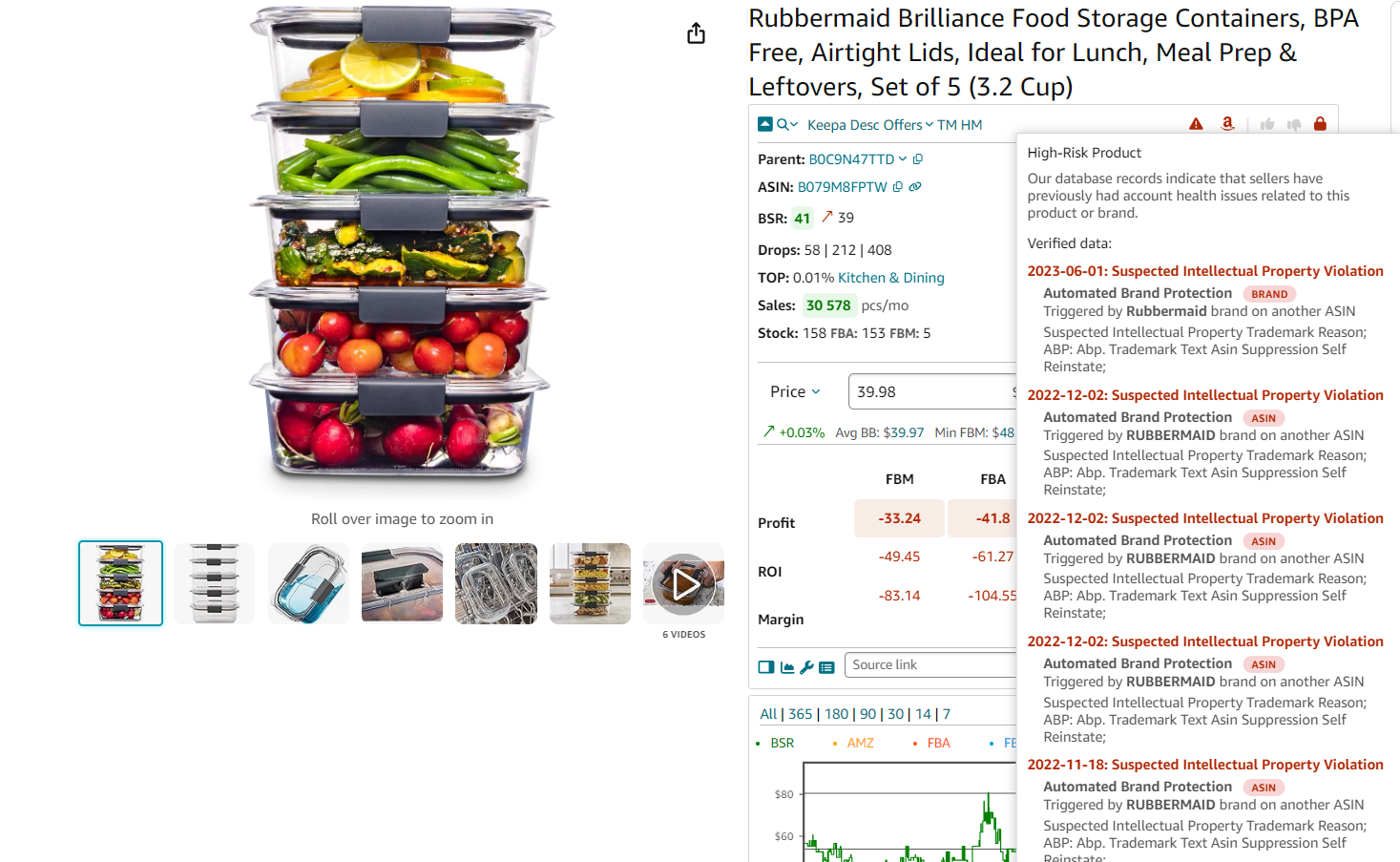
If you hover a mouse over the icon, you will see the type and date of the violation detected by Seller Assistant’s database
Why this step is necessary
IP complaints can lead to account suspension or listing removals. Amazon policy violations that can negatively affect your Amazon Account Health.
Step 9. Look for hidden product risks
Certain products come with extra challenges that can increase costs or reduce profitability.
✅ Risk factors to check in Seller Assistant
- Seller Assistant’s Alerts and Flags feature warns you with a specific icon if a product has one or several flags.
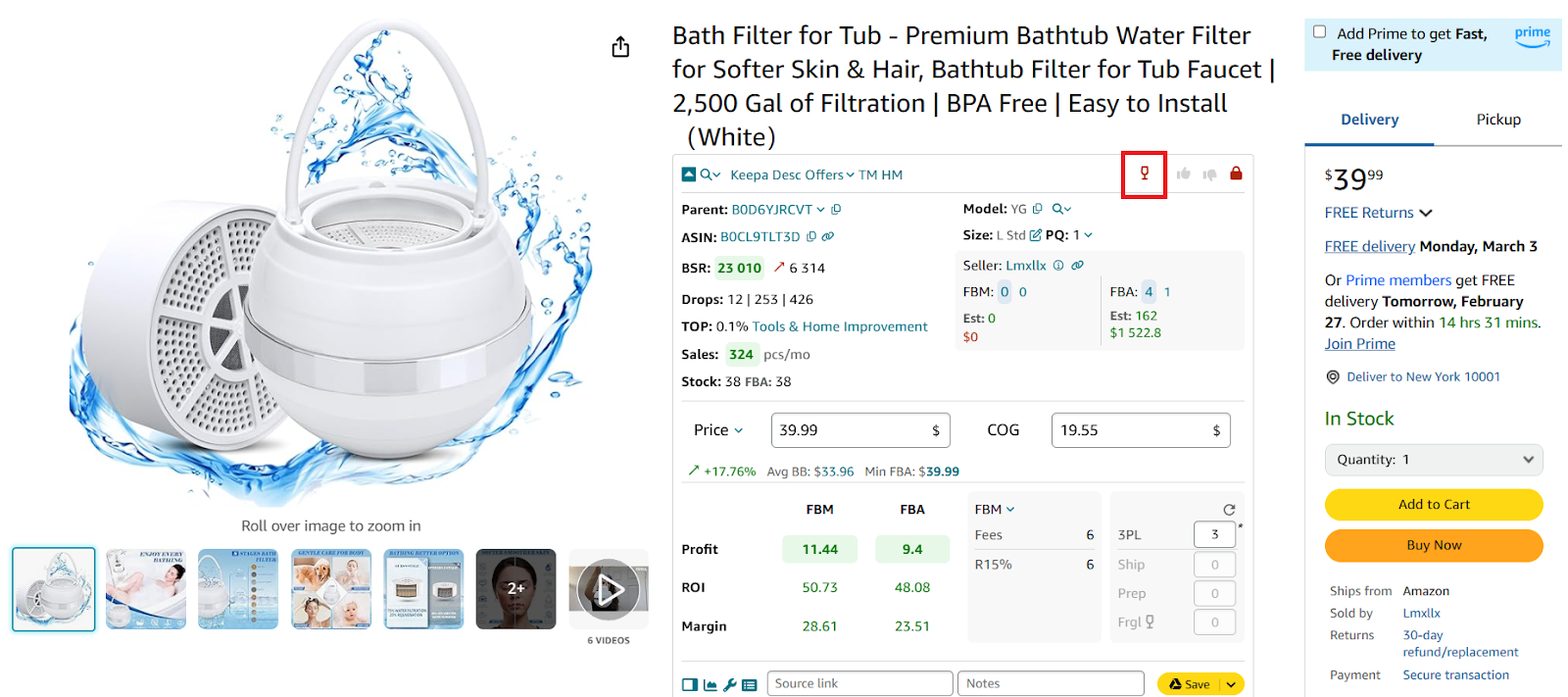
Our product has one flag - it’s fragile.
Seller Assistant flags
- Red “A” icon (on the product pages) or Amazon on the orange background (on the search pages) if Amazon is a seller
- Red box icon for oversized products
- Red glass icon for fragile products
- Red drop icon for meltable products
- Red hazmat icon for the Hazmat (Dangerous goods) category
- Red 18+ icon for adult products
- Red GB icon for generic brand.
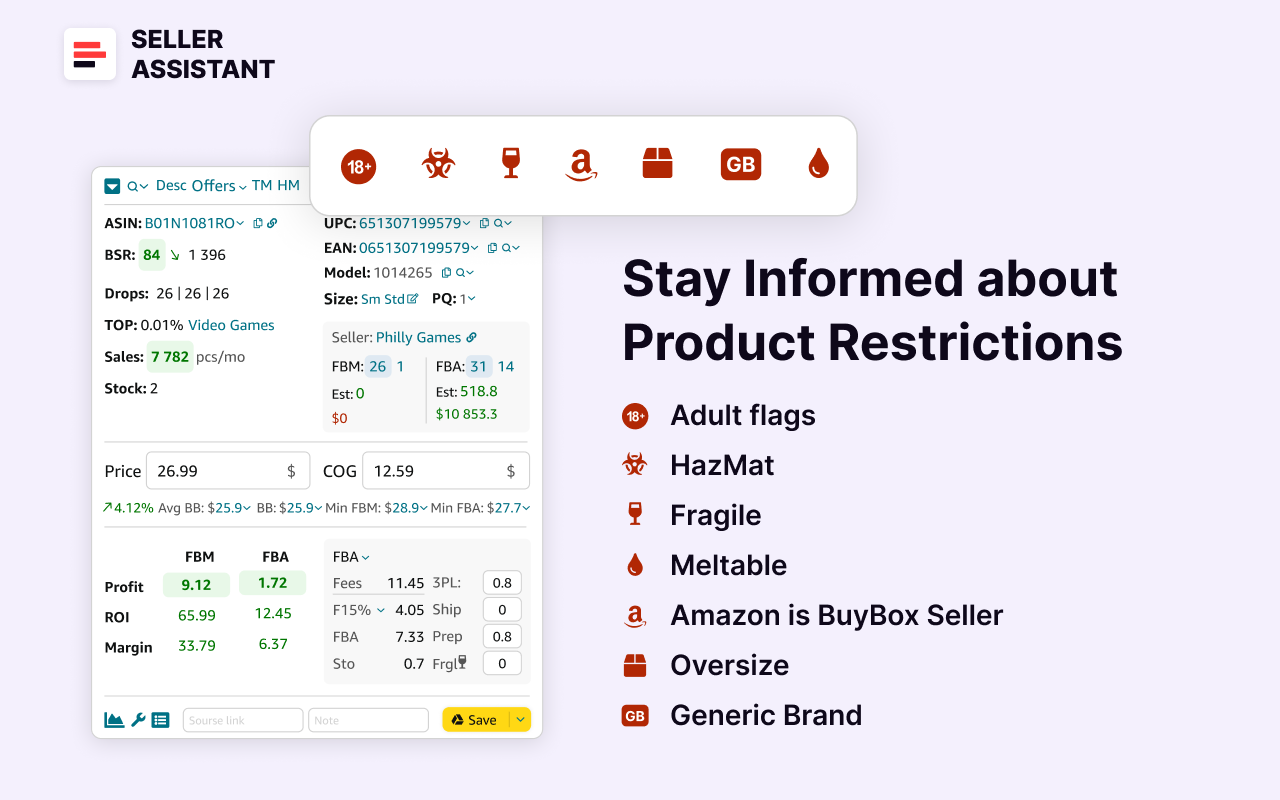
Seller Assistant flags
Why this step is necessary
Reduces unexpected costs and ensures smooth order fulfillment.
Step 10. Analyze Buy Box price behaviour
Buy Box trend shows competition intensity. If the product’s Buy Box price is more or less stable, you can set your price on that level. If it goes up and down all the time, it is a sign of very intense competition. This means deep price drops and very thin profit, and you must consider that when setting the price.
✅ How to check using Seller Assistant
You can see how much the price goes up and down over time on the built-in Keepa chart. Changes of Buy Box prices are indicated by pink diamonds on the upper chart.
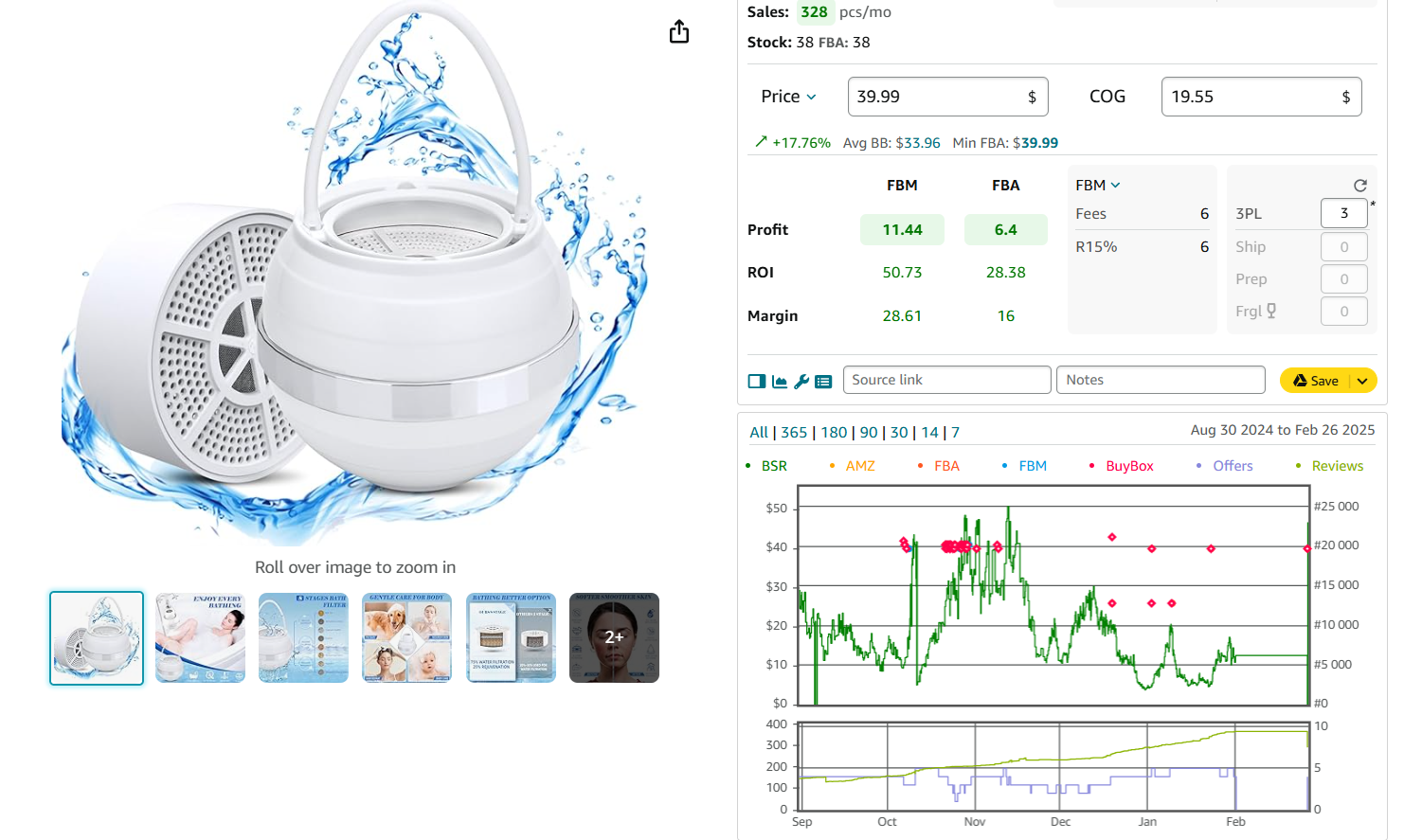
You can see how much the price goes up and down over time on the built-in Keepa chart.
Why this step is necessary
Avoids price volatility, which can reduce profits.
Step 11. Identify the best-selling product variations
Some products have multiple variations (sizes, colors, bundles), but not all sell equally well.
✅ How to check using Seller Assistant
- Variation Viewer lets you quickly see the offers and essential data for all product variations: ASIN, image, price, and attributes (size, color, etc.), total rating share, and the percentage of ratings per variation, and helps select the most profitable ones. It also shows if a variation is out of stock.
- You can select the best-selling variations by their rating share and see which one has the biggest share.
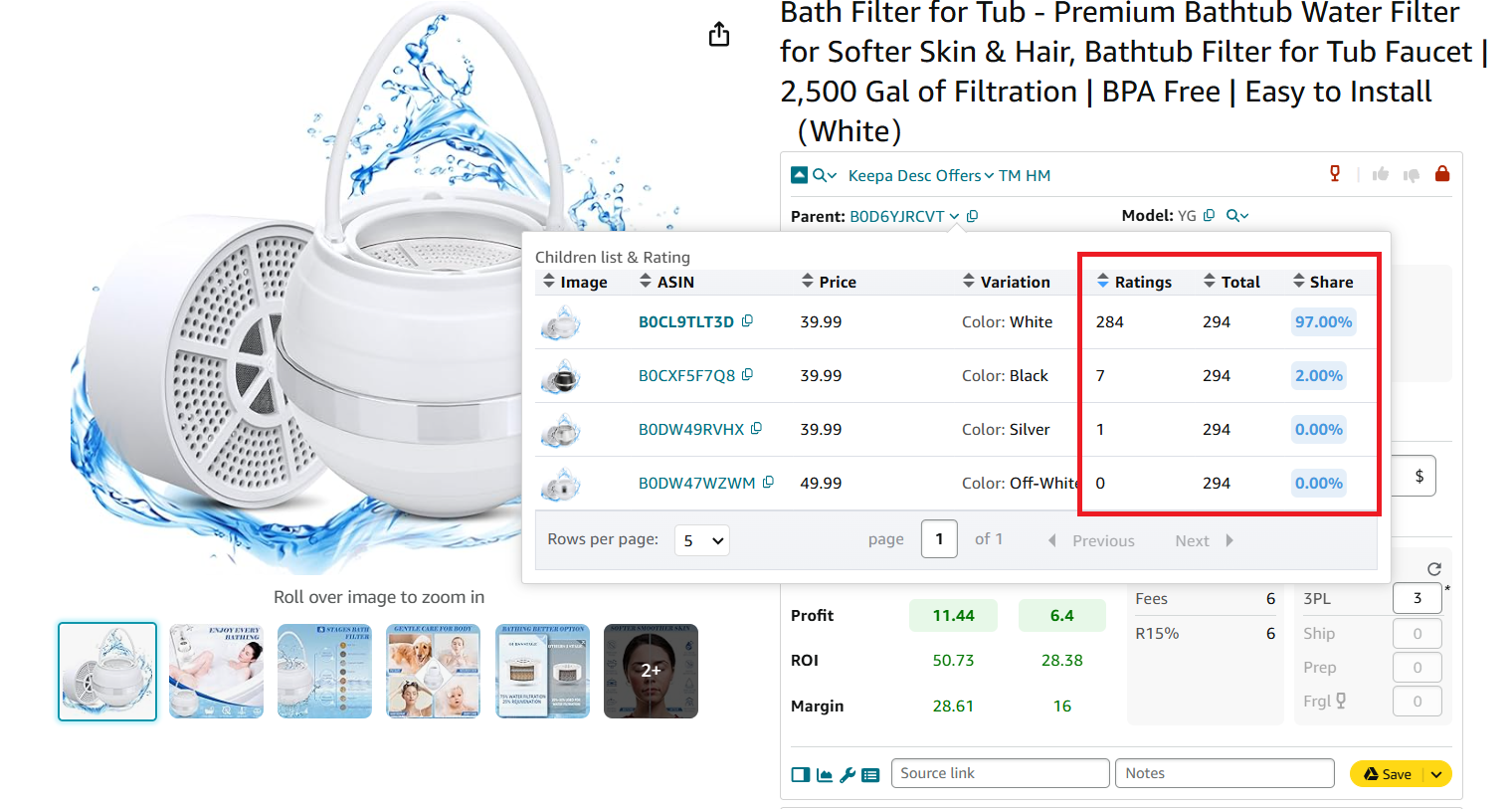
Variation Viewer
Why this step is necessary
Helps you select the best-selling variation instead of a slow-moving one.
Step 12. Verify if the product is a set or package
Amazon listings may have bundles (several different products) or packs (multiple units together), affecting cost calculations. If a product is a set or package, you must add this to your profit calculations. There is a difference if you calculate profitability for 1 or 2 units.
If a product is a set of 2 or 3 on Amazon, you need to buy the multiple of 2 or 3, so that you are not left with spare items.
✅ How to check using Seller Assistant
- Look at the package quantity in the listing.
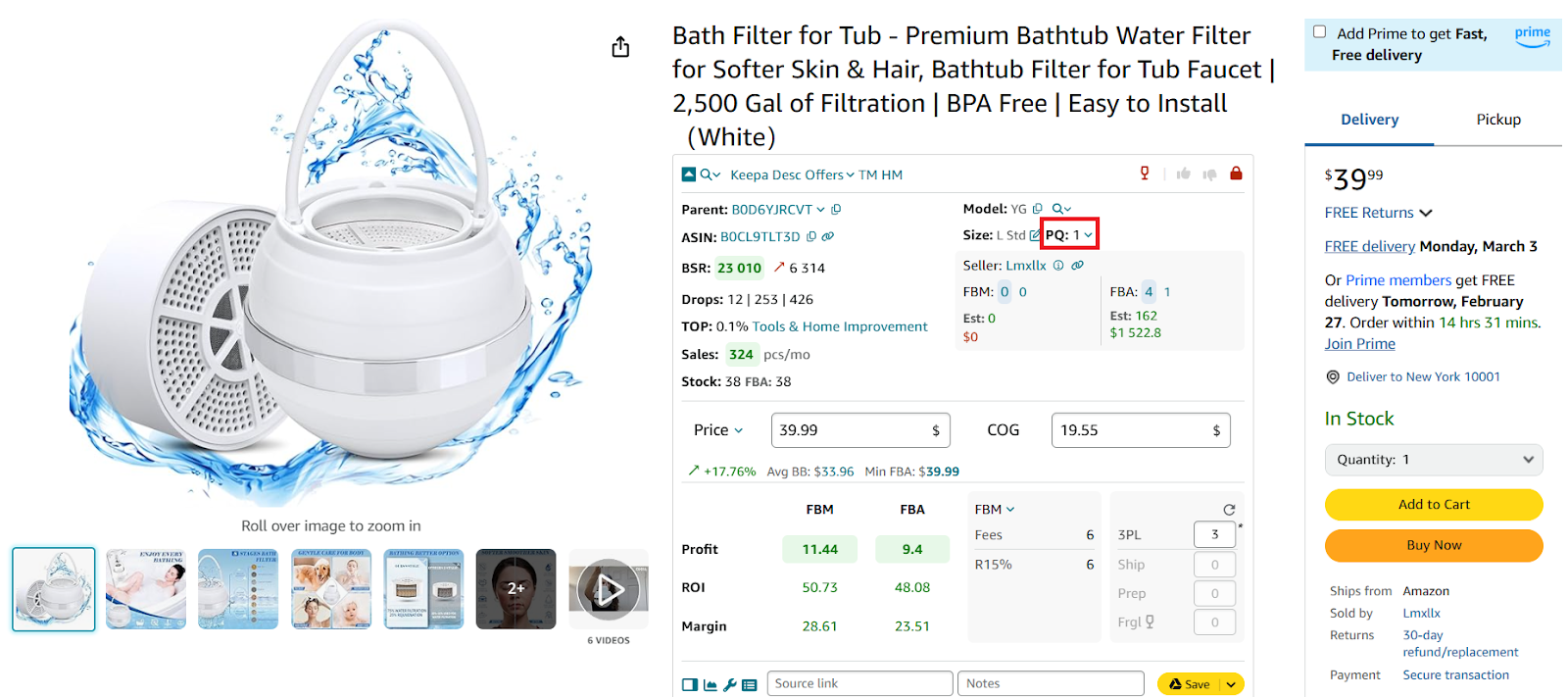
This product is not a set or package.
- Adjust profit calculations for multi-pack items.
Why this step is necessary
Prevents miscalculating profit margins when selling bundles.
How to Source Online Arbitrage Products?
Sourcing products is the foundation of a successful Amazon business. In online arbitrage, sourcing is not just about buying products – it’s about getting them at the lowest possible price to maximize profit.
Since Amazon fees and competition can eat into your margins, you must reduce sourcing costs as much as possible. This means using all available discounts, including store discounts and coupons, gift cards, cashback offers, credit card rewards, new user discounts, and customer loyalty programs.
Many tools and websites help sellers identify available discounts on products. By stacking multiple types of discounts, sellers can significantly lower product costs and increase their ROI.
Real-world example: stacking discounts to lower costs
Let’s say you find a kitchen appliance on Walmart selling for $100, and on Amazon, it sells for $150. Instead of paying full price, you apply the following stacked discounts:
- Store discount: 10% off ($100 → $90)
- Coupon: $5 off ($90 → $85)
- Cashback (Rakuten): 5% cashback ($85 → $80.75)
- Credit card cashback: 2% back ($80.75 → $79.14)
- New user discount: $10 off ($79.14 → $69.14)
Instead of paying $100, you pay $69.14, increasing your profit margin and ROI when selling on Amazon.
Types of discounts for online arbitrage
Now, let’s explore the different ways you can lower sourcing costs and where to find them.
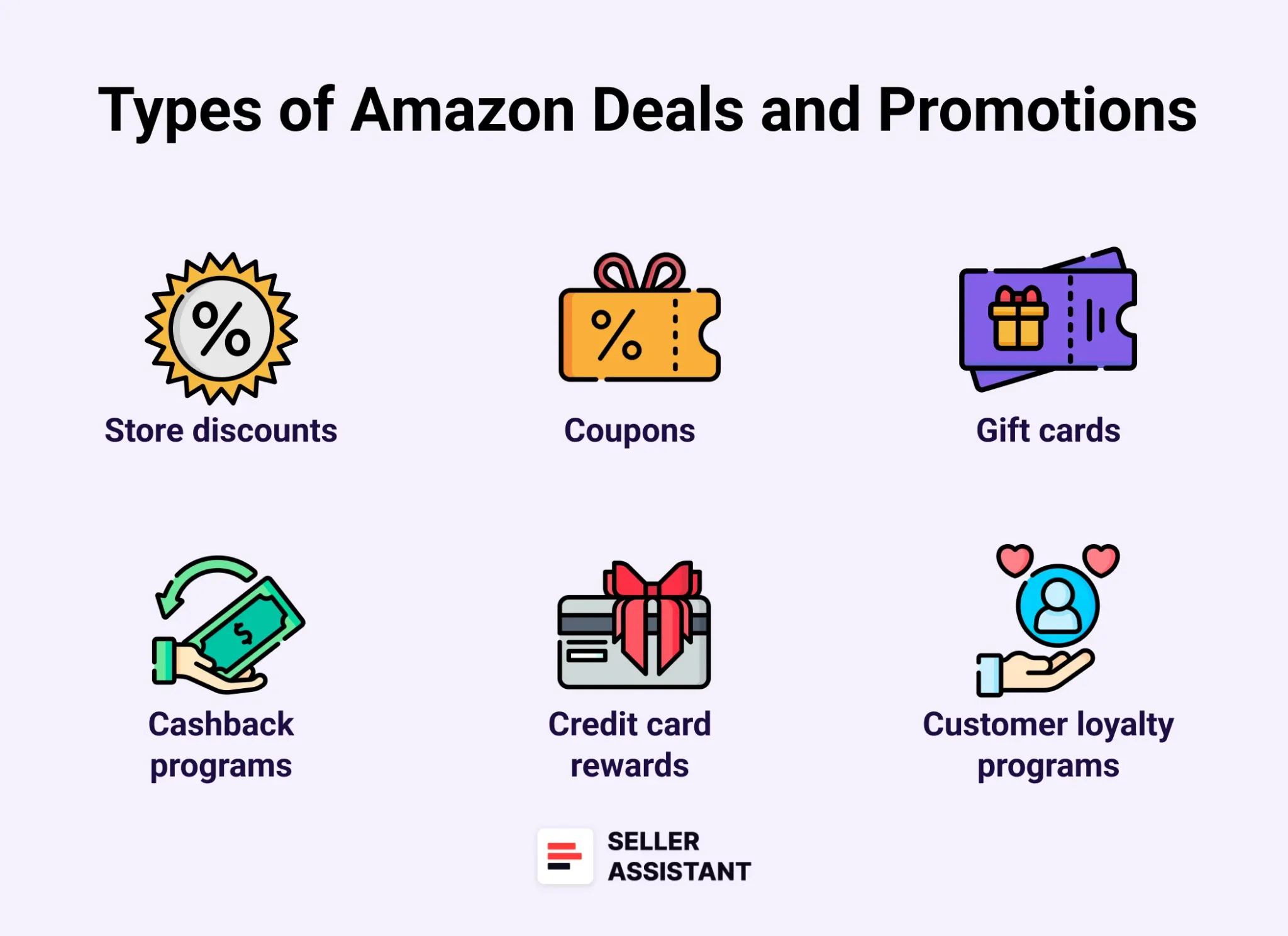
Types of discounts for online arbitrage
Store discounts
- What it is
Retailers often offer automatic discounts on products or for bulk purchases.
-
How it works
- Many stores have seasonal sales, flash deals, and special promotions.
- Some discounts apply when buying multiple units (e.g., “Buy 2, Get 1 Free”).
-
Example websites
Coupons
- What it is
Coupons provide instant price reductions on select products.
-
How it works
- Some stores offer site-wide coupons, while others are product-specific.
- Amazon itself offers clippable coupons on many listings.
-
Example websites
Automatically applies coupons
Lists retailer coupons
Finds available coupons
Gift cards
- What it is
Sellers buy discounted gift cards to reduce product costs.
-
How it works
- Some platforms sell gift cards at a lower price than their face value.
- Using these for purchases results in instant savings.
-
Example websites
Buy discounted gift cards
Compares gift card discounts
Exchange unwanted gift cards
Cashback programs
- What it is
Cashback sites give a percentage of your purchase amount back as a rebate.
-
How it works
- You activate cashback before shopping on the retailer’s site.
- After making a purchase, a portion of the price is credited back to your account.
-
Example websites
Popular cashback site
High cashback rates
Browser extension for cashback
Cashback and coupons.
Credit card rewards and cashback
- What it is
Credit cards offer cashback or rewards points for purchases.
-
How it works
- Many business credit cards provide 1-5% cashback on purchases.
- Some cards offer higher cashback on specific categories, like online shopping.
-
Example credit cards
1.5% cashback on everything
2% cashback
5% cashback rotating categories
New user discounts
- What it is
Many online stores offer discounts for first-time buyers.
-
How it works
- Sign up for a new account to receive an instant discount.
- Some retailers provide free shipping or extra coupons for new users.
-
Example websites
New user coupons
First purchase discounts
Special pricing for new customers
Customer loyalty programs
- What it is
Retailers reward frequent buyers with points, discounts, or exclusive deals.
-
How it works
- Loyalty members accumulate points with every purchase.
- Points can be redeemed for future discounts or cashback.
-
Example programs
- Target Circle
- Discounts for Target shoppers
- Best Buy Rewards
- Earn cashback on purchases
- Walmart+
- Free shipping & discounts.
How to List Online Arbitrage Products on Amazon?
Listing your products on Amazon is a crucial step in getting your business up and running. It’s not just about uploading product details – you also need to select the right fulfillment method and set a competitive price to maximize sales.
For online arbitrage sellers, most products already exist in Amazon’s catalog. Amazon requires sellers to add their offers to existing listings rather than creating new ones. Below are the steps to list a product that already exists on Amazon.
Steps to list online arbitrage products
Step 1. Access the product listing dashboard
Log in to your Seller Central account.
Navigate to Catalog > Add Products from the menu.
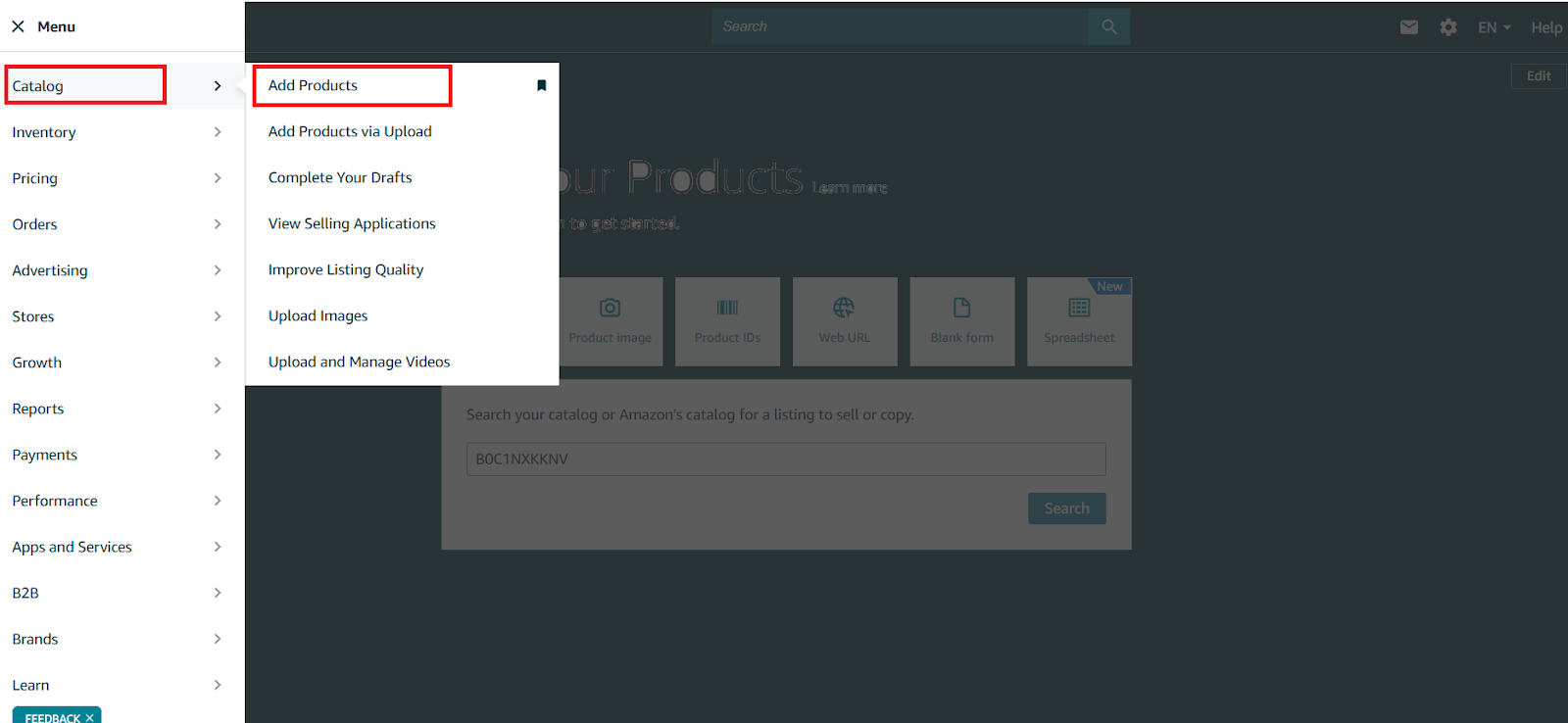
Navigate to Catalog > Add Products from the menu.
Step 2. Search for the product
Use the search bar to look up the product by name, description, or related keywords.
You can also search using the ASIN (Amazon Standard Identification Number) for precise results.
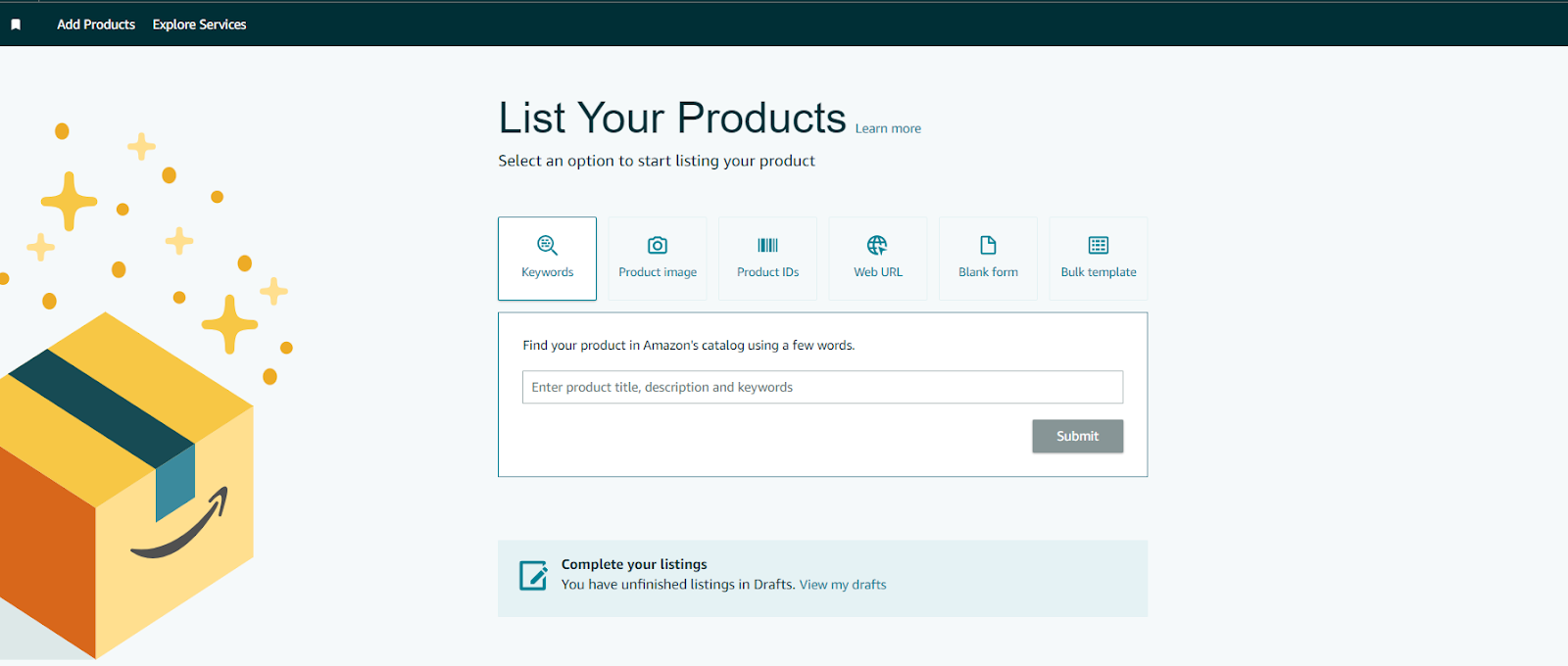
You can also search using the ASIN (Amazon Standard Identification Number) for precise results.
Step 3. Select the product and condition
- Choose the correct product from the search results.
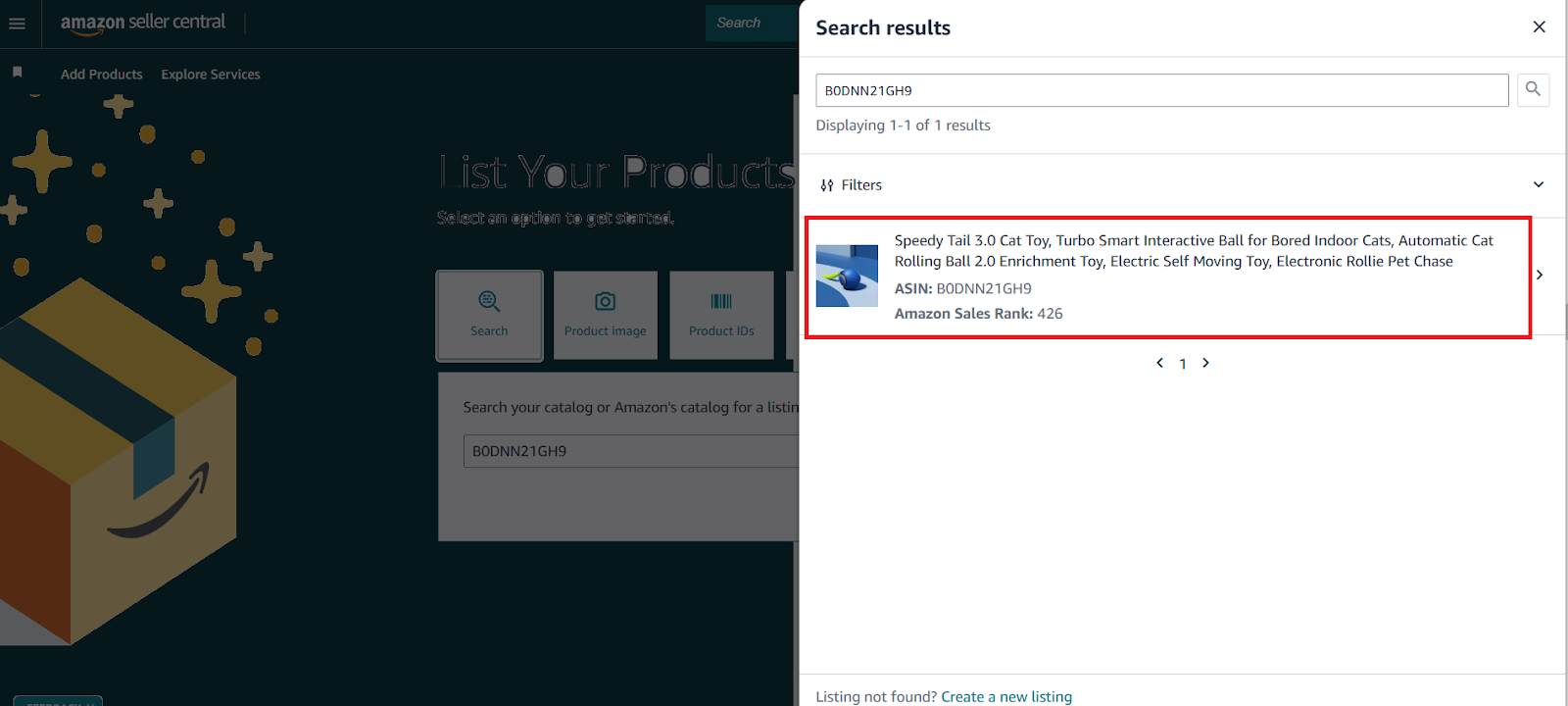
Choose the correct product from the search results.
- Specify the condition (new, used, or refurbished).
- Click Sell this product to proceed.
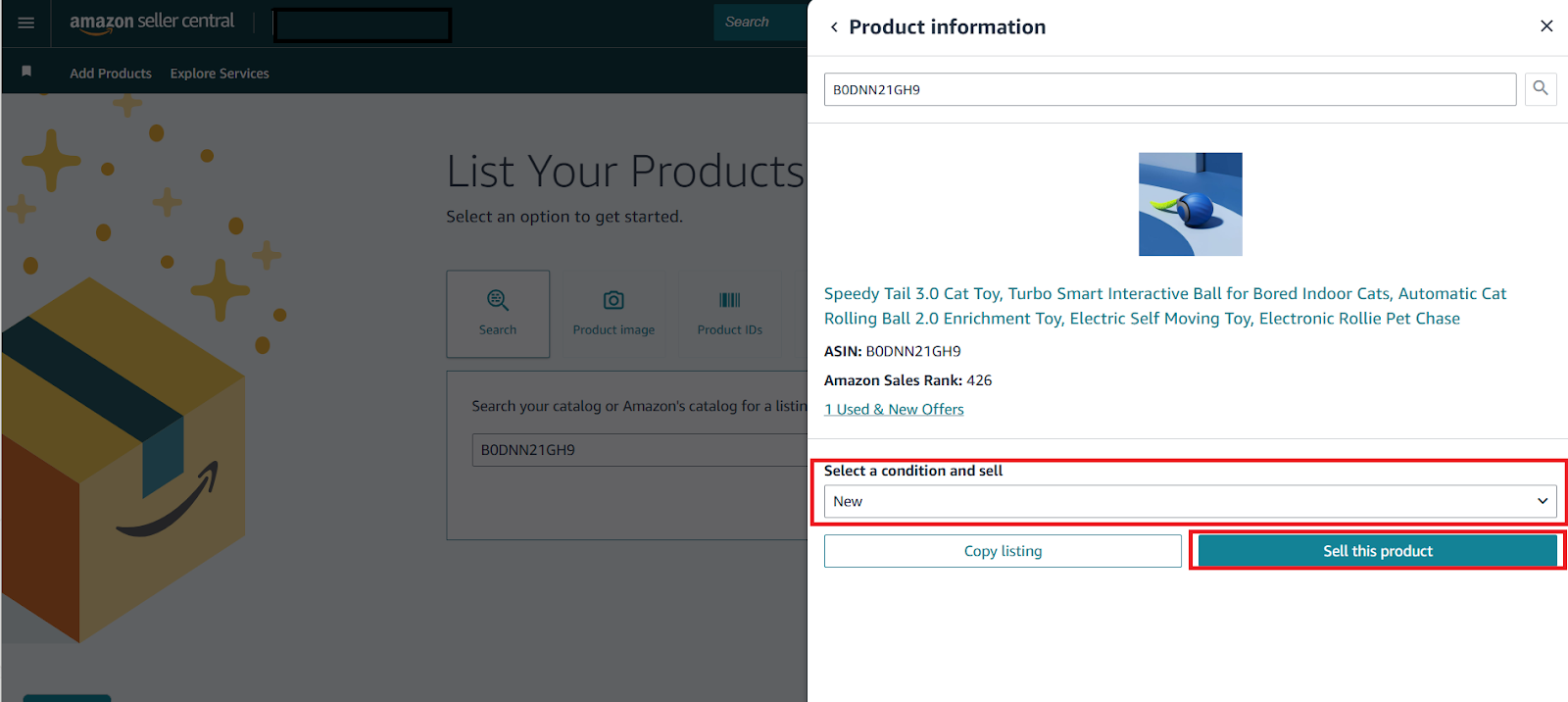
Specify the condition (new, used, or refurbished). Click Sell this product to proceed.
Step 4. Apply to sell the product (if required)
- Some products are restricted, and you may need Amazon’s approval before listing them.
Possible scenarios:
- Instant approval
You click Apply to sell, fill in the form provided by Amazon, and can list the product immediately.
- Approval required
Amazon asks for additional documents or information before allowing you to sell.
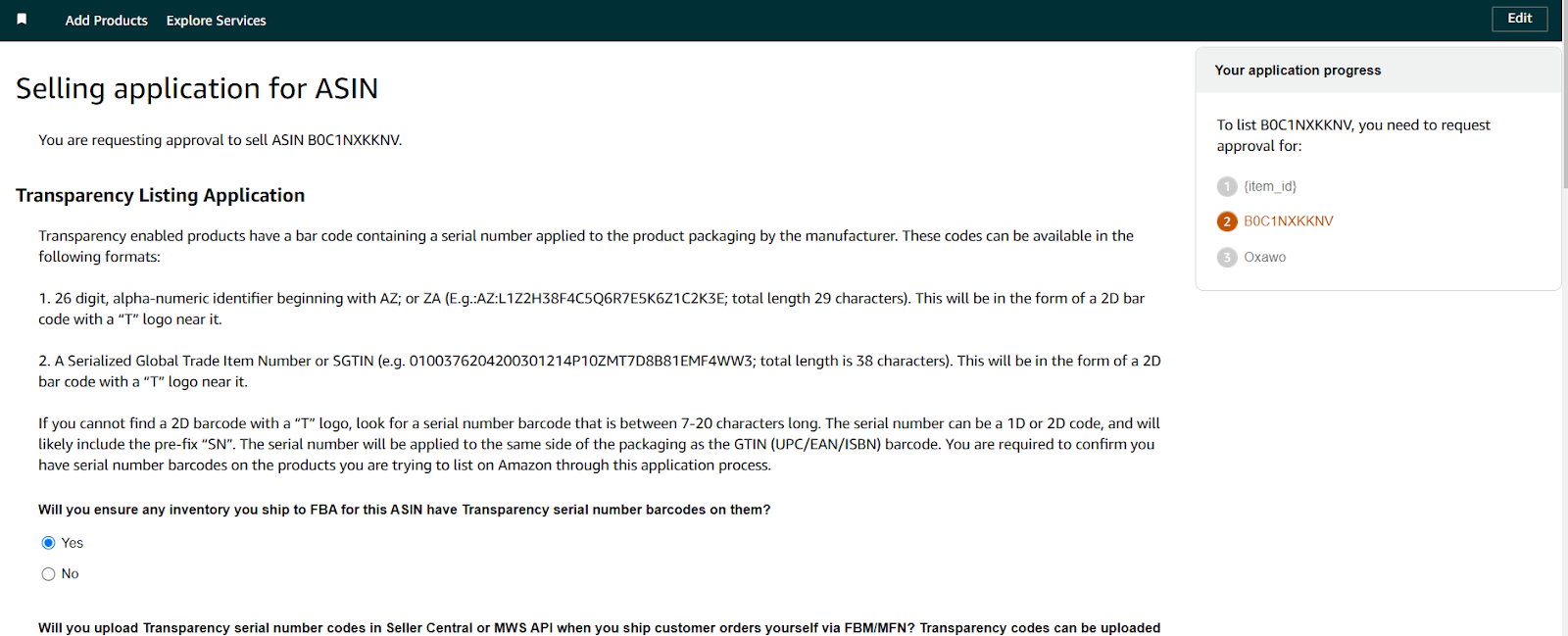
Approval required
- Not eligible
If your account doesn’t meet the criteria, Amazon will display “Your account does not qualify.”
Step 5. Set the price and choose the fulfillment method
- Enter the price you want to sell the product for.
Select the fulfillment method:
- Fulfillment by Amazon (FBA)
Amazon stores, packs, and ships the product for you.
- Fulfillment by Merchant (FBM)
You handle storage, packing, and shipping yourself.
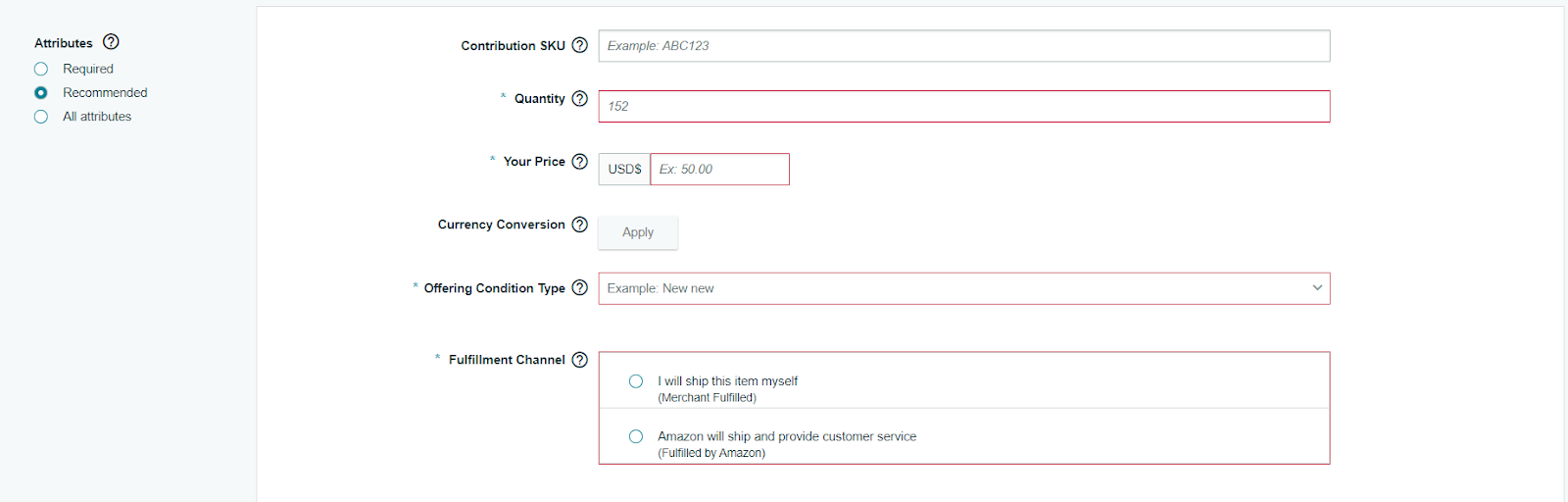
Create your offer by filling in all necessary fields
Step 6. Publish your listing
Click Save and Finish to make your product live and available for purchase on Amazon. Once listed, your product will be visible on Amazon’s marketplace, and you can start receiving orders.
How to Price Your Amazon Products?
How to Price Your Amazon Products?
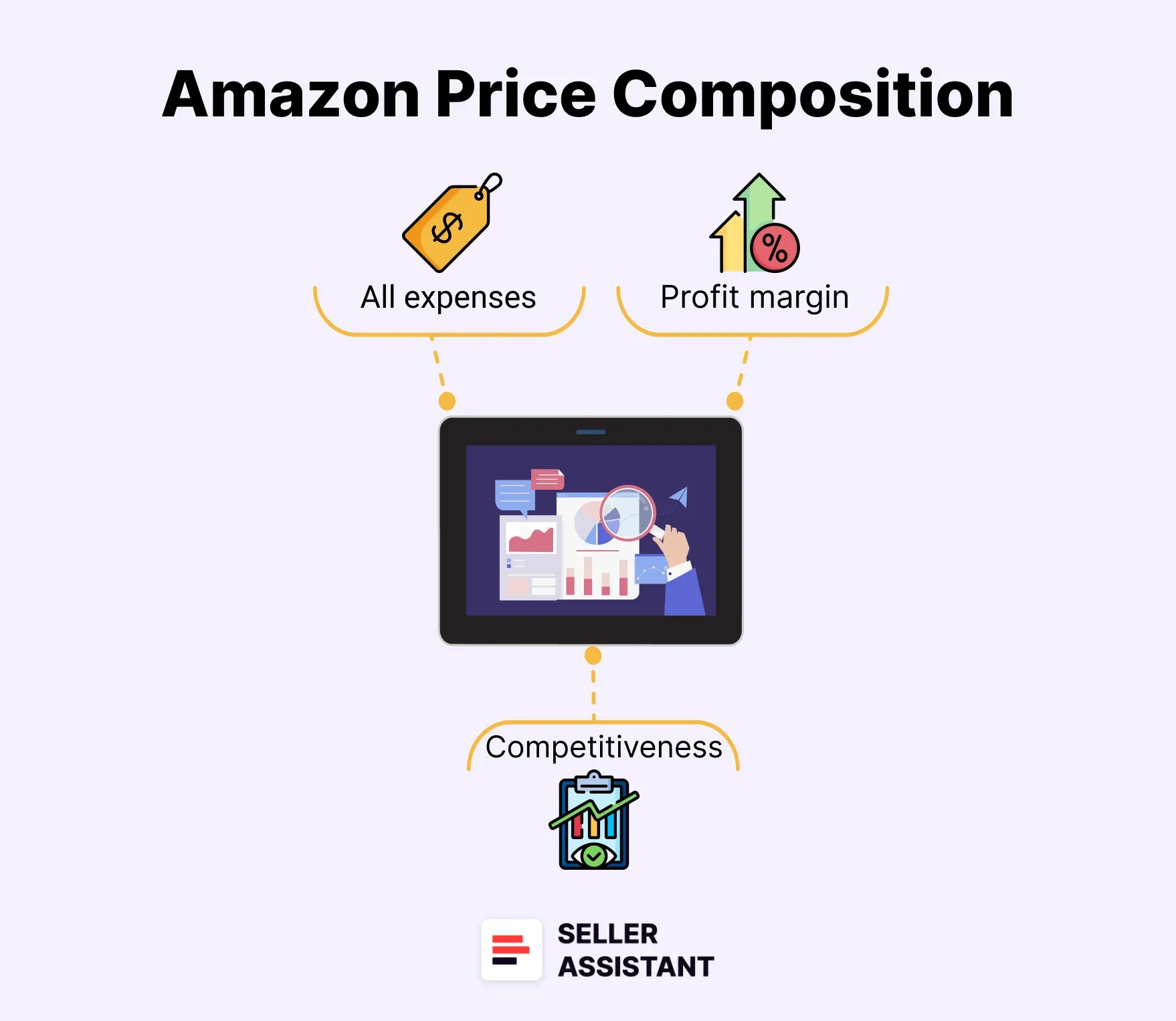
Pricing your products correctly is one of the most important factors for success on Amazon. Your price must:
- Cover all expenses, including cost of goods (COG), Amazon fees, prep, and logistics.
- Include your desired profit margin to ensure a healthy return on investment.
- Remain competitive, meaning it should be close to the average Buy Box price to maximize sales.
Since Amazon is a highly competitive marketplace, sellers often use repricing tools (repricers) to automate price adjustments and stay competitive.
What is a repricer?
A repricer is a software tool that automatically adjusts your product prices based on competitor pricing, sales velocity, and Buy Box trends. Instead of manually changing prices, the repricer updates them in real time to help you win the Buy Box more often, stay competitive while maintaining profitability, and increase sales and optimize inventory turnover.
Repricers allow you to set different repricing strategies based on your business goals. Some AI-powered repricers use machine learning to adjust prices dynamically for maximum efficiency.
Break-even point (BEP) in pricing
Your break-even point (BEP) is the price at which you don’t lose or make money. A good repricer allows you to set your BEP so that you never sell at a loss unless intentionally planned.
However, in high-volume sales, some sellers lower prices below BEP for faster inventory turnover. This strategy allows them to quickly reinvest capital into new products.
Real-world example: how a repricer works
Imagine you are selling wireless headphones for $50 with the following costs:
- COG (cost of goods): $25
- Amazon referral fee: $7.50
- FBA fulfillment cost: $5
- Prep and logistics: $2.50
- Total cost (BEP): $40
You initially set your price at $50, ensuring a $10 profit per unit. However:
- A competitor lowers their price to $48, causing you to lose the Buy Box.
- Your repricer detects this and automatically drops your price to $47.99, helping you regain the Buy Box.
- Another competitor raises their price to $52, so your repricer adjusts your price back up to $51.99, ensuring maximum profit while staying competitive.
This real-time price adjustment helps you sell at the best possible price without constantly monitoring the market.
How to choose a repricing strategy
When using a repricer, you must select the right repricing strategy based on your business model. Common strategies are described below.
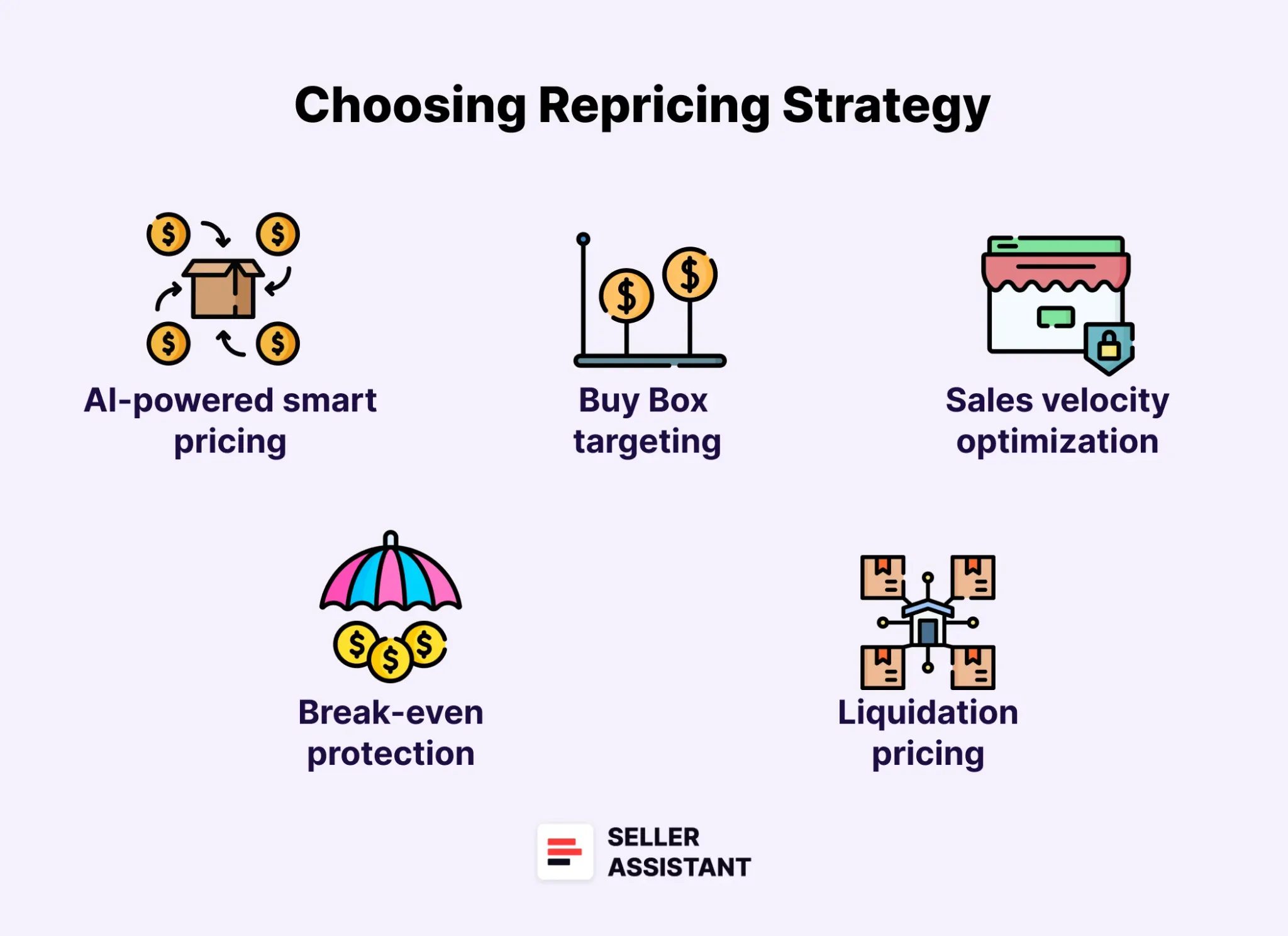
How to choose a repricing strategy
AI-powered smart pricing
- Uses artificial intelligence to dynamically adjust prices based on market conditions, competition, and sales velocity.
- Best for sellers looking for fully automated, data-driven pricing.
Buy Box targeting
- Adjusts prices to win the Buy Box as often as possible while maintaining profitability.
- Ideal for sellers whose sales mostly come from Buy Box purchases.
Sales velocity optimization
- Increases or decreases prices based on inventory levels and sales speed.
- Good for sellers who want to sell fast without compromising too much on margins.
Break-even protection
- Ensures prices never drop below your break-even point (BEP) to prevent losses.
- Recommended for sellers who prioritize profitability over high sales volume.
Clearance and liquidation pricing
- Gradually reduces prices to sell out inventory quickly (useful for seasonal or expiring products).
- Best for sellers who need to move stock fast.
Top 5 repricers for online arbitrage sellers
Here are five powerful repricers to help you automate pricing and maximize profits.
- AI-powered repricer that optimizes pricing dynamically to maximize profits.
- Offers advanced analytics to track performance and inventory.
- Affordable repricer with Buy Box targeting and customizable strategies.
- Works well for small and medium-sized sellers.
- AI-driven repricer that adjusts prices based on competition and market trends.
- Includes historical pricing analysis and sales forecasting.
- AI-based repricer that monitors competitors and optimizes for long-term profits.
- Designed for large-scale Amazon sellers looking for data-driven pricing.
Informed.co ()
- Customizable repricing rules with Buy Box win-rate tracking.
- Great for sellers who want manual control alongside automation.
How to Fulfill Your Amazon Orders?
When selling on Amazon, you must decide how to ship orders to customers – a process called fulfillment. Amazon offers two primary fulfillment methods: Fulfillment by Amazon (FBA), where Amazon handles storage, packing, shipping, and customer service for a fee, and Fulfillment by Merchant (FBM), where the seller is responsible for storing, packing, and shipping products directly to customers.
Choosing the right fulfillment method depends on factors like order volume, storage capacity, logistics experience, and cost considerations. Below, we explain both fulfillment options, how they work, and when to choose each one.
Fulfillment by Amazon (FBA)
FBA allows sellers to send their inventory to Amazon’s fulfillment centers, where Amazon takes care of storage, order processing, shipping, and customer service. This method saves time and effort, making it ideal for scaling your business.
.webp)
Fulfillment by Amazon (FBA)
How Amazon FBA works
Step 1. Select FBA as your fulfillment method
- When you add your offer to the listing, in Seller Central, go to Catalog > Add Products.
- Under Fulfillment Channel, choose “Fulfillment by Amazon” (FBA).
- This enables Amazon to handle shipping and customer service for the product.
Step 2. Ship your inventory to Amazon fulfillment centers
- Create a Shipping plan in Seller Central.
- Follow Amazon’s packaging and labeling guidelines to avoid additional prep fees.
- Ship your products to Amazon’s warehouses.
Step 3. Amazon stores, picks, packs, and ships your orders
- Amazon stores your inventory until a customer places an order.
- When a sale is made, Amazon packs and ships the product directly to the customer.
- Amazon selects the best shipping option for fast delivery.
Step 4. Amazon handles customer service and returns
- Amazon manages customer inquiries, returns, and refunds for FBA orders.
- This reduces the seller’s workload and ensures a seamless shopping experience.
Step 5. Manage your FBA inventory
- Monitor your inventory levels in Seller Central.
- Send restock shipments before inventory runs out.
- Keep track of Amazon storage fees, which are based on product size and storage duration.
When to choose FBA
- You sell many products
FBA is ideal for handling large order volumes.
- You don’t have storage space
Amazon warehouses store your inventory.
- You want Amazon to handle customer service
Amazon manages returns, refunds, and inquiries.
- Your products fit within standard-size tiers
FBA works best for small and medium-sized items.
- You want to win the Buy Box more often
Amazon favors FBA sellers for Buy Box placement.
Fulfillment by Merchant (FBM)
With FBM, sellers store inventory themselves and handle order fulfillment directly. This method gives sellers full control over the shipping process and can be more cost-effective for certain types of products.
.webp)
Fulfillment by Merchant (FBM)
How Amazon FBM works
Step 1. Select FBM as your fulfillment method
- When you add your offer to the listing, in Seller Central, go to Catalog > Add Products.
- Under Fulfillment Channel, select “I will ship this item myself” (FBM).
- This means you are responsible for packing and shipping each order.
Step 2. Store your inventory
- You must keep all your inventory in a warehouse, storage facility, or home.
- Ensure that products are properly organized to avoid fulfillment delays.
Step 3. Pack and ship orders
- When an order is placed, you must package it securely to prevent damage.
- Select reliable shipping carriers (e.g., UPS, FedEx, USPS) to deliver products.
- Add all required barcodes and labels before shipping.
- Alternatively, use a prep center to do all this job for a fee.
Step 4. Handle customer service
- As an FBM seller, you must answer customer inquiries and manage returns or refunds.
- Provide fast and professional support to maintain good seller metrics.
When to choose FBM
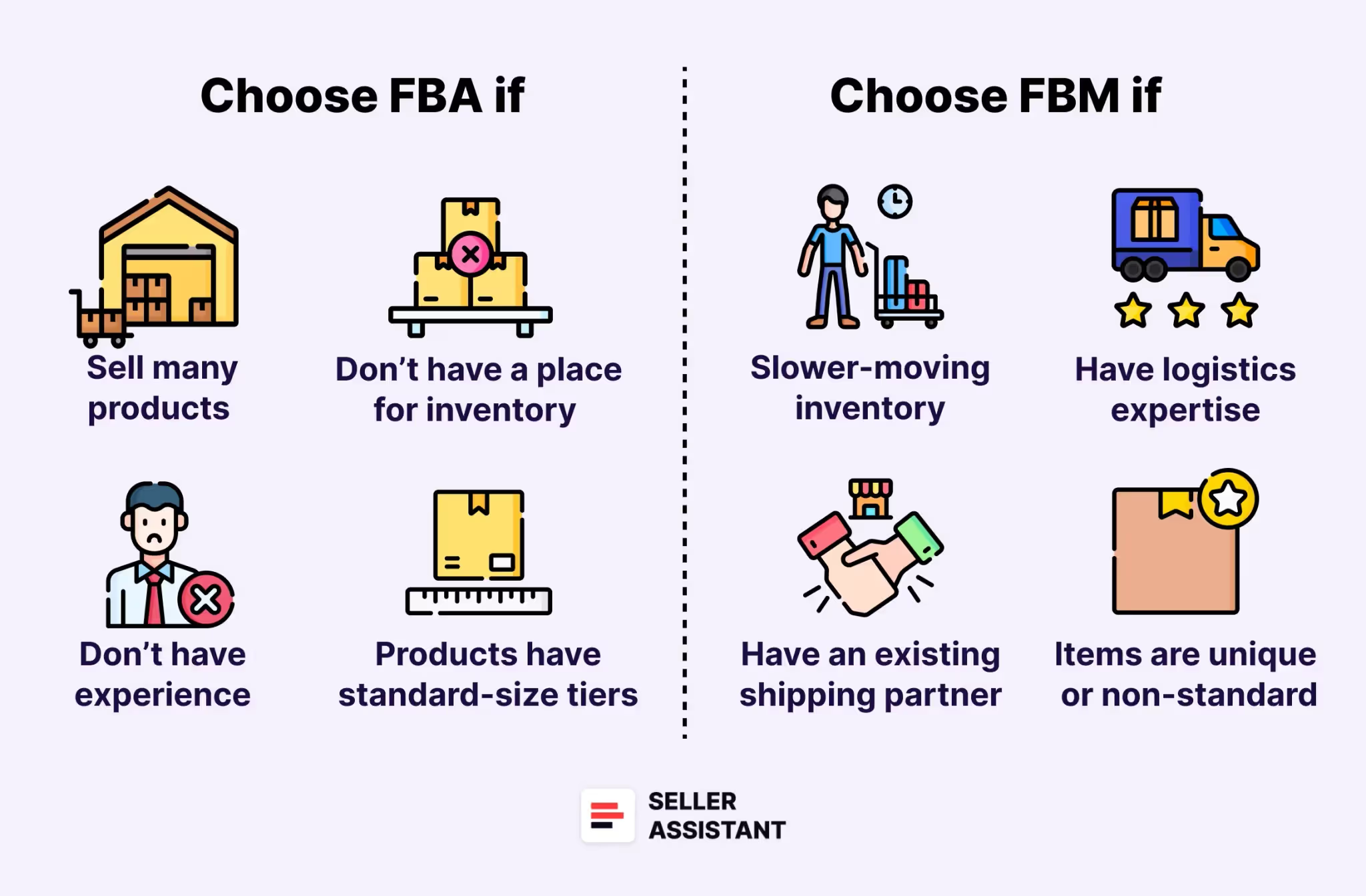.webp)
How to choose between FBA and FBM
- You have slow-moving inventory
Avoid Amazon’s storage fees for unsold products.
- You have experience in logistics
If you already manage fulfillment efficiently, FBM may save you money.
- You have an existing shipping partner
If you get discounted shipping rates, FBM can be cost-effective.
- You sell bulky or custom products
Heavy, bulky, or uniquely packaged items may be cheaper to ship yourself.
How to Prep Your Amazon Products?
Amazon has strict packaging and labeling guidelines, and failing to follow them can lead to delays, extra fees, or even inventory rejection.
When sourcing products from online retailers, you cannot ship them directly to Amazon because they typically arrive in branded packaging from the retailer (e.g., Walmart, Target). Amazon does not allow sellers to resell products with third-party branding, so repackaging is required before sending them to Amazon.
To ensure that products meet Amazon’s prep requirements, many sellers use prep centers – third-party services that repackage, label, and prepare inventory for FBA. However, prep centers offer more than just repackaging – they can also bundle sets, inspect items, manage returns, and handle inventory storage.
What is a prep center and how does it work?
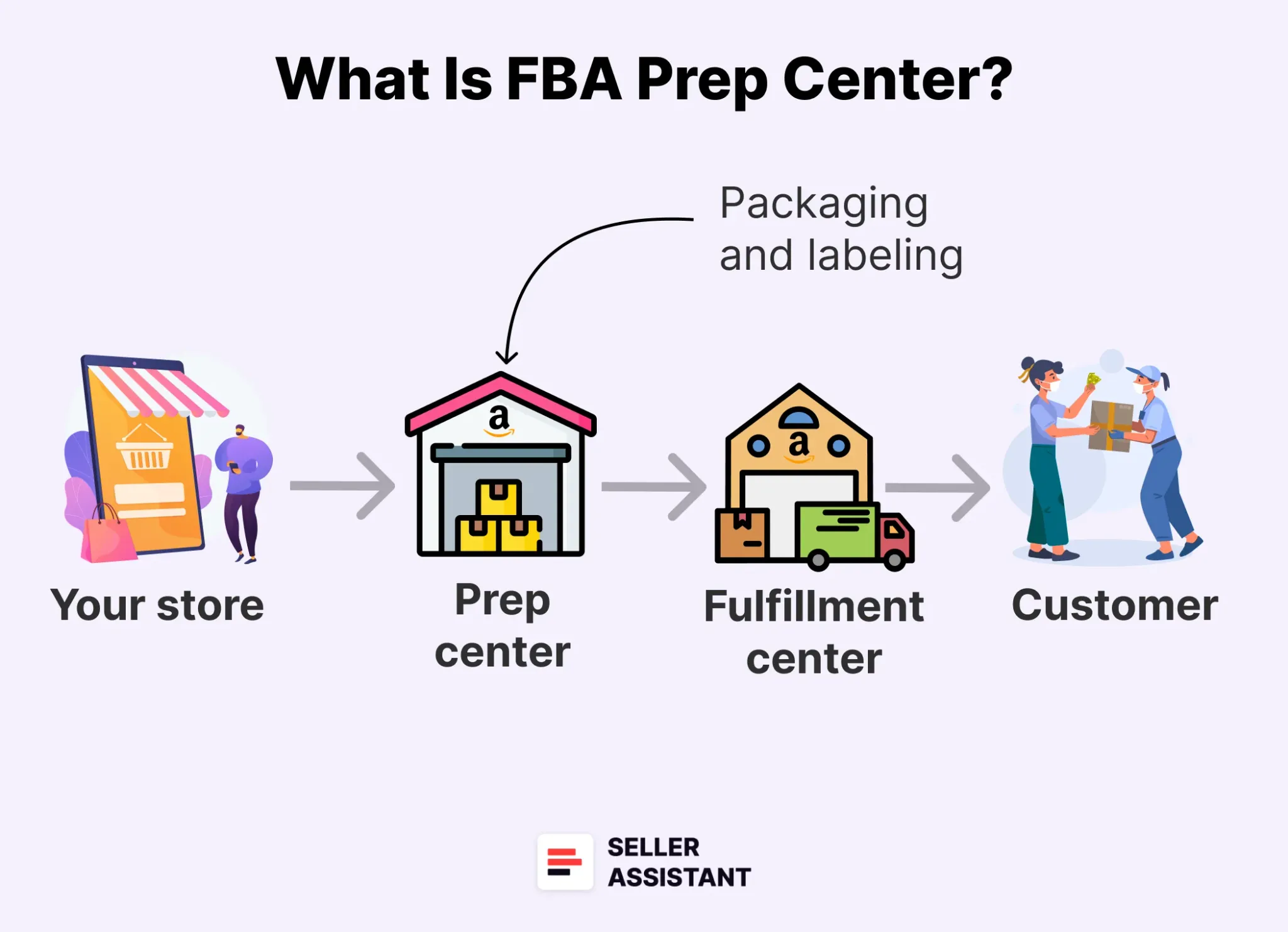
What is a prep center
A prep center is a third-party service that receives, inspects, packages, and ships your inventory to Amazon’s fulfillment centers. It acts as an intermediary between your supplier and Amazon, ensuring that products are ready for resale.
How a prep center works
- You buy products from online or wholesale suppliers and ship them directly to the prep center.
- The prep center receives your products, removes any retailer branding, and repackages them to meet Amazon’s FBA requirements.
- They label and bundle products if needed.
- The prep center ships the prepared inventory to an Amazon fulfillment center.
- Some prep centers only work with sellers handling large inventory volumes (e.g., wholesalers or private label sellers). If you do online arbitrage, choose a prep center that specializes in small shipments.
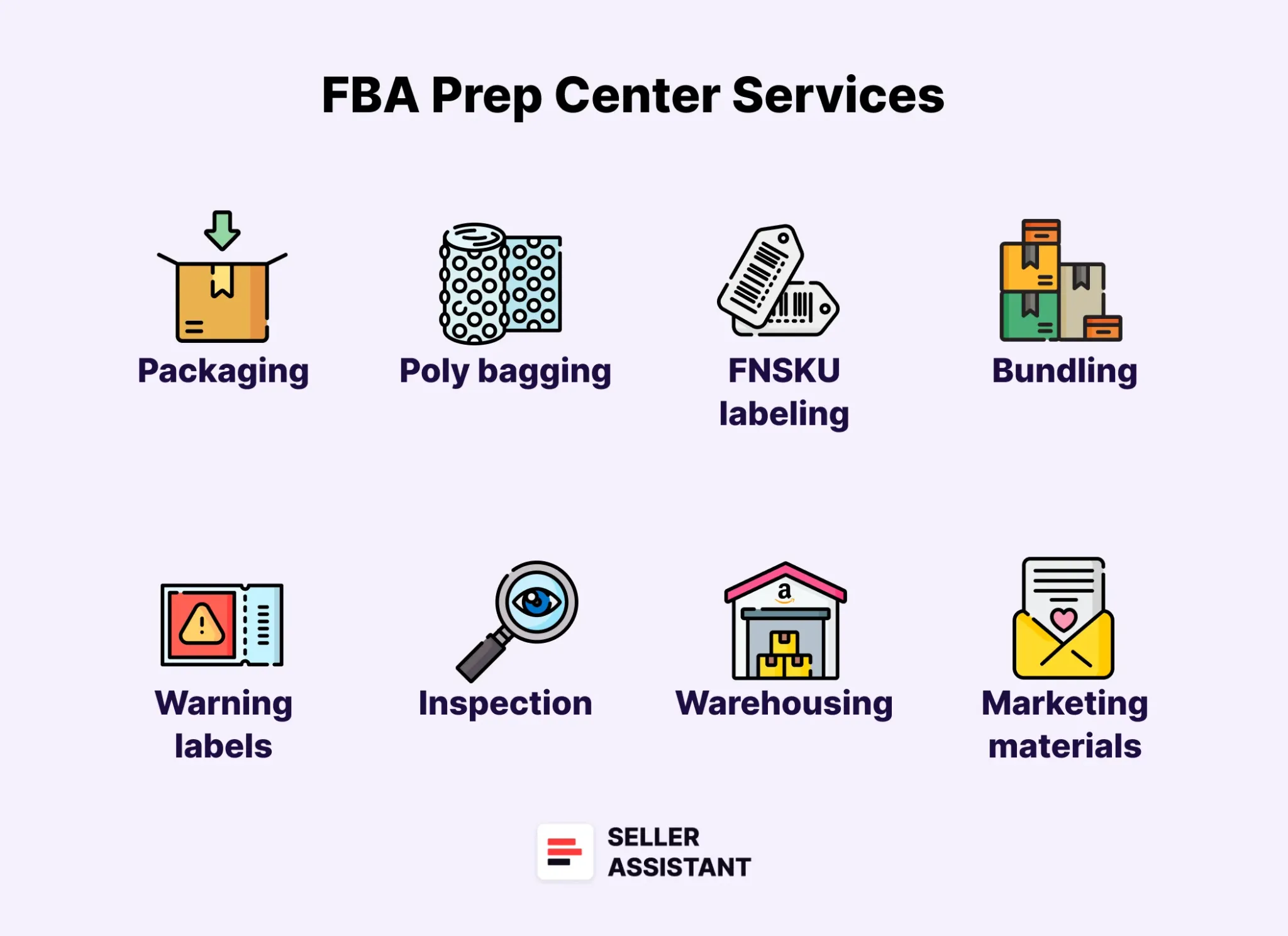
What can a prep center do for Amazon sellers?
A prep center offers various services beyond just packaging and labeling.
- Repackaging and removing retail branding
Ensures that products do not arrive in Walmart, Target, or other retailer-branded packaging.
- FNSKU labeling
Amazon requires specific barcodes for tracking inventory in FBA warehouses.
- Bubble wrapping and poly bagging
Some items (fragile, liquid, or sharp products) require extra protective packaging.
- Bundling and multipack preparation
If you sell product bundles or multi-pack items, a prep center can assemble and package them correctly.
- Inspection and quality control
The prep center can check for damaged, defective, or incorrect items before sending them to Amazon.
- Returns management
Some prep centers can receive returned items from Amazon, inspect them, and decide whether they are resellable or need to be disposed of.
- Storage and inventory holding
Some prep centers provide temporary storage if you don’t want to send all inventory to Amazon at once (useful for avoiding long-term storage fees).
How to choose the right prep center
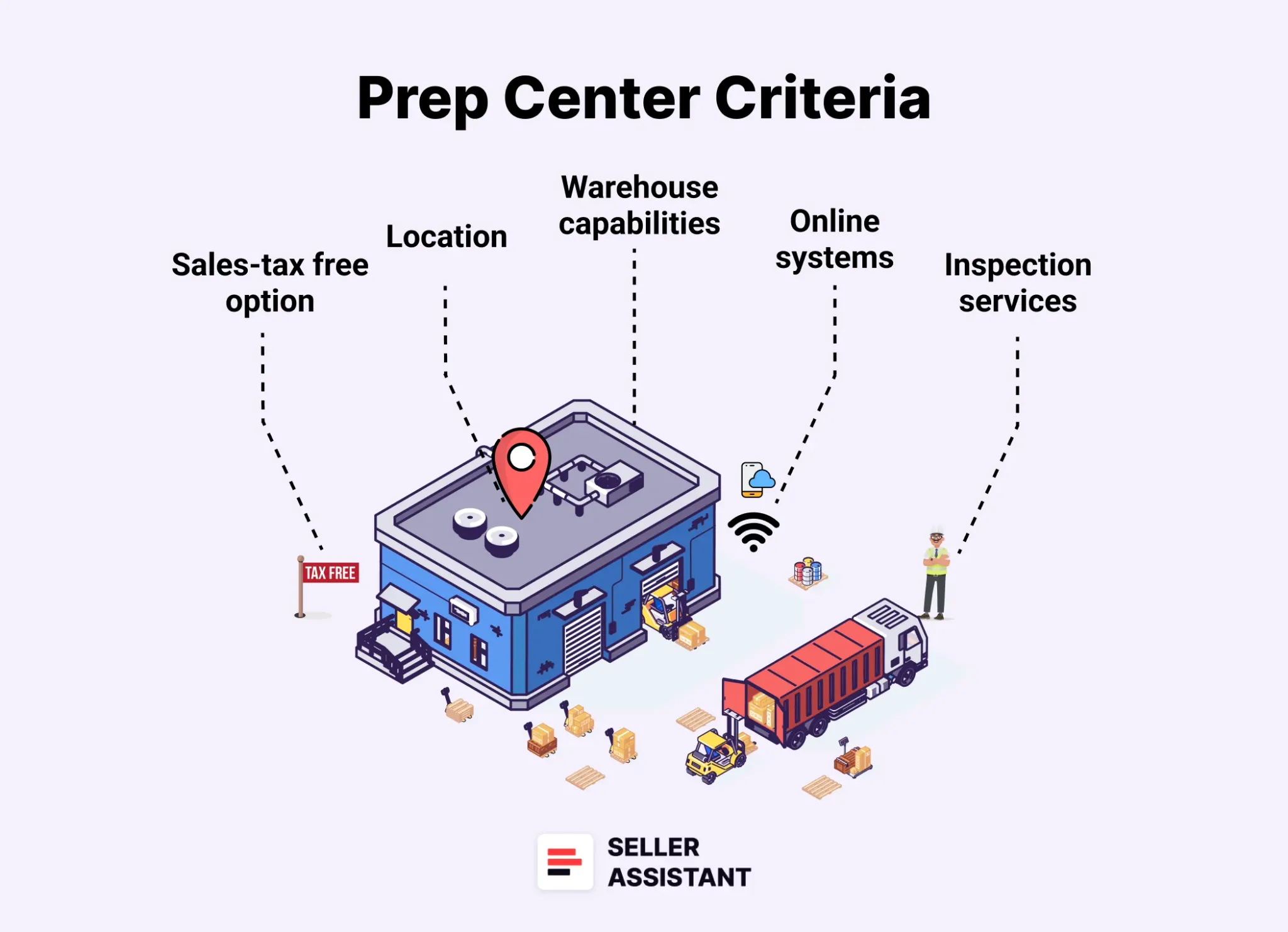
How to choose the right prep center
Not all prep centers are the same. When selecting a prep service, consider the following.
Pricing structure
Some preps charge per unit, while others have monthly fees. Compare different options to find the best deal for your business.
Location
Choose a prep center close to your suppliers or near Amazon fulfillment centers to reduce shipping costs.
Processing speed
A good prep center quickly inspects and ships inventory to avoid delays in getting products live on Amazon.
Service specialization
Ensure the prep center works with online arbitrage sellers (some only accept large wholesale shipments).
Customer support and reliability
Look for responsive customer service and check reviews from other Amazon sellers.
Where to find and choose a prep center
Here are some platforms where you can find and compare Amazon prep centers.
FBA Prep Center
A directory of FBA prep centers worldwide.
Lists various prep services with pricing comparisons.
- Online seller forums
Many Amazon sellers discuss their experiences with prep centers on forums like:
- Facebook groups (Amazon FBA sellers communities)
- Reddit: r/FulfillmentByAmazon
FAQ
What is online arbitrage, and how does it work?
Online arbitrage is a reselling business model where you buy discounted products from online retailers and resell them on Amazon for a profit. The key to success is finding low-priced products and ensuring they have high demand and profit margins on Amazon.
How much money do I need to start online arbitrage?
You can start with as little as $500–$1,000, depending on the products you buy and the volume of inventory you want to stock. Many beginners start small, reinvest their profits, and gradually scale their business over time.
How do I find profitable products for online arbitrage?
Successful online arbitrage sellers use Amazon product sourcing software like Seller Assistant, to analyze product sales, competition, and profitability. You can find deals by manually searching retail websites, using Seller Assistant’s automated sourcing tools, or purchasing lead lists.
Do I need an Amazon seller account to start online arbitrage?
Yes, you must create an Amazon seller account to list and sell your products. You can choose between an Individual plan (pay per sale) or a Professional plan (monthly subscription) depending on your sales volume.
What are the biggest challenges of online arbitrage?
Common challenges include finding consistently profitable products, dealing with restricted brands, managing Amazon fees, and staying competitive in pricing. However, with proper research, automation tools, and pricing strategies, online arbitrage can be a profitable and scalable business model.
Final Thoughts
Online arbitrage is one of the best ways to start selling on Amazon, offering low startup costs and minimal risks compared to other business models. However, success in online arbitrage depends on your ability to find profitable products, source them at the best prices, and price them competitively while following Amazon’s rules.
To maximize your chances of success, you need the right tools and strategies. Seller Assistant is an essential tool that helps sellers identify best-selling, high-margin, and low-risk deals quickly and efficiently.
Seller Assistant is an all-in-one product sourcing software offering all the features vital for product sourcing. It combines three extensions: Seller Assistant Extension, IP Alert, and VPN by Seller Assistant, tools: Price List Analyzer,Seller Spy, Bulk Restrictions Checker, and API integrations, and features: Side Panel View, FBM&FBA Profit Calculator, Quick View, ASIN Grabber, UPC/EAN to ASIN converter, Stock Checker, and other features that help quickly find high-profit deals. Seller Assistant also offers integration with Zapier allowing to create custom product sourcing workflows.