


Sourcing products for Amazon isn’t the hard part – choosing the right supplier is. The same ASIN can have multiple offers, different costs, and very different profit margins.
Without a system, it’s easy to lose track of supplier pricing, make inconsistent buying decisions, and leave profit on the table.
Seller Assistant’s Product Database solves this by giving you one place to store products, compare supplier offers, and select the most profitable option. Instead of juggling spreadsheets, you can organize sourcing data, track decisions, and move products directly into purchase orders and listings – building a workflow that actually scales.
Note. Seller Assistant is an end-to-end Amazon workflow management platform that integrates 10+ wholesale-focused solutions into one connected system. It combines sourcing workflow automation, bulk research and intelligence tools, and integrated Chrome extensions – giving you everything you need to streamline finding deals, managing suppliers, and creating purchase orders.

The platform aggregates: workflow management tools – Purchase Orders Module, Suppliers Database, Product DB, Warehouses Database to organize, automate, and scale every step of your wholesale and arbitrage operations; bulk research & sourcing tools – Price List Analyzer, Bulk Restriction Checker, AI Supplier Finder, Brand Analyzer, Seller Spy to evaluate supplier price lists, verify selling eligibility and restrictions, open new brands, and discover winning product ideas from competitors to expand your product catalog; Chrome extensions – Seller Assistant Browser Extension, IP-Alert Extension, and built-in VPN by Seller Assistant to deep-research products, check IP claims and compliance, and access geoblocked supplier sites directly within your browser; and integrations & team access features – seamless API connectivity and integrations with Zapier, Airtable, and Make, plus Virtual Assistant Accounts for secure, scalable team collaboration.
With Seller Assistant, every step of your Amazon wholesale and arbitrage workflow is automated and connected.
Why Organized Product Data Is Critical for Amazon Sellers
As your sourcing volume grows, the real challenge isn’t finding products – it’s keeping them structured. The same ASIN can appear across multiple supplier lists, with different costs, notes, and decisions attached. Without a centralized system, product data gets scattered across spreadsheets, tools, and team members, making it difficult to compare offers, track decisions, and act quickly.
Accurate supplier comparison
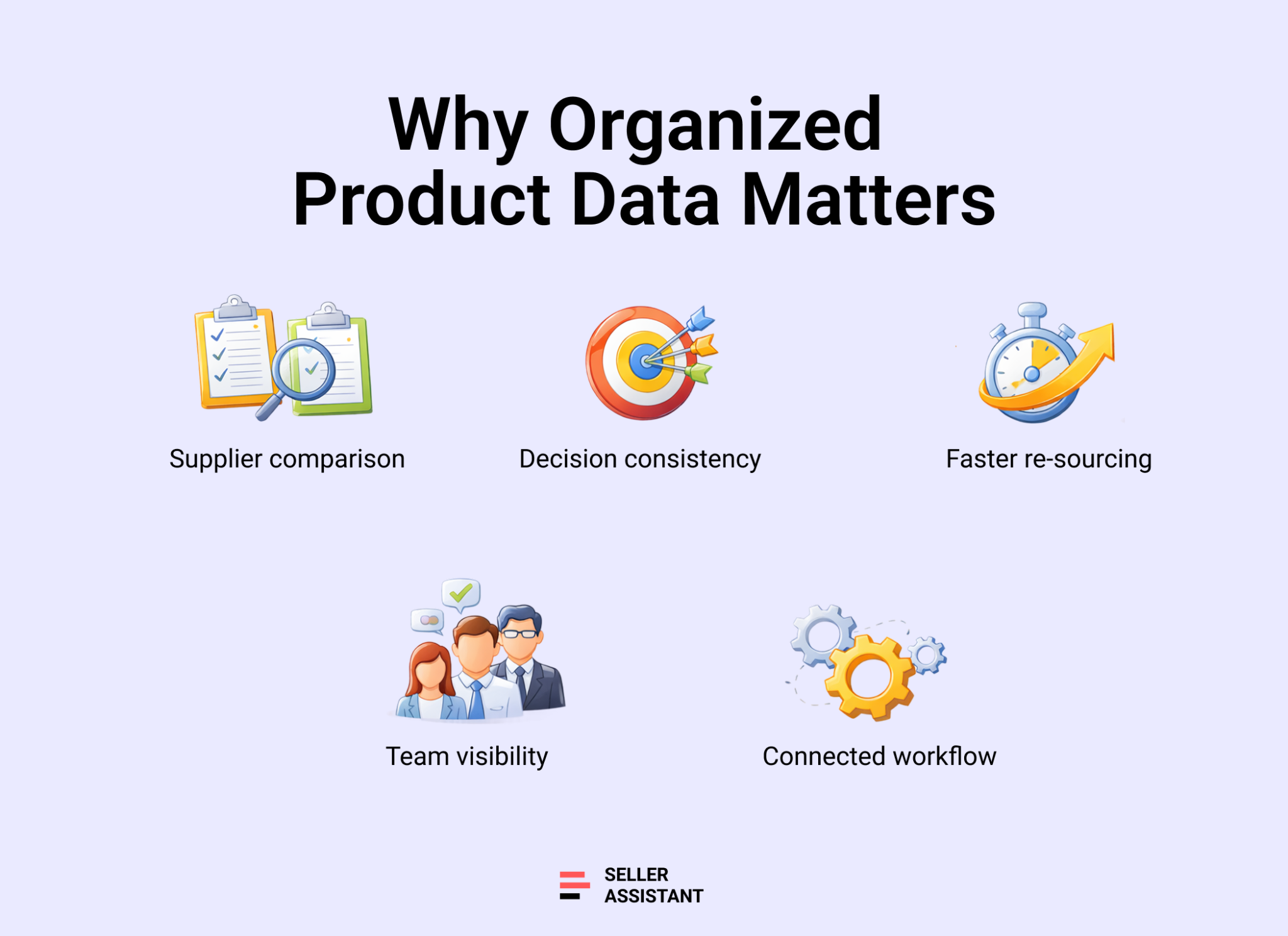
One ASIN often has multiple supplier offers, each with different costs and conditions. When this data is spread across files or tools, comparing offers becomes inconsistent and error-prone. A structured product database keeps all supplier data in one place, allowing you to clearly see COG differences and choose the most profitable supplier every time.
Consistent purchasing decisions
Disorganized product data leads to inconsistent decisions. You may approve a product in one session and reject it later simply because the context or supplier data is missing. Keeping products in a database ensures that every decision is based on the same complete set of information, improving accuracy and repeatability.
Faster sourcing and re-evaluation
Sourcing is not a one-time activity. Prices change, competition shifts, and previously unprofitable products can become viable again. With a structured database, you can quickly filter, revisit, and re-analyze existing products instead of rebuilding your pipeline from scratch.
Team alignment and visibility
When teams rely on spreadsheets, chats, and scattered notes, important context gets lost. A shared product database keeps notes, tags, and supplier decisions visible to everyone. This reduces miscommunication and ensures that sourcing, purchasing, and listing teams stay aligned.
Connected workflow from sourcing to purchase
Organization only works if it supports execution. A product database connects sourcing data with supplier selection and purchase decisions in one continuous flow. Instead of moving data between tools, you can act on products directly, reduce manual work, and maintain a consistent workflow as your business scales.
What Is Seller Assistant’s Product Database?
| What it is | Seller Assistant’s Product Database is a centralized product management workspace for Amazon sellers. It stores sourced ASINs, supplier offers, and COG data in one place, allowing you to compare suppliers, track decisions, and move products directly into purchase orders and listings. |
|---|---|
| Best for | Amazon wholesale sellers, online arbitrage resellers, dropshippers |
| Platform | Seller Assistant |
| Key function | Compare supplier offers and select the most profitable supplier for each product |
| Workflow role | Connects product research, supplier data, purchasing, and listing into one continuous workflow |
Seller Assistant’s Product Database is a centralized workspace where Amazon sellers store, manage, and act on all sourced products in one place. Instead of keeping products in spreadsheets or across multiple tools, each ASIN becomes a structured record that includes supplier offers, cost of goods (COG), notes, tags, and sourcing decisions.
What product database shows
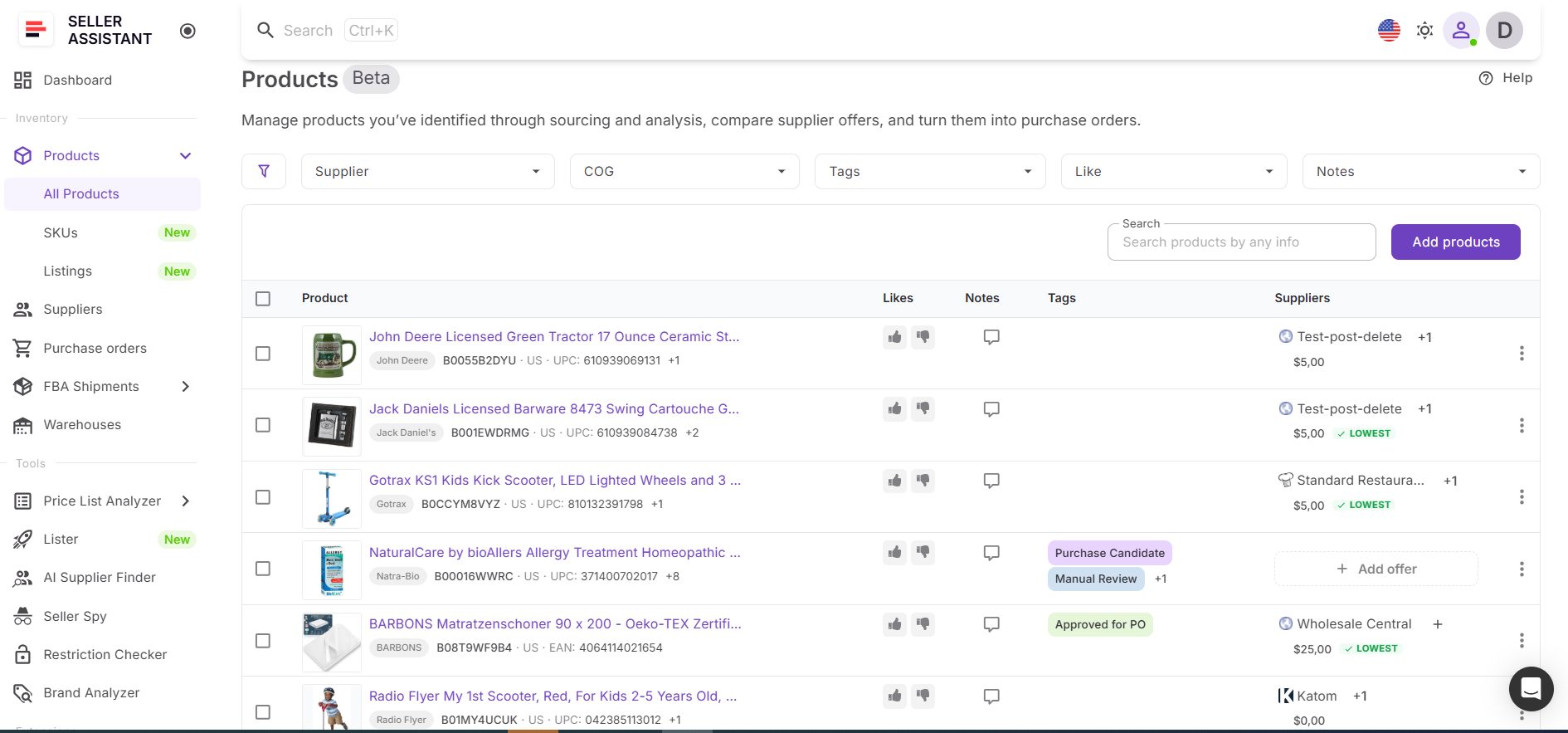
The database displays all key product data at a glance – product identifiers (ASIN, UPC, EAN), marketplace, supplier offers with COG, and internal inputs like notes, tags, and likes. This allows sellers to compare suppliers, track decision history, and quickly filter or search products based on sourcing criteria.
Why product database is important
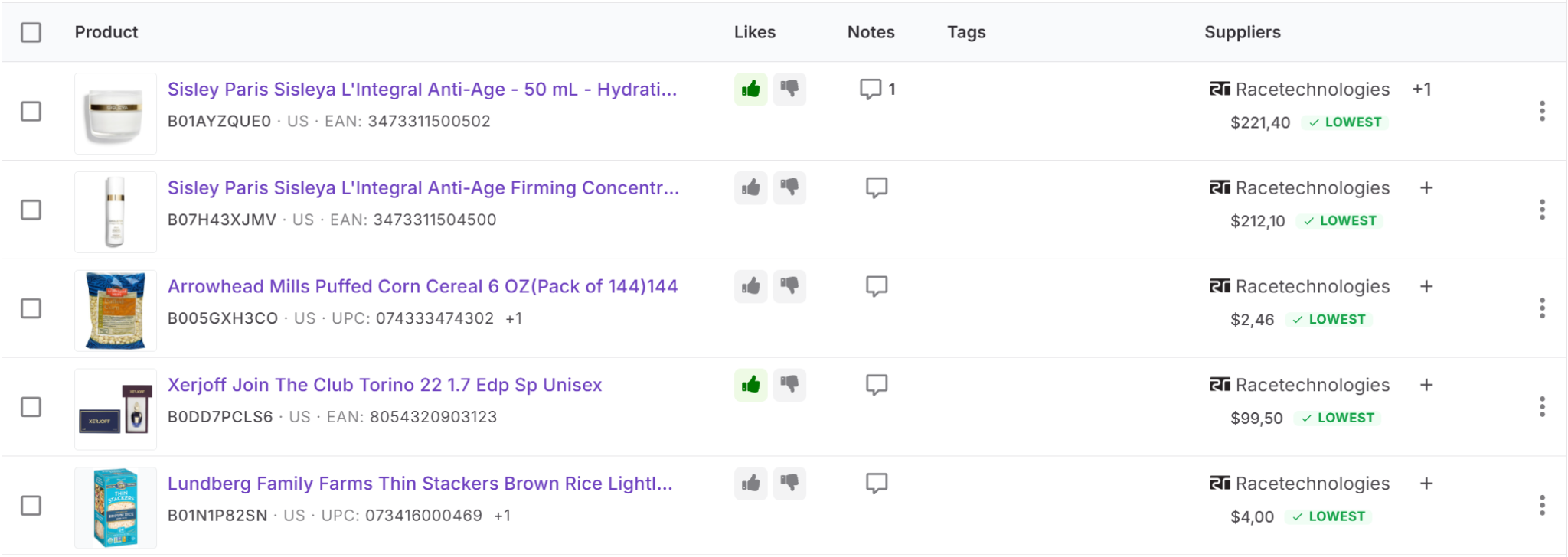
Its main value comes from enabling accurate supplier selection. By keeping all offers for the same product together, sellers can consistently choose the most profitable supplier and avoid losing pricing data across sourcing sessions.
How it fits into Seller Assistant workflow
Product Database is a core part of Seller Assistant’s connected wholesale workflow. It sits between product research and purchasing, linking tools like Price List Analyzer and Suppliers Database with Purchase Orders Module, Lister, and FBA Shipments. This ensures that product data flows through every stage – from sourcing to listing and fulfillment – without duplication or data loss.
What Can You Do with Product Database?
Product Database is not just a place to store products – it’s where sourcing decisions turn into actions. It allows you to manage supplier data, compare offers, organize products, and move them through your workflow without switching tools. Instead of working with static lists, you operate with structured product records that stay connected to suppliers, purchase orders, listings, and fulfillment data.
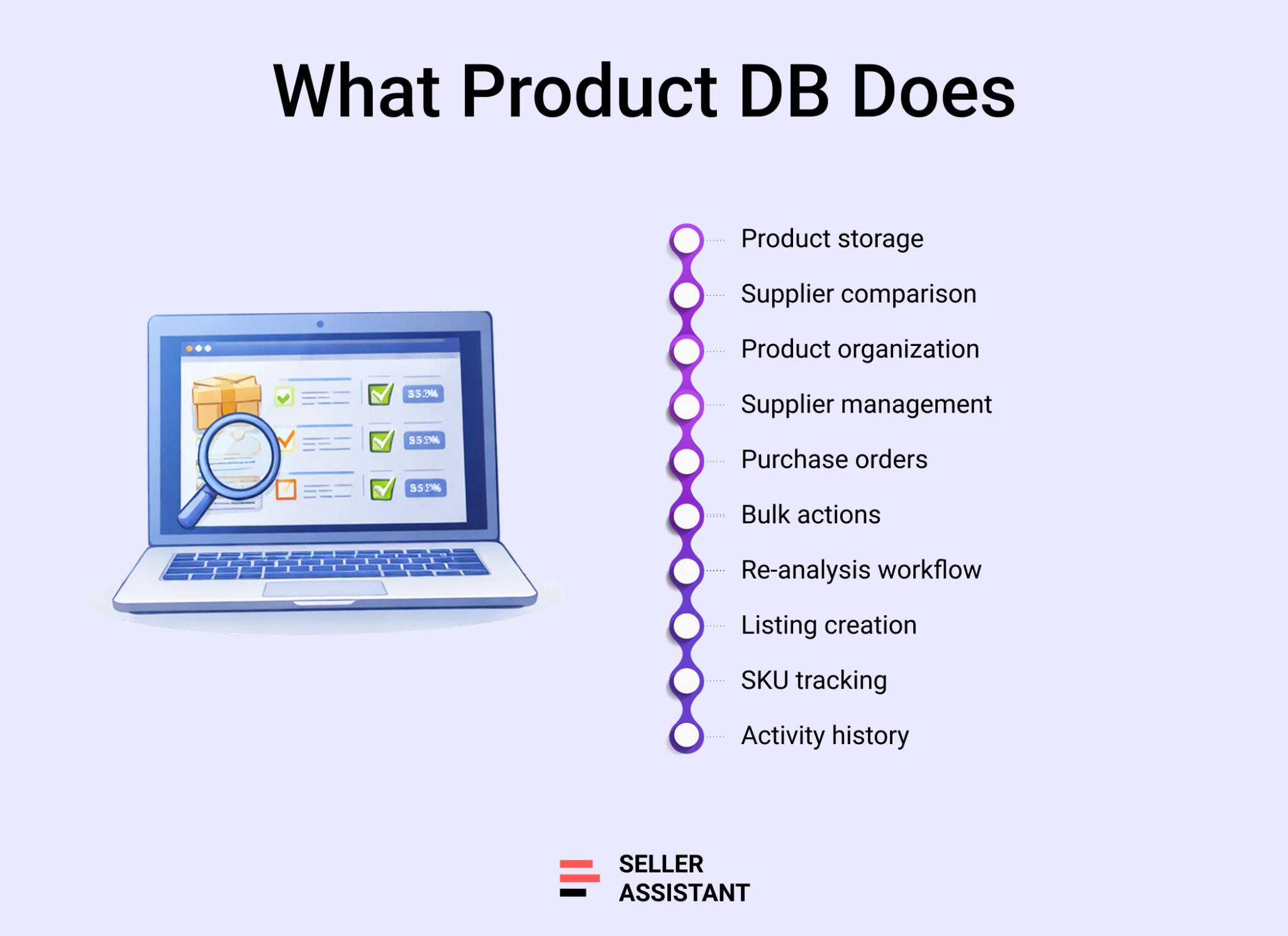
Store and manage all sourced products
Product Database keeps every sourced ASIN in one place with identifiers, marketplace, and sourcing data. This eliminates scattered spreadsheets and ensures all product information is centralized and easy to access.
Compare supplier offers and choose the best one
Each product can have multiple supplier offers with different COGs. You can compare them side by side, identify the lowest cost, and select a default supplier to ensure consistent and profitable purchasing decisions.
Organize products with notes, tags, and likes
You can structure your sourcing pipeline using tags, document decisions with notes, and quickly mark products with likes. This helps track product status, group opportunities, and maintain clarity across sourcing sessions and team members.
Add and manage supplier offers
You can create, edit, and manage multiple supplier offers per product, including COG, SKU, identifiers, and links. This keeps all supplier data tied to the product and prevents loss of pricing information.
Move products directly to purchase orders
Product Database connects directly to Purchase Orders Module, allowing you to add products with selected suppliers and COG without re-entering data. This speeds up the transition from sourcing to purchasing.
Work with bulk actions to scale operations
You can apply actions to multiple products at once – tag, like, send to Price List Analyzer, add to purchase orders, or list on Amazon. Bulk workflows reduce manual work and allow you to act on large product sets efficiently.
Re-analyze products without re-uploading data
You can send selected products directly to Price List Analyzer for fresh profitability checks. The system groups products automatically by supplier and marketplace, allowing fast re-evaluation of existing deals.
Create listings directly from your product data
You can launch Lister from Product Database or Purchase Orders and create Amazon listings in batches. Product data, supplier selection, and SKUs stay connected, reducing listing errors and saving time.
Track SKUs and listing status
Each product is linked to its SKUs and listings, allowing you to monitor status, condition, and cost data without leaving the platform. This gives full visibility into how sourced products perform after listing.
Maintain full product history and activity tracking
Every change to a product is recorded, including updates to supplier offers, notes, and pricing. This creates a clear audit trail and helps teams understand how decisions were made over time.
How Product Database Works
Product Database works as a central hub where all your sourced products are stored, evaluated, and moved through your workflow. You add products from sourcing tools or manually, attach supplier offers, compare costs, and select a default supplier.
From there, you can organize products with notes and tags, send them for re-analysis, or push them directly to purchase orders and listings. Instead of moving data between tools, everything happens in one structured system.
Product Database and Product Details Page
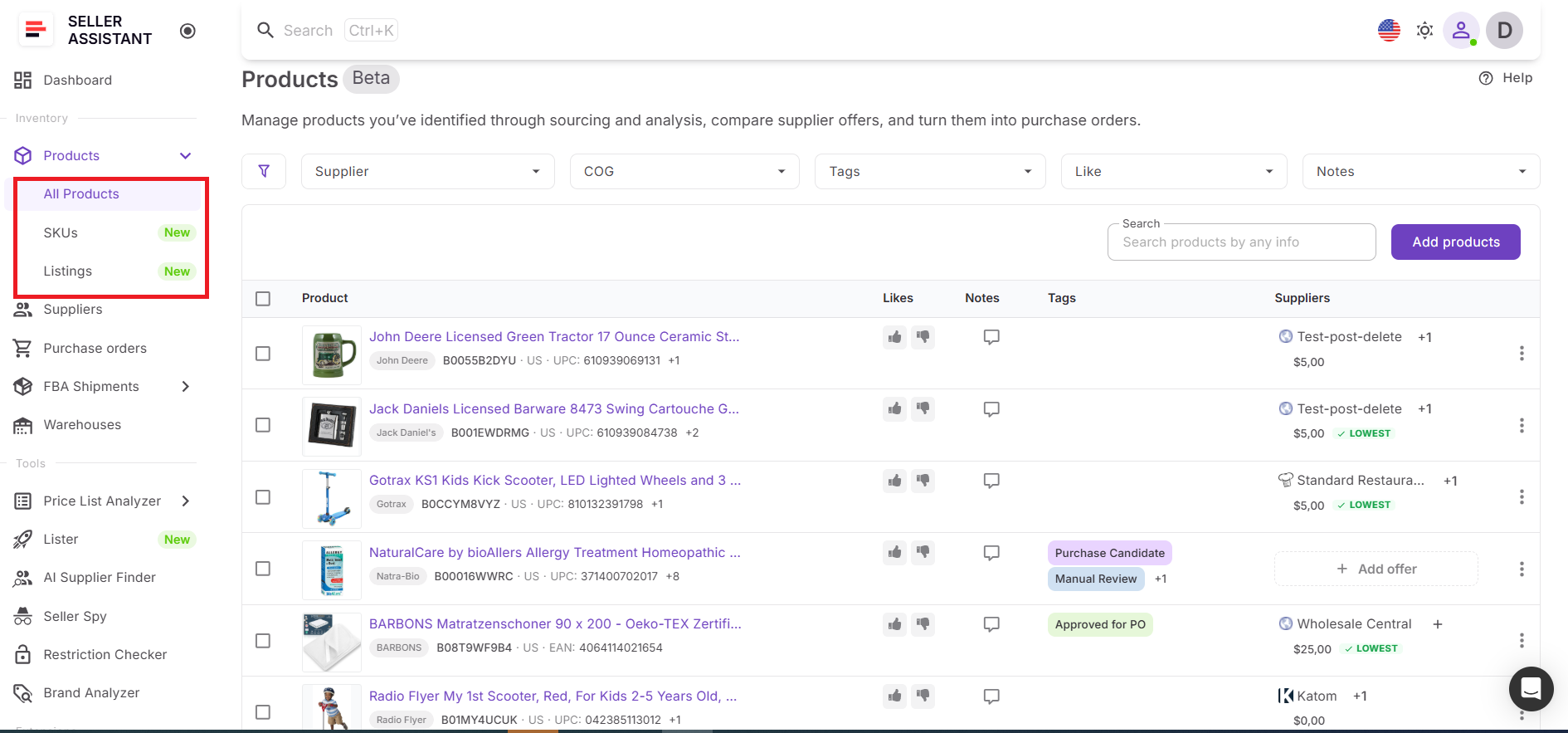
The main Product Database table shows all sourced products with key data – identifiers (ASIN, UPC, EAN), marketplace, supplier offers, COG, notes, tags, and likes. You can search and filter products by supplier, cost, tags, or notes to quickly find relevant opportunities.
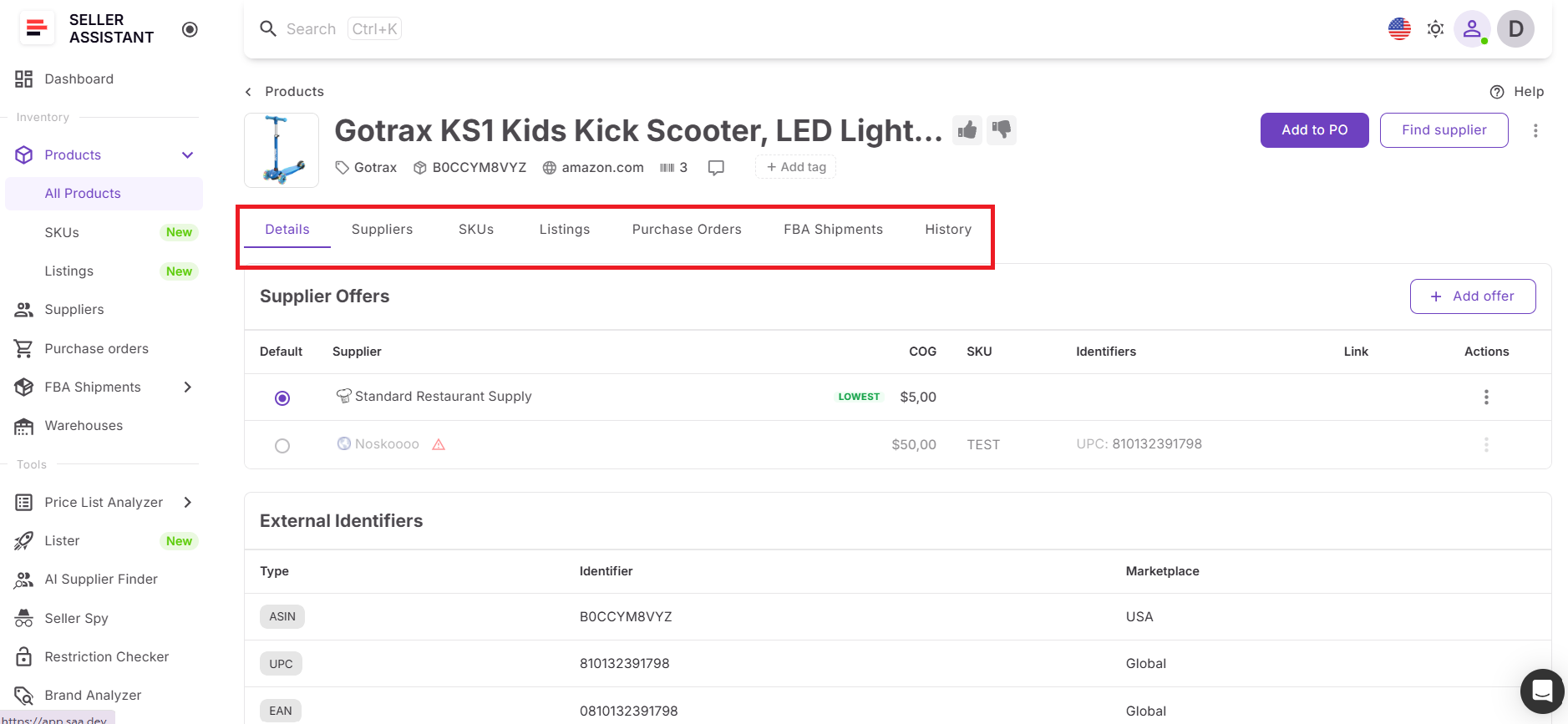
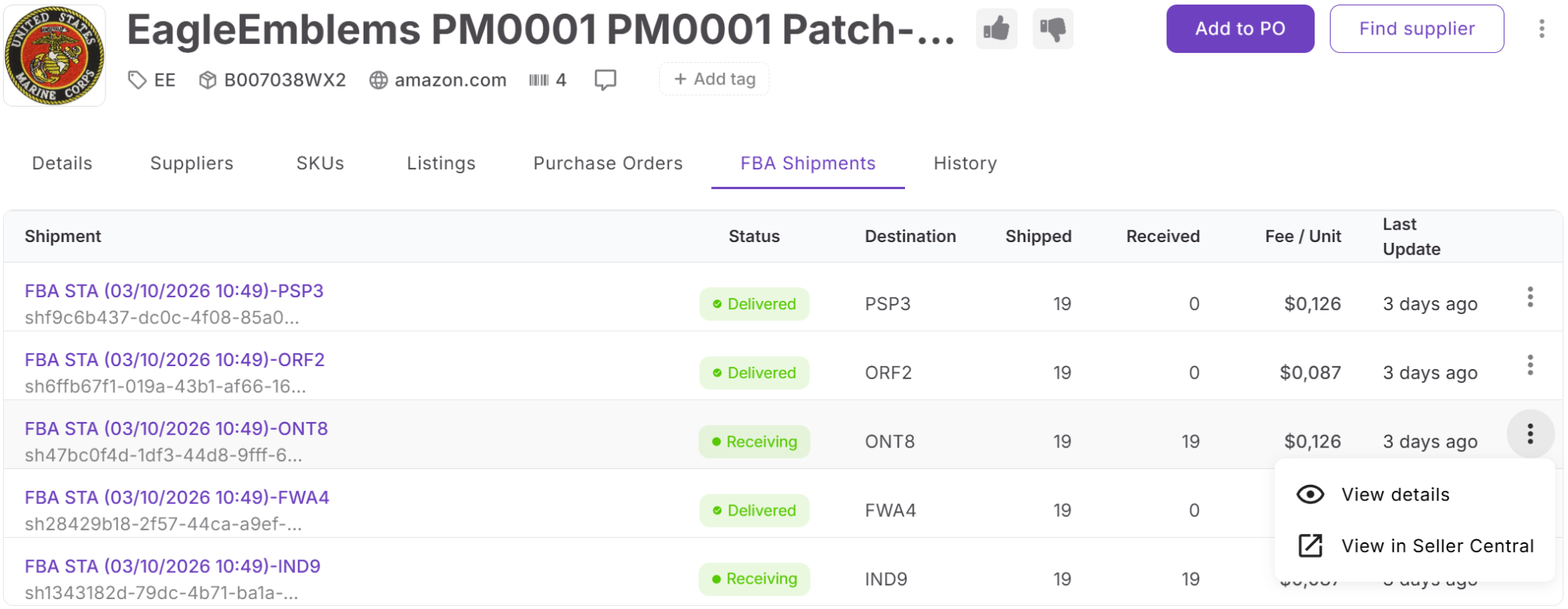
Each product also has a Product Details Page, which acts as a control center for that ASIN. It shows supplier offers, allows you to select a default supplier, and manage identifiers, SKUs, and links. It also includes tabs for SKUs, listings, purchase orders, FBA shipments, and full history, giving you complete visibility into the product lifecycle.
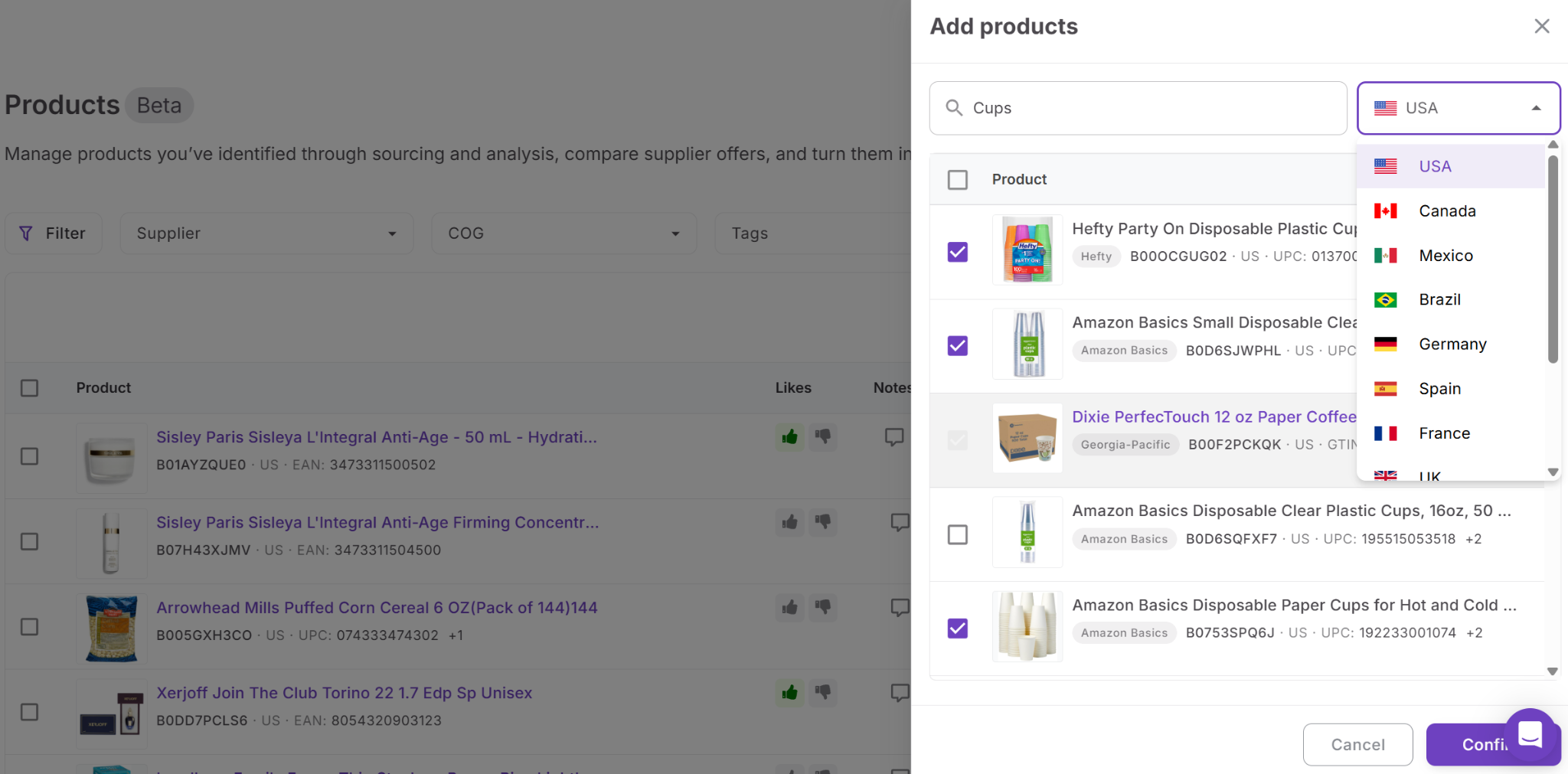
Adding products
You can add products to Product Database in two main ways.
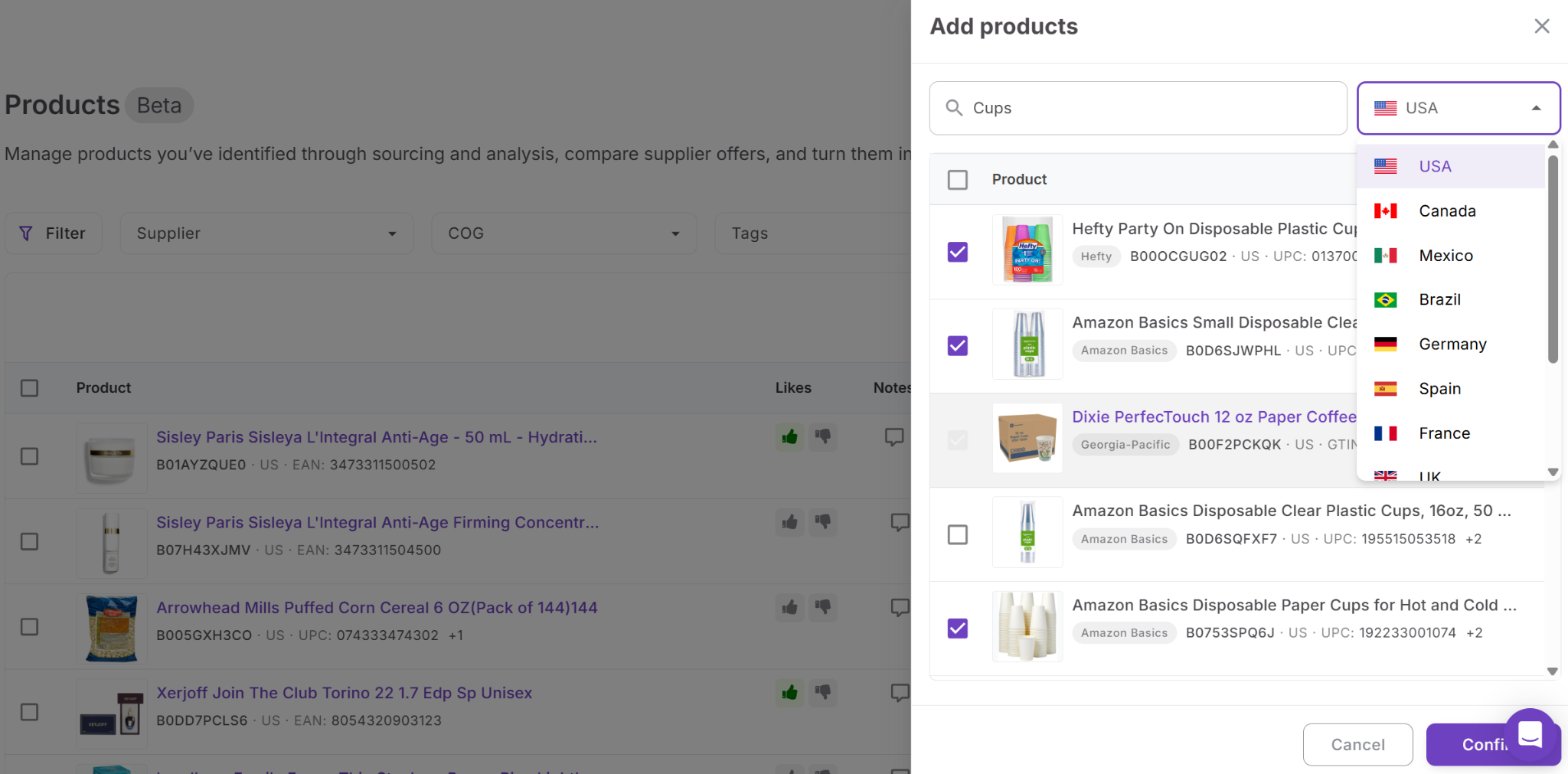
- First, you can add them directly from the product table by searching for a product using its title or identifiers and selecting the marketplace. If the product is not found, the system can retrieve data from Amazon and Keepa.
- Second, you can add products from Price List Analyzer.
In this case, the system automatically creates product entries and supplier offers using price list data, including COG and identifiers. This ensures supplier pricing is preserved and attached to the correct product.
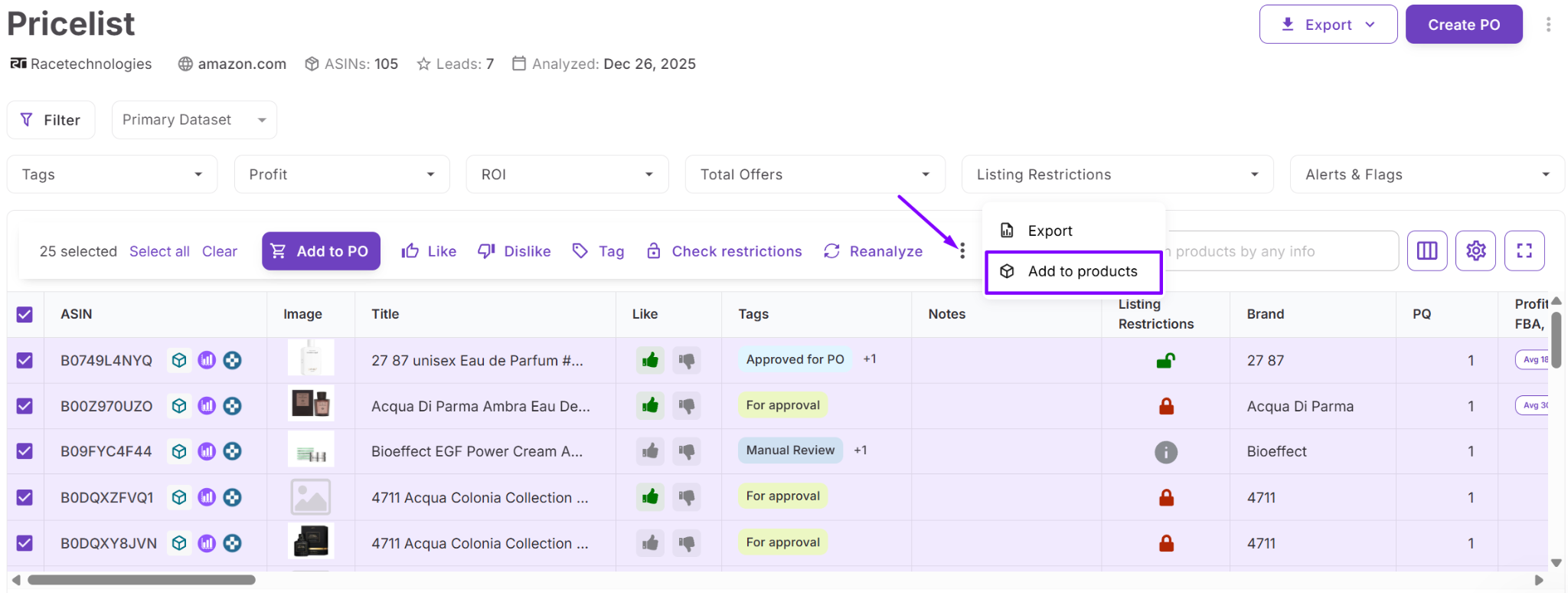
Integrating Product Database with other tools
Product Database is connected to the entire Seller Assistant workflow.
- You can send products to Price List Analyzer for re-evaluation
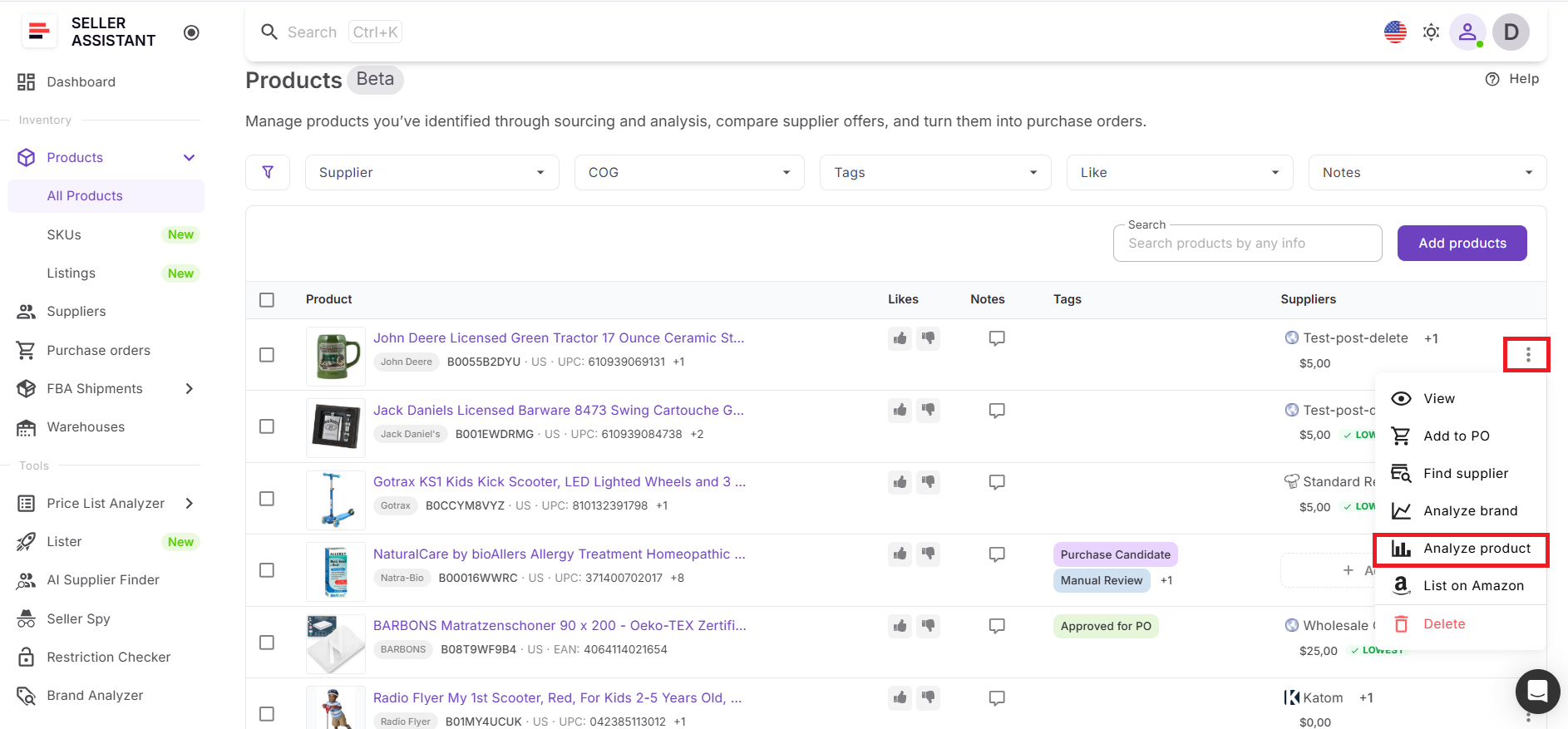
- Launch AI Supplier Finder or Brand Analyzer directly from a product
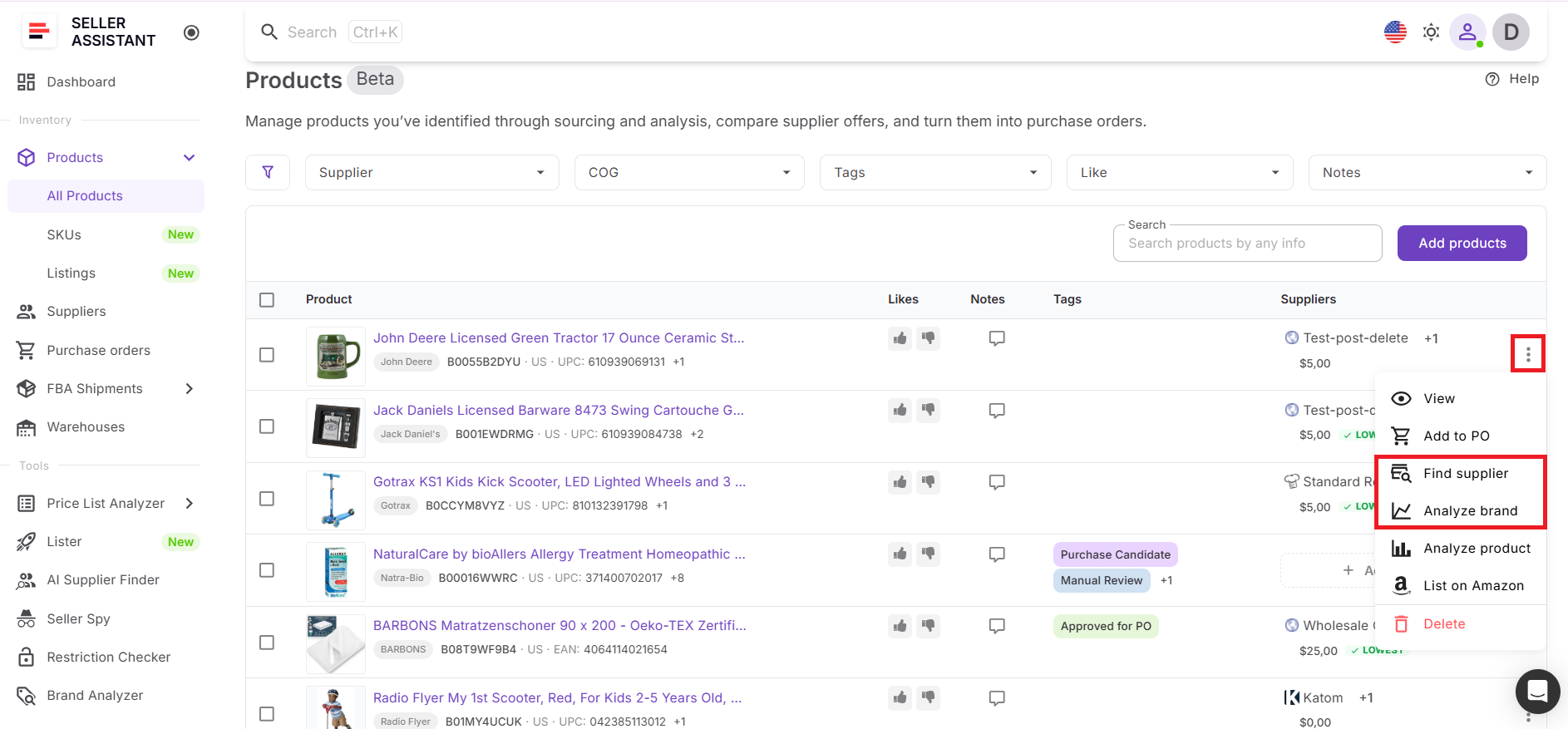
- Move selected products to Purchase Orders using the chosen default supplier.
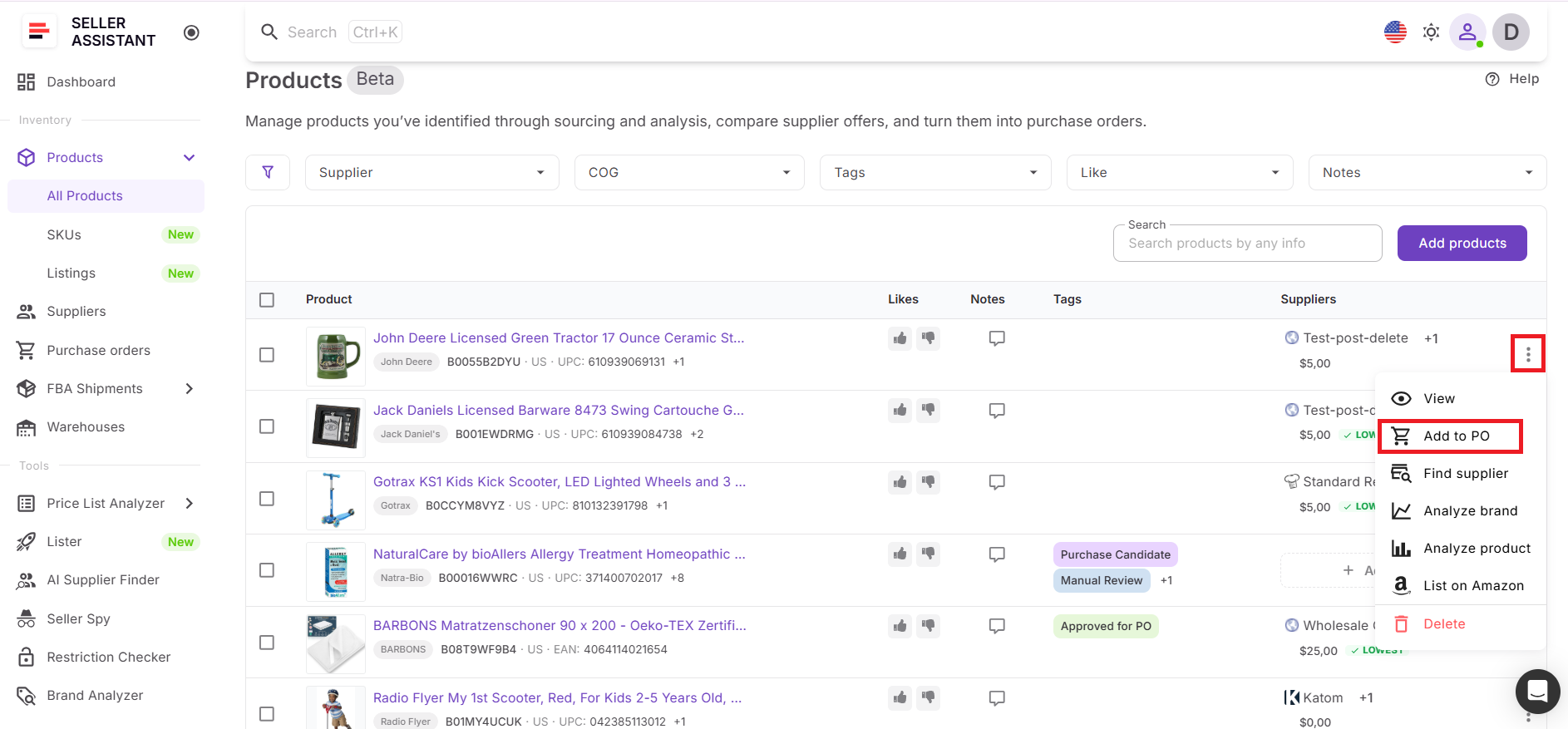
- You can also create listings using Lister directly from Product Database or Purchase Orders, with product data and SKUs carried over.
- After listing, SKUs, listings, and FBA shipment data remain linked to each product, allowing you to track performance and fulfillment without leaving the platform.
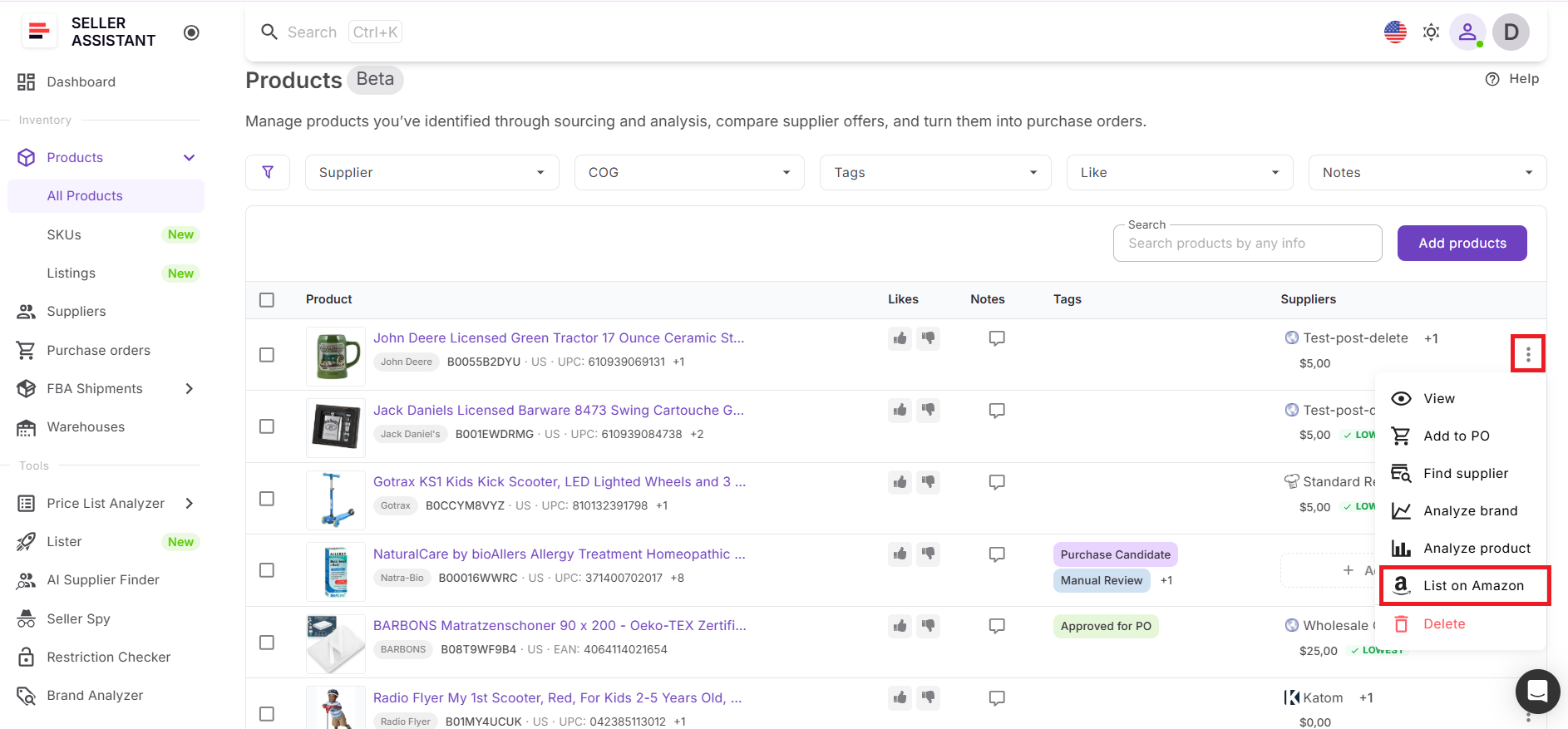
What Product Database shows
Product Database displays all critical product and sourcing data in one place.
Product data
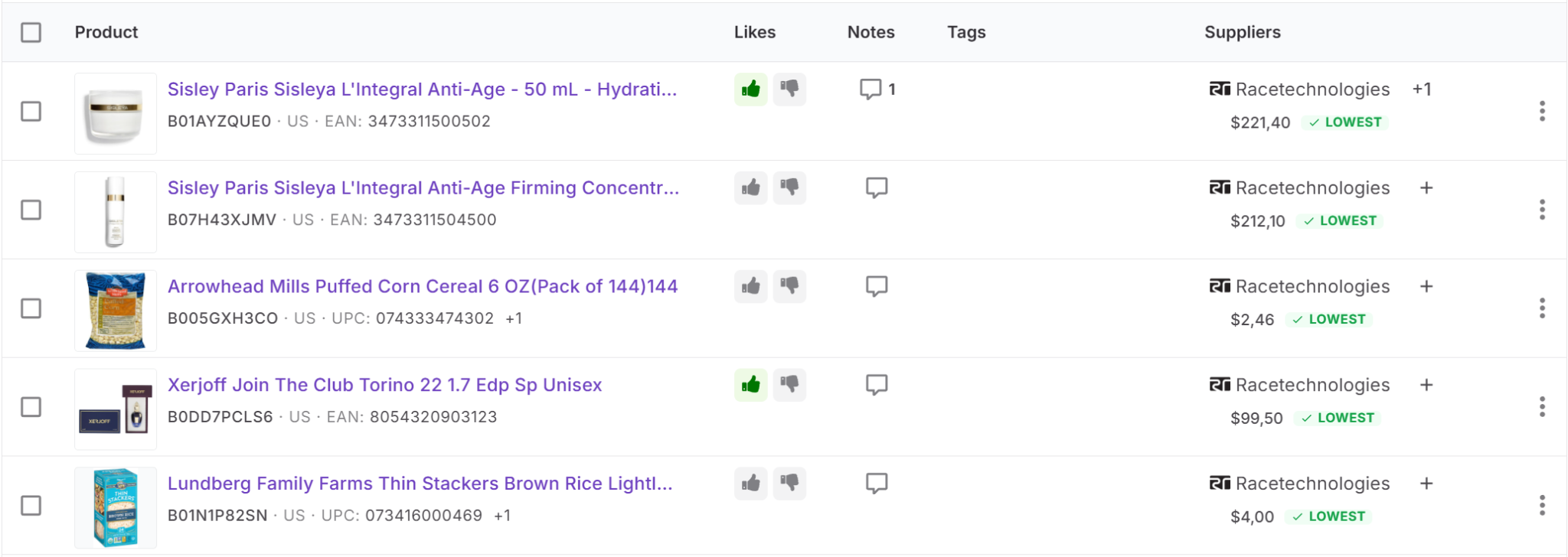
- Product name
- Product image
- ASIN, UPC, EAN
- Marketplace
- Brand
- Likes
- Notes
- Tags
Supplier data
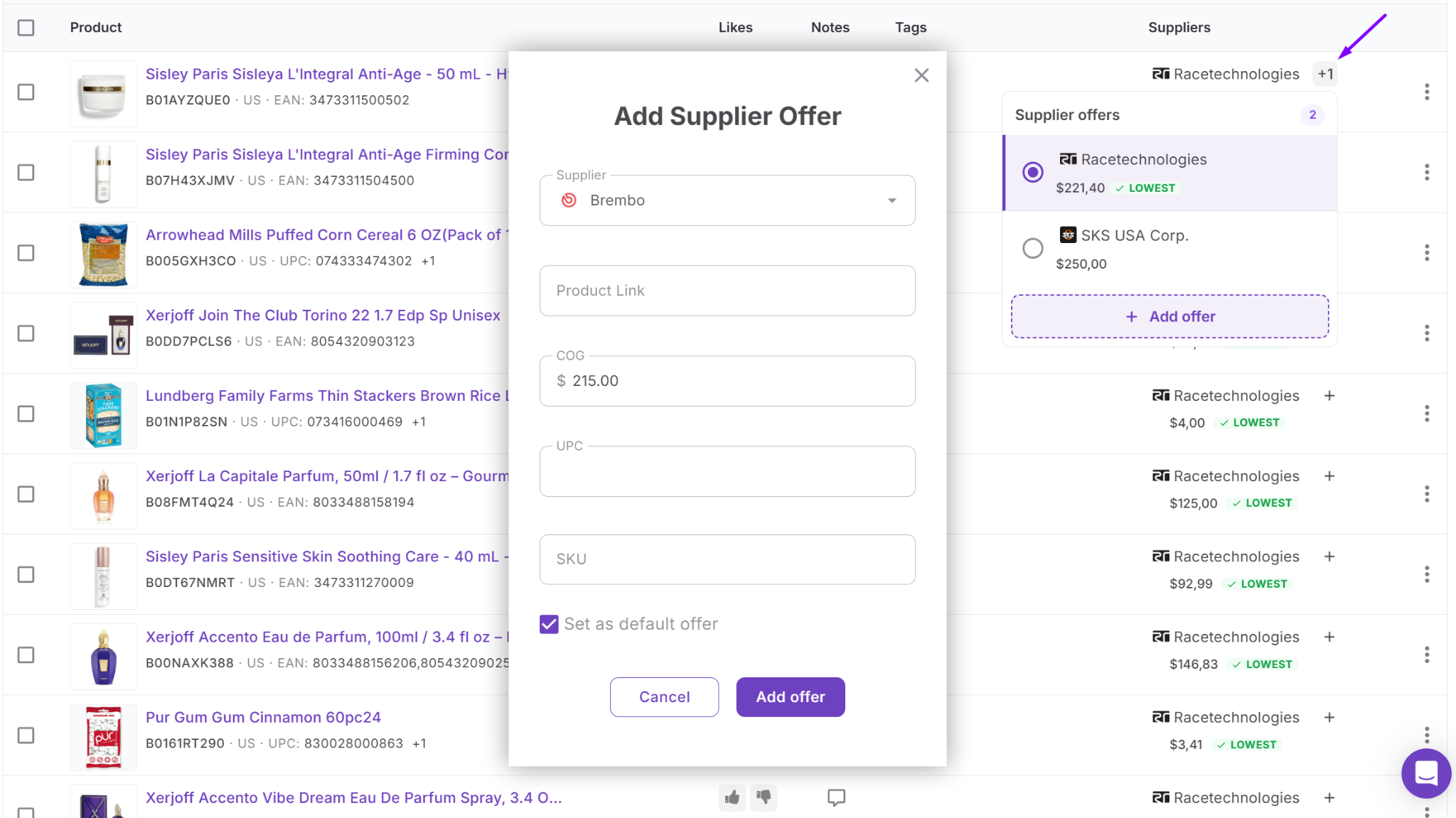
- Supplier offers
- Cost of goods (COG)
- Default supplier
- Lowest COG indicator
- SKU
- Identifiers
- Product link
Operational data (in Product Details Page)
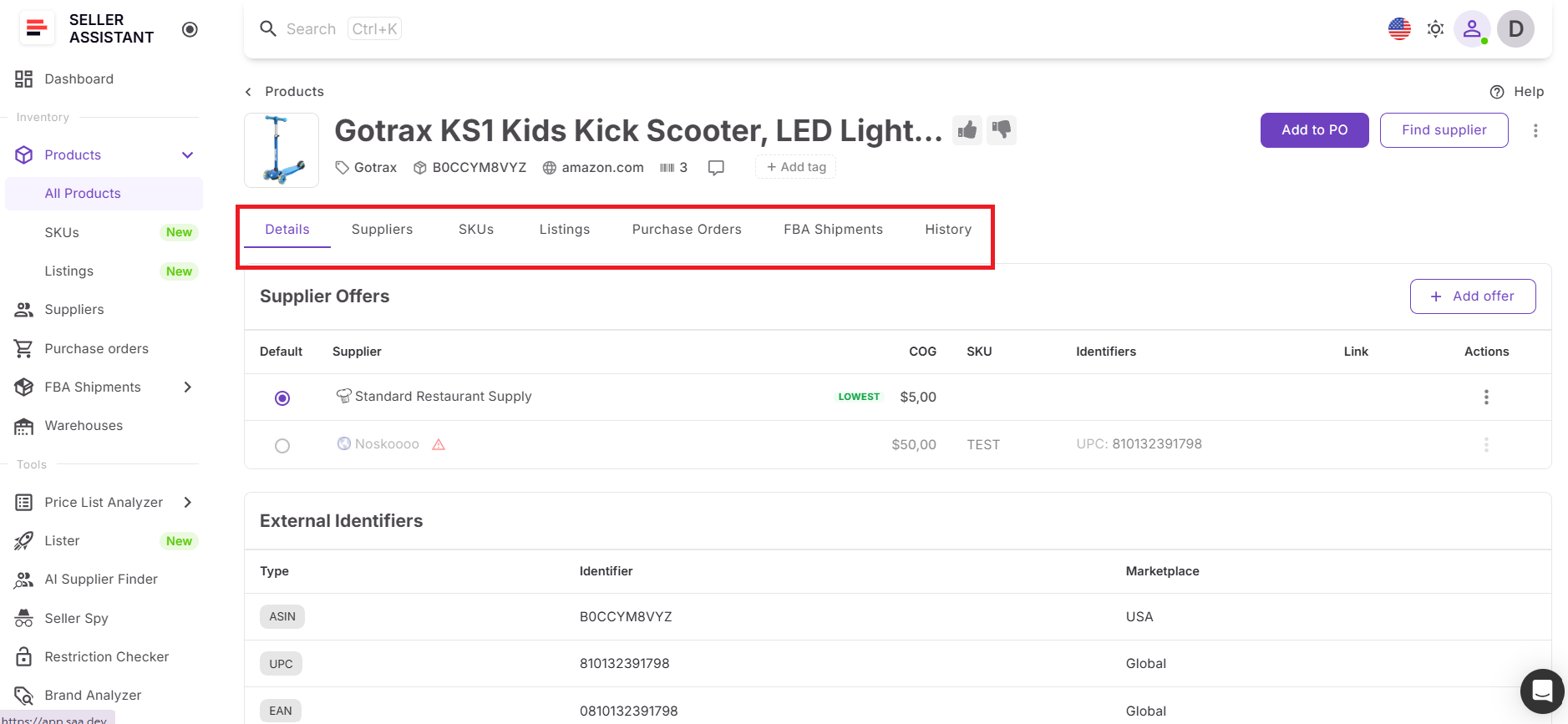
- SKUs (status, channel, landed cost, creation time)
- Listings (MSKU, FNSKU, condition, price, fulfillment, status)
- Purchase orders linked to the product
- FBA shipments (status, shipped vs received units, fees, destination)
- Activity history (changes, timestamps, actions)
This structure gives you full control over each product – from sourcing and supplier selection to purchasing, listing, and fulfillment tracking.
How to Use Product Database Step by Step
Product Database is built to help you move from sourced product to buying and listing decision in one workflow. You add products, compare supplier offers, organize sourcing data, and push approved items to the next stage without losing context. Here’s how to use it step by step.
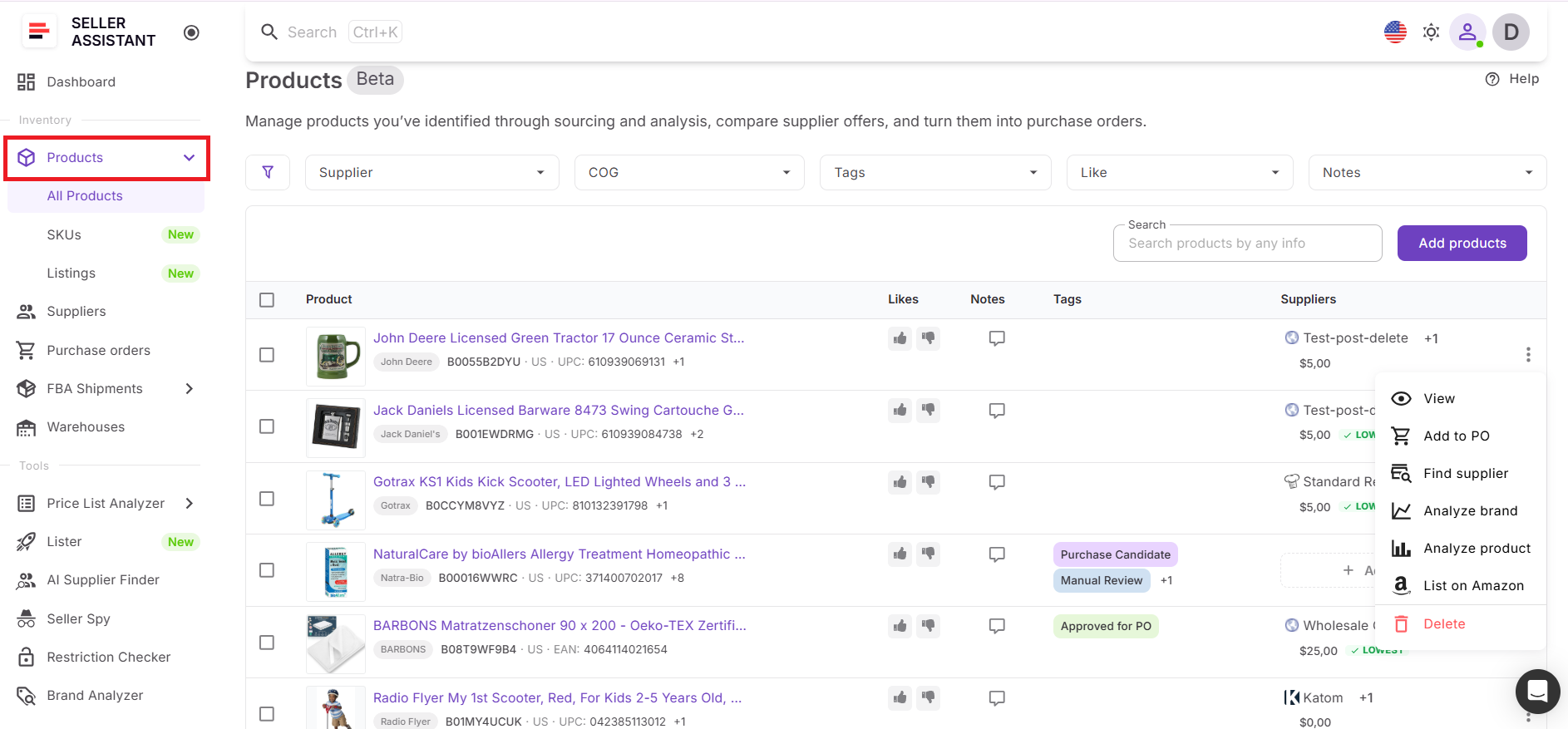
Step 1. Open Product Database
Go to the Inventory section and open Products. This takes you to the main product table, where all sourced products are stored in one shared workspace. You can search by product title or identifiers and use filters to narrow products by supplier, COG, tags, likes, or notes.
Step 2. Add products to the Database
Add products directly from the product table or from Price List Analyzer. If you add them from the table, search by title or identifier, select the marketplace, and confirm the products you want to save. If you add them from Price List Analyzer, the system creates product entries together with supplier offers, COG, and identifiers from the price list.
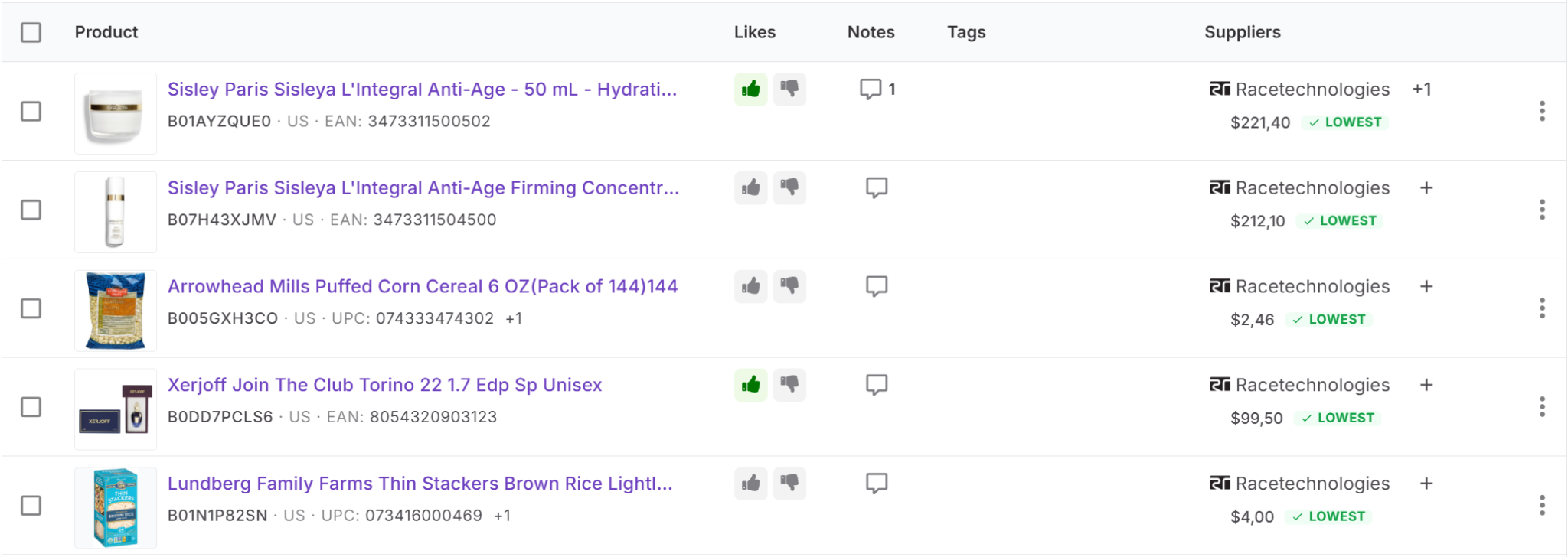
Step 3. Review product data
Once products are in the database, review the core details shown in each row. This includes the product name, image, identifiers, marketplace, notes, tags, likes, supplier offers, and COG. At this stage, you can quickly understand what product you are looking at and what sourcing data is already attached to it.
Step 4. Compare supplier offers
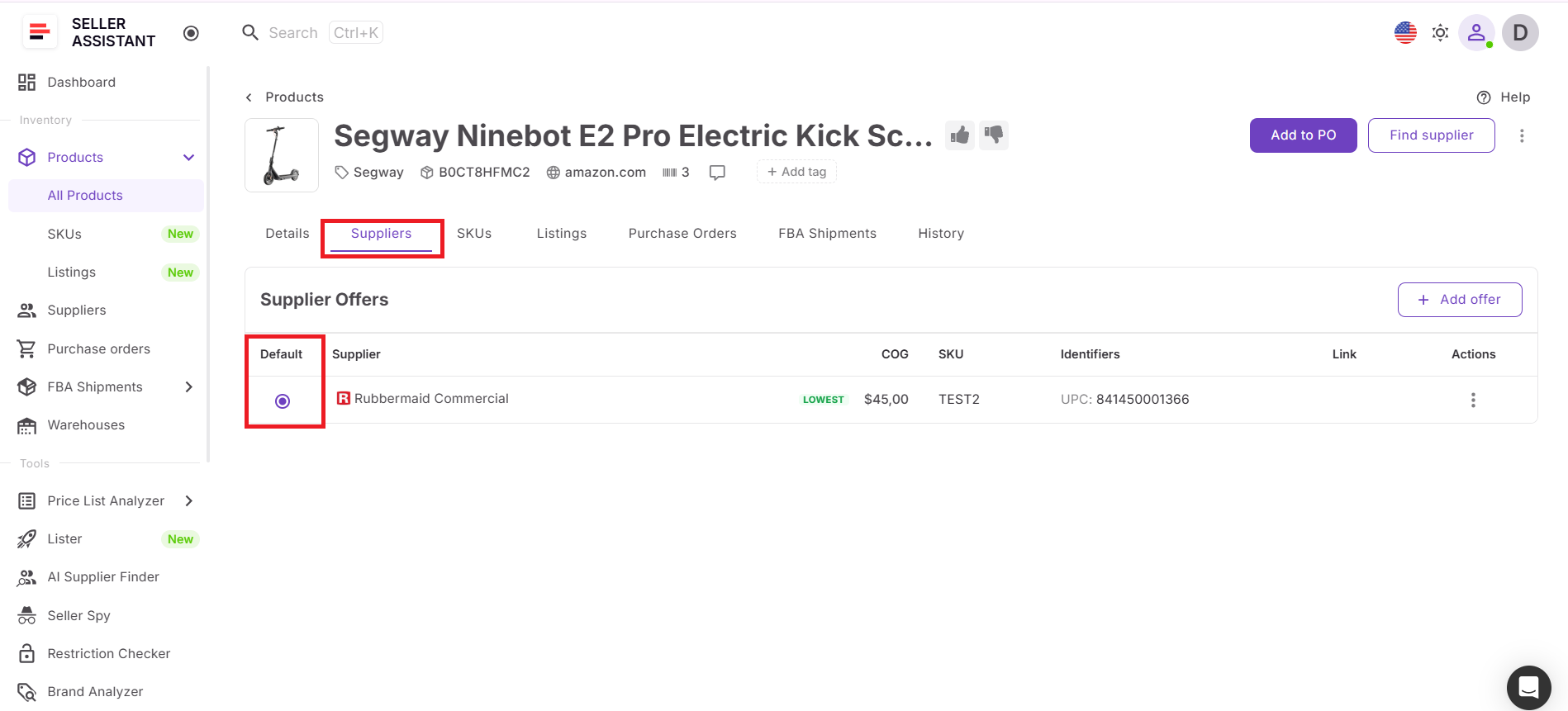
Open the supplier section for a product and review all available offers. Compare supplier names, COG, SKU, identifiers, and product links. This is the most important step because it helps you identify which supplier gives you the best buying option for the same ASIN.
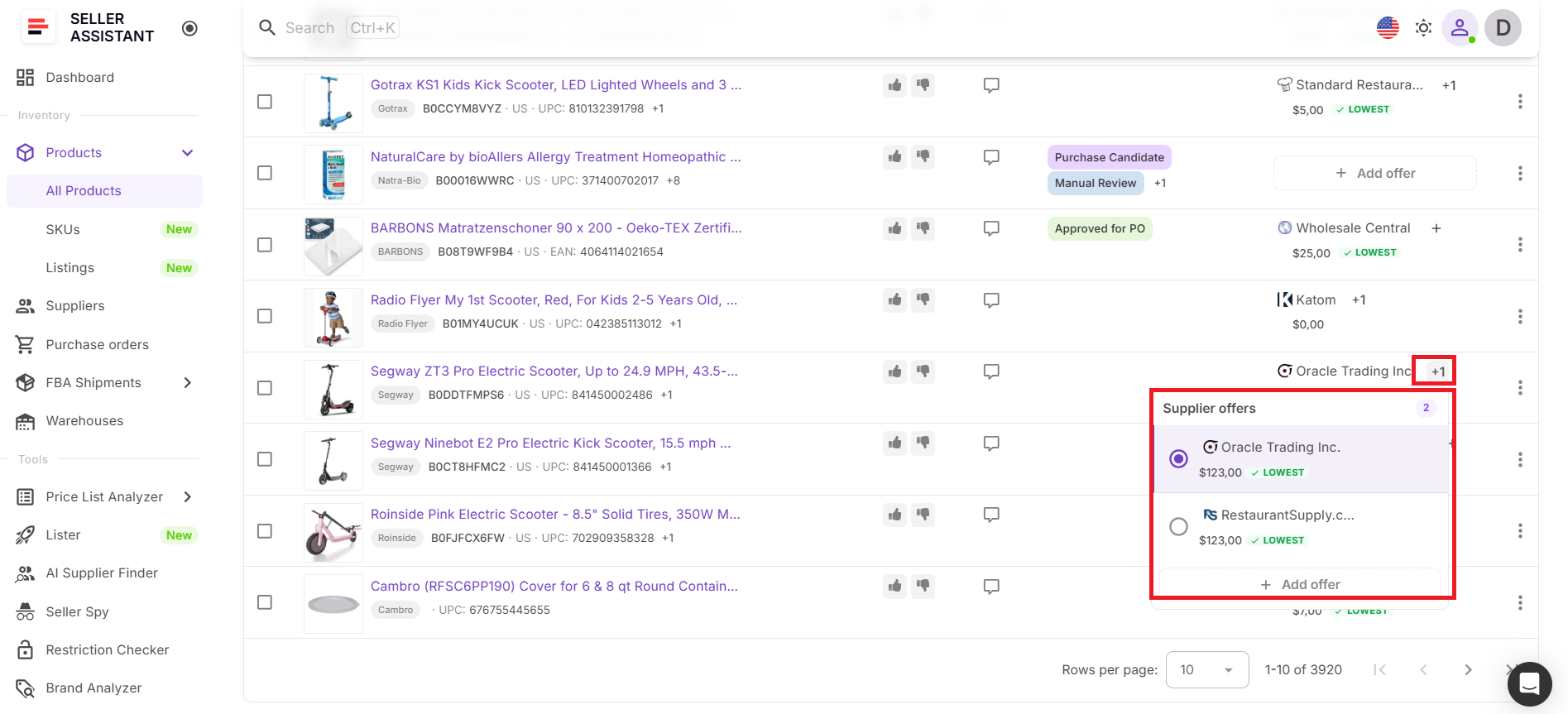
Step 5. Select the default supplier
Choose one supplier as the default supplier for the product. This sets the preferred supplier for future actions, including purchase orders. The default supplier always appears first, and the offer with the lowest COG is marked so you can compare costs faster.
Step 6. Add or edit supplier data
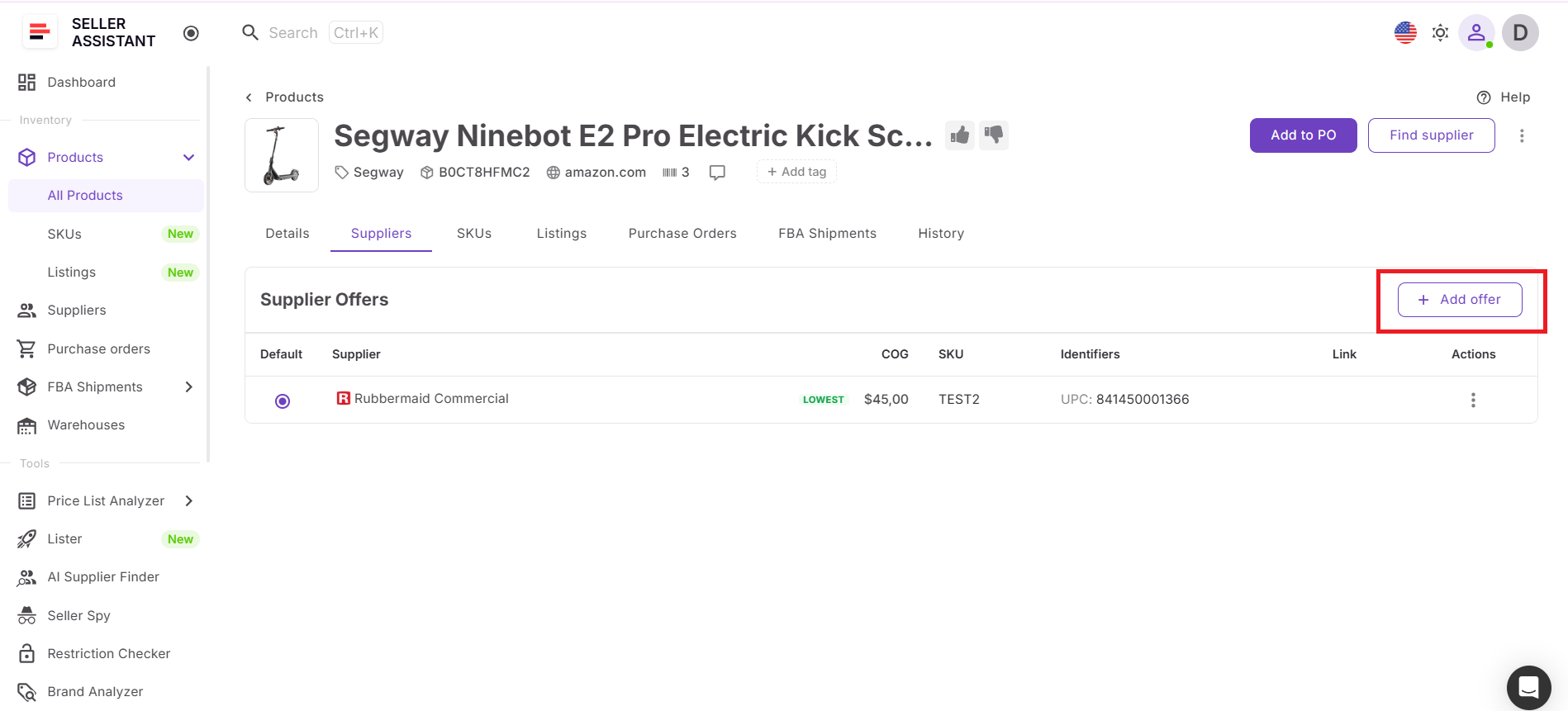
If needed, create a new supplier offer or edit an existing one. You can update COG, SKU, identifiers, and product links to keep the product record accurate. This helps maintain clean supplier data and makes future purchasing decisions more reliable.
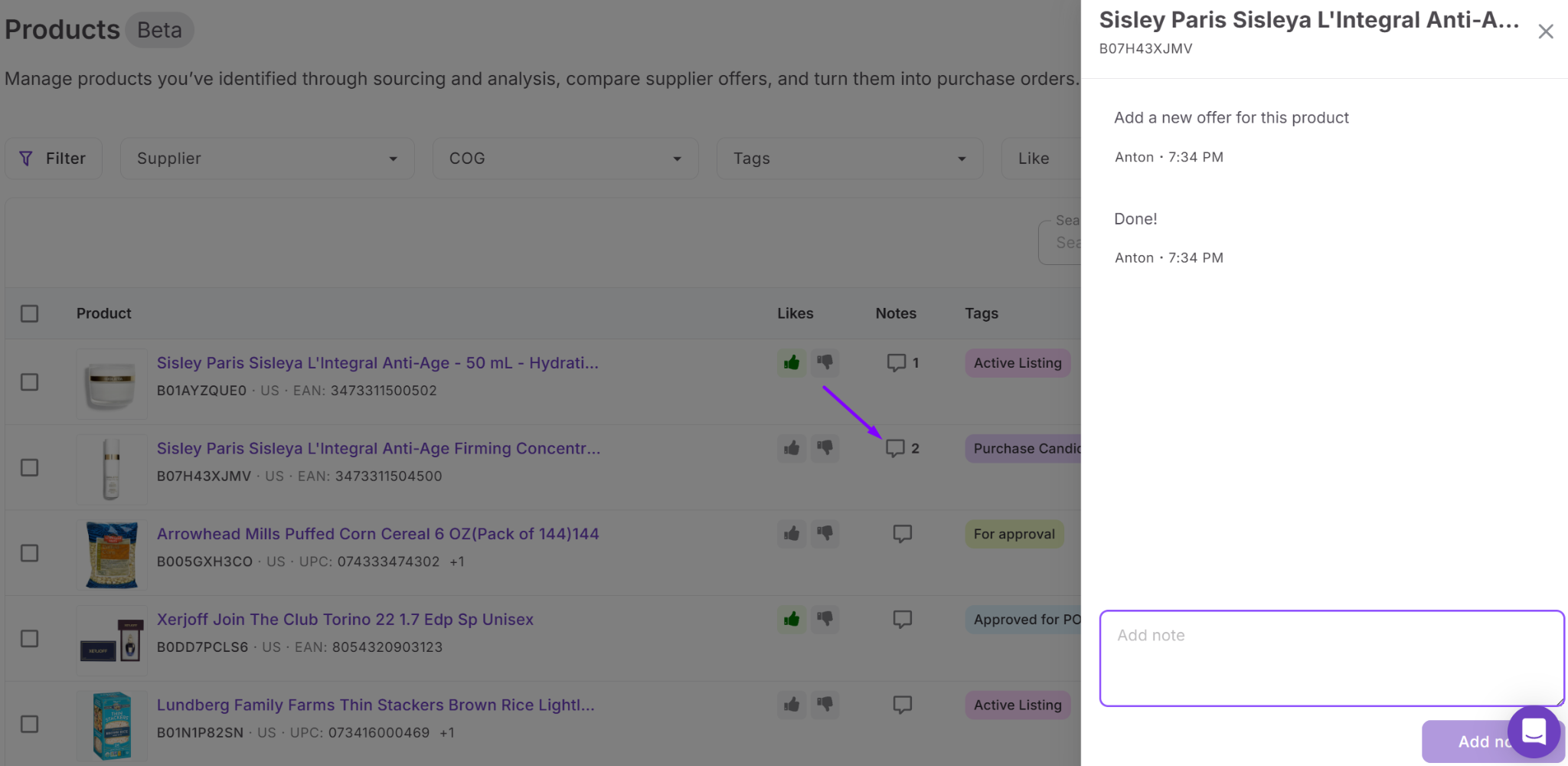
Step 7. Organize products with notes, tags, and likes
Use notes to record sourcing decisions, constraints, or status updates. This makes it easier to manage large product sets and keep your team aligned.
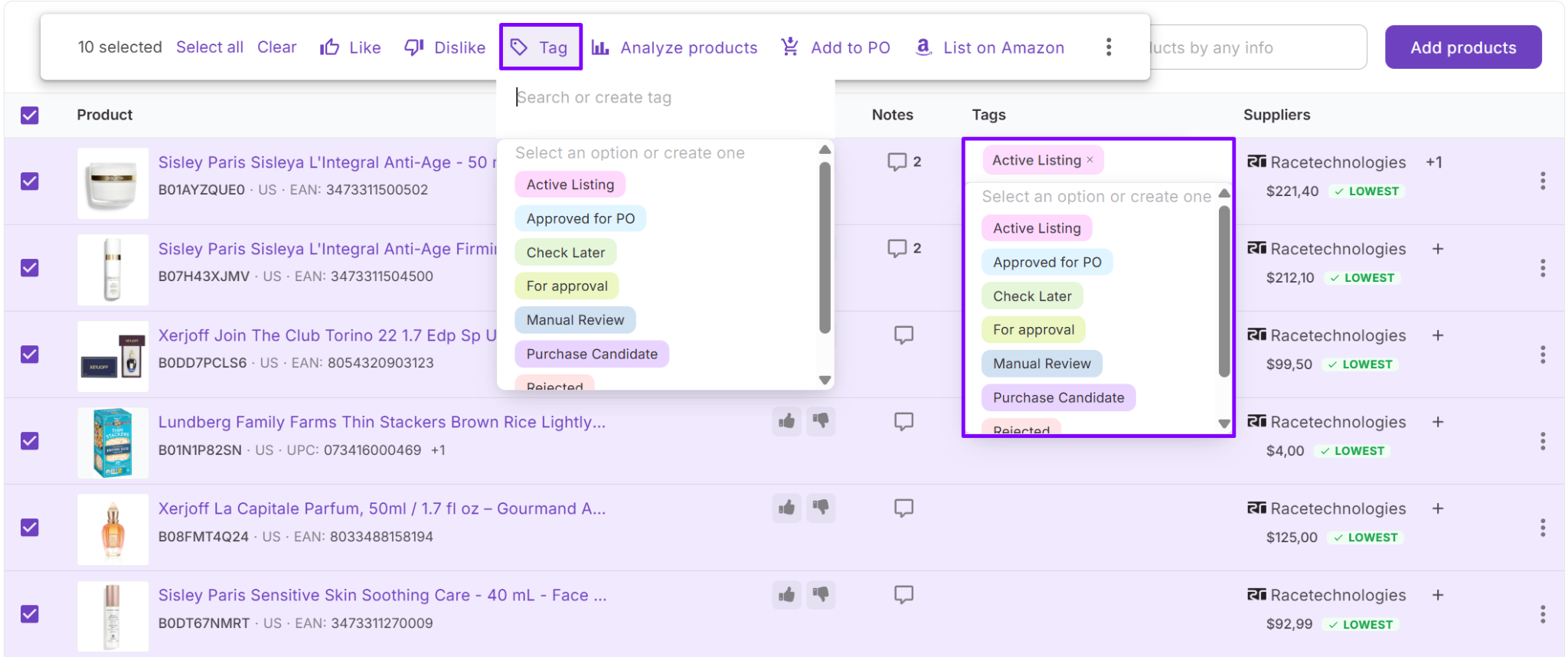
- Apply tags to group products by supplier, sourcing method, or internal workflow stage.
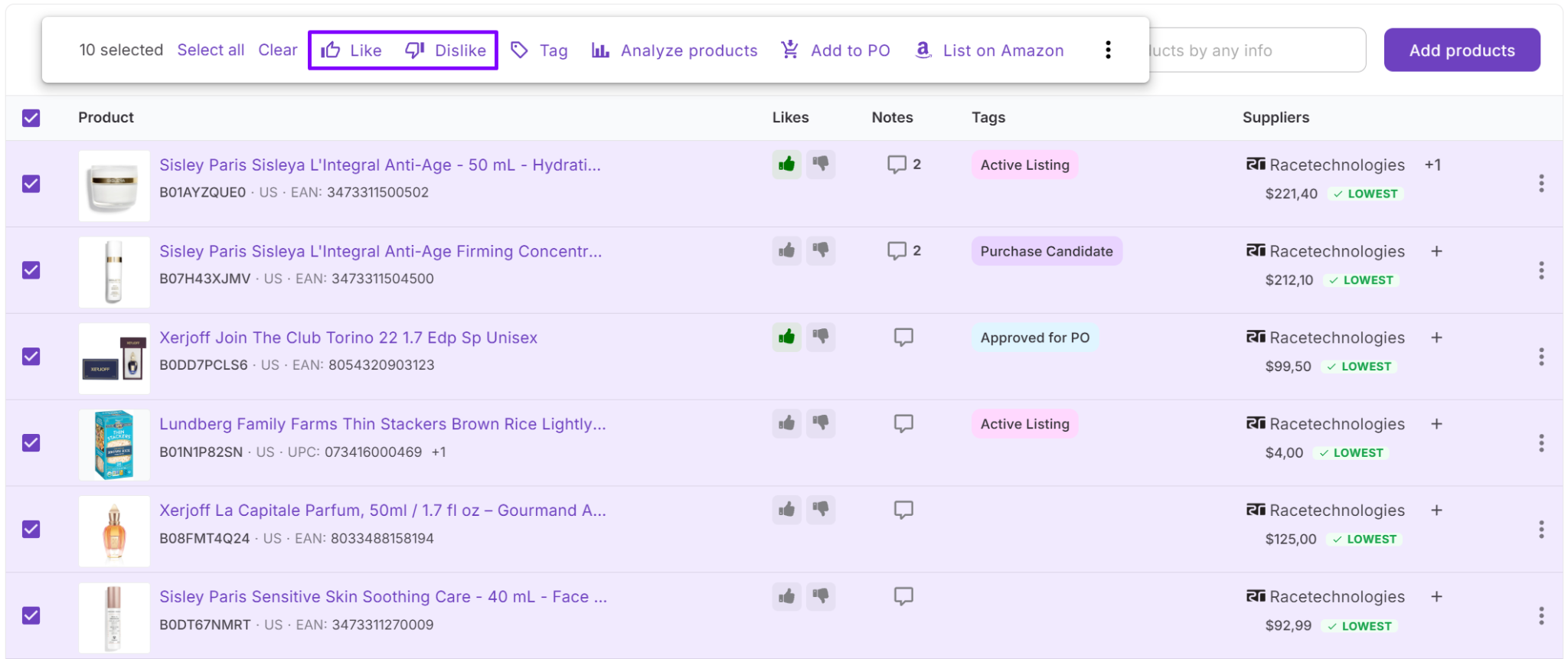
- Use likes to mark preferred products during sourcing.
- Use notes to interact within your team.
Step 8. Open the product details page
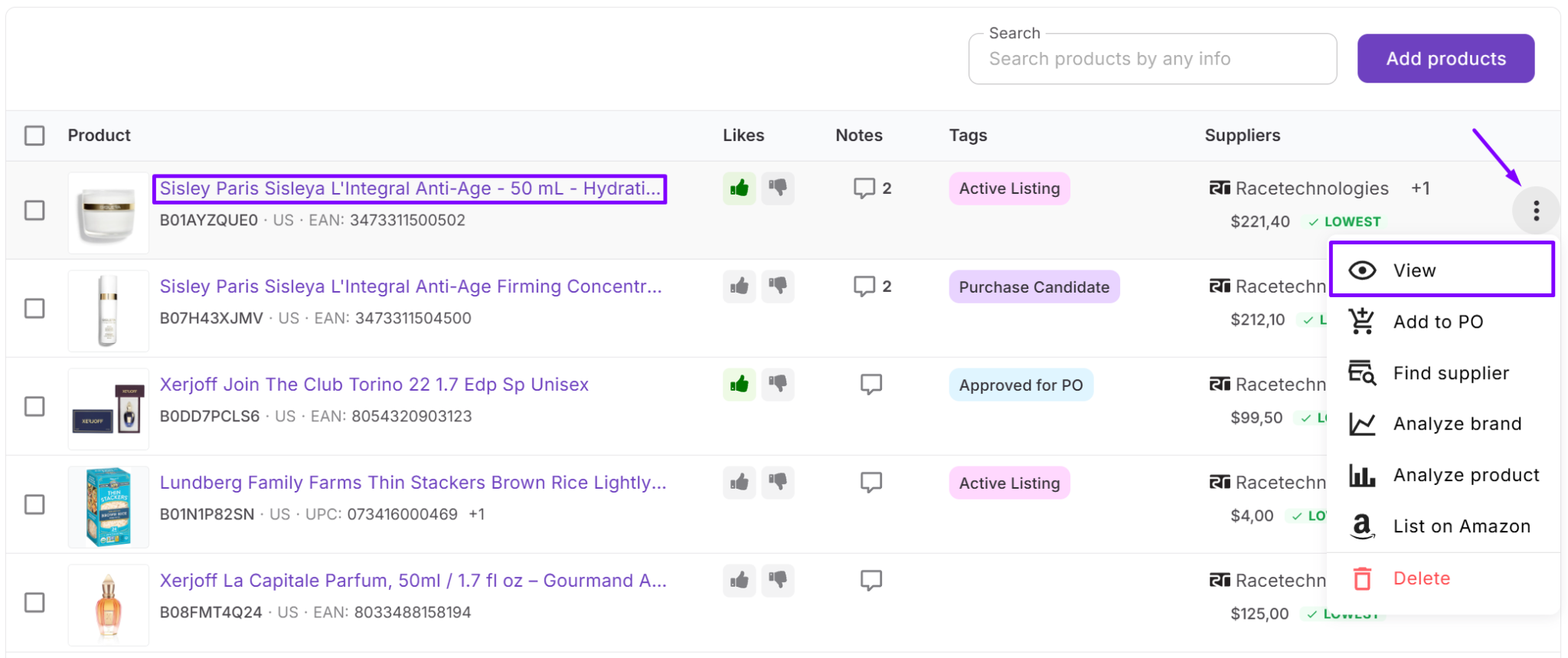
Click the product title to open the Product Details Page. This page gives you a deeper view of the product, including supplier offers, SKUs, listings, linked purchase orders, FBA shipments, and activity history. Use it when you need full product context instead of a table view.
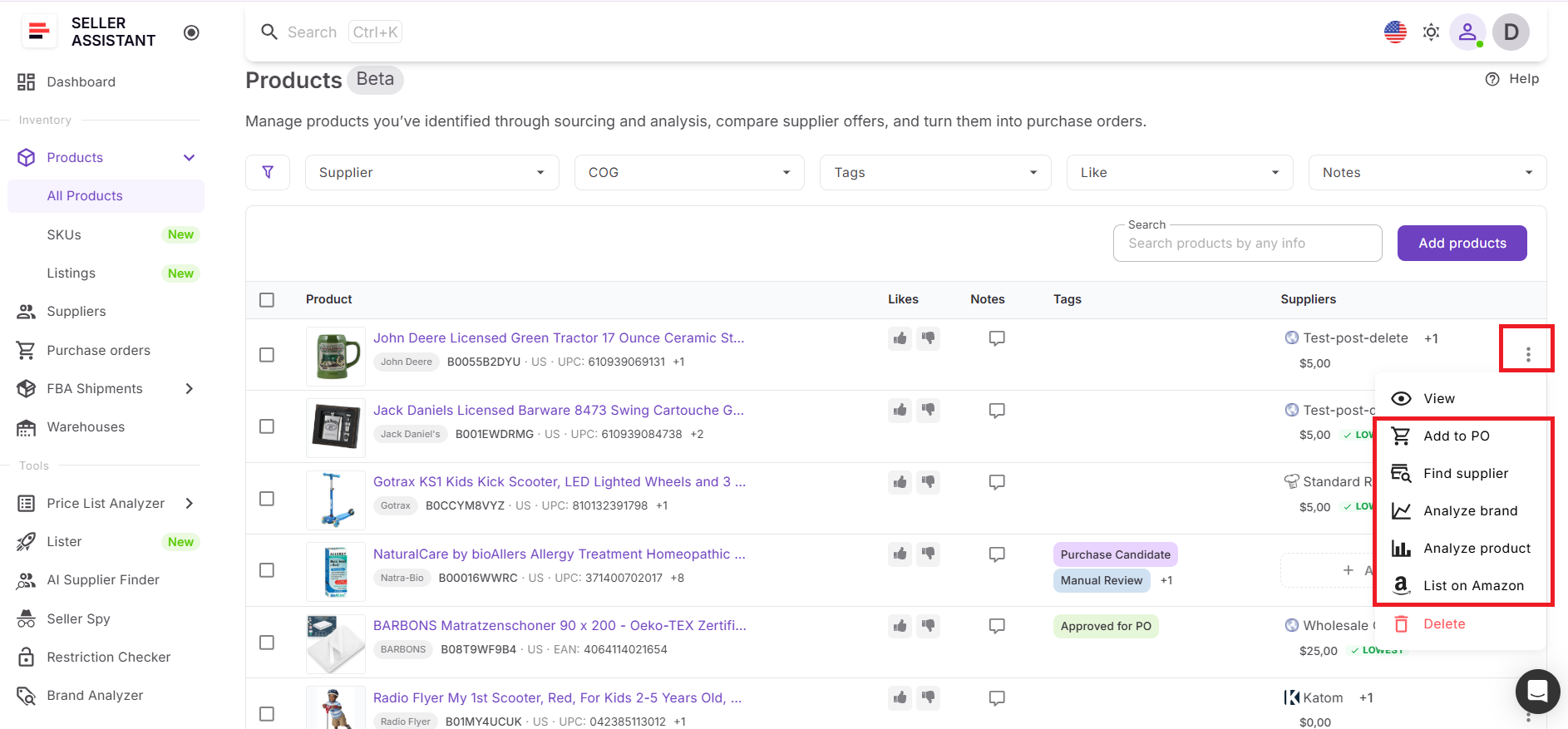
Step 9. Send products to the next tool
From Product Database, you can continue working with the product without re-entering data. Send products to Price List Analyzer for fresh analysis, launch AI Supplier Finder to look for suppliers by brand, open Brand Analyzer, or list products on Amazon with Lister.
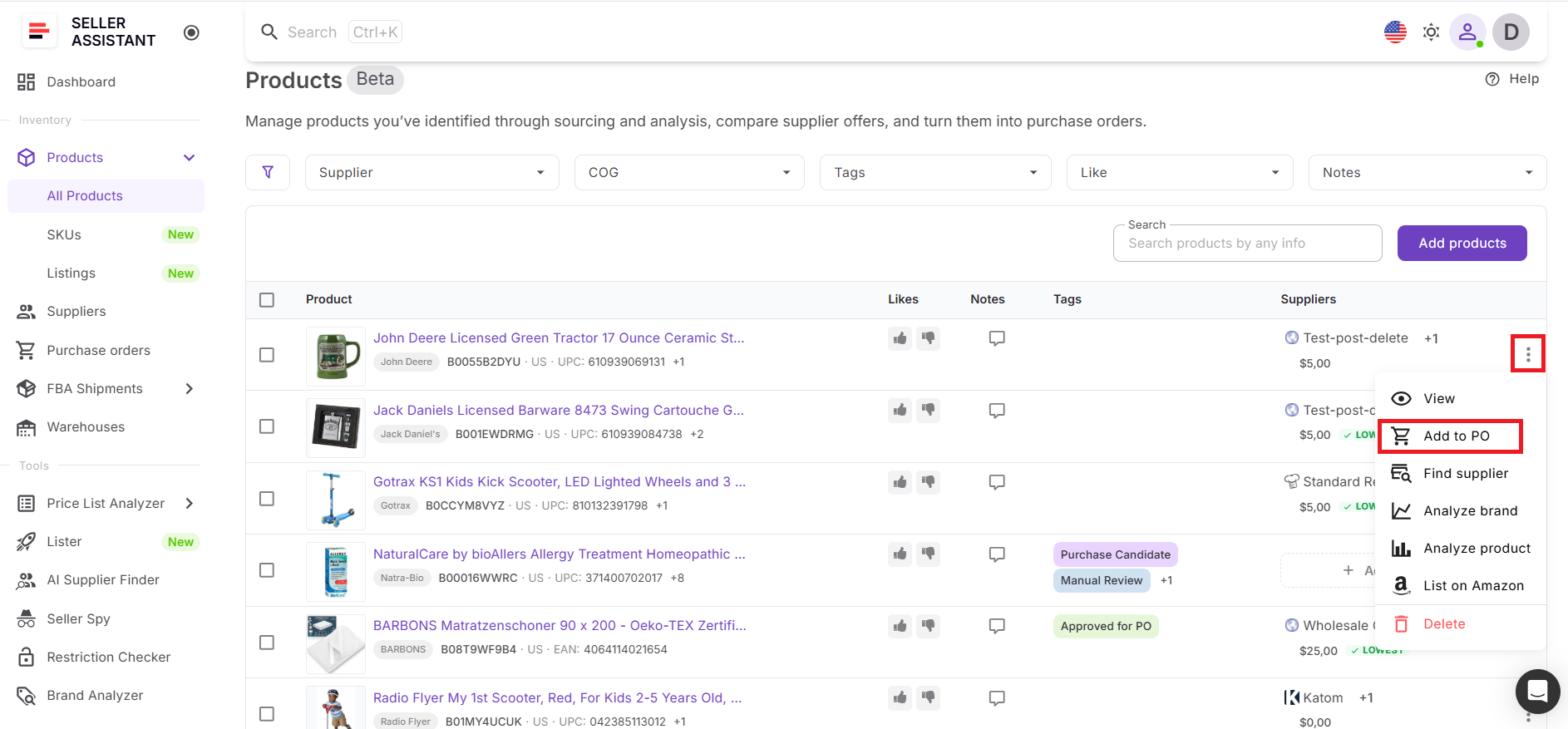
Step 10. Add products to purchase orders
When a product is approved, add it directly to a Purchase Order from Product Database. The system uses the selected default supplier, which keeps your supplier choice consistent. If you update product pricing in the purchase order, the supplier offer COG in Product Database can also update to keep your data aligned.
Step 11. Track listings, SKUs, and shipments
After purchasing and listing, Product Database continues to work as your product control center. In Product Details Page, you can track linked SKUs, listing status, purchase orders, and FBA shipments. This helps you follow the product beyond sourcing and connect buying decisions with listing and fulfillment outcomes.
FAQ
What is the main benefit of using Product Database?
The main benefit is the ability to compare multiple supplier offers for the same ASIN in one place. This helps you consistently choose the most profitable supplier and avoid losing pricing data.
Can I use Product Database for online arbitrage and dropshipping?
Yes, Product Database works for wholesale, online arbitrage, and dropshipping sellers. It helps track products, organize sourcing decisions, and manage supplier data across all models.
How is Product Database different from spreadsheets?
Spreadsheets store static data, while Product Database keeps dynamic product records connected to suppliers, purchase orders, and listings. This eliminates manual updates and keeps your workflow consistent.
Can I create listings directly from Product Database?
Yes, you can use Lister to create Amazon listings directly from Product Database or Purchase Orders. Product data and SKUs are carried over, reducing manual entry and listing errors.
Does Product Database help after purchasing products?
Yes, it continues to track products after purchase through SKUs, listings, and FBA shipment data. This gives you visibility into fulfillment, costs, and discrepancies without leaving the platform.
Final Thoughts
Managing Amazon products becomes complex as your sourcing grows – not because of the number of deals, but because of how that data is handled. Without structure, supplier offers get lost, decisions become inconsistent, and scaling turns into guesswork.
Seller Assistant’s Product Database brings structure to that process. It keeps all products, supplier offers, and decisions in one place, making it easier to compare options, choose the best supplier, and move products through sourcing, purchasing, and listing without friction. Instead of relying on disconnected tools, you build a workflow where every step is connected.
Seller Assistant automates and connects every stage of your Amazon wholesale and arbitrage workflow. It brings together in one platform: workflow management tools – Purchase Orders Module, Suppliers Database, Product DB, Warehouses Database, bulk research & sourcing tools – Price List Analyzer, Bulk Restriction Checker, AI Supplier Finder, Brand Analyzer, Seller Spy, Chrome extensions – Seller Assistant Browser Extension, IP-Alert Extension, and built-in VPN by Seller Assistant, and integrations & team access features – seamless API connectivity, integrations with Zapier, Airtable, and Make, and Virtual Assistant Accounts.