


Most Amazon sellers start with online arbitrage because it’s fast to enter and easy to test. But as volume grows, manual sourcing, constant restriction checks, and one-off deals stop scaling.
Margins tighten, time disappears, and growth stalls. That’s usually the signal it’s time to move beyond arbitrage and into wholesale. Wholesale isn’t about finding more products – it’s about building repeatable systems for bulk sourcing, eligibility checks, supplier management, and purchasing.
This is where structured workflows matter. Seller Assistant’s workflow tools help Amazon resellers replace spreadsheets and guesswork with data-driven processes that support wholesale growth, cleaner decisions, and scalable operations across wholesale, online arbitrage, and dropshipping.
Note. Seller Assistant is an end-to-end Amazon workflow management platform that integrates 10+ wholesale-focused solutions into one connected system. It combines sourcing workflow automation, bulk research and intelligence tools, and integrated Chrome extensions – giving you everything you need to streamline finding deals, managing suppliers, and creating purchase orders.

The platform aggregates: workflow management tools – Purchase Orders Module, Suppliers Database, Warehouses Database to organize, automate, and scale every step of your wholesale and arbitrage operations; bulk research & sourcing tools – Price List Analyzer, Bulk Restriction Checker, Sourcing AI, Brand Analyzer, Seller Spy to evaluate supplier price lists, verify selling eligibility and restrictions, open new brands, and discover winning product ideas from competitors to expand your product catalog; Chrome extensions – Seller Assistant Browser Extension, IP-Alert Extension, and built-in VPN by Seller Assistant to deep-research products, check IP claims and compliance, and access geoblocked supplier sites directly within your browser; and integrations & team access features – seamless API connectivity and integrations with Zapier, Airtable, and Make, plus Virtual Assistant Accounts for secure, scalable team collaboration.
With Seller Assistant, every step of your Amazon wholesale and arbitrage workflow is automated and connected.
When Online Arbitrage Stops Scaling and Wholesale Starts Making Sense
Online arbitrage is often the fastest way to start selling on Amazon. But it’s not built for long-term scale. As volume grows, manual sourcing, one-off deals, and constant checks begin to limit growth instead of supporting it. Wholesale becomes the logical next step when your business needs repeatability, cleaner margins, and predictable inventory. Below are the most common signals that your Amazon business has outgrown online arbitrage.
Your sourcing takes more time than it should
You spend hours jumping between storefronts, extensions, and spreadsheets just to find a handful of viable deals. Research effort increases, but output stays flat.
Your deals are inconsistent and hard to repeat
Profitable SKUs disappear quickly, restocks are unreliable, and every sourcing session starts from zero instead of building on past wins.
Manual checks create costly mistakes
Eligibility issues, pricing errors, or hidden risks slip through because each product is checked individually, often under time pressure.
You can’t scale with suppliers or team members
There’s no clean way to manage suppliers, track outreach, or delegate sourcing without losing visibility or control.
Growth feels chaotic instead of predictable
More SKUs and sales don’t translate into stability. Margins fluctuate, workflows break, and scaling feels risky.
Why Growing Amazon Sellers Switch to Seller Assistant Workflow Tools
Seller Assistant workflow tools are a connected set of systems built to manage Amazon sourcing and purchasing at scale. Each tool handles a specific part of the workflow: Price List Analyzer processes bulk supplier files and helps find profitable deals, Brand Analyzer evaluates brand resale potential, Bulk Restriction Checker verifies selling eligibility, Suppliers Database organizes supplier relationships, Warehouses Database manages routing and prep, and Purchase Orders Module turns approved products into clean purchase orders. Together, they replace spreadsheets and manual checks with a structured workflow that supports wholesale, online arbitrage, and dropshipping growth.
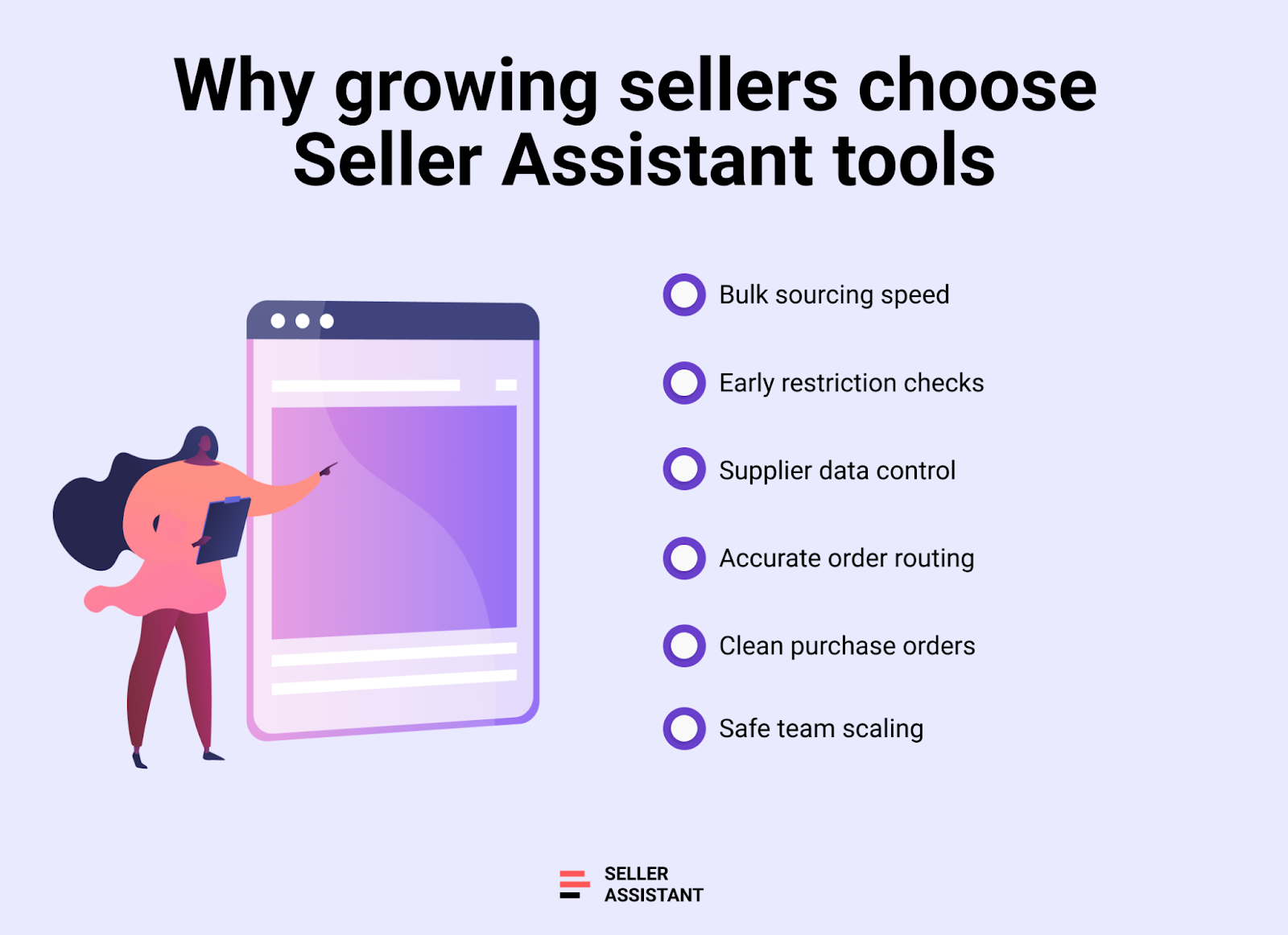
Bulk sourcing replaces manual deal hunting
Seller Assistant tools let sellers analyze hundreds or thousands of SKUs at once. Instead of checking products individually, bulk research surfaces only profitable, eligible, and low-risk opportunities.
Eligibility checks happen before money is spent
Automated restriction validation removes guesswork. Sellers avoid buying gated or blocked ASINs by verifying eligibility early in the sourcing process.
Supplier data stays organized and reusable
Suppliers Database centralizes contacts, terms, and statuses. This prevents duplicate outreach, lost information, and inconsistent sourcing decisions.
Logistics and routing stop breaking workflows
Warehouses Database applies correct ship-to details automatically. Orders route correctly without manual entry or costly fulfillment mistakes.
Purchase orders become fast and consistent
Purchase Orders Module generates professional POs from verified data. Costs, quantities, and totals stay accurate as order volume increases.
Teams can scale without losing control
Structured workflows allow team members and VAs to source and build orders safely. Data stays centralized, visible, and controlled.
Price List Analyzer: Scale with Bulk-Ready Deals
Price List Analyzer is a bulk Amazon price list analysis tool built for wholesale, online arbitrage, and dropshipping sellers who work with large supplier files. Instead of researching products one by one, sellers upload supplier spreadsheets or parse supplier websites and receive a structured, Amazon-ready dataset.
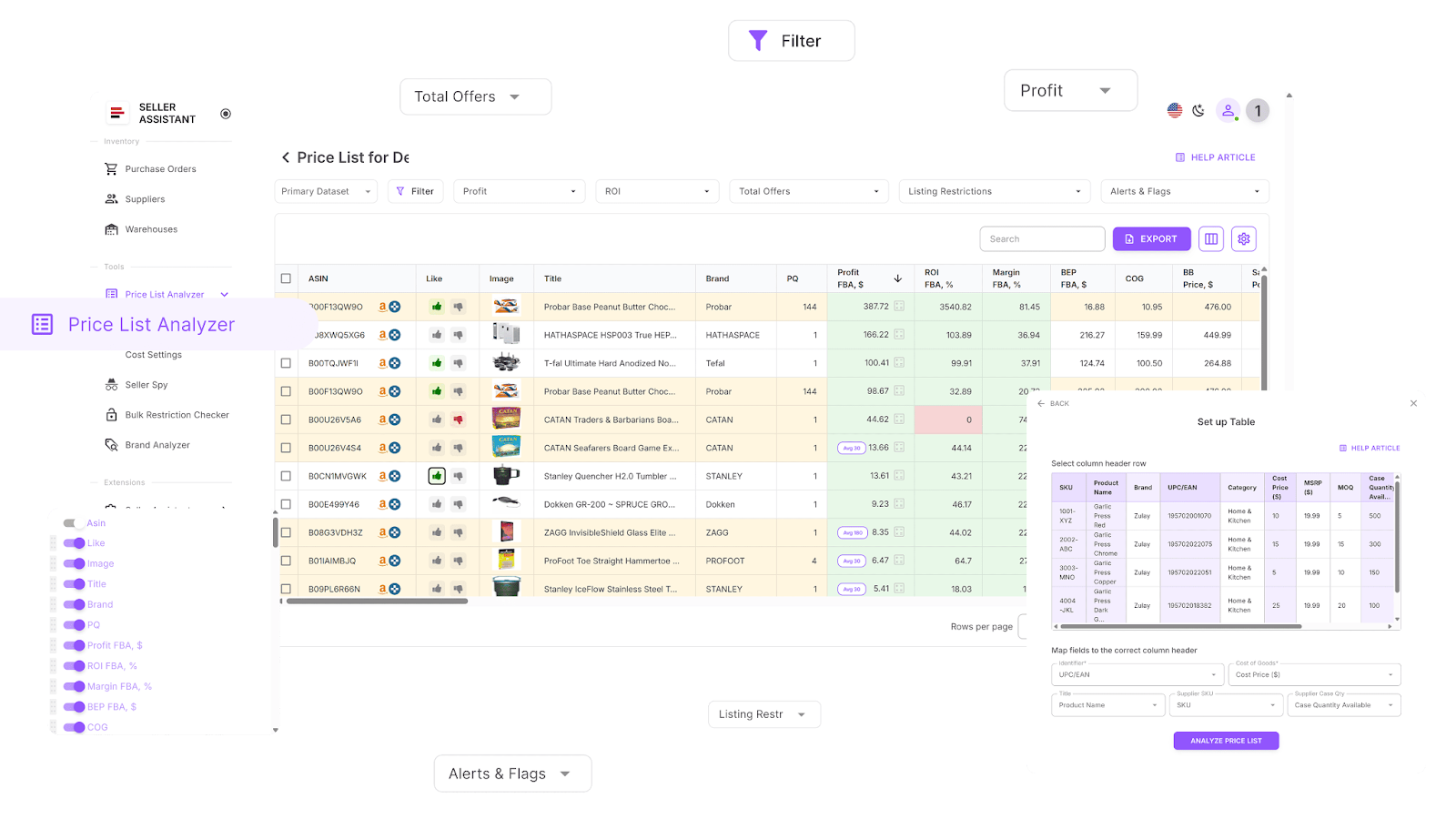
Every product is automatically matched to its Amazon ASIN and enriched with more than 100 data points. This allows sellers to evaluate profitability, demand, competition, fees, and risk across hundreds or thousands of SKUs in a single workflow.
What Price List Analyzer does
This Software Makes Amazon FBA Wholesale Selling 10x Easier
Price List Analyzer turns raw supplier lists into actionable sourcing decisions. It helps sellers:
- Process bulk supplier price lists to uncover Amazon products with strong profit potential
- Automatically map supplier SKUs to the correct Amazon ASINs with no manual searching
- Instantly flag gated, restricted, or non-sellable products for your specific account
- Evaluate demand using BSR data, sales trends, and estimated monthly sales volume
- Calculate ROI, profit margin, net profit, and breakeven points for each ASIN
- Analyze Buy Box price history across 30-day, 90-day, and 180-day timeframes
- View a complete Amazon fee breakdown, including referral fees, FBA or FBM fees, storage, prep, and shipping costs
- Identify high-risk ASINs such as meltable, hazmat, oversized, fragile, or bundled items
- Receive alerts for issues like approval required, missing Buy Box price, or low FBA ROI
- Filter products by profit, ROI, demand level, competition, and risk indicators
- Save custom table layouts and filter presets for reuse on future price list uploads
- Adjust COG, shipping, prep costs, or pack size with profits recalculated instantly
- Add shared team notes that remain linked to products across multiple uploads
- Apply tags to track sourcing status, reuse past decisions, and filter products by workflow stage
How Price List Analyzer helps you grow
Price List Analyzer removes the main bottleneck in scaling: manual product research. By evaluating thousands of SKUs at once, sellers spend less time filtering bad deals and more time negotiating with suppliers and placing orders. The tool creates consistent buying rules, reduces costly mistakes, and makes results repeatable. As supplier count and catalog size grow, sourcing stays fast, structured, and predictable instead of chaotic.
How to use Price List Analyzer
Step 1. Open Price List Analyzer
Log in to your Seller Assistant account, go to the Tools section, and open Price List Analyzer. Click Upload to begin.
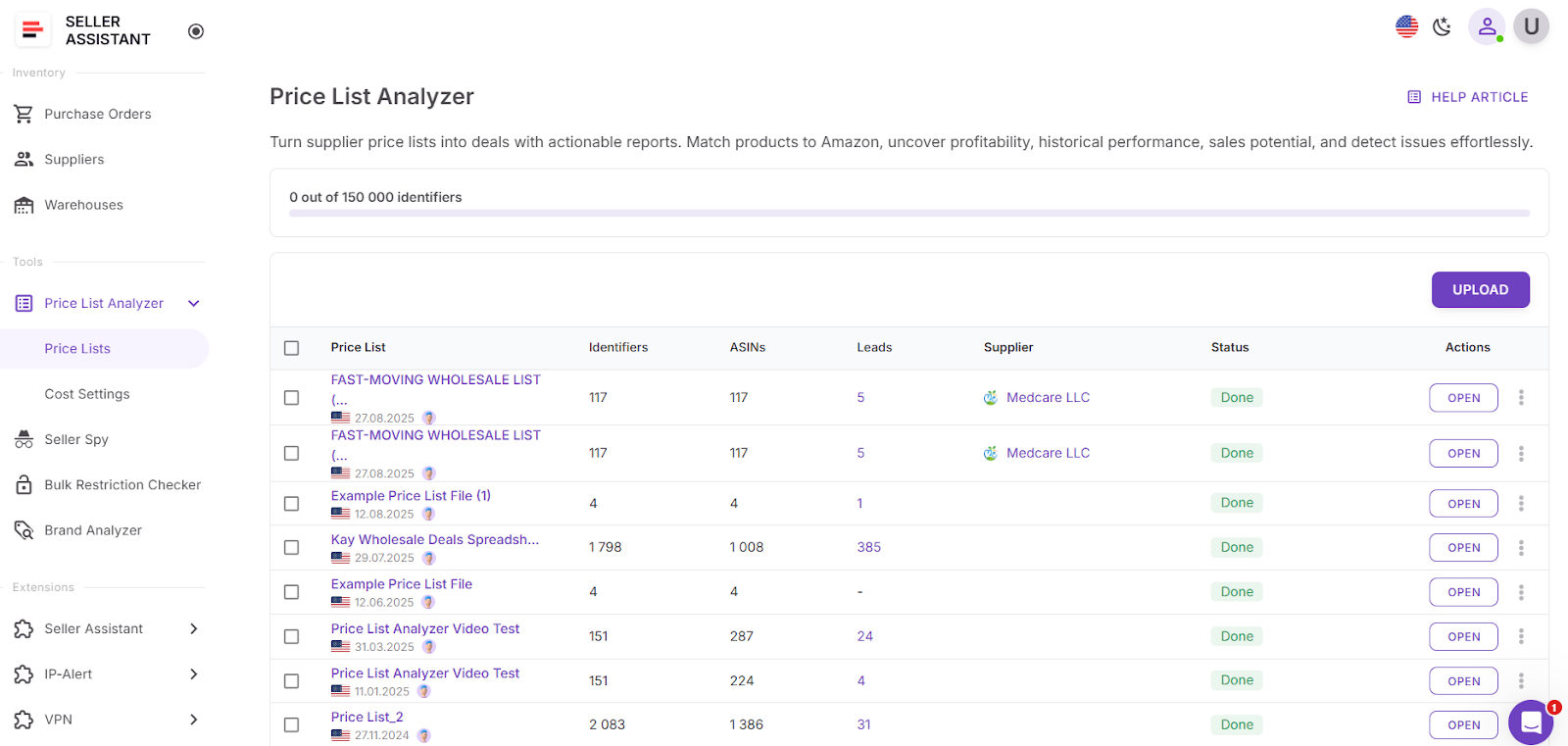
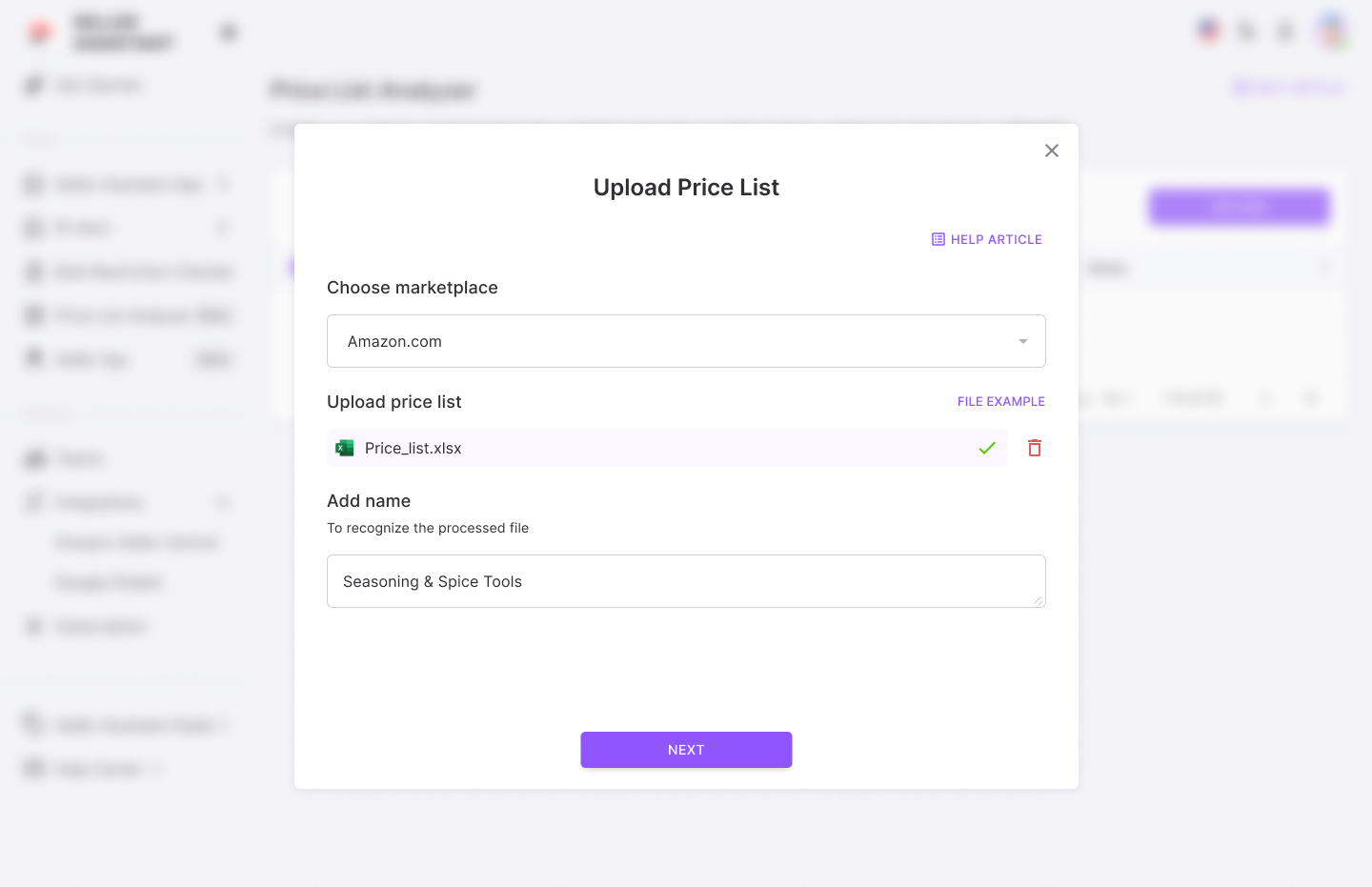
Step 2. Upload your price list
Select your Amazon marketplace and upload your supplier file in .xlsx or .xls format.
Step 3. Map your fields
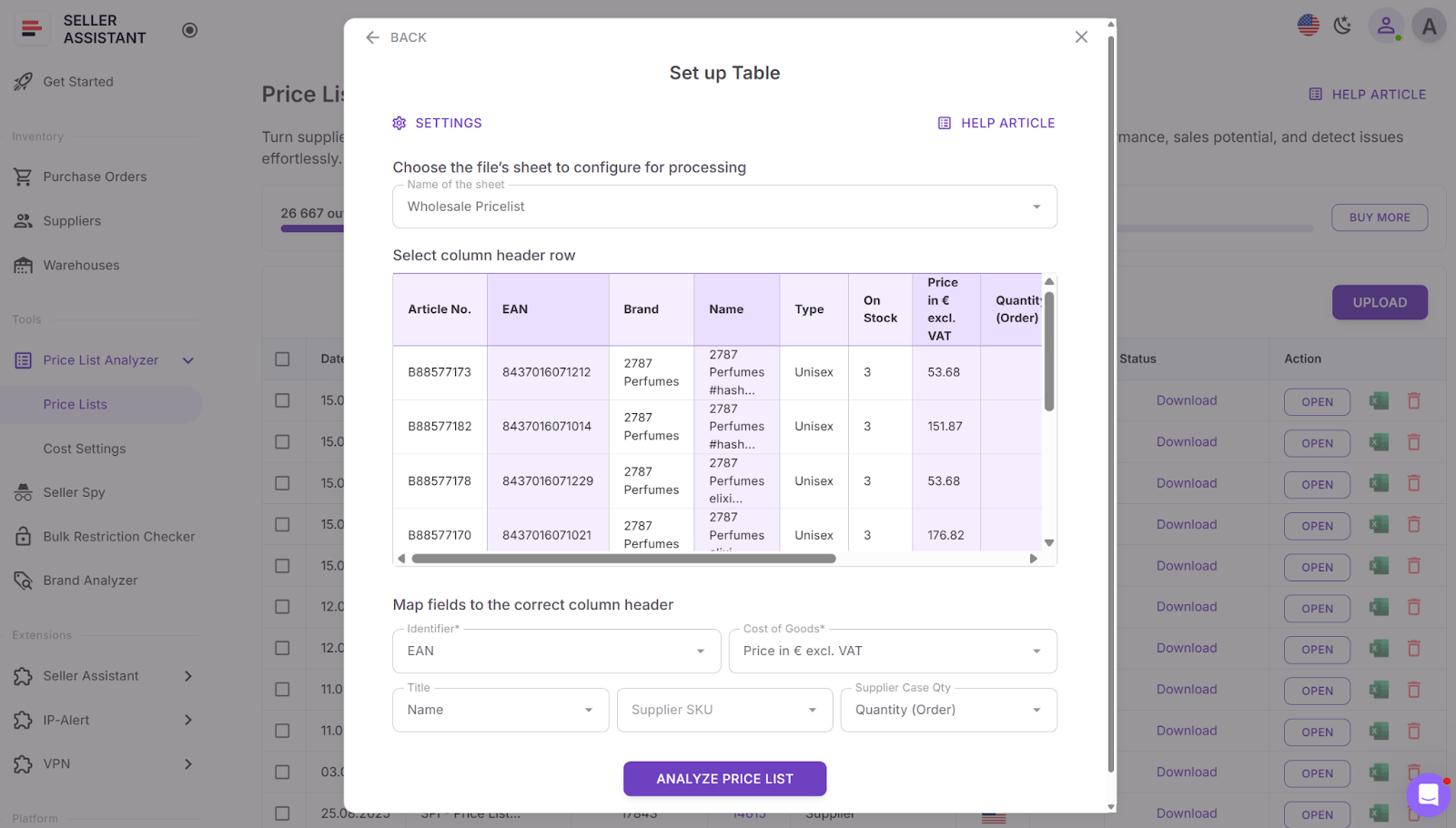
Choose the correct sheet, define the header row, and map identifiers such as UPC, EAN, or GTIN. Assign COG and product titles if available.
Step 4. Run the scan
Click Analyze price list to start automatic ASIN matching and bulk data enrichment.
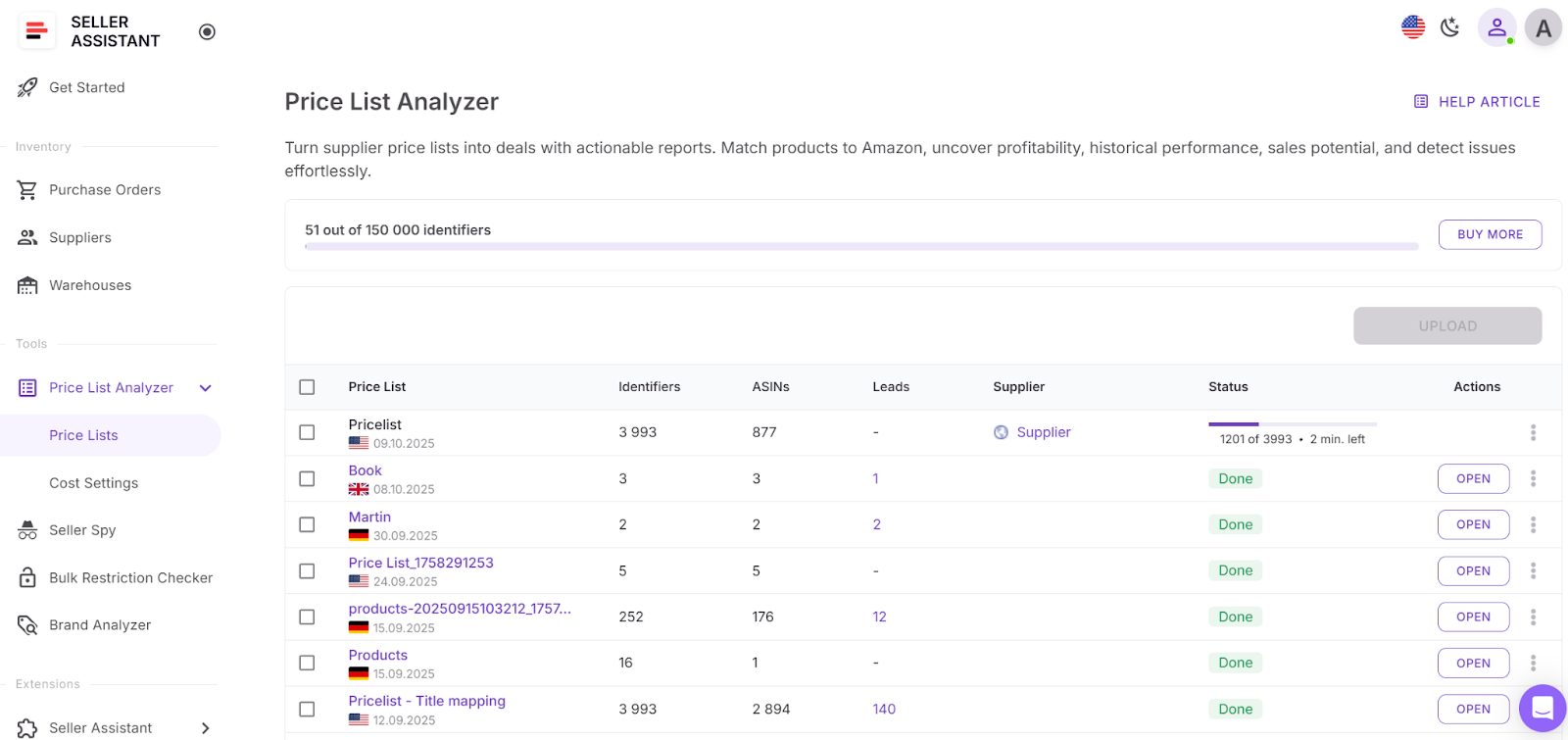
Step 5. Review enriched results
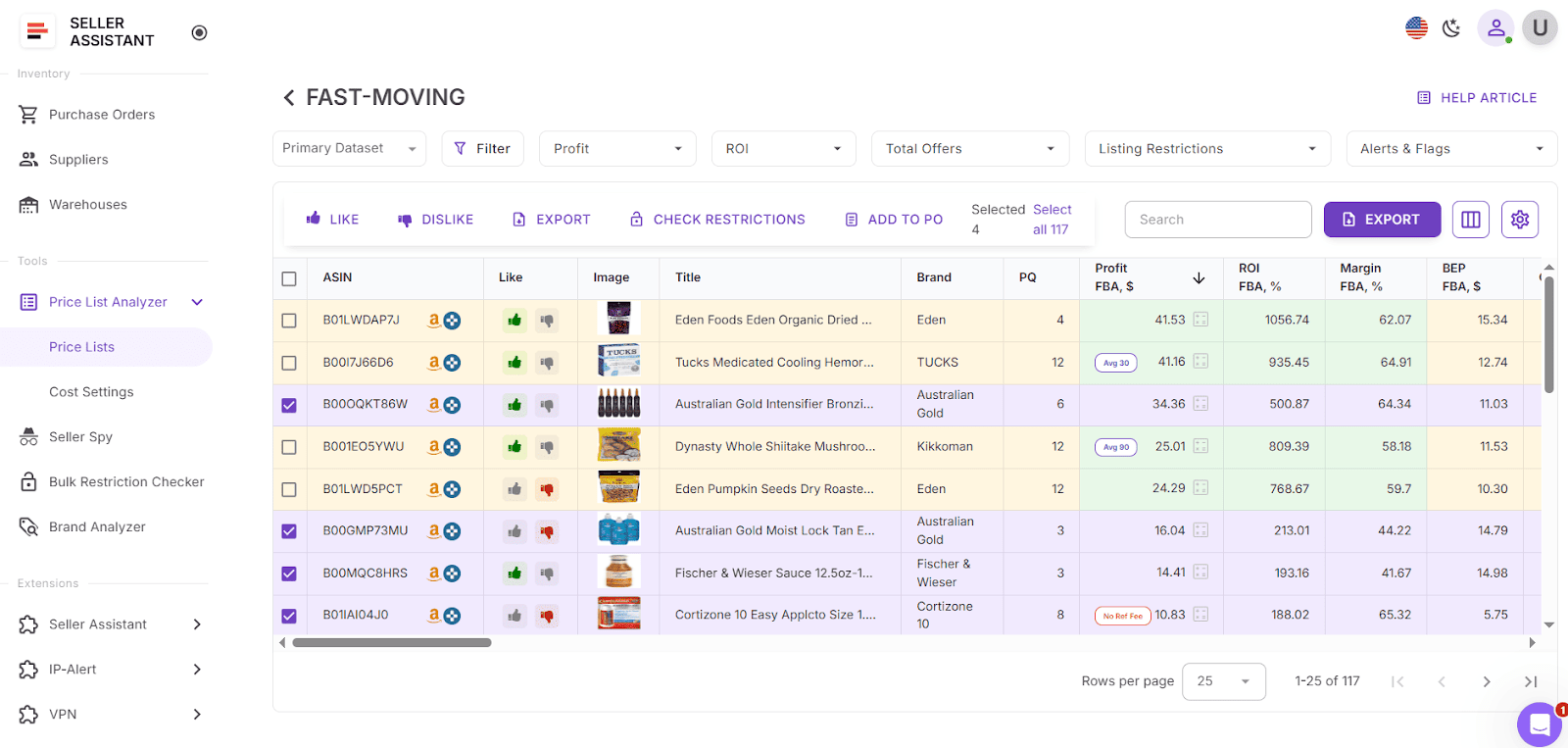
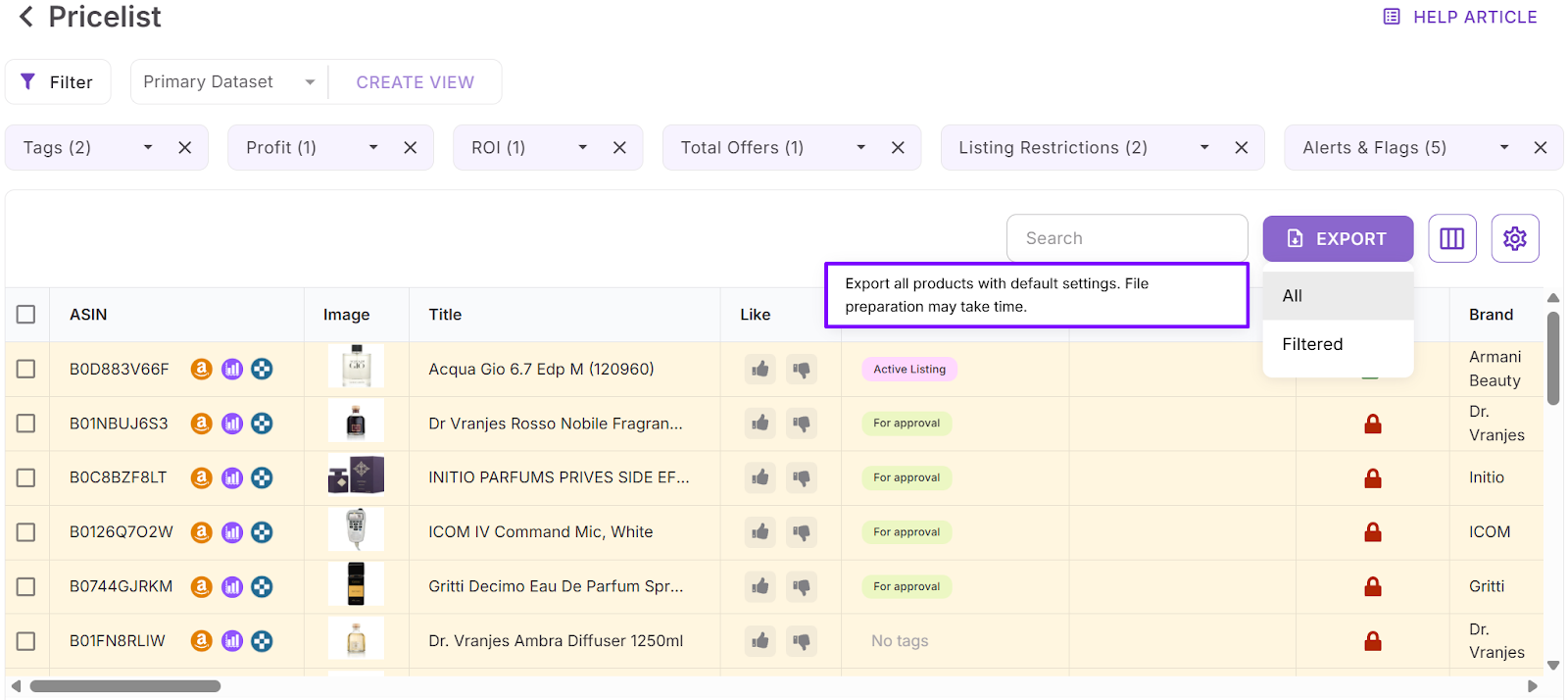
View matched products and metrics in the interactive table or export the full dataset to XLSX.
Step 6. Filter your results
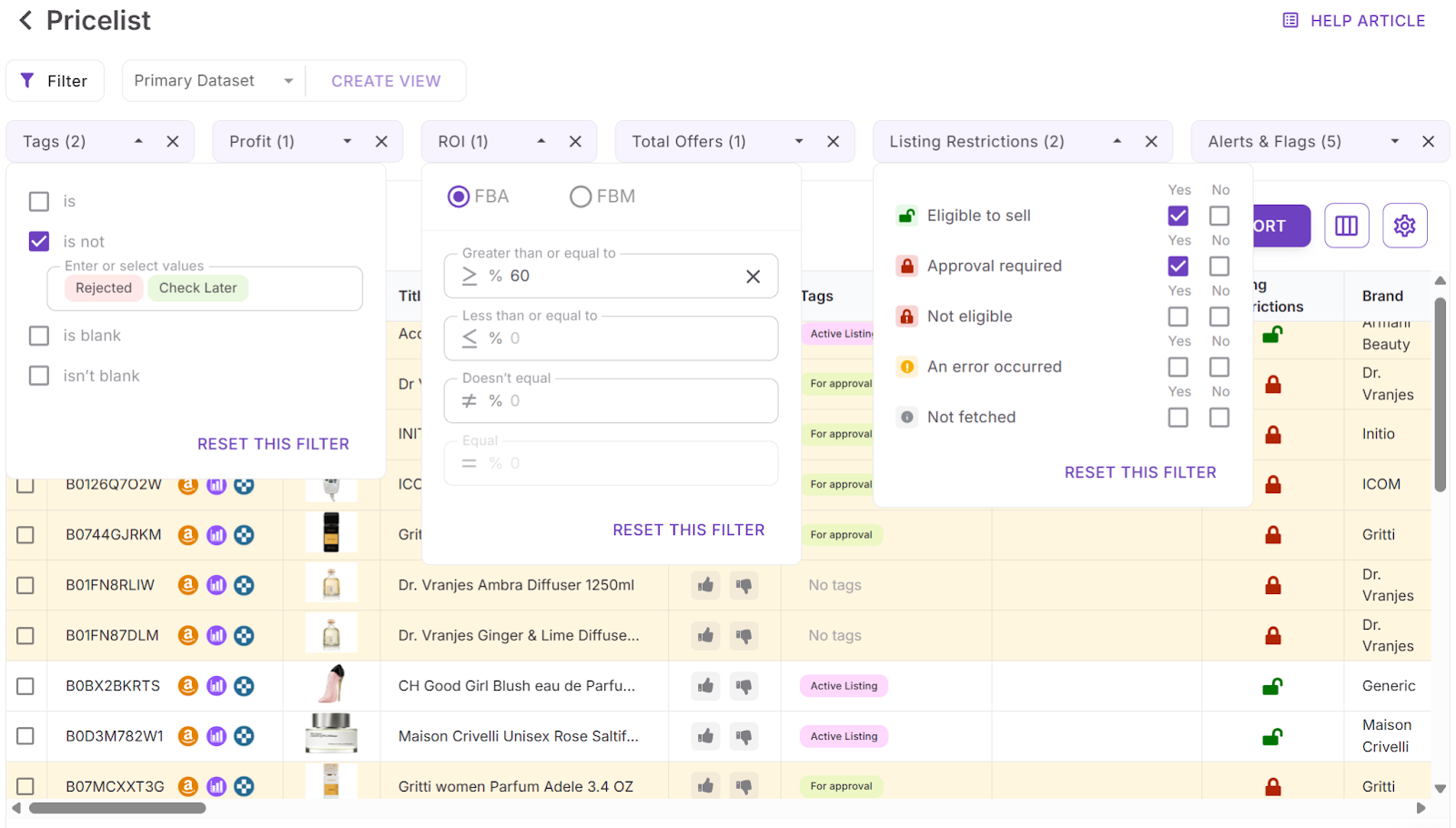
- Use quick filters for profit, ROI, offer count, restrictions, alerts, flags, and tags to remove non-starters.
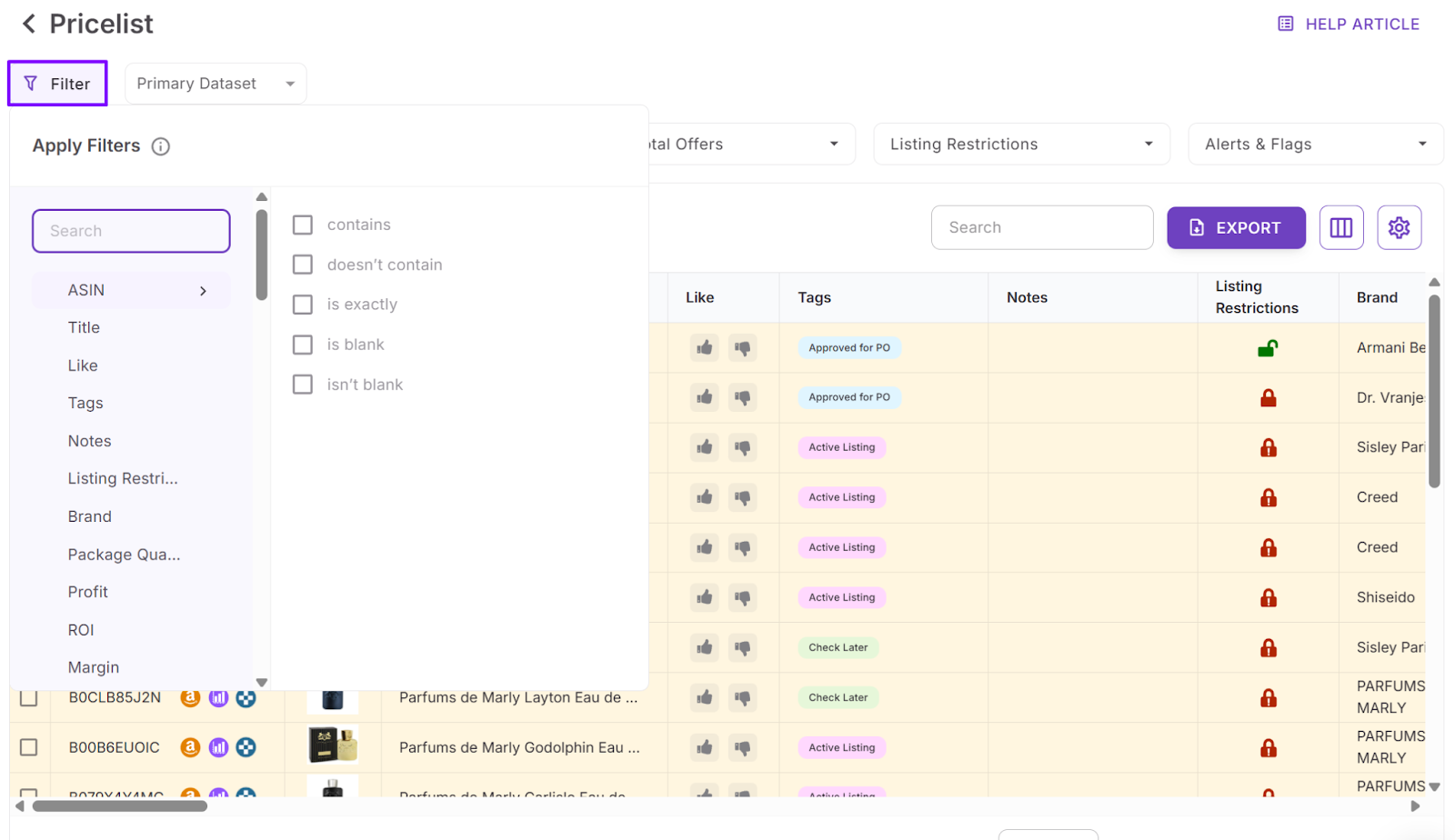
- Apply advanced filters to set profitability thresholds, filter by eligibility and risk, narrow by demand and competition, or refine by brand and category.
Step 7. Adjust costs and recalculate
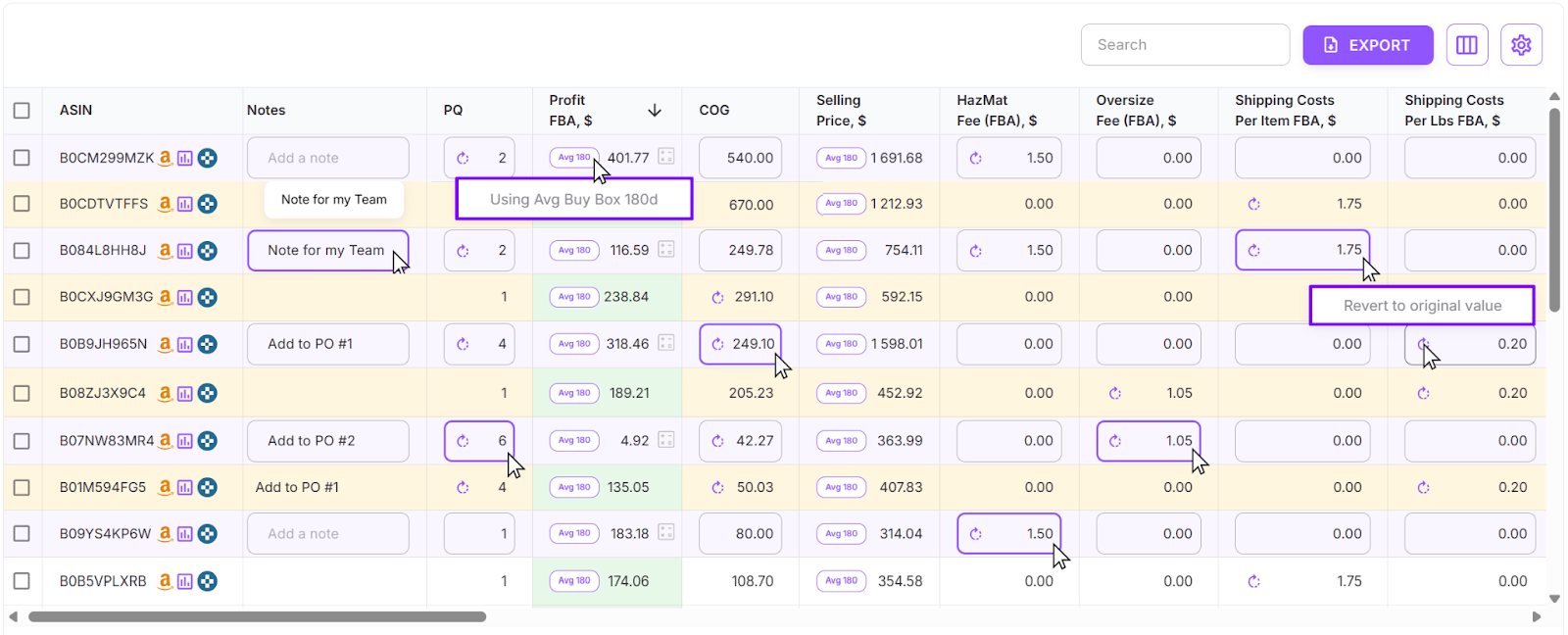
Edit COG, shipping, prep costs, or pack quantities directly in the table. Profit, margin, and ROI update instantly.
Step 8. Save layouts and shortlist deals
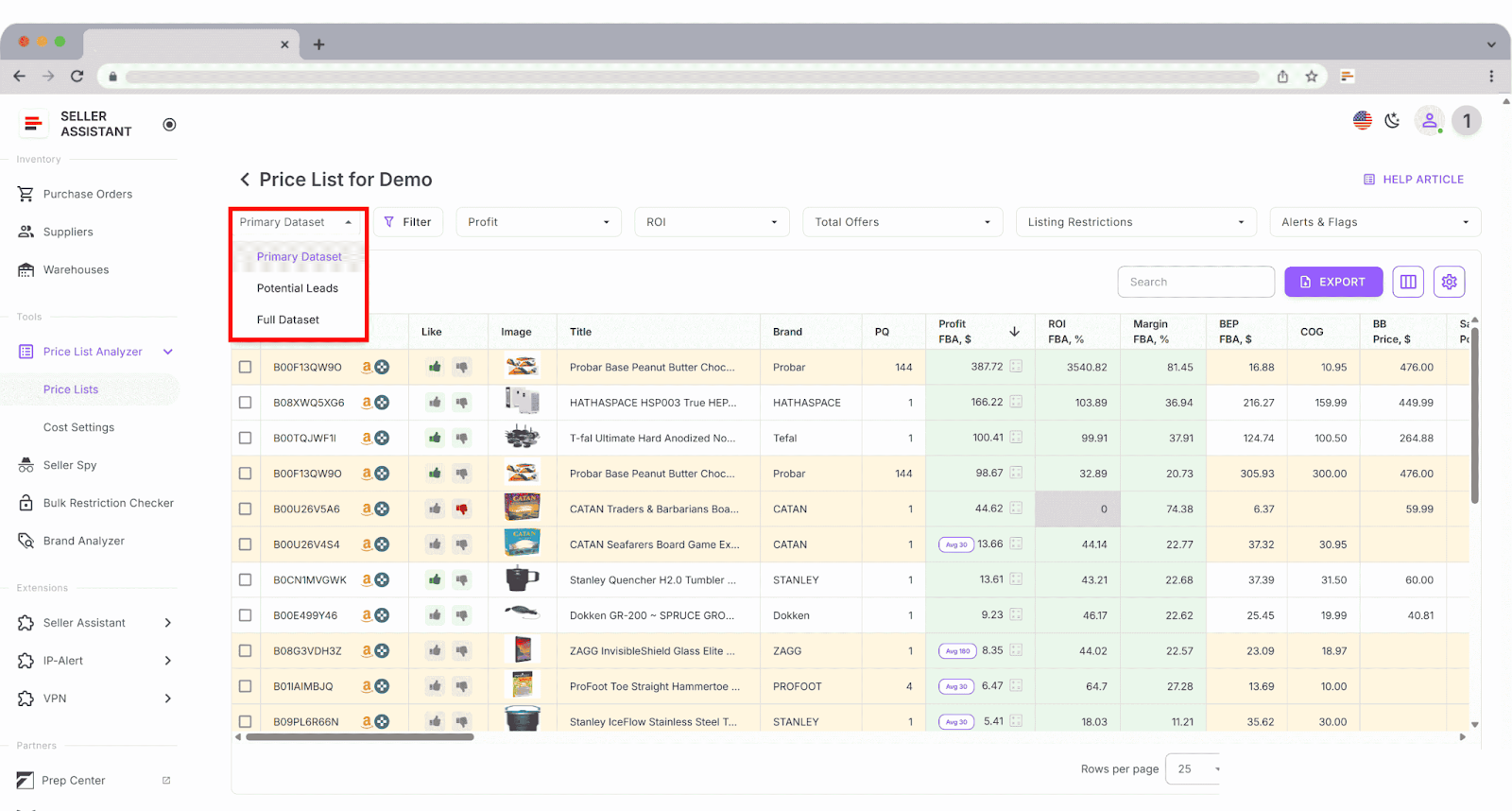
Save column layouts and filters as reusable views like “Top leads.” Use Like and Dislike to mark SKUs and build a clean shortlist.
Step 9. Export filtered results
Export only filtered products, selected items ready for purchase, or the full file for reference.
Brand Analyzer: Choose Brands Worth Scaling
Brand Analyzer is an Amazon brand research tool built for wholesale, online arbitrage, and dropshipping sellers who need to decide whether a brand is worth reselling before investing time or money. Instead of manually browsing Amazon listings and guessing demand, sellers enter a brand name and receive a complete, data-driven snapshot of that brand’s Amazon performance.
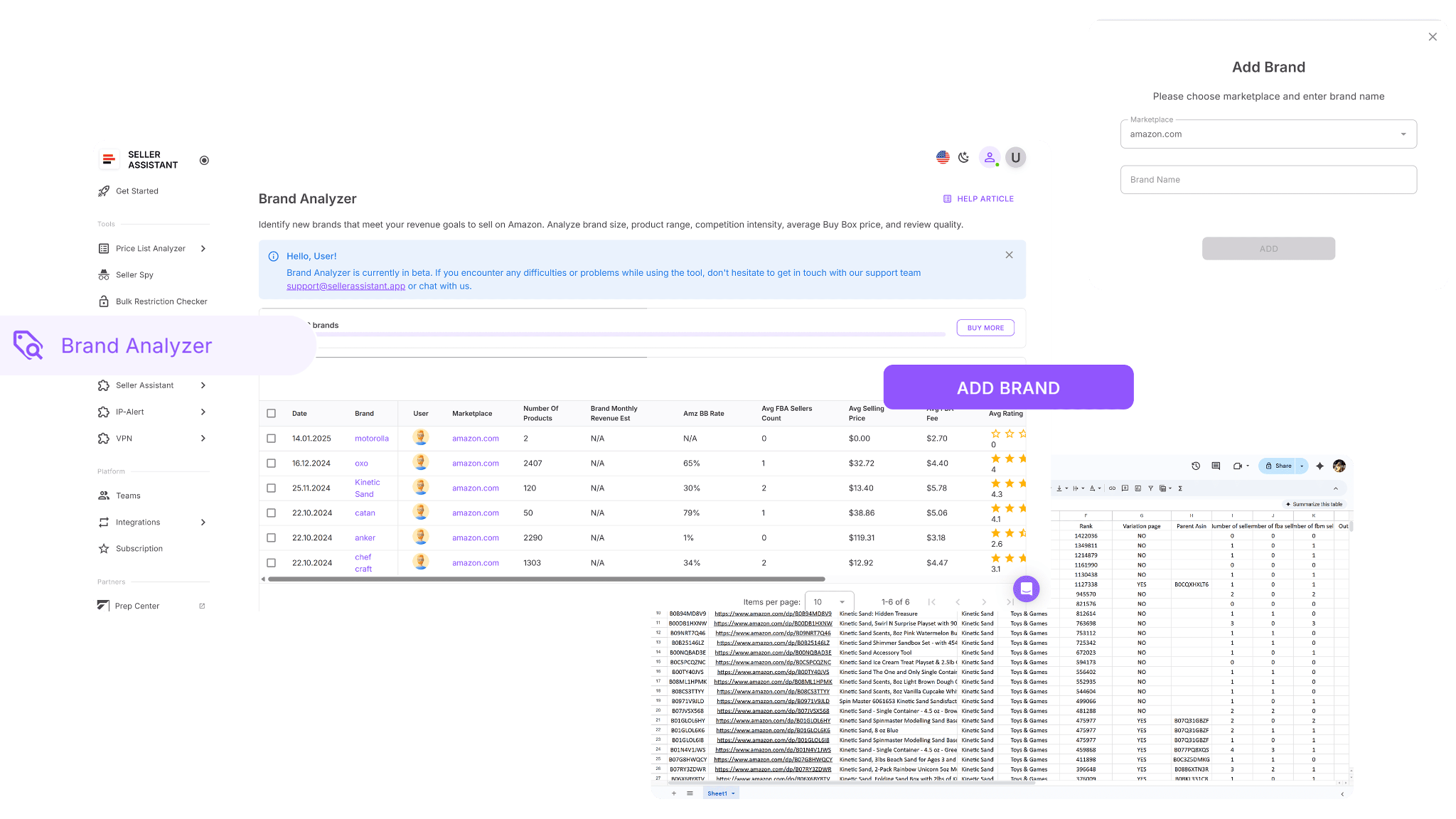
The tool surfaces brand size, revenue potential, competition, pricing, and customer trust signals, making it easy to eliminate risky brands and focus only on those that match your margin and competition requirements.
What Brand Analyzer does
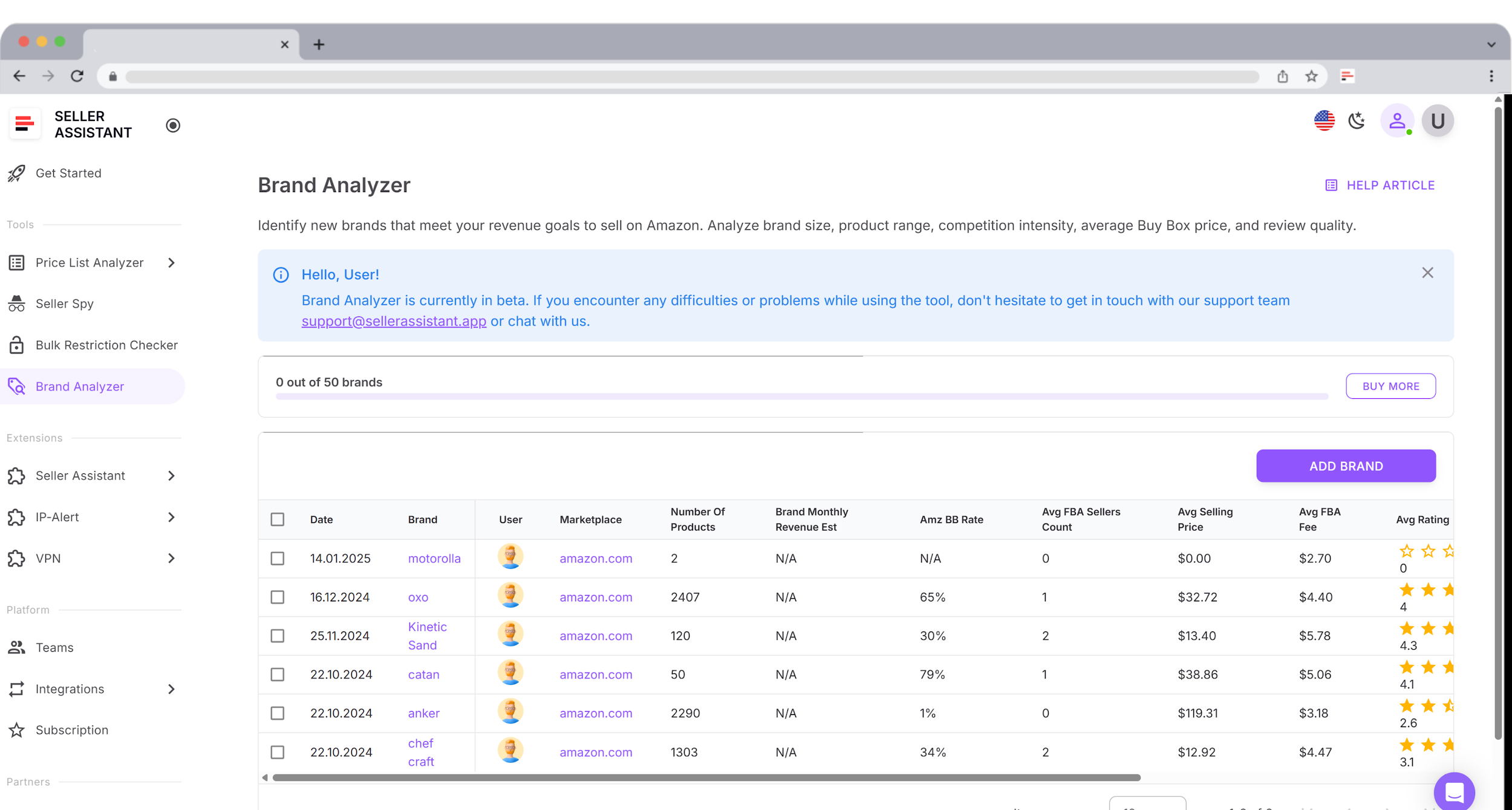
Brand Analyzer removes guesswork from brand selection and supplier outreach. It allows sellers to:
- Quickly determine whether a brand is suitable for resale before reaching out to suppliers
- Automate brand research rather than manually browsing Amazon brand catalogs
- Assess brand size by counting total ASINs across the full catalog
- Estimate monthly revenue potential for the brand’s entire product lineup
- Evaluate competition by analyzing average FBA seller counts per ASIN
- Review Amazon Buy Box share to gauge the level of direct Amazon competition
- See average Buy Box prices to support pricing strategy and margin planning
- Analyze average FBA fees to understand cost structure and profitability
- Measure customer trust using average product ratings and total review counts
- View a unified dashboard covering revenue, pricing, competition, Amazon presence, in-stock rate, and brand reputation
- Identify high-potential brands quickly while filtering out brands with low upside or excessive competition
- Download a full .xls report with all brand ASINs and detailed product metrics for deeper analysis and comparison
How Brand Analyzer helps you grow
Wholesale growth depends on choosing the right brands, not just the right products. Brand Analyzer helps sellers avoid dead-end outreach by validating brand demand and competition before any supplier conversations begin. By focusing only on brands with proven revenue potential and manageable competition, sellers open better accounts faster, negotiate from a position of data, and build a catalog that can scale without margin erosion.
How to use Brand Analyzer
Step 1. Open Brand Analyzer
Log in to your Seller Assistant account, go to the Tools section, and select Brand Analyzer. Click Add brand to start.
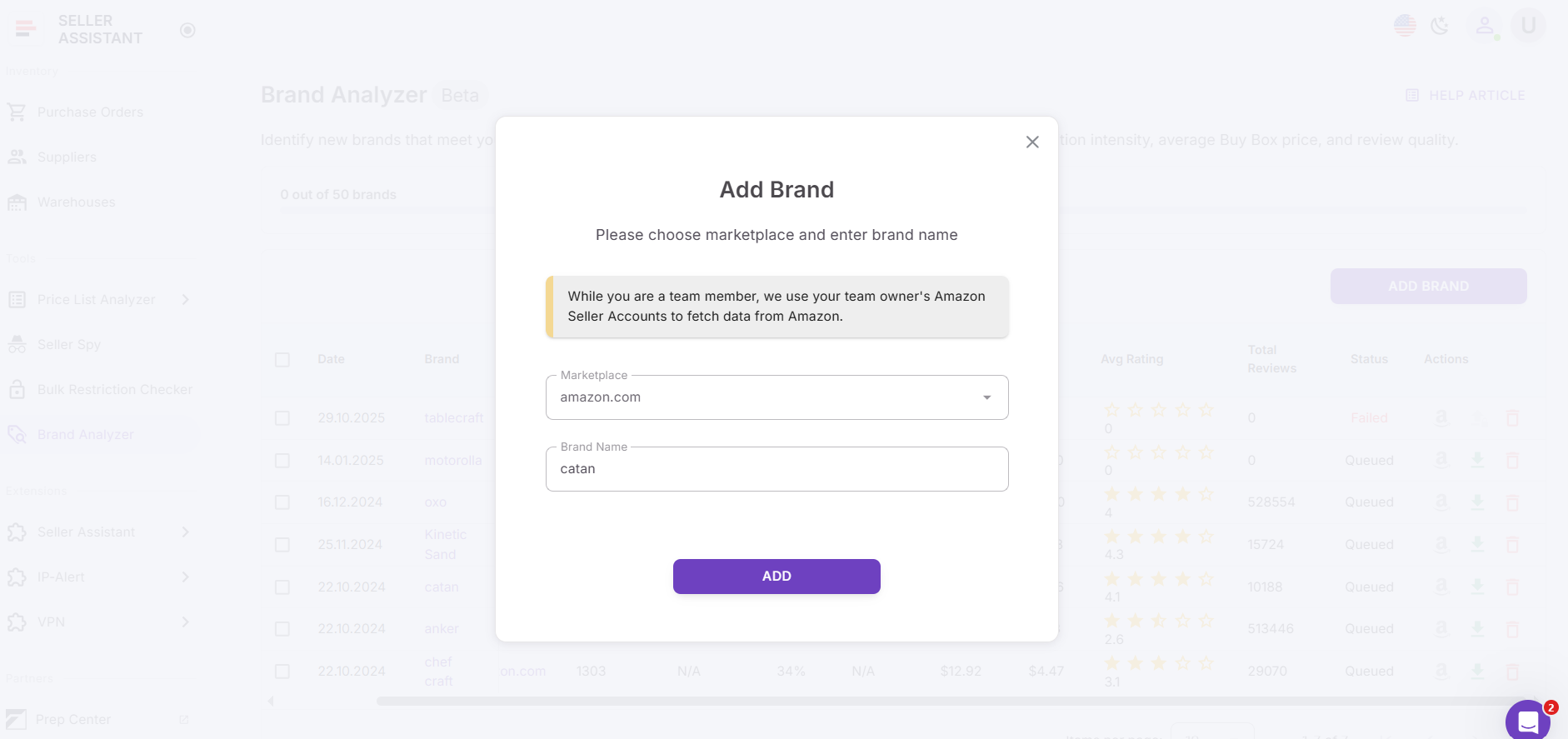
Step 2. Enter brand details
Choose your Amazon marketplace, enter the brand name, and click Add to begin the analysis.
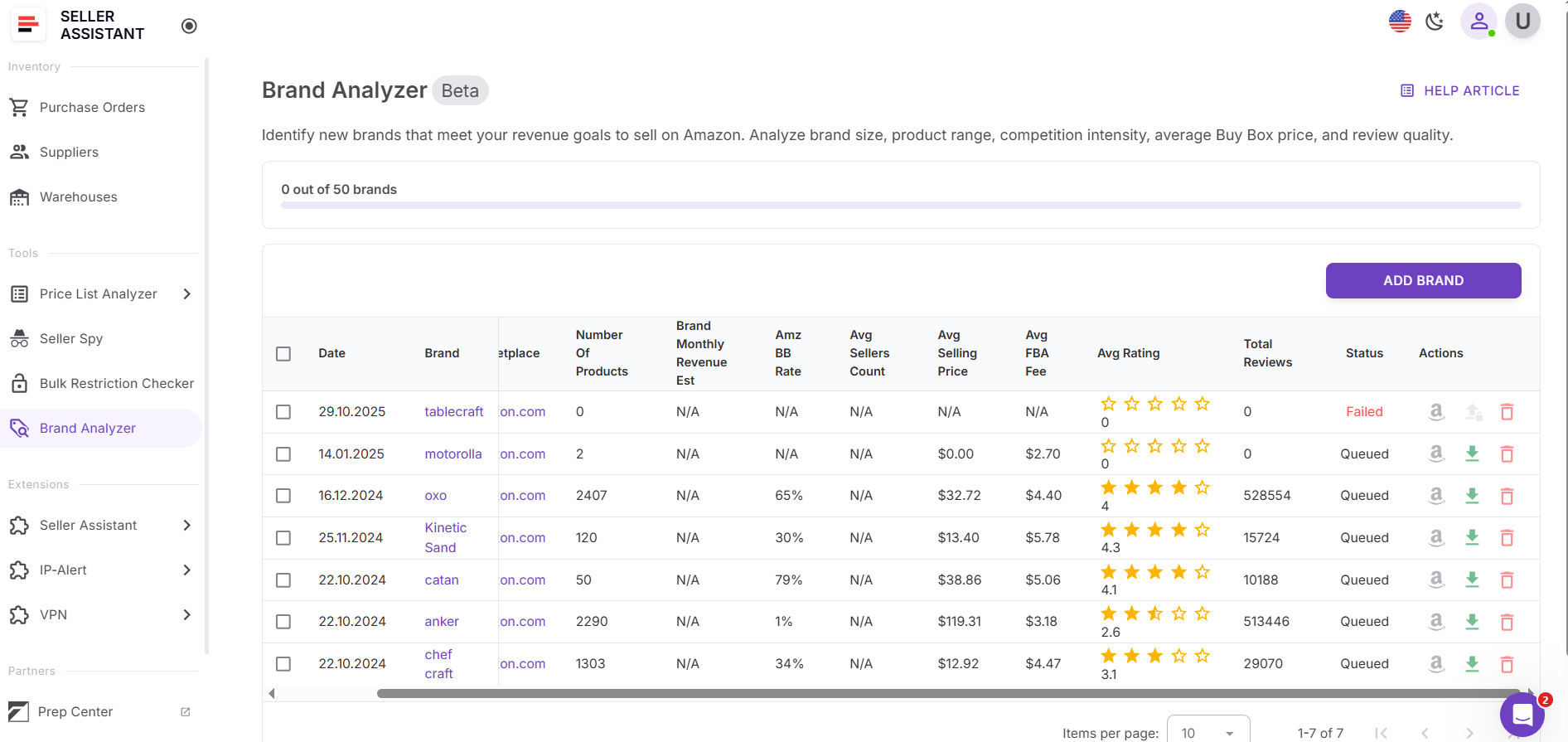
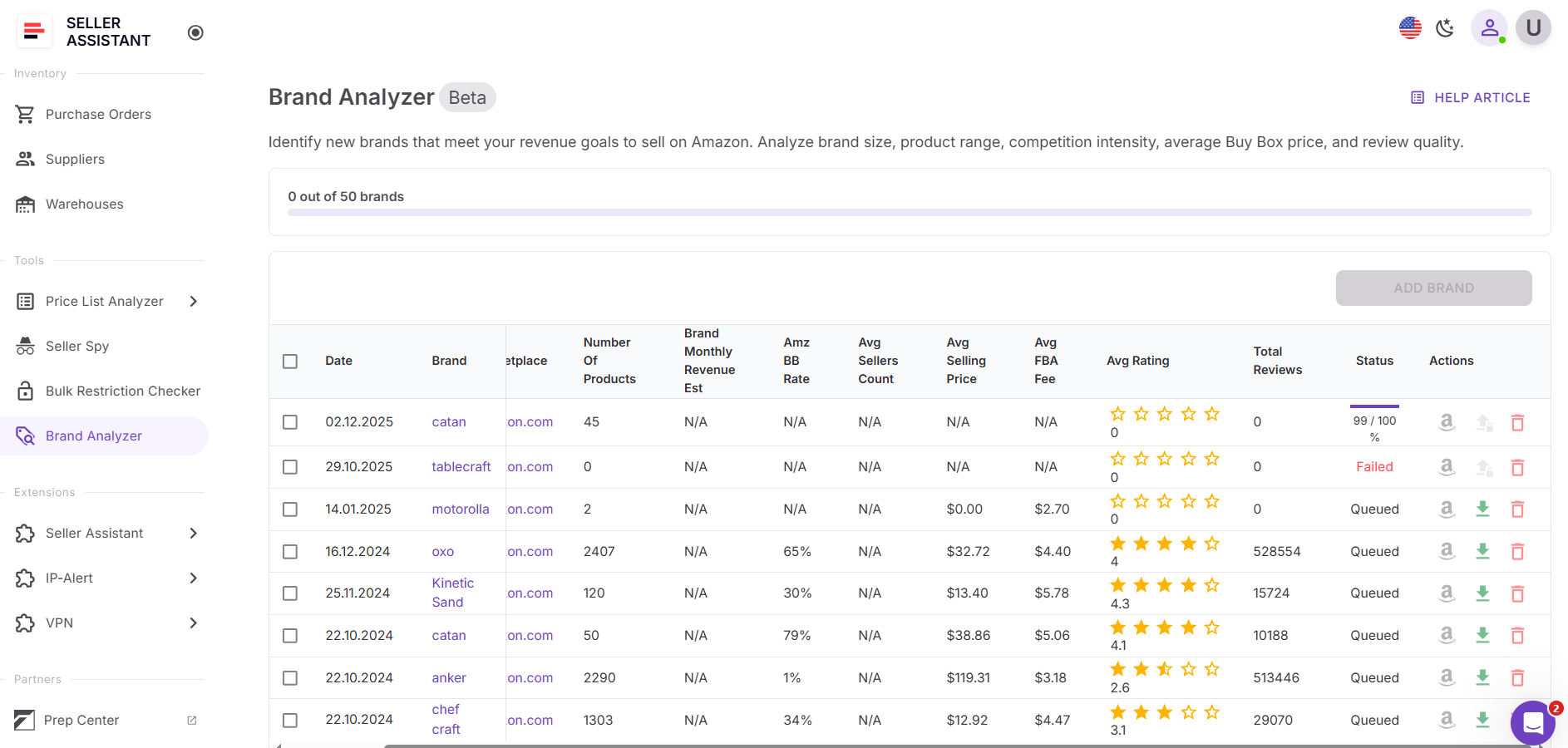
Step 3. Review the brand analysis
Once processing is complete, review the dashboard to evaluate revenue potential, competition, pricing, Amazon presence, and overall brand reputation.
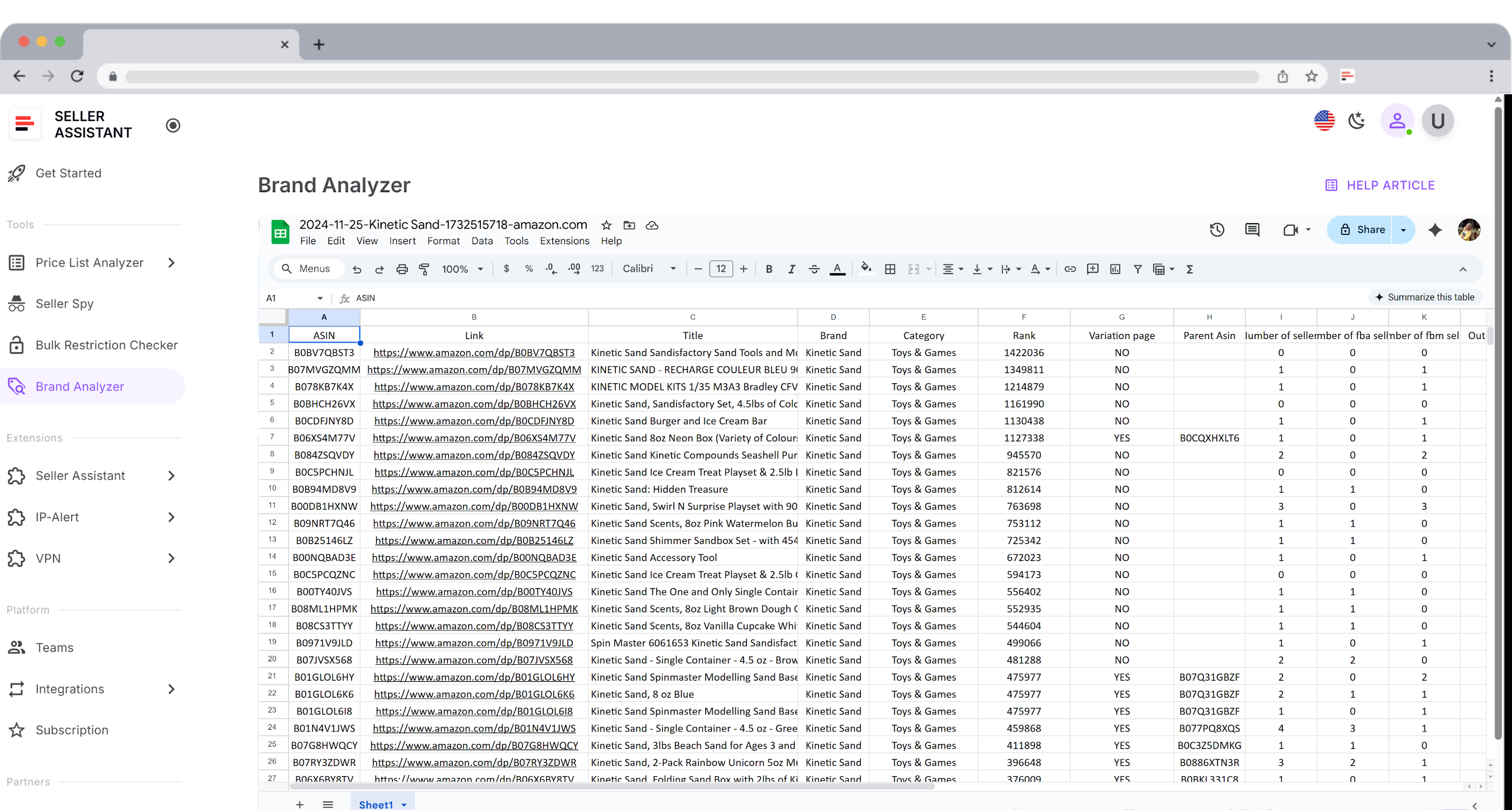
Step 4. Download the brand report
Download the .xls report containing the brand’s complete ASIN list with detailed product metrics. Use it to filter, sort, and compare products before moving forward with supplier outreach or price list analysis.
Bulk Restriction Checker: Remove eligibility Risk at Scale
Bulk Restriction Checker is a tool built for Amazon resellers who need to validate large ASIN lists before investing in inventory. Instead of checking products one by one in Seller Central, sellers can upload up to 20,000 ASINs in a single run and instantly see which items are sellable, gated, or fully blocked for their account.
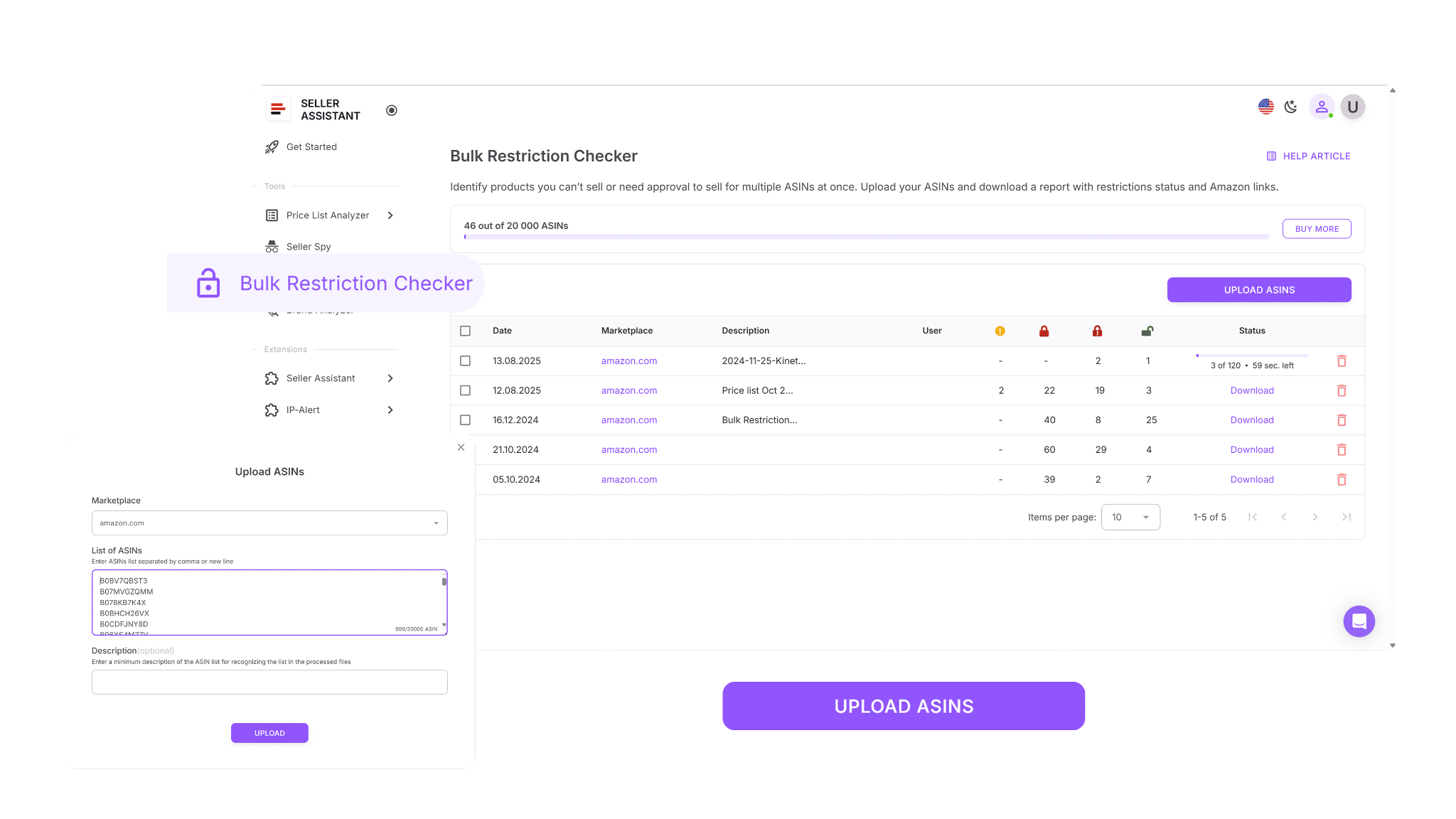
Because the tool reads your marketplace permissions directly, it flags restriction issues early and removes uncertainty from bulk sourcing decisions.
What Bulk Restriction Checker does
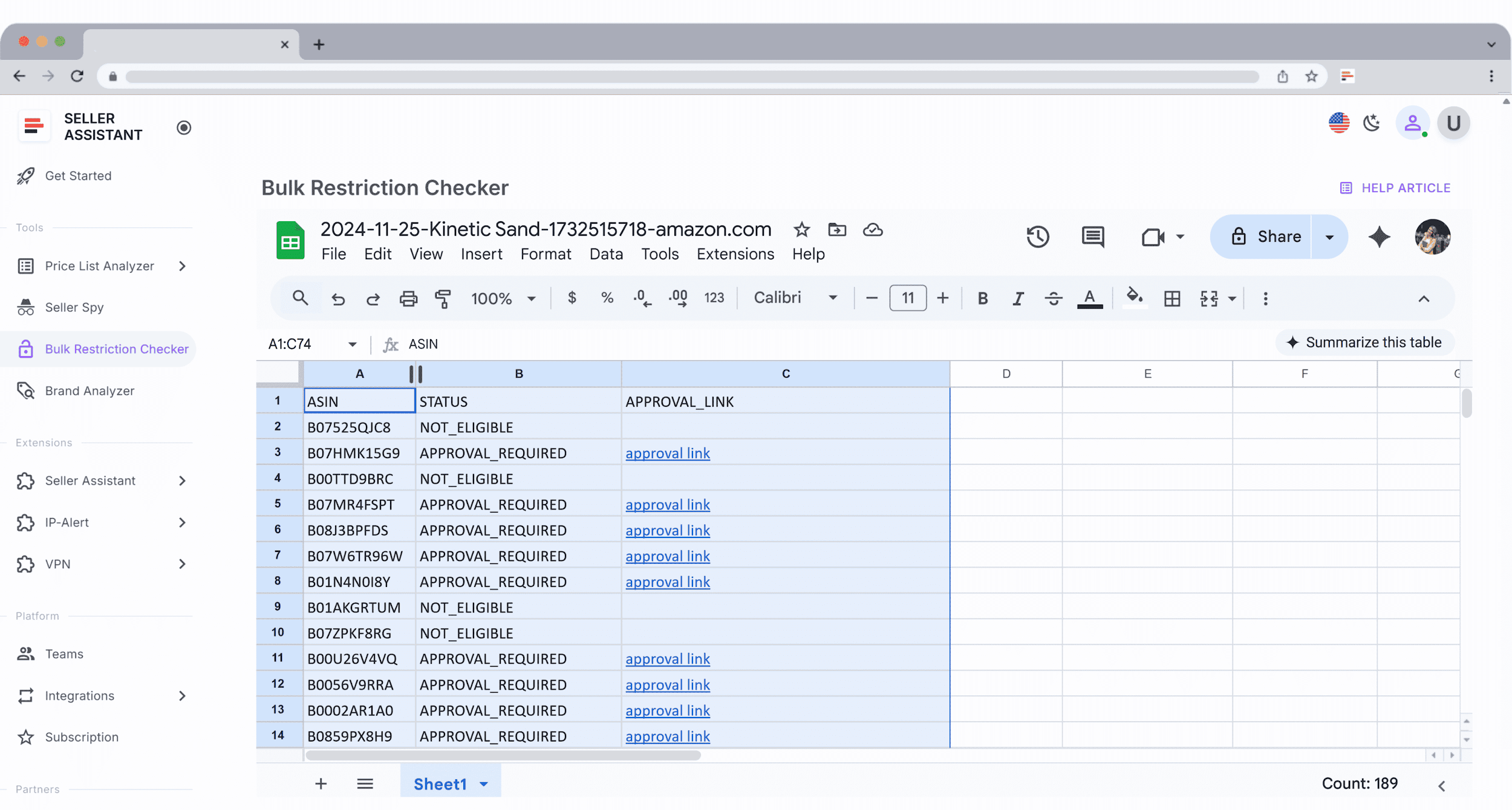
Bulk Restriction Checker helps sellers clean sourcing data before any money is spent. It allows you to:
- Verify selling eligibility for up to 20,000 ASINs in a single scan
- Cross-check uploaded ASINs against your Seller Central marketplace permissions
- Automatically categorize products as eligible, approval required, or not eligible
- Spot gated products early and evaluate whether ungating is worth the effort
- Avoid purchasing inventory your account is not allowed to list
- Clean large supplier spreadsheets and sourcing lists before deeper analysis or ordering
- Generate structured, downloadable reports for filtering, review, and team collaboration
- Run bulk eligibility checks across wholesale, online arbitrage, and dropshipping workflows
How Bulk Restriction Checker helps you grow
Eligibility issues are one of the fastest ways to lose money at scale. Bulk Restriction Checker protects growth by removing blocked and gated ASINs before they enter your workflow. Sellers spend time only on products they can actually list, avoid wasted supplier negotiations, and build cleaner catalogs. As sourcing volume increases, eligibility stays controlled instead of becoming a hidden risk.
How to use Bulk Restriction Checker
Step 1. Open Bulk Restriction Checker
Log in to your Seller Assistant account, go to the Tools section, and select Bulk Restriction Checker.
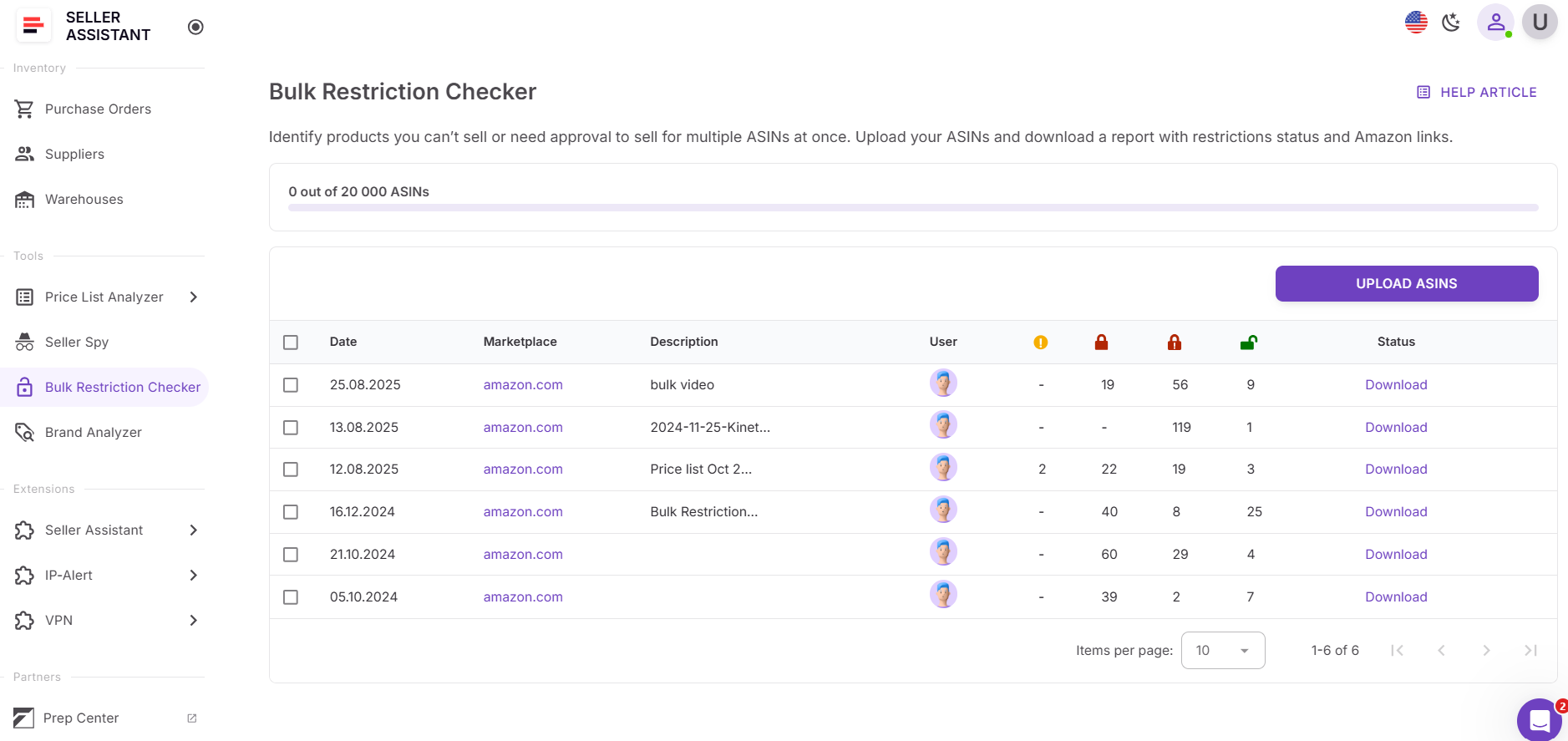
Step 2. Upload your ASIN list
Upload a file containing up to 20,000 ASINs. The tool immediately checks each ASIN against your Amazon selling permissions.
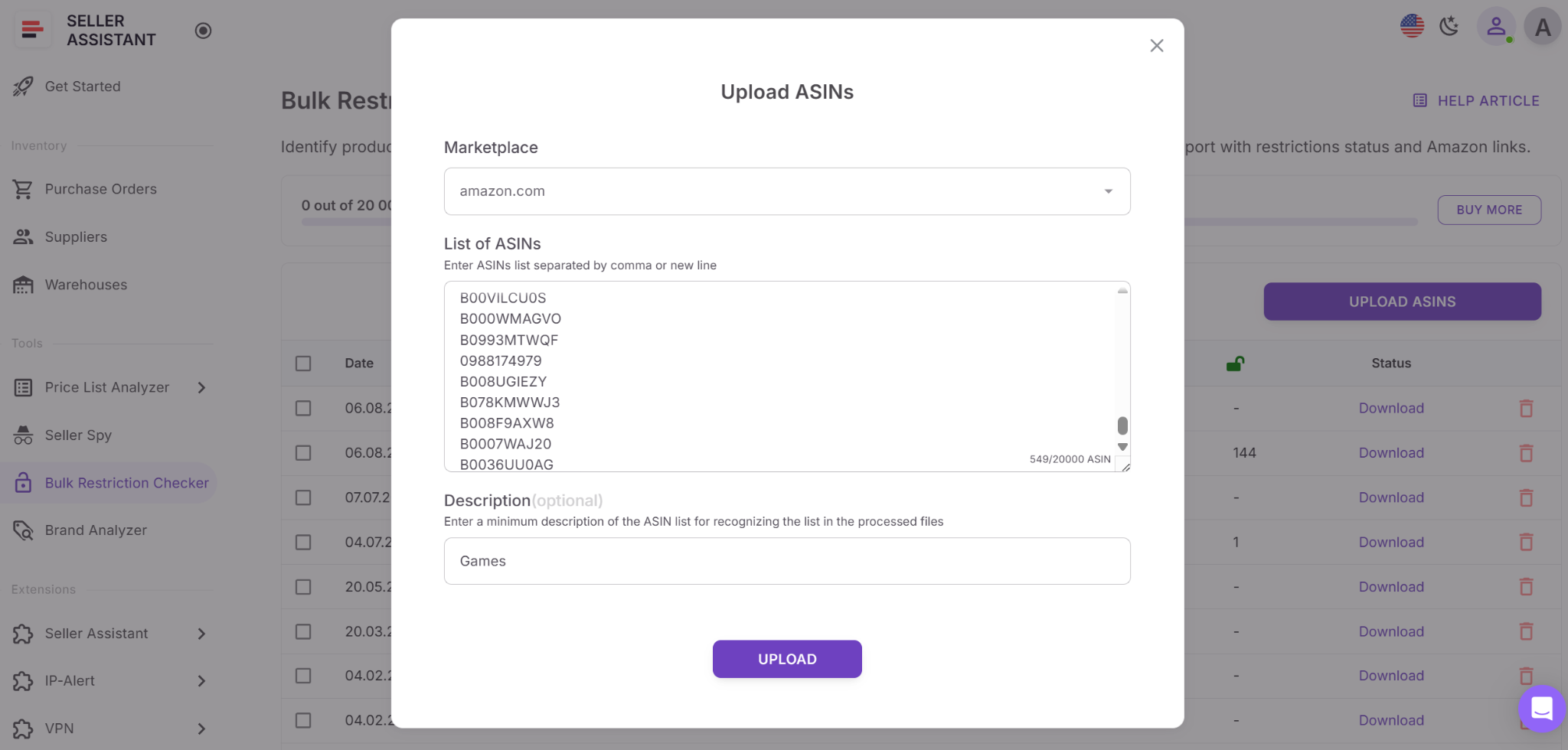
Step 3. Wait for processing to complete
Once the scan finishes, you’ll receive an email notification confirming that your results are ready.
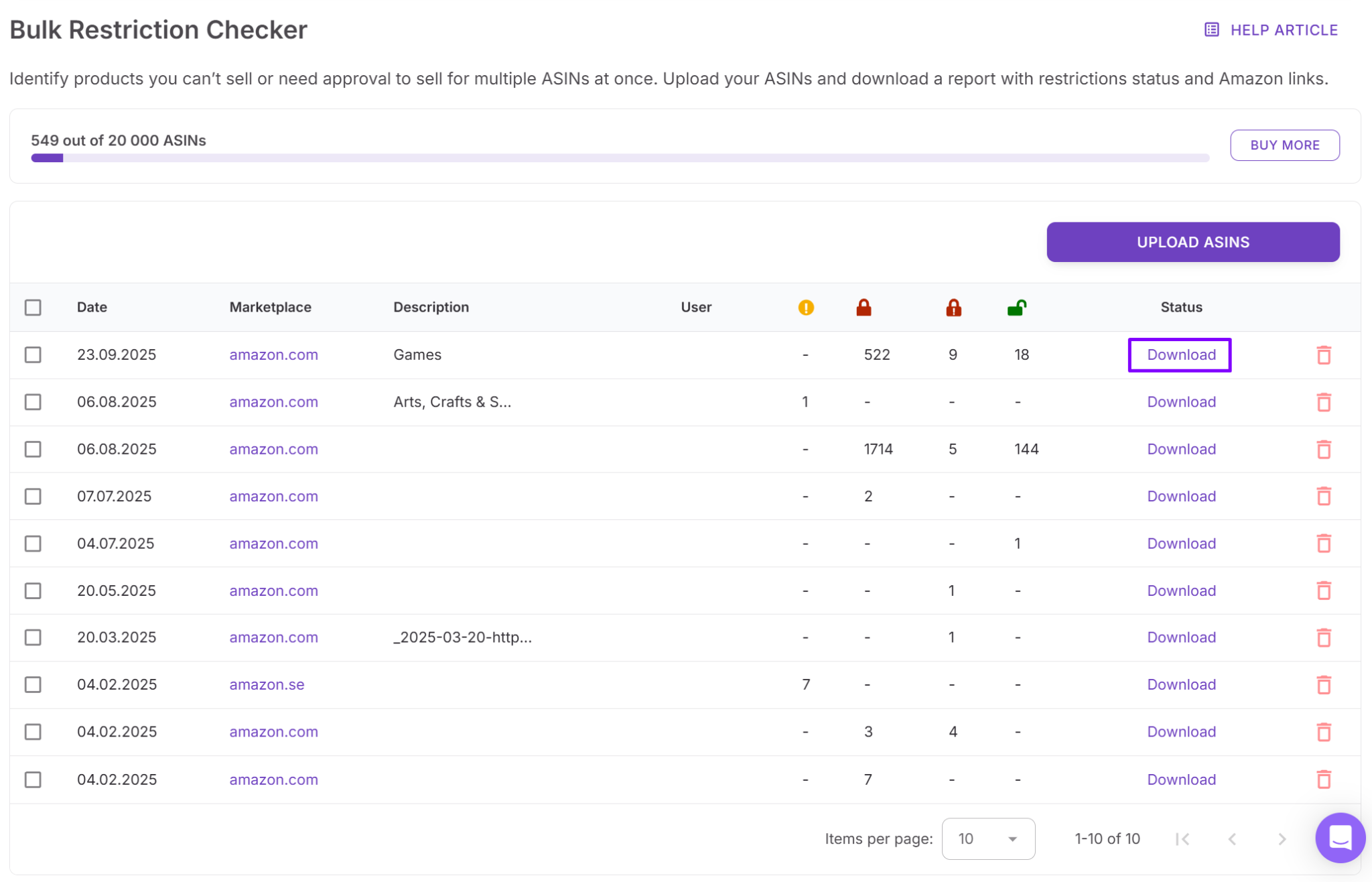
Step 4. Download and review your report
Download the completed report and review eligibility statuses. Products are clearly marked as ELIGIBLE, APPROVAL_REQUIRED, or NOT_ELIGIBLE, making it easy to sort, filter, and share results with your team.
Suppliers Database: Keep Sourcing Organized at Scale
Suppliers Database is a centralized system for storing and managing all supplier information in one place. It holds supplier names, websites, contact details, terms, routing rules, and relationship statuses used throughout Amazon wholesale operations. In Seller Assistant, this database is fully integrated into sourcing, analysis, and purchasing workflows rather than living as a standalone document.
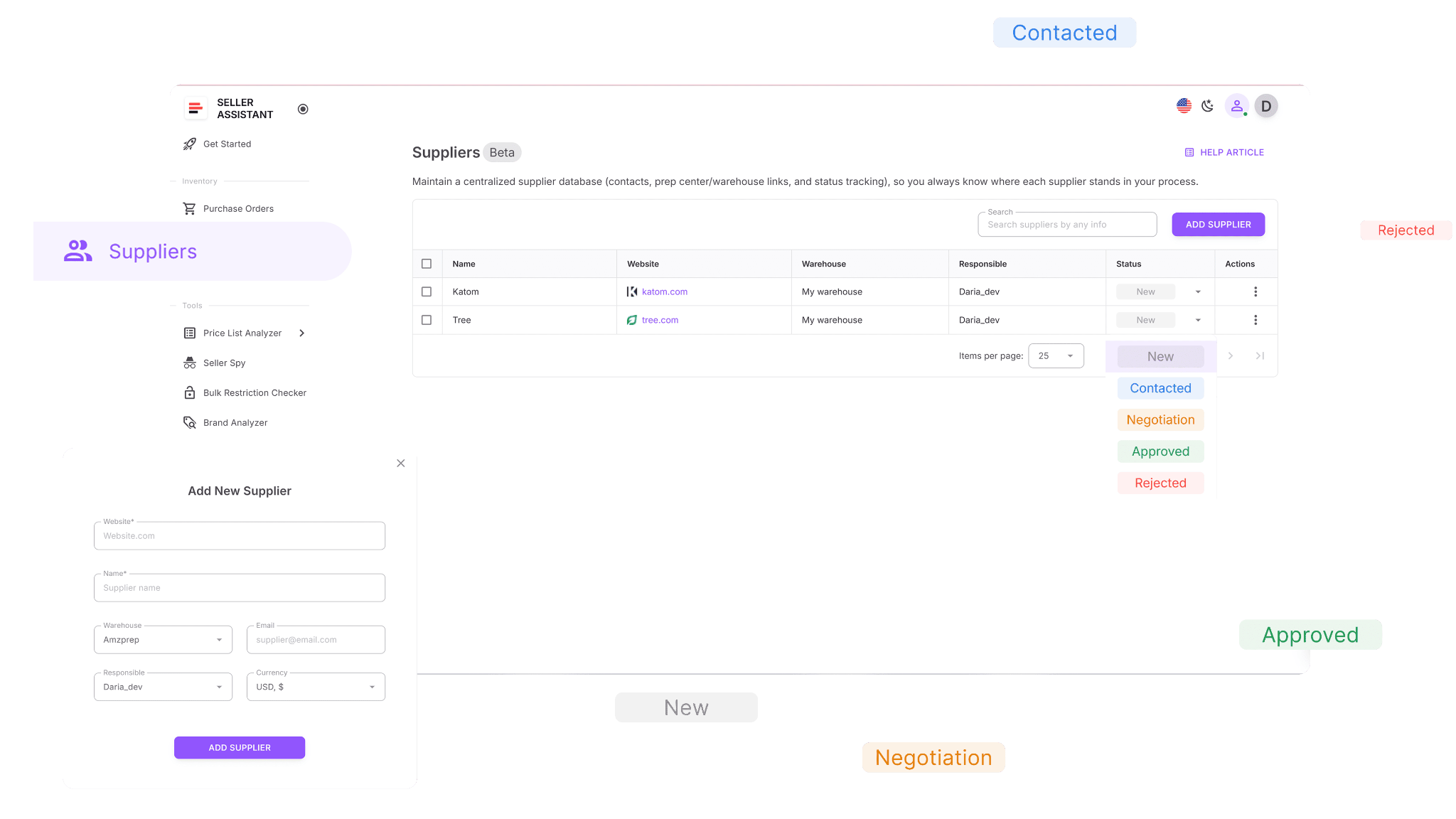
By connecting supplier data directly to other tools, it removes repetitive manual entry, keeps information consistent, and speeds up the entire sourcing cycle.
What Suppliers Database does
Suppliers Database acts as the operational backbone of wholesale workflows. It allows sellers to:
- Build complete supplier profiles with names, websites, contact information, currencies, and assigned team members
- Store operational details such as minimum order values, lead times, and internal notes
- Search and filter suppliers by name, website, address, status, or linked warehouse
- Track supplier relationships using statuses like New, Contacted, Negotiation, Approved, Active, or Rejected
- Connect suppliers to default prep centers or warehouses for automatic order routing
- Auto-populate supplier and warehouse details during price list analysis and purchase order creation
- Update supplier information without breaking links across connected tools
- Open supplier profiles directly from Price List Analyzer and Purchase Orders Module
Discover new suppliers through Seller Assistant’s Sourcing AI and add them to the database instantly
How Suppliers Database helps you grow
As supplier count increases, disorganized data becomes a growth blocker. Suppliers Database keeps outreach, approvals, and purchasing aligned as operations scale. Sellers avoid duplicate outreach, reduce routing and ordering errors, and maintain clean supplier relationships. With every supplier connected across tools, sourcing decisions stay accurate, repeatable, and easy to delegate.
How to use Suppliers Database
Step 1. Access Suppliers Database
Log in to your Seller Assistant account and go to Inventory → Suppliers. This is your central hub for managing supplier profiles.
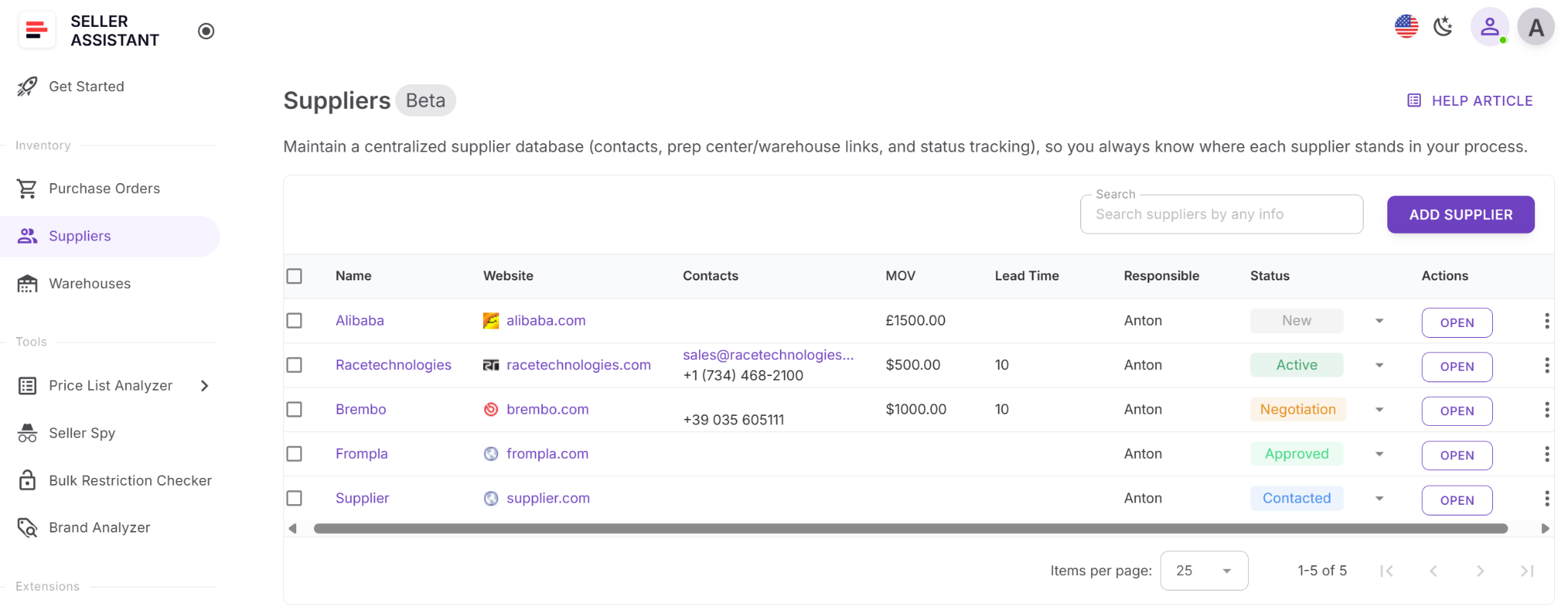
Step 2. Create a supplier profile
Click Add supplier and enter the supplier name and website. Add optional details such as email, currency, assigned warehouse, responsible team member, minimum order value, and lead time.
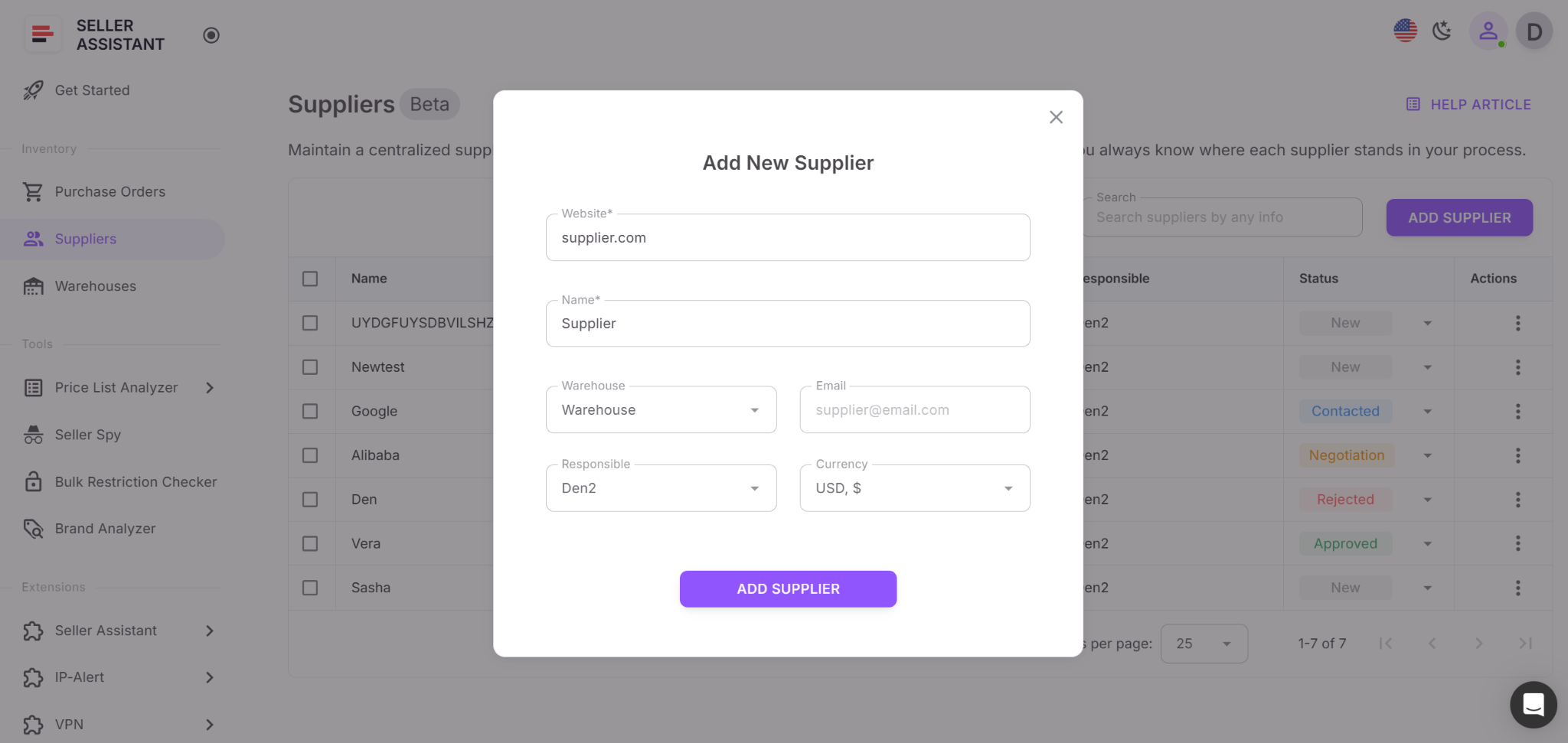
Step 3. Assign a supplier status
Select the current relationship stage – New, Contacted, Negotiation, Approved, Active, or Rejected – to keep outreach progress clear and trackable.
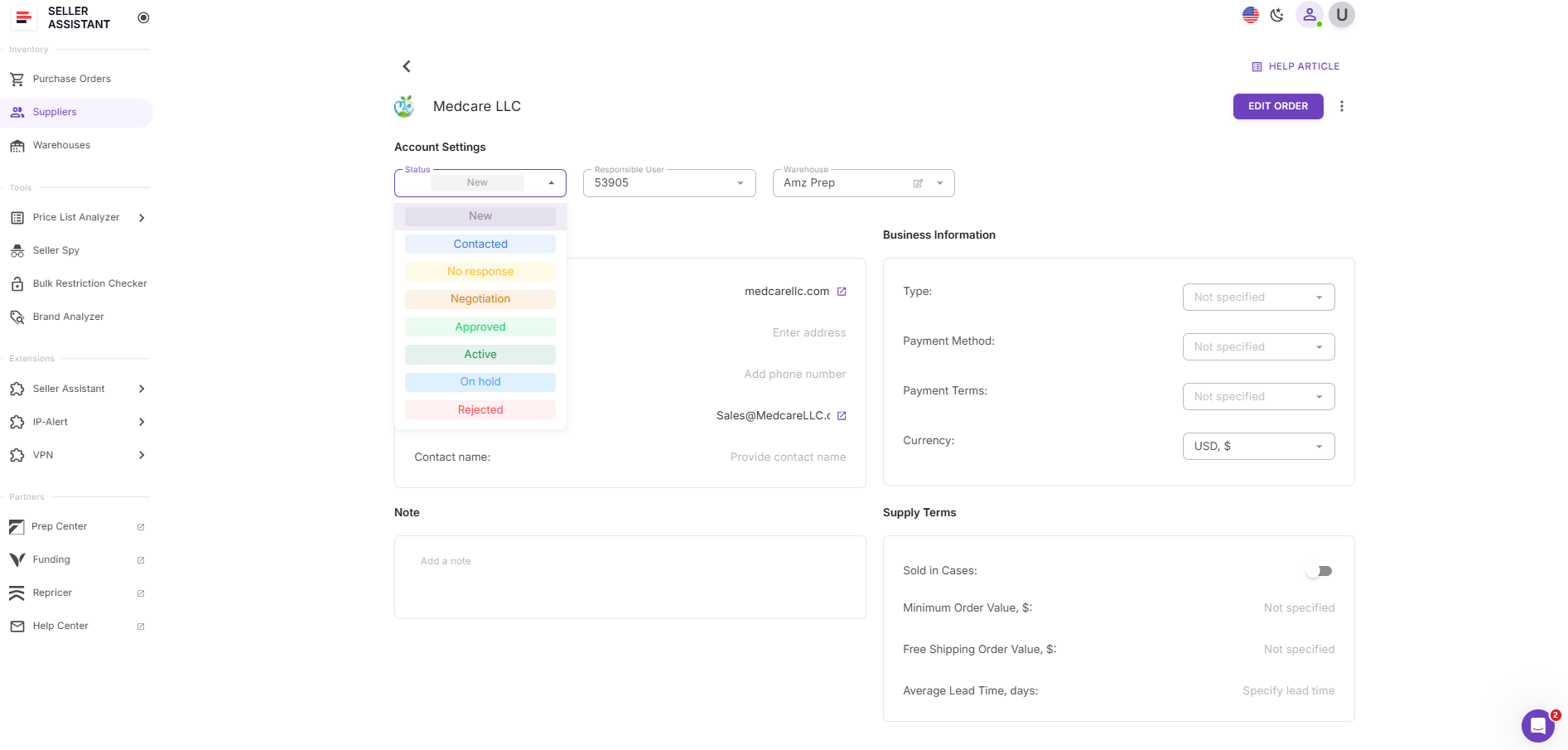
Step 4. Link a default warehouse or prep center
Assign a warehouse or prep center so routing details apply automatically during sourcing and purchase order creation.
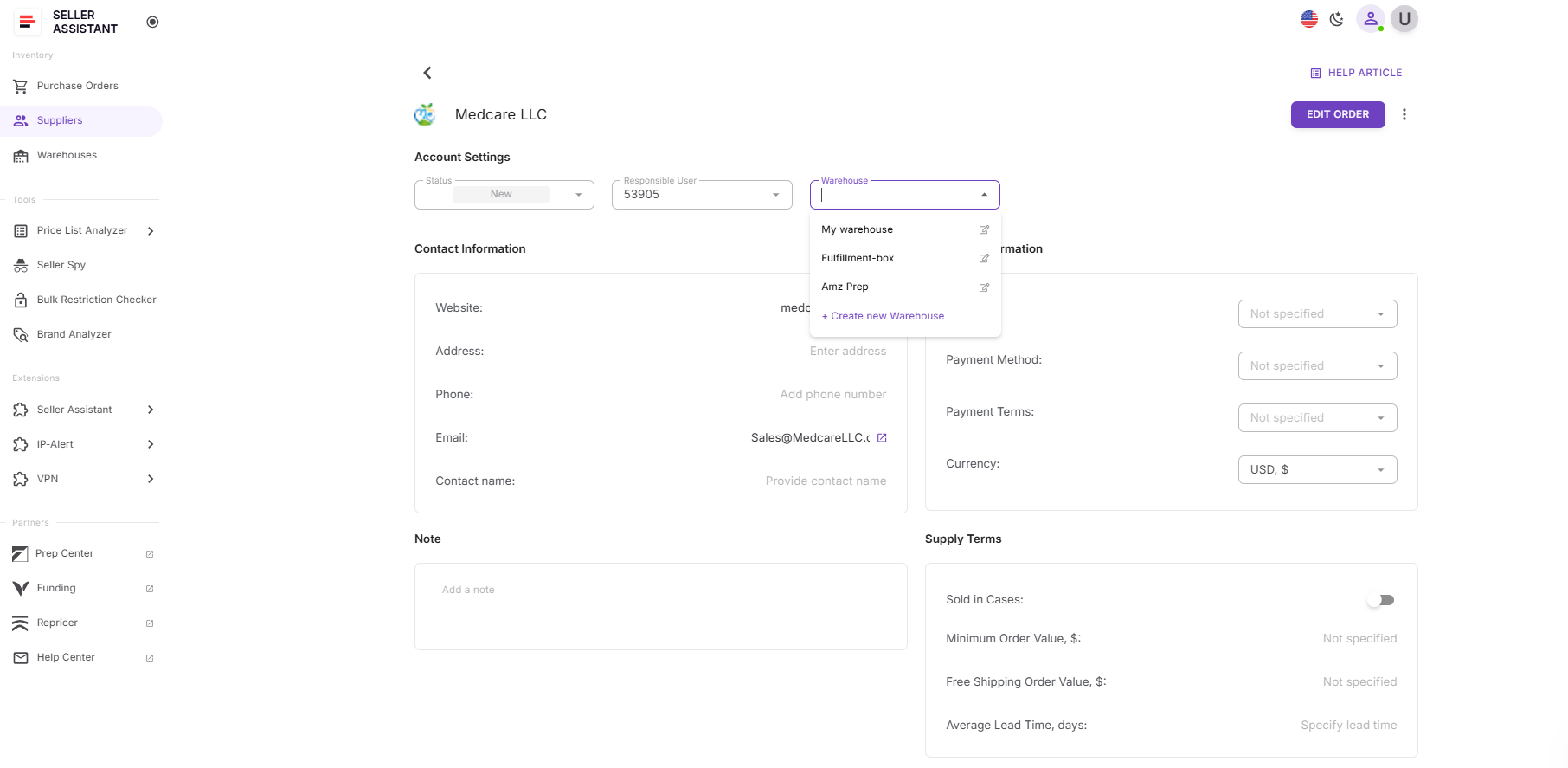
Step 5. Use the supplier across your workflow
Once saved, the supplier is immediately available throughout Seller Assistant when uploading price lists, creating purchase orders, or sourcing via Sourcing AI.
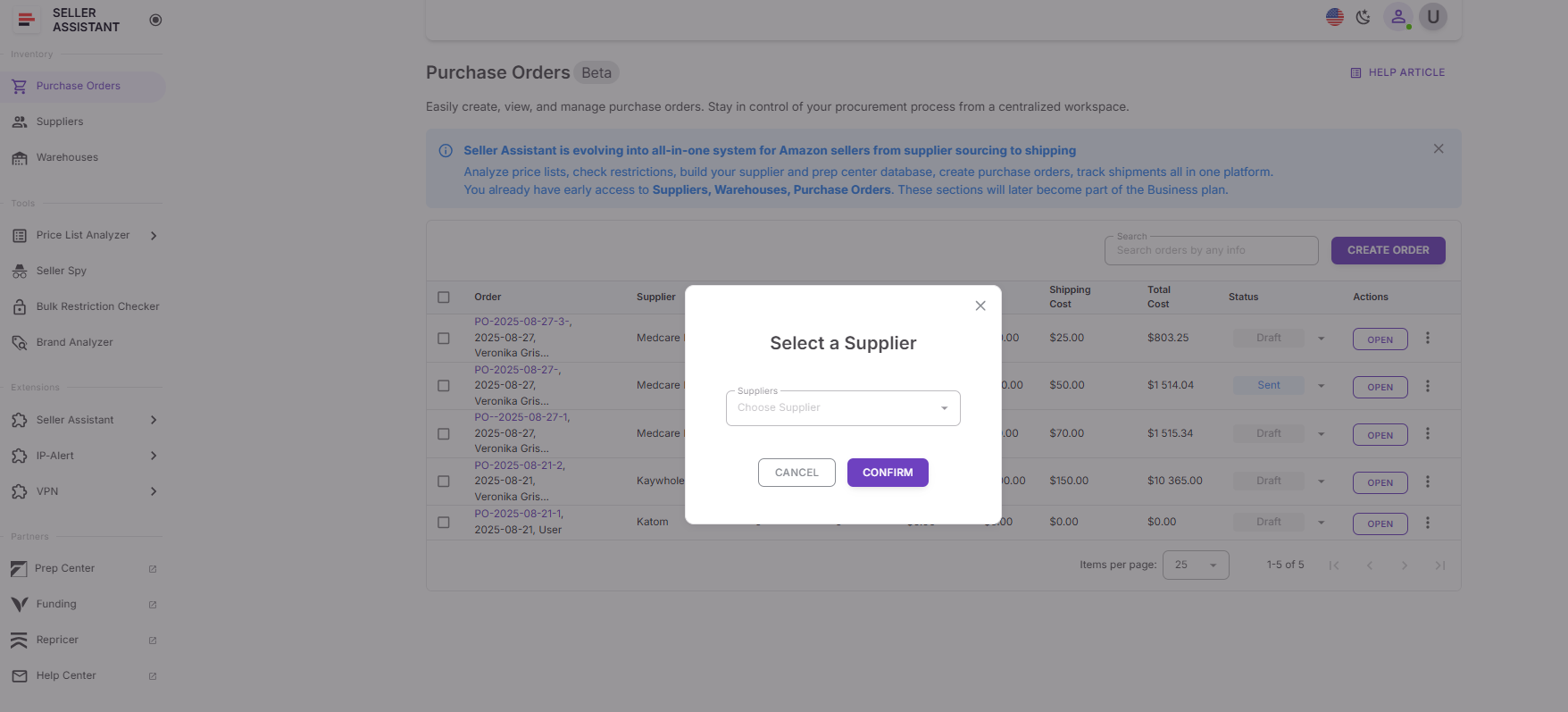
Step 6. Keep supplier data updated
Update statuses, notes, lead times, and order terms as communication progresses. Accurate supplier records support smoother sourcing and more reliable purchasing.
Warehouses Database: Route Inventory Without Errors
Warehouses Database is a centralized system for managing prep centers and warehouses used across Amazon wholesale, online arbitrage, and dropshipping operations. When multiple suppliers and ship-to locations are involved, tracking addresses and routing rules in spreadsheets quickly becomes risky. A single incorrect detail can delay fulfillment or skew profit calculations.
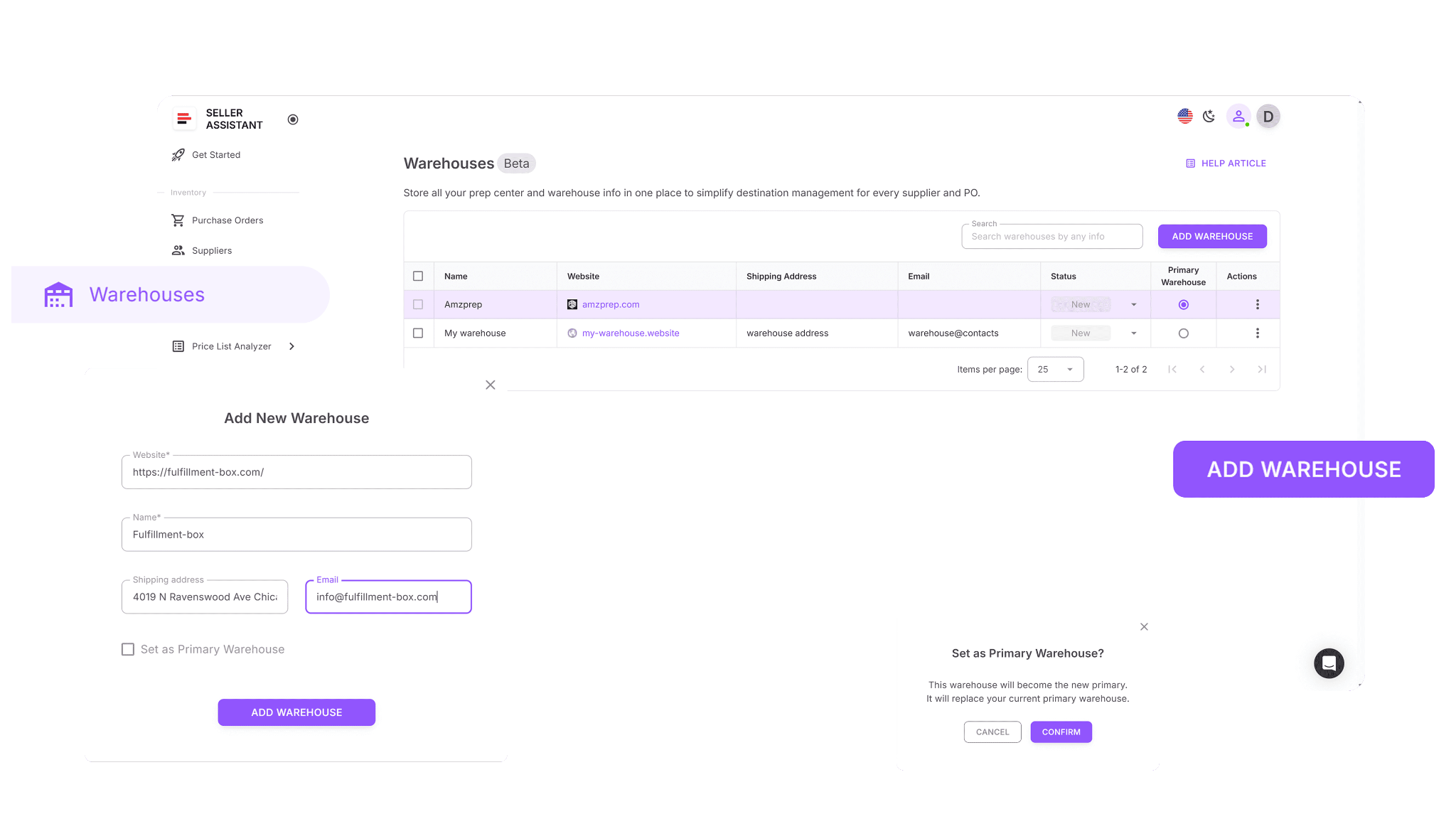
Warehouses Database stores all warehouse data in one place and links it directly to suppliers and purchase workflows. Each location’s address, contact details, and operational status are saved once and reused everywhere they are needed.
What Warehouses Database does
Warehouses Database keeps fulfillment data clean and reusable. It allows sellers to:
- Maintain complete prep center and warehouse profiles within a single unified system
- Store warehouse names, websites, shipping addresses, contact information, and operational status
- Assign warehouse statuses such as New, Active, or Inactive
- Link suppliers to default warehouses for automatic order routing
- Auto-populate ship-to addresses during purchase order creation
- Reuse warehouse data across Suppliers and Purchase Orders Modules
- Set one primary warehouse as the default ship-to location
- Search warehouses by name, website, address, or contact details
- Sort warehouses by any column to navigate faster
- Update warehouse information without breaking links to suppliers or purchase orders
How Warehouses Database helps you grow
As order volume and supplier count increase, routing errors become expensive. Warehouses Database keeps fulfillment consistent by applying correct ship-to details automatically. Sellers reduce delays, prevent misrouted inventory, and maintain accurate landed cost calculations. Growth stays controlled because logistics data scales cleanly instead of becoming a hidden source of errors.
How to use Warehouses Database
Step 1. Access Warehouses Database
Log in to your Seller Assistant account and go to Inventory → Warehouses. This is your central point for managing prep centers and warehouses.
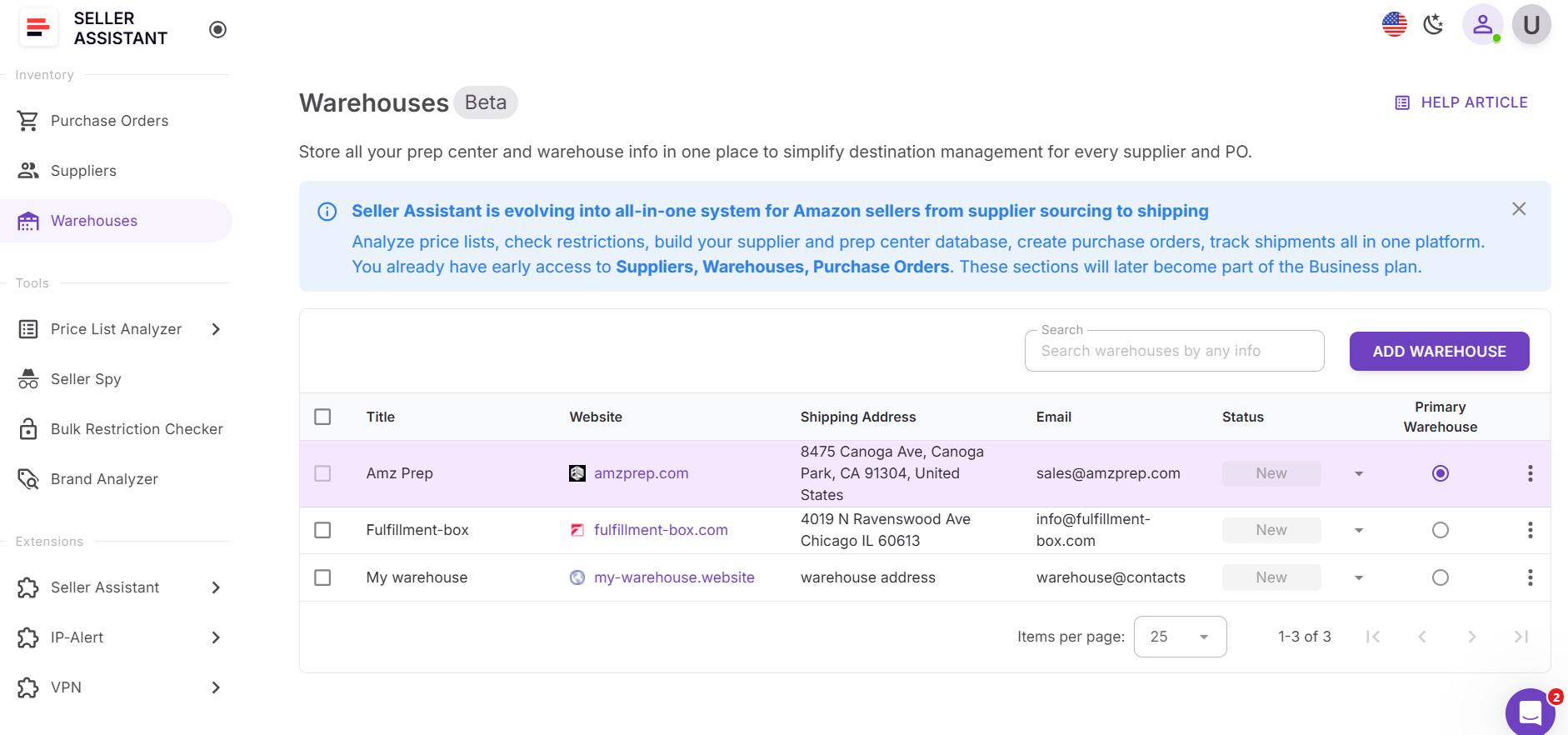
Step 2. Add a warehouse or prep center
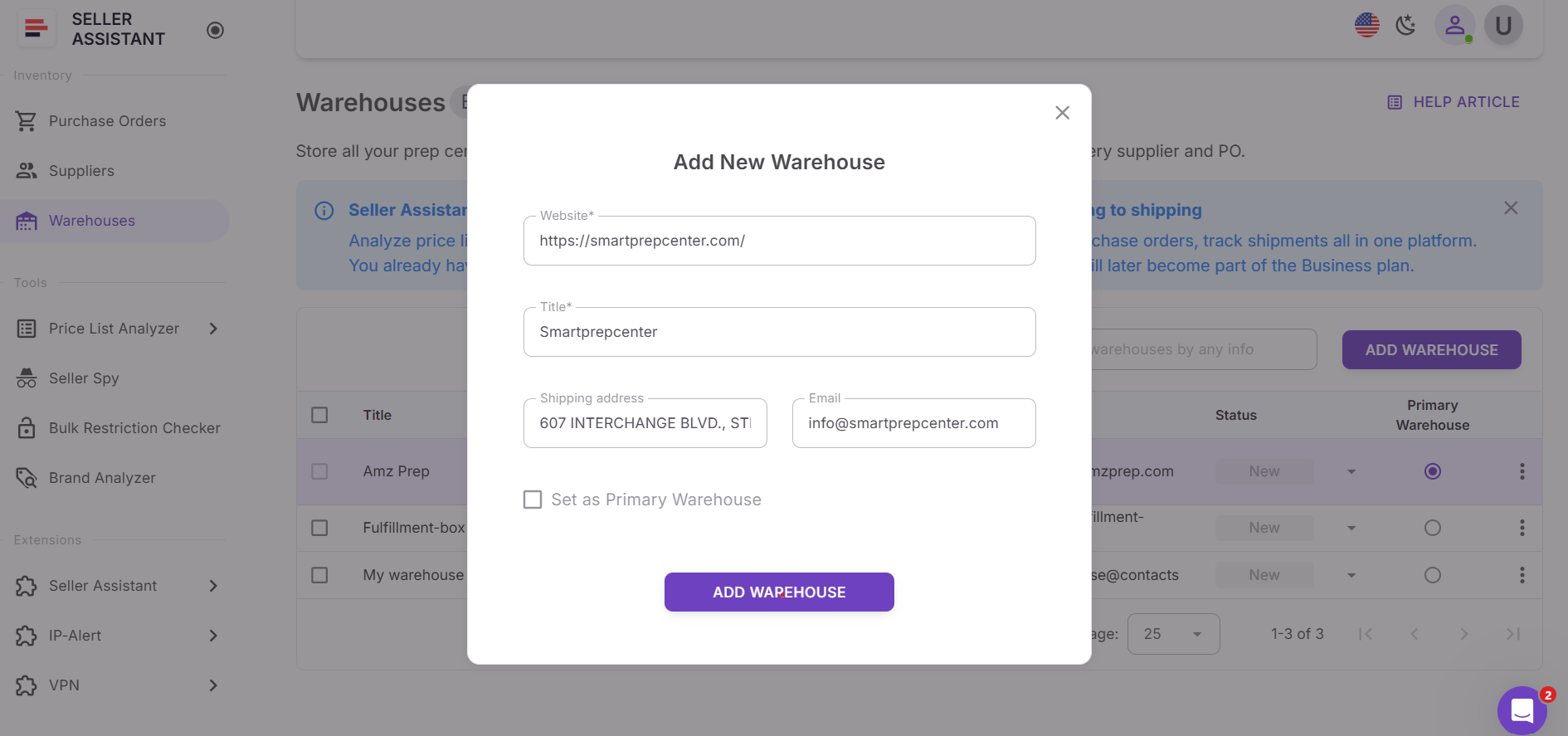
Click Add warehouse and enter the required fields: website and name. The name is auto-filled from the website and can be edited. Add optional details such as full shipping address, email, phone number, and notes.
Step 3. Set warehouse status
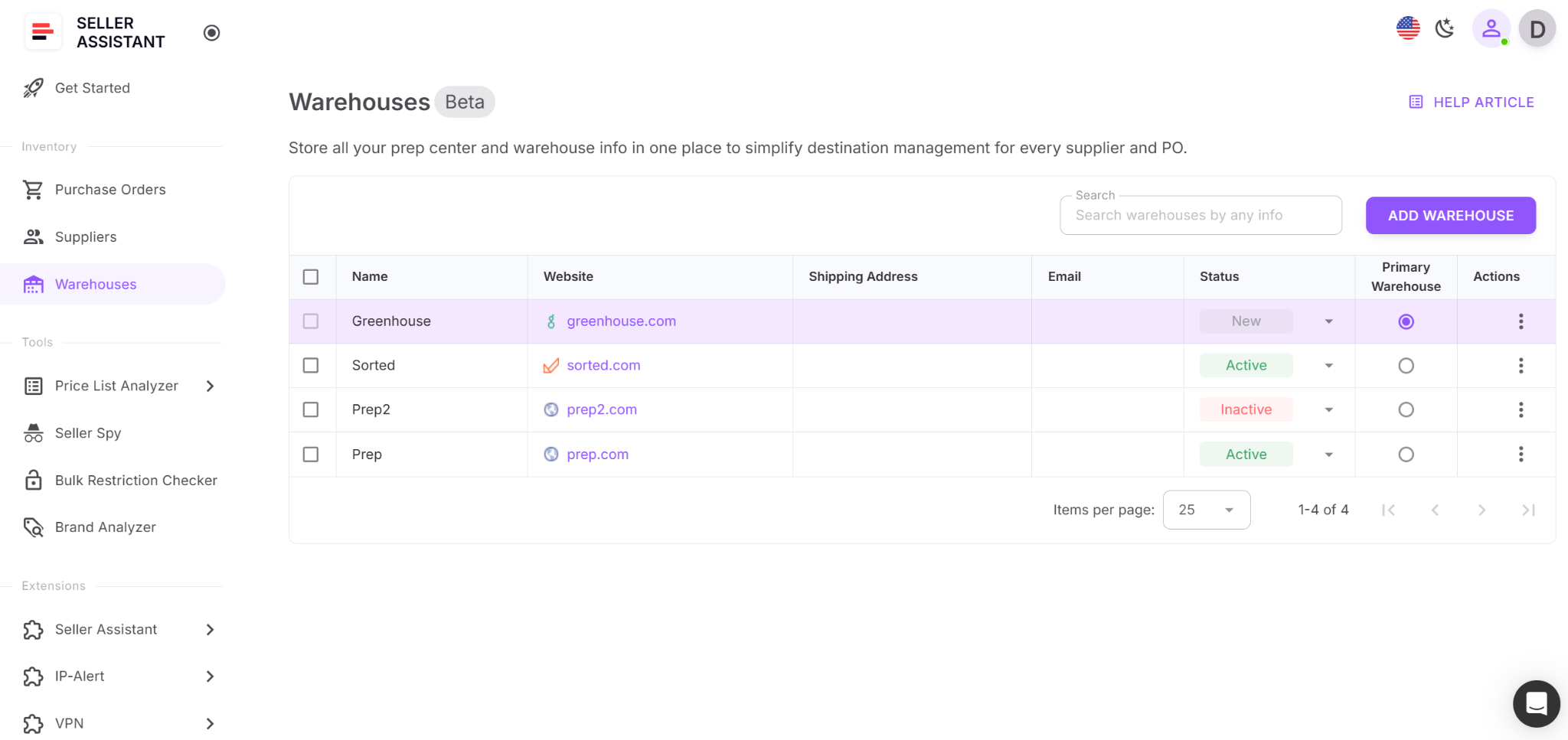
Assign a status such as New, Active, or Inactive to track which locations are currently used for fulfillment.
Step 4. Assign a primary warehouse
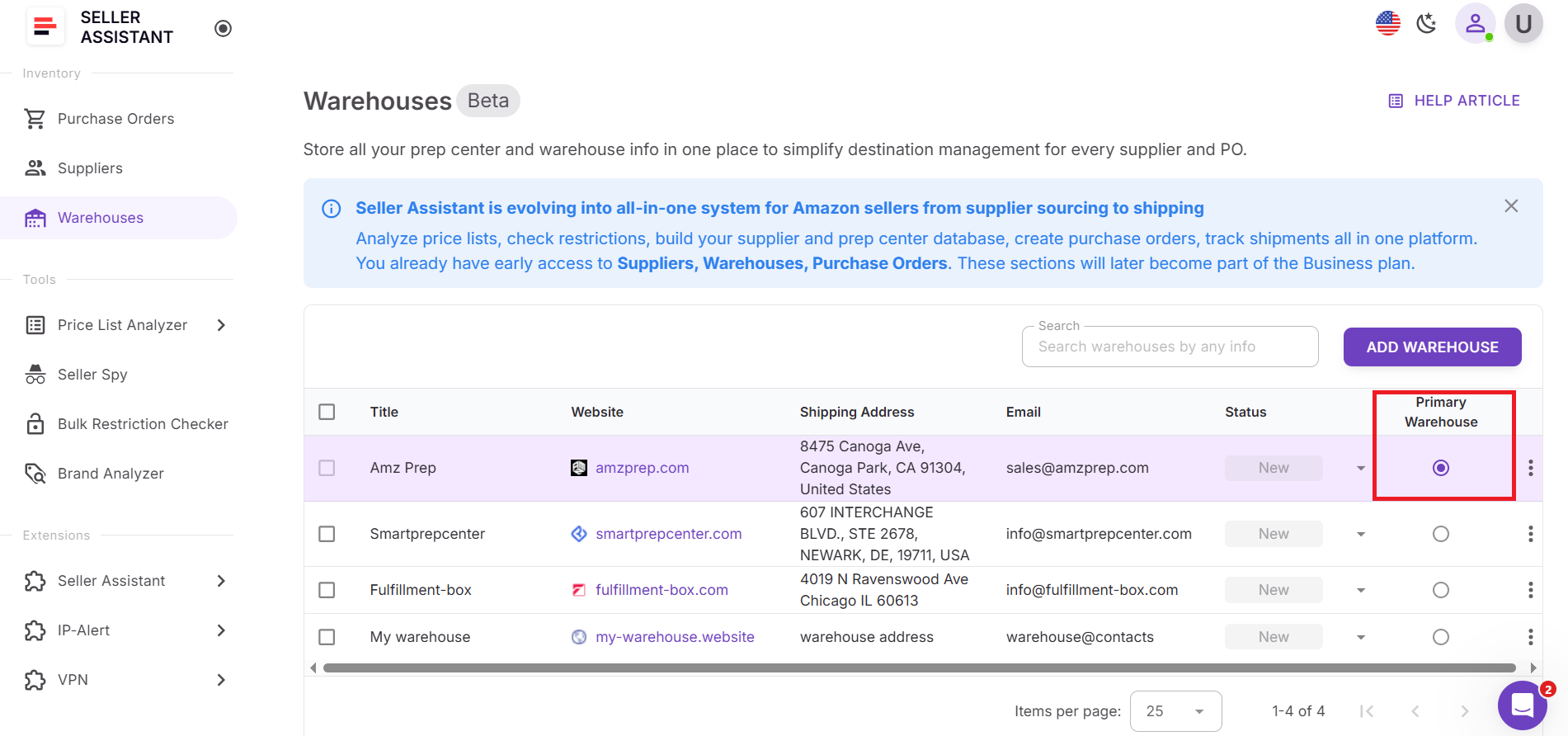
Choose one warehouse as your primary ship-to location. Each account has one primary warehouse at a time, and it must be reassigned before deletion.
Step 5. Maintain and update warehouse data
Edit addresses, contacts, or statuses as operations change. Up-to-date warehouse records keep routing accurate, purchase orders clean, and fulfillment error-free.
Purchase Orders Module: Turn Sourcing into Clean Orders
Purchase Orders Module is a centralized workspace for creating, managing, and tracking Amazon wholesale purchase orders in one place. Instead of building POs manually in spreadsheets or documents, sellers generate structured purchase orders directly from verified product data. The module brings supplier, warehouse, and product information into a single workflow, reducing repetitive entry, preventing costly mistakes, and keeping procurement organized as order volume increases.
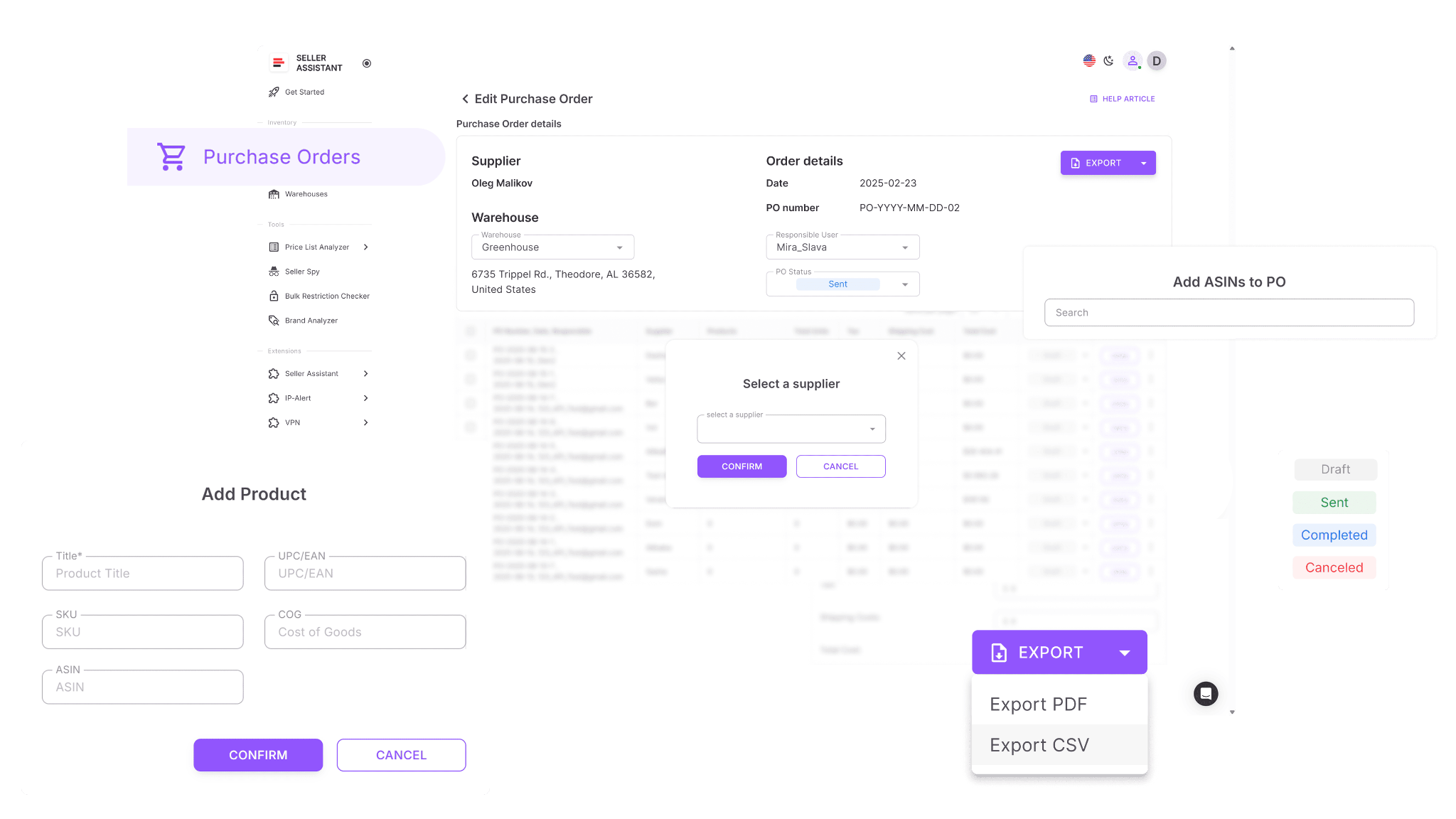
It turns sourcing decisions into clean, ready-to-send orders by pulling connected data automatically and tracking each PO from draft to completion.
What Purchase Orders Module does
Purchase Orders Module streamlines purchasing and keeps orders consistent. It allows sellers to:
- Build purchase orders from Price List Analyzer shortlists, supplier price lists, Keepa data, or manual input
- Automatically populate supplier and warehouse details from Suppliers Database and Warehouses Database
- Create and edit PO numbers, order dates, and assigned team members
- Add products using ASIN, UPC, EAN, product titles, or brand search
- Avoid duplicate line items by updating existing products instead of adding them again
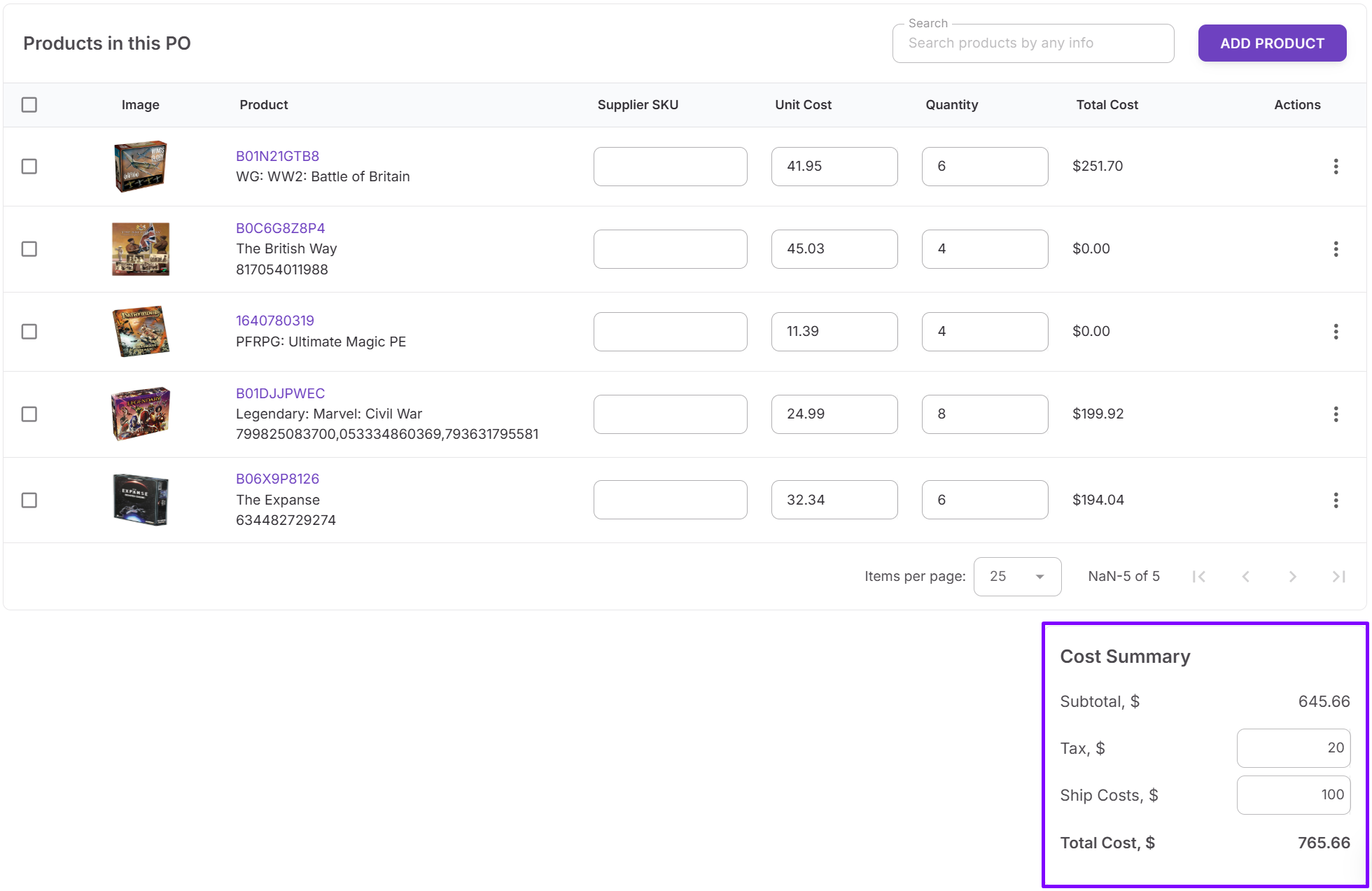
- Control quantities, unit costs, shipping, and tax with totals recalculated in real time
- View a full cost breakdown including subtotal, shipping, tax, and total order value
- Monitor PO status as Draft, Sent, Completed, or Canceled
- Lock completed or canceled purchase orders to prevent unintended changes
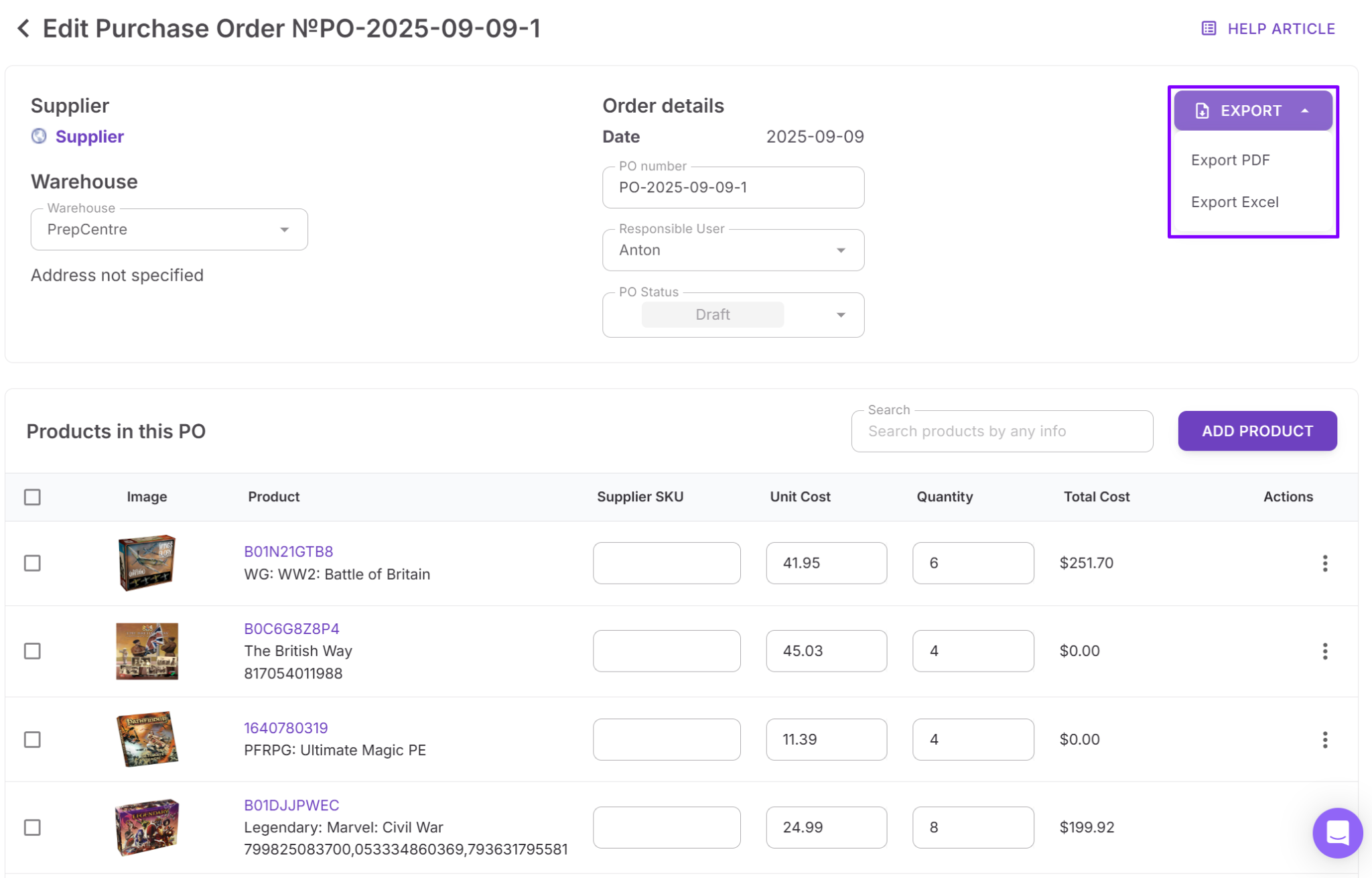
- Export finalized purchase orders in PDF or XLSX formats
- Collaborate with team members and assign responsibility for each purchase order
- Automatically validate orders by flagging missing information, invalid warehouses, or incomplete items
- Access a searchable order history for audits, reorders, and forecasting
How Purchase Orders Module helps you grow
As order volume increases, manual purchasing breaks down. Purchase Orders Module keeps buying structured and auditable by standardizing how orders are created and tracked. Sellers reduce ordering errors, speed up reorders, and maintain clear cost visibility. With every PO tied to verified data, growth becomes repeatable instead of risky.
How to use Purchase Orders Module
Step 1. Open Purchase Orders Module
Log in to your Seller Assistant account and open Purchase Orders from the Inventory section in the sidebar.
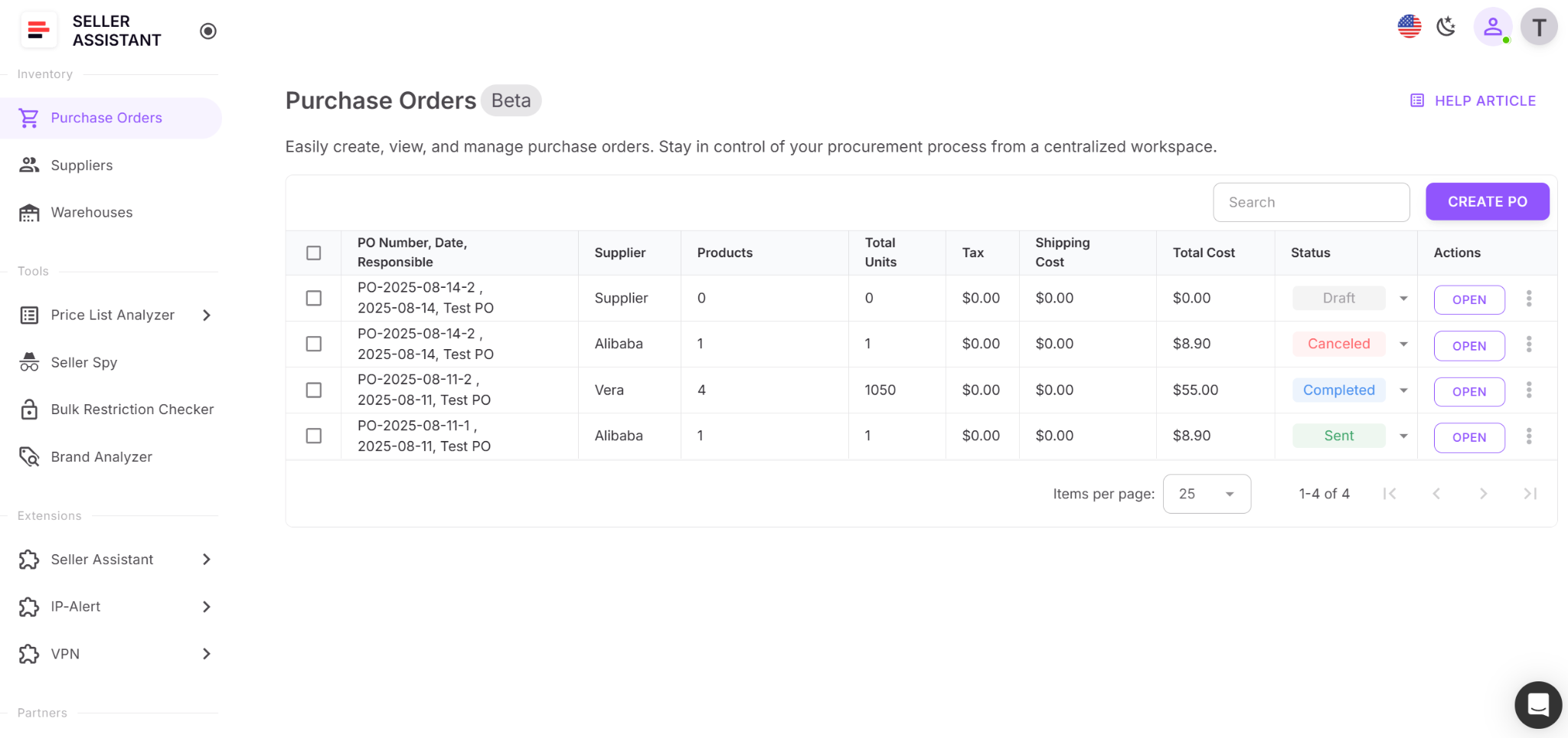
Step 2. Create a new purchase order
Click Create PO, select an existing supplier or create a new one, and confirm. A draft PO opens with a unique number and pre-filled supplier details.
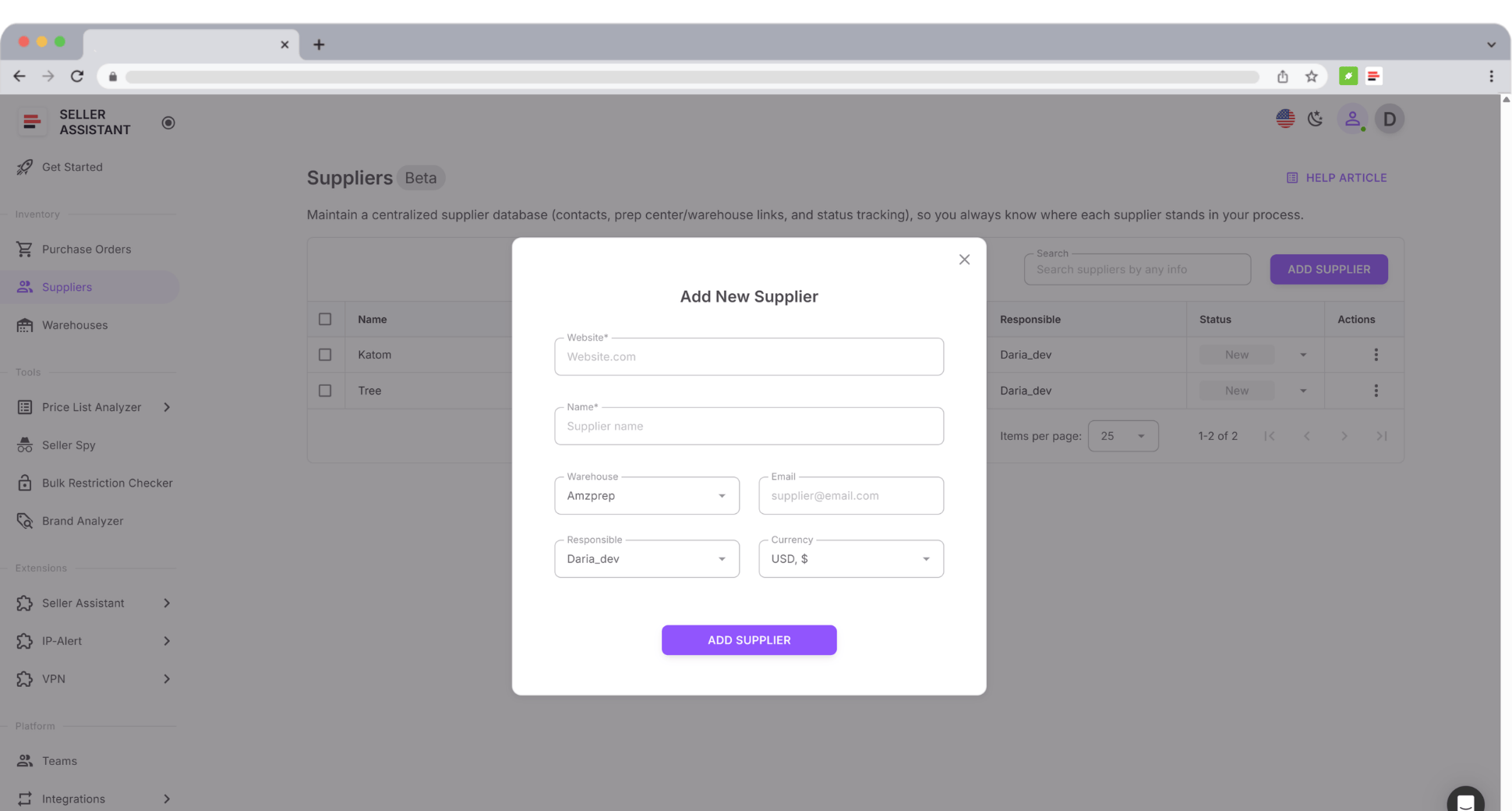
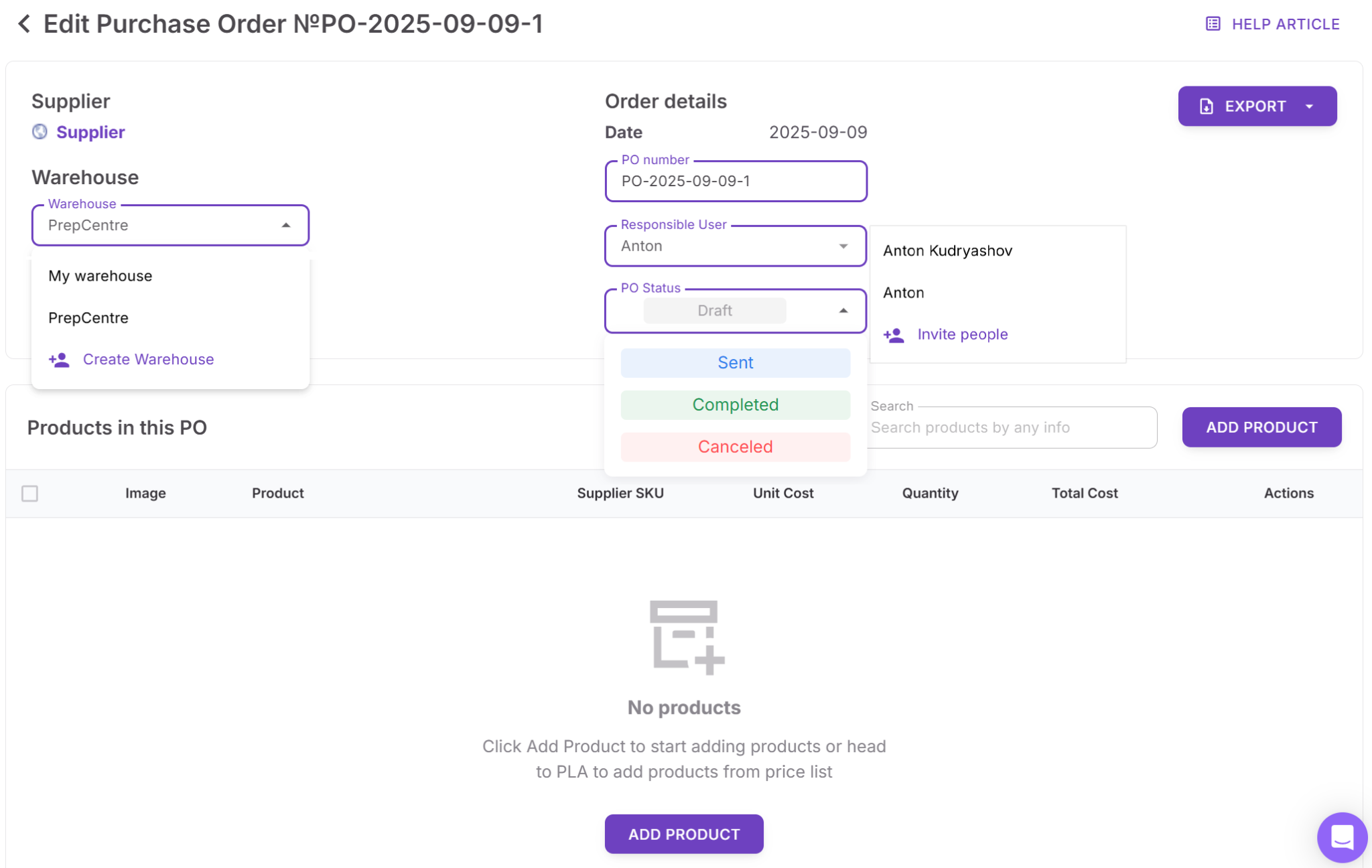
Step 3. Review and customize the draft
Assign a responsible team member, select the correct warehouse or prep center, and adjust the PO number or order date if needed.
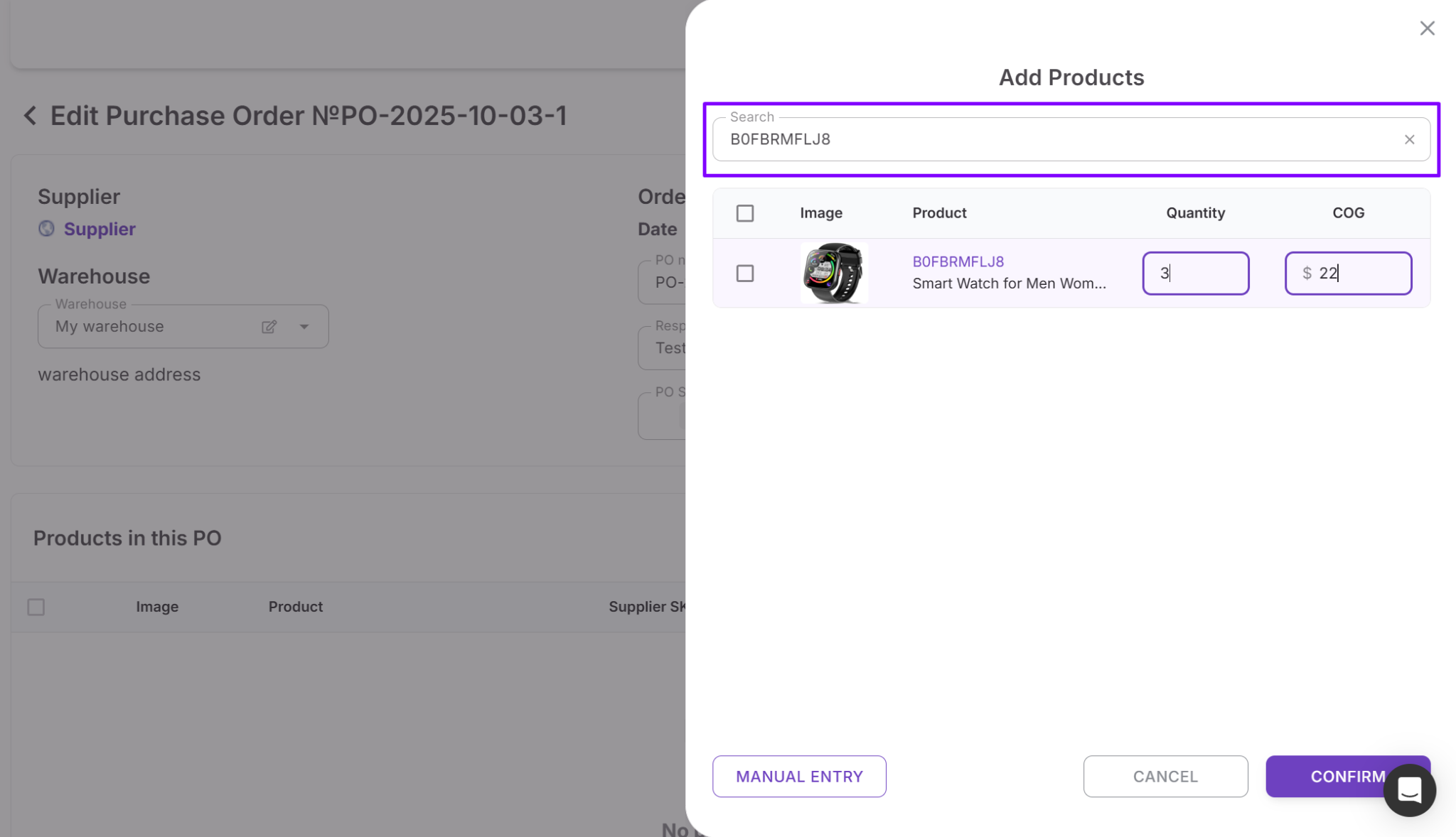
Step 4. Add products to the PO
Add items from Price List Analyzer, supplier price lists, internal product data, Keepa search, or manual entry. Edit quantities and unit costs as required.
Step 5. Set costs and totals
Enter shipping and tax values. The module calculates subtotal, total cost, and landed cost instantly.
Step 6. Export and send the PO
Finalize the order, export it as PDF or XLSX, and send it to your supplier.
Step 7. Track and manage PO status
Update the PO as it moves from Draft to Sent, then Completed or Canceled. Status tracking keeps teams aligned and prevents duplicate or forgotten orders.
FAQ
When should an Amazon seller move from online arbitrage to wholesale?
When sourcing becomes time-consuming, deals are inconsistent, and growth feels unpredictable, arbitrage workflows are usually maxed out. Wholesale makes sense once you need repeatable suppliers, bulk buying, and structured purchasing.
Do Seller Assistant tools only work for wholesale sellers?
No, the tools support wholesale, online arbitrage, and dropshipping workflows. The same bulk analysis, restriction checks, and purchasing systems apply across all three models.
How do these tools reduce costly sourcing mistakes?
They automate ASIN matching, eligibility checks, cost calculations, and routing using consistent data. This prevents buying restricted products, miscalculating margins, or sending inventory to the wrong location.
Can Seller Assistant be used with a team or virtual assistants?
Yes, the platform is built for delegation with shared data, structured workflows, and controlled access. Team members can source, analyze, and prepare orders without touching Seller Central.
Do I need Seller Assistant if I’m still a smaller seller?
Yes, using structured tools early helps avoid bad buying decisions and builds scalable habits. It’s easier to grow into clean workflows than to fix chaos later.
Final Thoughts
Growing on Amazon isn’t about sourcing more products – it’s about building systems that can handle volume without breaking. As sellers move from online arbitrage into wholesale and larger-scale operations, manual workflows, spreadsheets, and one-off decisions stop working. That’s where structured tools become essential.
Seller Assistant workflow tools turn sourcing, eligibility checks, supplier management, logistics, and purchasing into one connected process. Each tool solves a specific problem, but together they create a repeatable, scalable workflow that reduces risk and saves time.
Seller Assistant automates and connects every stage of your Amazon wholesale and arbitrage workflow. It brings together in one platform: workflow management tools – Purchase Orders Module, Supplier Database, Warehouse Database, bulk research & sourcing tools – Price List Analyzer, Bulk Restriction Checker, Sourcing AI, Brand Analyzer, Seller Spy, Chrome extensions – Seller Assistant Browser Extension, IP-Alert Extension, and built-in VPN by Seller Assistant, and integrations & team access features – seamless API connectivity, integrations with Zapier, Airtable, and Make, and Virtual Assistant Accounts.